Connections link your organization to another so you can share work — job networking, paperwork submission, store purchasing and, where granted, class creation. A connection can be started by either side, and there are three different ways to make one.
Before You Begin
- Connections is in the left navigation, under Configure. Four tabs sit in the top right: My Connections, Requests, Find & Invite and Connection Settings.
- If you want other organizations to find you, opt into the public directory first — see Connection Settings and Default Permissions.
- Decide whether you are connecting one partner or onboarding many. That decides which of the three routes to use.
Step 1: Choose How to Connect
Open Find & Invite. It has three sub-tabs:
| Route | Use it when |
|---|---|
| Directory | You want to browse organizations that opted into the public directory. |
| Invite by Email | You know exactly who you want to connect with. |
| Invite Code | You are onboarding many instructors or organizations at once — this is the fastest route for bulk. |
Step 2: Connect via the Directory
Each card shows the organization name, city and state, badges such as Training Center and Open to jobs, and an About Us snippet, with View Profile and Request To Connect buttons.
The banner explains the scope: only organizations that opted into the public directory and have an active account appear here, and contact details stay private until you are connected.
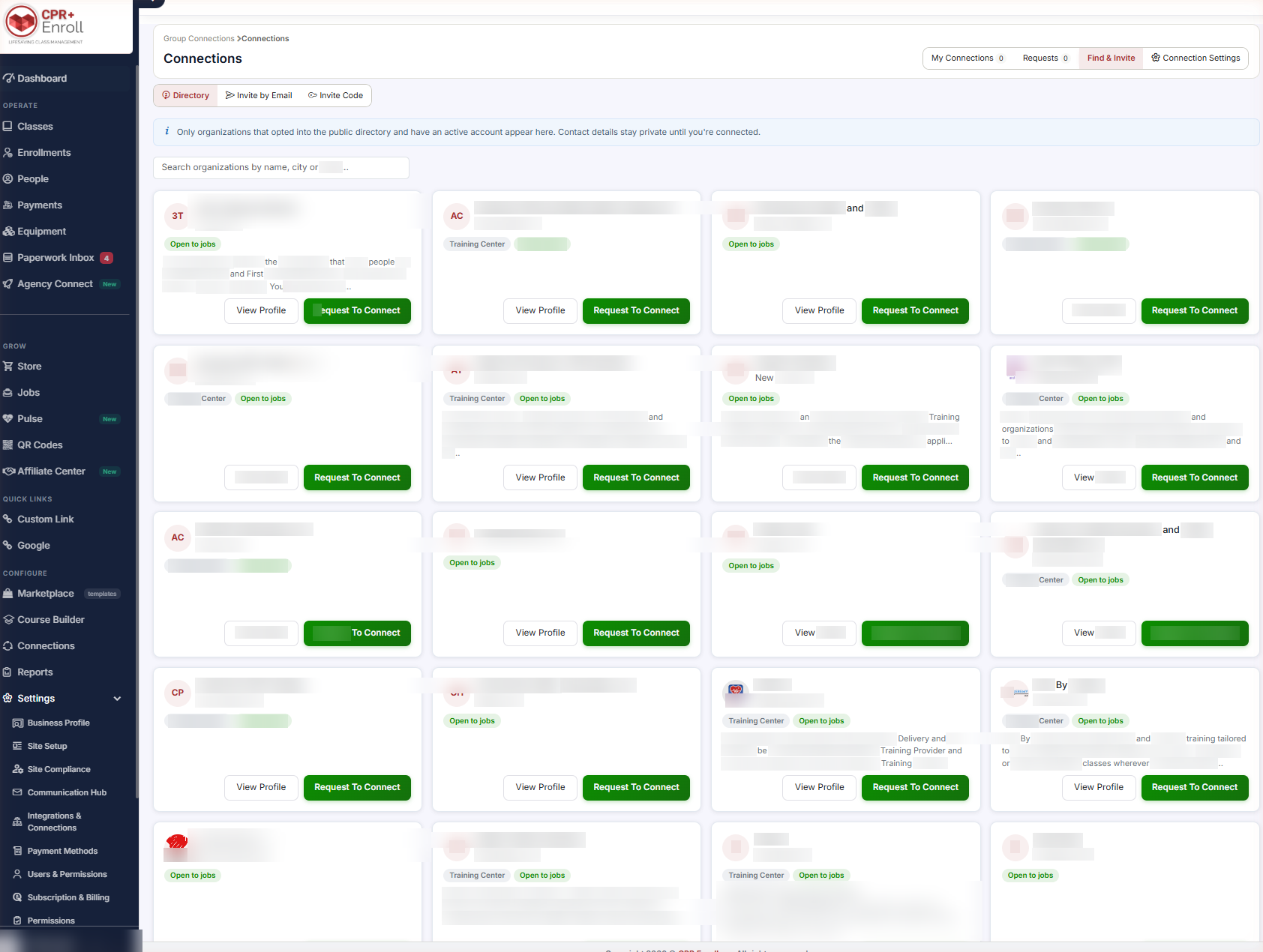
✔ Contact details stay private until you connect. The directory shows enough to decide, not enough to cold-call.
Step 3: Connect via Email or Invite Code
- Invite by Email — send a direct invitation.
- Invite Code — generate a shareable code, then hand it out once instead of sending fifty invitations.
Step 4: Redeem a Code You Were Given
- Go to the My Connections tab.
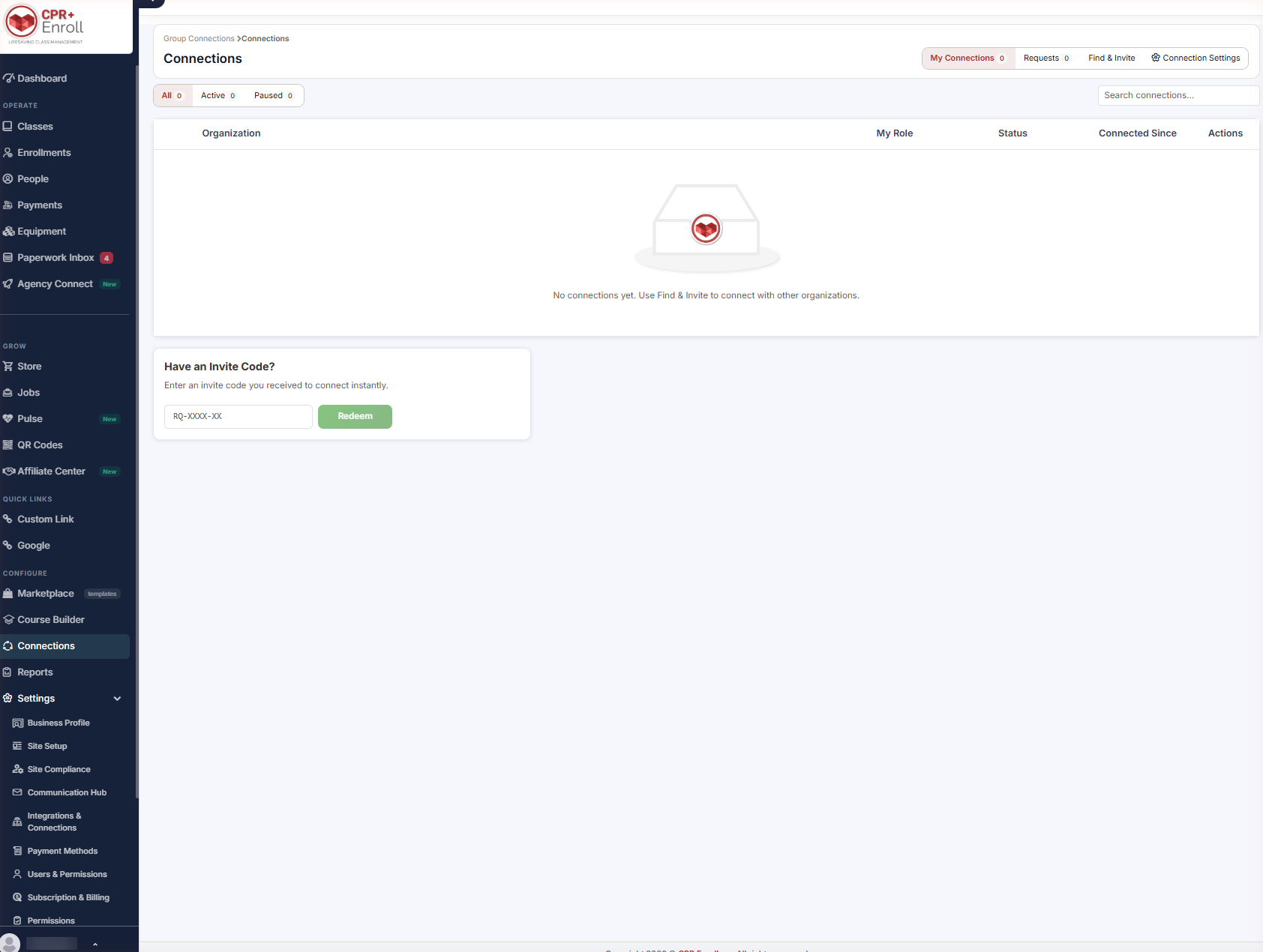
- Find the Have an Invite Code? panel.
- Enter the code — the format is RQ-XXXX-XX.
- Click Redeem. You are connected instantly.
Step 5: Handle Incoming Requests
A connection can be initiated by either organization. Incoming requests land on the Requests tab.
Step 6: Manage Existing Connections
The My Connections grid lists Organization, My Role, Status, Connected Since and Actions, with All / Active / Paused filters and a search box.
Permissions are set per connection — see Connection Settings and Default Permissions.
✔ Reading the grid once you have connections. Each row shows the Organization, My Role (whether you are the primary or the member in that relationship), Status (Active or Paused), Connected Since, and an Actions menu. Until your first connection exists the grid shows an empty state pointing you to Find & Invite.
Step 7: Disconnect
The disconnect flow shows exactly what access will be removed before you confirm — read it rather than clicking through, particularly on a connection where you are the primary.
✔ Directory housekeeping. Inactive organizations are hidden from the directory, but existing connections are preserved during a grace period.
Best Practices
- Use an Invite Code for onboarding waves and Invite by Email for individual partners. Mixing the two creates confusion about which invite is which.
- Fill in your About Us before opting into the directory — an empty card reads as an inactive organization.
- Review the My Connections grid quarterly and pause rather than disconnect relationships that are dormant but not over.
- Check My Role on each connection. Primary and member have very different permission consequences.
- Read the disconnect summary. It is the only place that lists exactly what access disappears.
Frequently Asked Questions
| Question | Answer |
|---|---|
| Where is Connections? | In the left navigation, under Configure. |
| Who can start a connection? | Either organization. Incoming requests land on the Requests tab. |
| What is the fastest way to connect many organizations? | Invite Code — generate one shareable code. |
| What does an invite code look like? | RQ-XXXX-XX. Enter it in the Have an Invite Code? panel and click Redeem. |
| Can I see a directory organization’s contact details? | Not until you are connected. Contact details stay private beforehand. |
| Why has an organization disappeared from the directory? | Inactive organizations are hidden, though existing connections are preserved during a grace period. |
| Where do I change what a connection can do? | Per connection on My Connections. Defaults are set under Connection Settings. |
✔ You’re all set. Next, read Connection Settings and Default Permissions to control what each connection can actually do.
Was this article helpful?
That’s Great!
Thank you for your feedback
Sorry! We couldn't be helpful
Thank you for your feedback
Feedback sent
We appreciate your effort and will try to fix the article