 CPR Enroll+ handles both consumer (individual student) and B2B (business-to-business) training engagements. When you work with corporate clients — hospitals, schools, fire departments, or businesses — you need to keep their training organized separately from your general public classes. This guide covers the tools in CPR Enroll+ that make B2B management efficient.
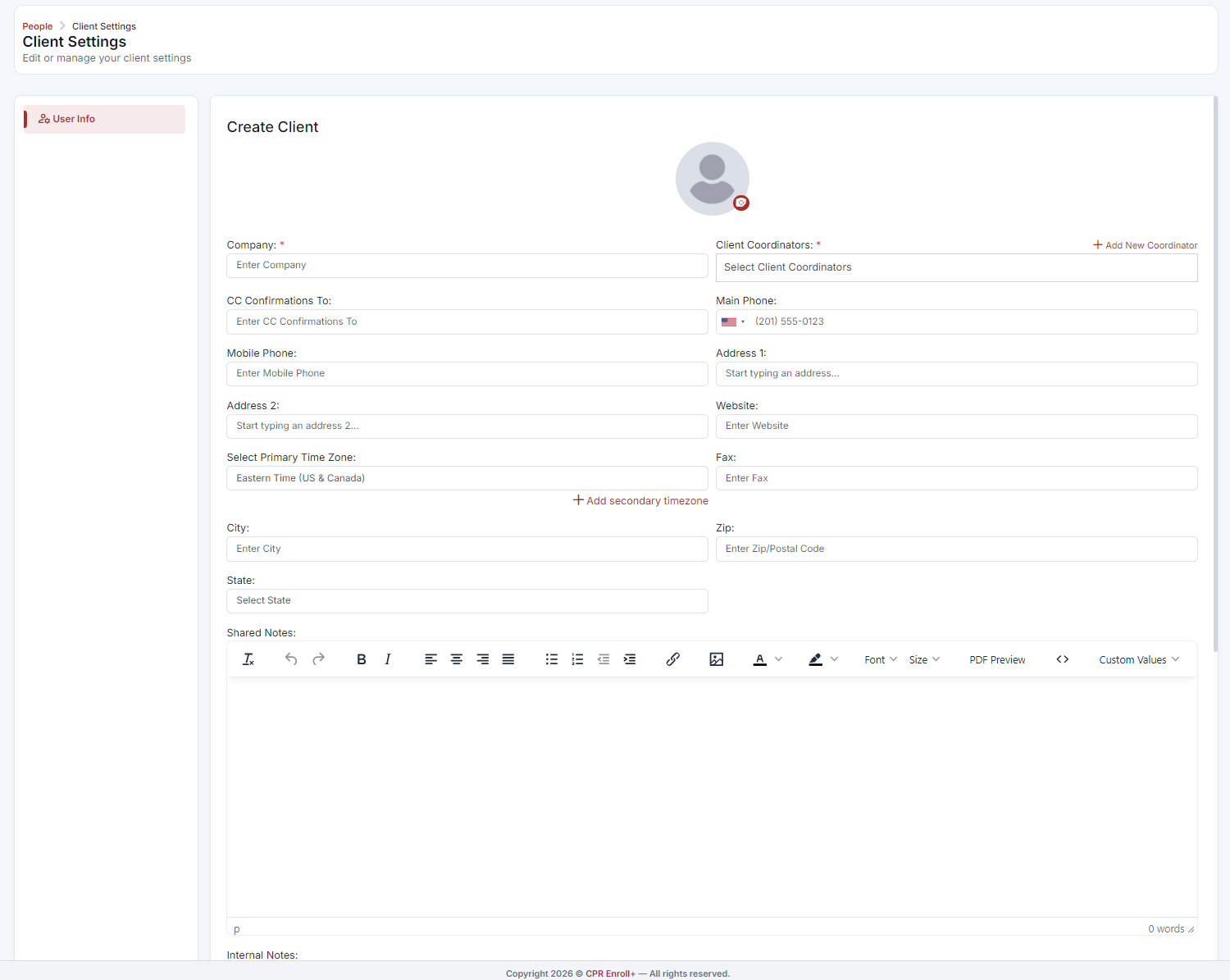
Setting Up a Corporate Client
- Create a Client record: when creating or editing a class or enrollment, go to People at the left Menu. Click the Clients tab and click + Add New to create a new corporate account. Enter the company name, contact person (Client Coordinator), phone, and email.
- This client record is now available to tag on classes, enrollments, and invoices.
Creating a Private Class for a Corporate Client
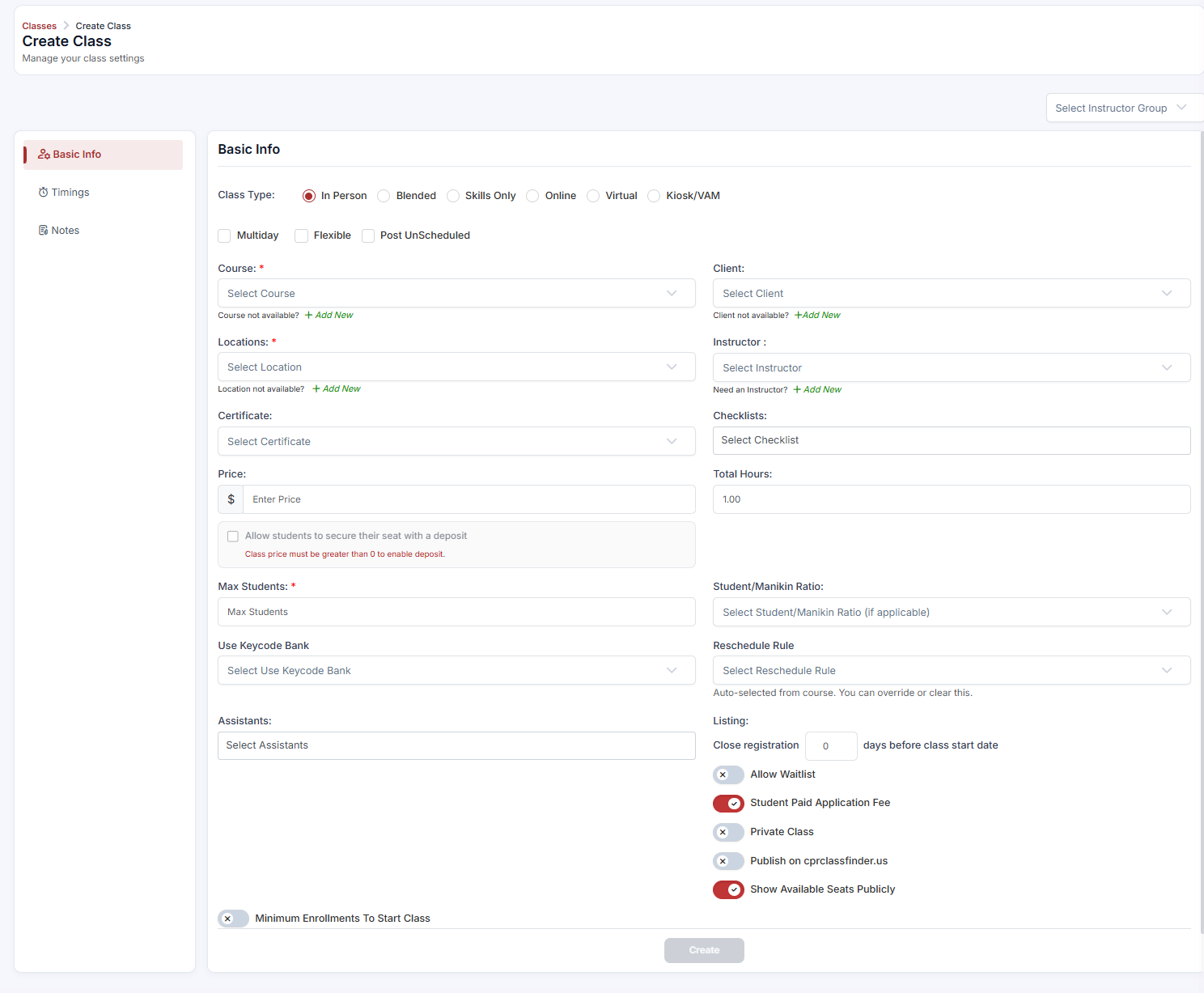
- Go to Classes > + to create a new class.
- Fill in all class details (course, location, instructor, date/time, max students).
- Assign the Client from the Client dropdown field. (Note: all classes with a client selected will default to a Private Class)
- Click Save.
- Get the private class link via Classes > ⋮ > Share Registration and send it to the HR coordinator or corporate contact to distribute to employees.
Tracking Corporate Enrollments
- Go to Enrollments > List view.
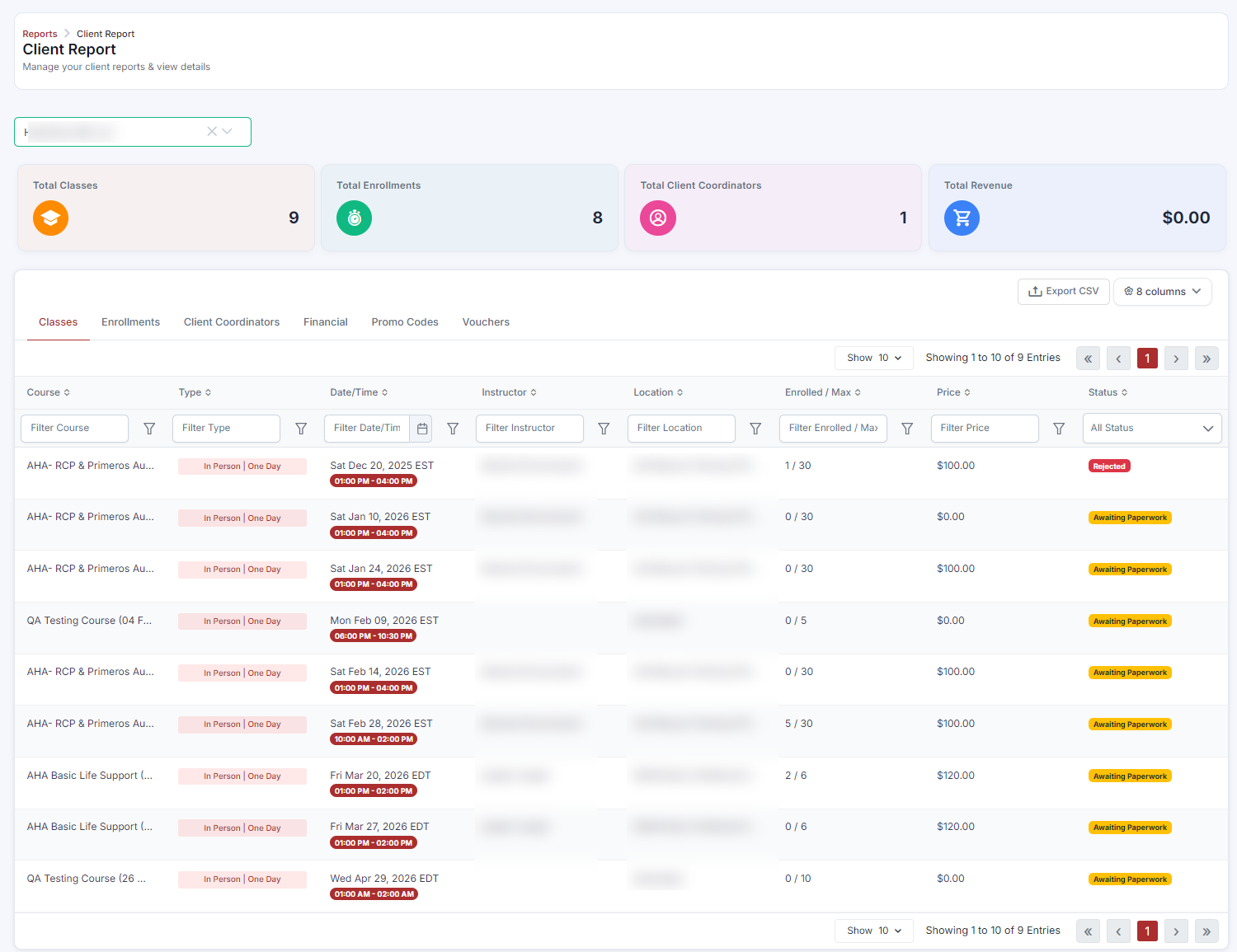
- Filter by Client to see all enrollments associated with that company across all classes and dates.
- Track payment status for each employee.
- Use Bulk Actions > Mark as Paid after receiving the corporate payment to update all records simultaneously.
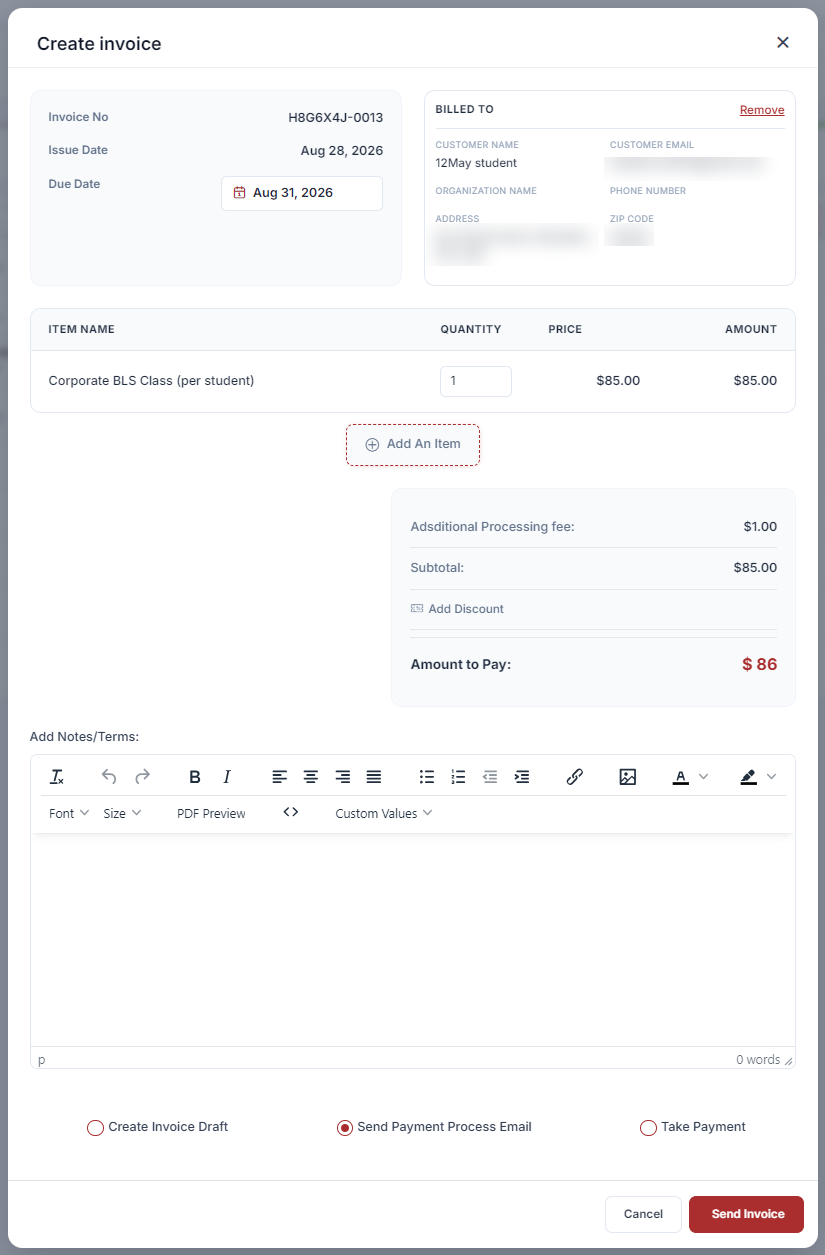
Invoicing Corporate Clients
- Go to Payments > Invoices > + Create.
- Set Billed To to the corporate client.
- Add line items for training sessions: course name, number of seats, and per-seat price.
- Add Terms (Net 30, Net 60, etc.) and any applicable taxes.
- Save and send the invoice to the client's billing contact.
Repeat Client Management
- Create a recurring class schedule for clients with quarterly or annual renewal needs (see Managing Recurring Schedules).
- Import updated employee rosters each period as staff changes.
- Create a coupon specifically for this client's employees with a negotiated price — set it to apply to specific courses only.
Was this article helpful?
That’s Great!
Thank you for your feedback
Sorry! We couldn't be helpful
Thank you for your feedback
Feedback sent
We appreciate your effort and will try to fix the article