 A private group class is a dedicated training session for a company, organization, or group — scheduled at their preferred date and location, rather than one of your regular public sessions. This guide explains how training organizations can set up a workflow for receiving and fulfilling private group training requests using CPR Enroll+.
ℹ For training organizations This article is for instructors and admins who manage private corporate training requests. If you are a corporate contact looking to request training, reach out to the training organization directly using the contact information on their registration page. |
The Private Group Request Workflow
Step | Action | Tool |
1 | Client inquires about group training | External — email, phone, website form |
2 | Confirm date, location, headcount, course | External communication |
3 | Create the private class in CPR Enroll+ | Classes > + (Private toggle ON) |
4 | Enroll employees | Bulk Import or Share private class link |
5 | Invoice the company | Payments > Invoices |
6 | Class runs, attendance marked, certs issued | Reports > Student Attendance + Certificates |
Step 1 — Make It Easy for Clients to Find You
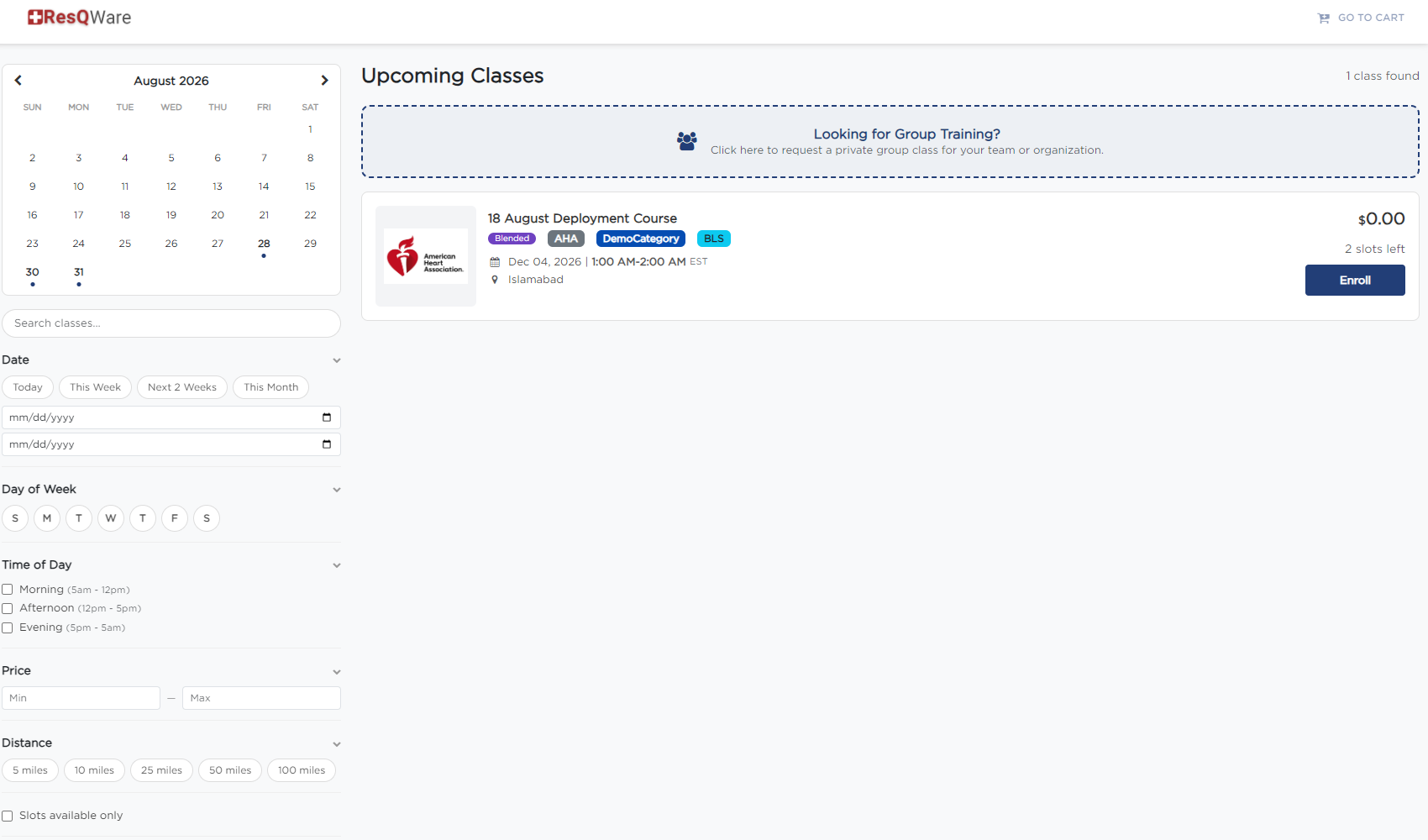
- Go to Settings > Branding > Site Branding.
- Add a contact email and phone number in the Contact Details section.
- In the Page Description (rich text), add a clear invitation for corporate groups: e.g., "Need group CPR training at your facility? Contact us for private group scheduling."
Step 2 — Create the Private Class
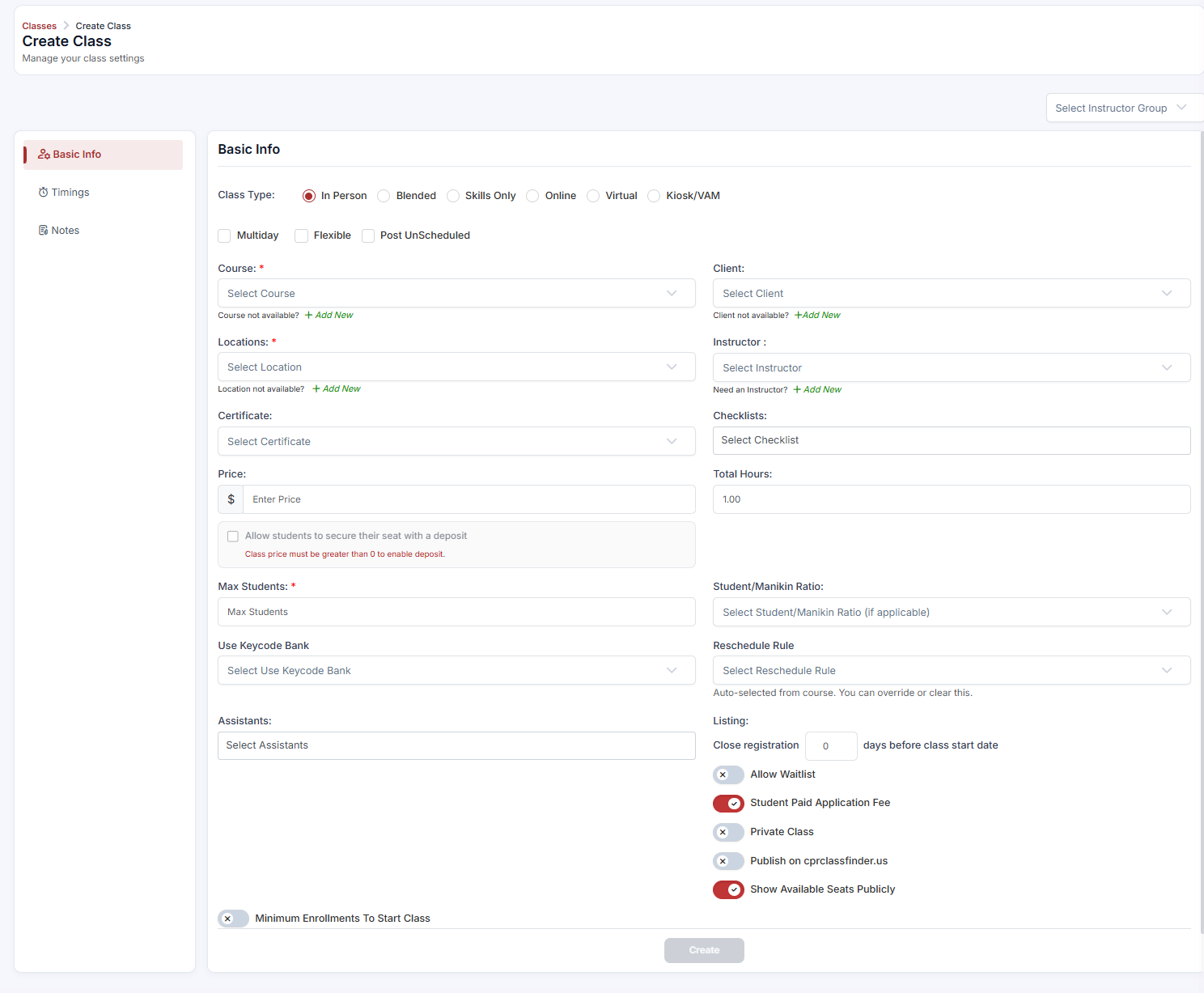
- Go to Classes > +.
- Select the appropriate course, location (their facility or yours), instructor, and set the date and time to match the client's request.
- Set Max Students to match the group size.
- In Listing Settings, toggle Private Class to ON.
- Assign the Client record.
- Click Save.
- Go to Classes > ⋮ > Share Registration to get the private class link. Send this to the corporate HR contact.
Step 3 — Enroll Participants
- Bulk Import — ask the client for a list of employee names and emails in Excel format. Import via Enrollments > + > Import Students.
- Self-registration via link — share the private class link with the HR contact to distribute. Employees self-register and pay (or set price to $0 if billing the company directly on an invoice).
Step 4 — Invoice the Company
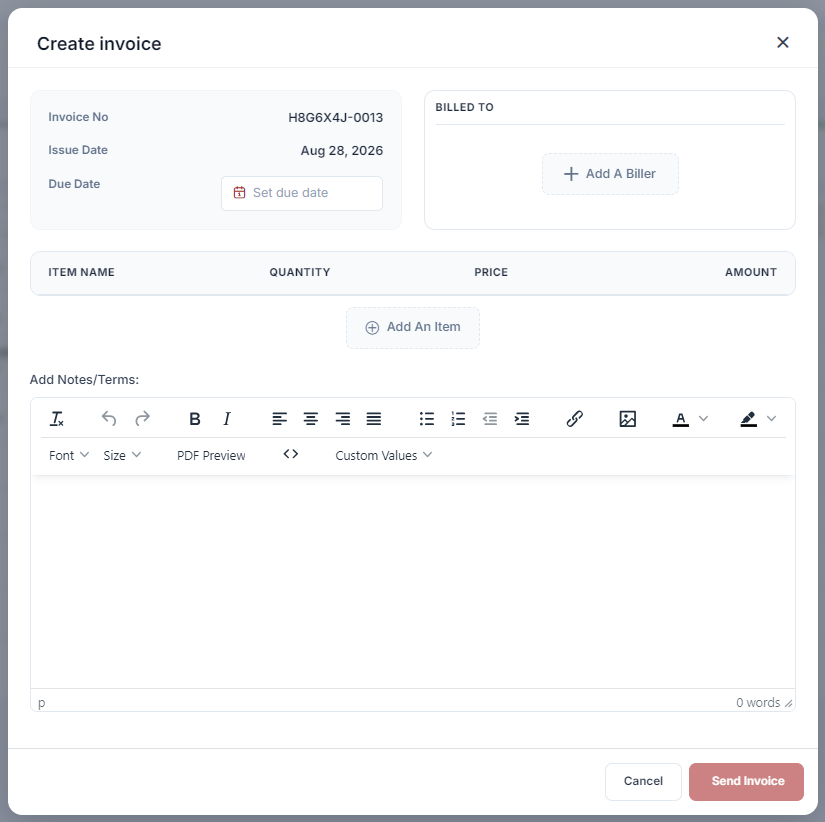
- Go to Payments > Invoices > + Create.
- Bill the corporate contact for the full group session.
- Include: course name, number of participants, date, instructor fee, and any equipment charges as separate line items.
- Set payment terms and click Save.
✔ Use the Jobs Board for staffing If you need to find an instructor for a private group class in a region where you do not have a regular instructor, post the opportunity on the Jobs Board. Go to Jobs > + New Job, select the class, and set Distribution to External to attract available certified instructors in that area. |
Was this article helpful?
That’s Great!
Thank you for your feedback
Sorry! We couldn't be helpful
Thank you for your feedback
Feedback sent
We appreciate your effort and will try to fix the article