Branding Your Custom Enrollment Page

The Site Branding settings let you customize how your public enrollment page looks to students — logos, brand color, page description, contact details, and social media links. Changes here appear on your classes.cprenroll.com registration page.
Opening Site Branding
From the Sidebar Menu go to Settings > Site Setup
The page has two tabs: Site Branding (where you could manage your landing page settings and branding) and Layout Style & Size (where you could choose how classes are displayed on your site). This article covers the Site Branding tab.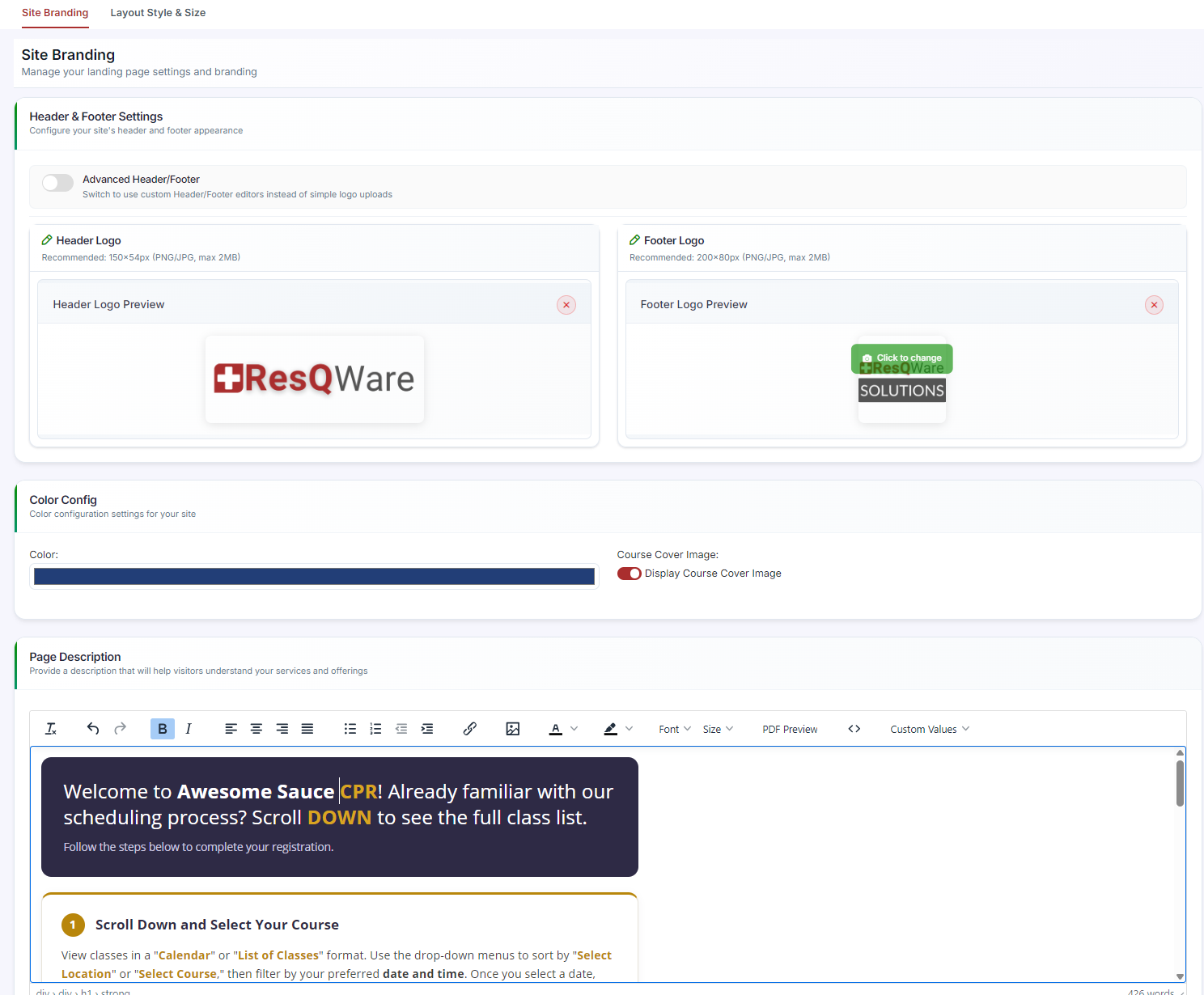
Header & Footer Settings
Upload images for your Header Logo and Footer Logo. Recommended sizes and file limits are shown next to each upload area (Header Logo: 150×54px, max 2MB; Footer Logo: 200×80px, max 2MB). Accepted formats are PNG and JPG.
Toggle Advanced Header/Footer if you want to use custom rich-text editors for your header and footer content instead of simple logo uploads.
Color Config
In the Color Config section, click the color swatch to choose your brand color. This color is applied to buttons and accents on your enrollment page. Toggle Display Course Cover Image to show or hide cover images on course listings.
Page Description
Use the Page Description rich text editor to write an introduction or welcome message for students visiting your enrollment page. Use the Font and Size controls in the toolbar to style your text.
Contact Detail
Use the Contact Detail rich text editor to add your business address, phone number, and email for students who need to reach you.
Social Media Links
Enter your profile links for each platform you use: Facebook, X, Instagram, Google Business Profile, LinkedIn, and YouTube. Add your Website Url here as well.
Classes Tab Name
The Classes Tab Name field controls the label of the main navigation tab on your enrollment page. Change it to match your own terminology — for example, “Our Classes” or “Schedule.”
Saving Your Changes
Scroll to the bottom of the page and click Save. Your changes appear on your public enrollment page immediately.
Was this article helpful?
Related articles
- Creating and Using Short LinksShort links in CPR Enroll+ are shortened URLs using the cprenroll.me domain that redirect to your full registration pages, class pages, or any other URL. They are automatically generated for key platform items and can also be created manually. Short links are ideal for sharing in text messages, sociGetting Started
- Understanding Share RegistrationThe Share Registration screen is where you'll find every link and embed code you need — your full class catalog, appointment booking, and group training — along with embeddable website widgets, all from one place. Before You Begin - Your classes are scheduled and visible on your calendar, since the Getting Started
- How to Find Important URLs for EnrollmentsCPR Enroll+ uses three domains that serve different purposes. Knowing which URL to use — and where to find it — ensures you share the right link with students and embed the right widget on your website. The Three CPR Enroll+ Domains Domain Purpose Who Uses It dashboard.cprenroll.com Admin dashboardGetting Started
- What Is an Enrollment URL?An Enrollment URL is the link you share with prospective students so they can browse your class schedule and register. It points to your student-facing registration page at classes.cprenroll.com — this is completely separate from your admin dashboard. Students who visit this link never see any adminGetting Started