How to embed CPR Enroll to your website

You can embed CPR Enroll+ registration directly into your website so students browse classes and sign up without ever leaving your site. You choose which registration page to embed, then choose how it loads.
Accessing the Embed Code
- Click your username at the bottom of the left sidebar.
- Select Share Registration.
- Under Registration page, choose the page you want to embed — all classes, all classes plus group training, a group training inquiry form, a kiosk page, a single class type, a single course, or a private client page.
- Click the Embed Code tab.
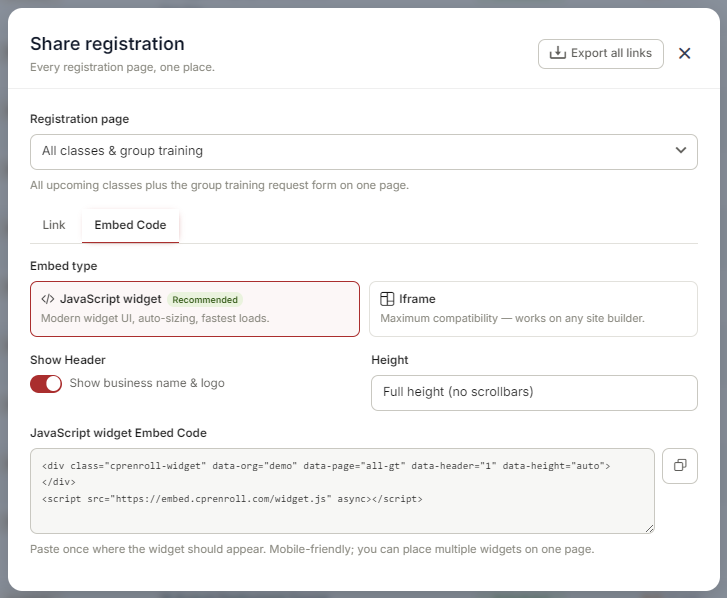
✔ Each registration page has its own embed code. If you change the Registration page selection, copy the code again — the previous code still points at the previous page.
Choosing an Embed Type
- JavaScript widget (recommended) — modern widget UI, auto-sizing, fastest loads. Use this unless your site builder strips script tags.
- Iframe — maximum compatibility; works on any site builder.
Two options apply to either type:
- Show Header — displays your business name and logo above the listings. Turn it off if your page already shows your branding.
- Height — Full height (no scrollbars) lets the widget grow to fit its content, so your page scrolls instead of the widget.
Adding the Embed to Your Website
- Copy the code — click the copy icon next to the embed code.
- Paste it into your website where you want the registration to appear.
- Publish and preview the page to confirm the widget loads and classes are listed.
Best Practices
- Embed the page that matches the section of your site. A course-specific page on a course landing page converts better than your full catalog.
- Both embed types are mobile-responsive and adjust to the container width.
- You can place more than one widget on the same page — for example, one course in one section and another further down. Paste each page's own code where you want it.
- Test on a phone as well as a desktop browser.
✔ Embedding a private client page? Its link and embed code carry an access key. If you regenerate that key, every previously shared link and embed stops working — including this one — so re-copy the code afterward.
Was this article helpful?
Related articles
- Creating and Using Short LinksShort links in CPR Enroll+ are shortened URLs using the cprenroll.me domain that redirect to your full registration pages, class pages, or any other URL. They are automatically generated for key platform items and can also be created manually. Short links are ideal for sharing in text messages, sociGetting Started
- Understanding Share RegistrationThe Share Registration screen is where you'll find every link and embed code you need — your full class catalog, appointment booking, and group training — along with embeddable website widgets, all from one place. Before You Begin - Your classes are scheduled and visible on your calendar, since the Getting Started
- How to Find Important URLs for EnrollmentsCPR Enroll+ uses three domains that serve different purposes. Knowing which URL to use — and where to find it — ensures you share the right link with students and embed the right widget on your website. The Three CPR Enroll+ Domains Domain Purpose Who Uses It dashboard.cprenroll.com Admin dashboardGetting Started
- What Is an Enrollment URL?An Enrollment URL is the link you share with prospective students so they can browse your class schedule and register. It points to your student-facing registration page at classes.cprenroll.com — this is completely separate from your admin dashboard. Students who visit this link never see any adminGetting Started