Creating and Using QR Codes
QR codes let prospective students scan and land directly on your class registration page with a single camera tap — no typing required. CPR Enroll+ includes a built-in QR code generator with 10 link types and full visual customization. Download your QR codes as SVG, PNG, or JPEG files and place them on flyers, posters, business cards, or training room signage.
Step 1 — Open the QR Code Builder
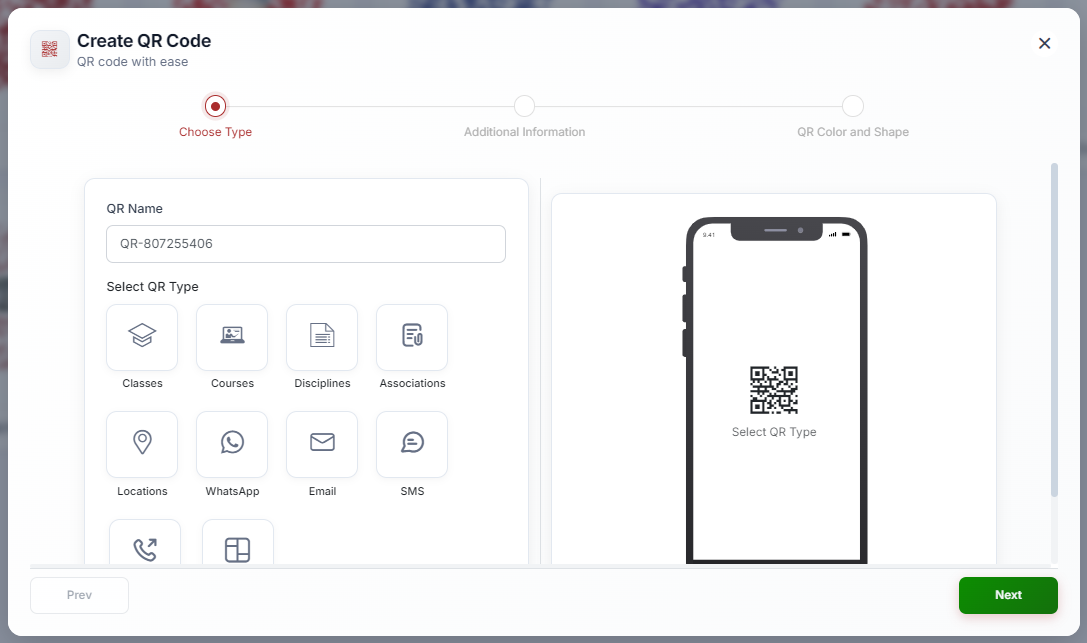
From the sidebar, click QR Codes. Click + to open the 3-step creation wizard.
Step 2 — Name and Type
Enter a descriptive QR Name (for example, “BLS Classes — Lobby Poster — Q3 2026”). Select the QR Type — this determines what the QR code links to:
QR Type | Links To |
Classes | A specific scheduled class registration page |
Courses | A specific course listing |
Disciplines | All classes filtered by discipline (e.g., BLS) |
Associations | All classes filtered by association (e.g., AHA) |
Locations | All classes at a specific location |
Opens WhatsApp conversation with your number | |
Opens email client pre-addressed to you | |
SMS | Opens text message pre-filled to your number |
Phone Number | Initiates a phone call to your number |
Website | Any custom URL |
Fill in the type-specific field (for example, select a class from the dropdown for the Classes type, or enter a URL for the Website type). A short cprenroll.me link is auto-generated for the QR code. Click Next.
Step 3 — Customize Appearance
On the QR Color and Shape step, customize the visual appearance of your QR code. Set the “Dots Color,” “Marker Border Color,” and “Marker Center Color,” then choose a “Dot Shape” and “Marker Shape” from the available geometric styles. A live preview updates in real time. Click Save when satisfied.
Downloading Your QR Code
Find your QR code in the QR Codes list. Click Download. Choose your format: SVG (for print — infinitely scalable), PNG (for digital use), or JPEG (for broad compatibility).
✔ Always use SVG for print. SVG is a vector format — it remains perfectly crisp no matter how large it is printed. Use PNG for websites, email, and social media.
Was this article helpful?
Related articles
- Creating and Using Short LinksShort links in CPR Enroll+ are shortened URLs using the cprenroll.me domain that redirect to your full registration pages, class pages, or any other URL. They are automatically generated for key platform items and can also be created manually. Short links are ideal for sharing in text messages, sociGetting Started
- Understanding Share RegistrationThe Share Registration screen is where you'll find every link and embed code you need — your full class catalog, appointment booking, and group training — along with embeddable website widgets, all from one place. Before You Begin - Your classes are scheduled and visible on your calendar, since the Getting Started
- How to Find Important URLs for EnrollmentsCPR Enroll+ uses three domains that serve different purposes. Knowing which URL to use — and where to find it — ensures you share the right link with students and embed the right widget on your website. The Three CPR Enroll+ Domains Domain Purpose Who Uses It dashboard.cprenroll.com Admin dashboardGetting Started
- What Is an Enrollment URL?An Enrollment URL is the link you share with prospective students so they can browse your class schedule and register. It points to your student-facing registration page at classes.cprenroll.com — this is completely separate from your admin dashboard. Students who visit this link never see any adminGetting Started