How to Find Important URLs for Enrollments
CPR Enroll+ uses three domains that serve different purposes. Knowing which URL to use — and where to find it — ensures you share the right link with students and embed the right widget on your website.
The Three CPR Enroll+ Domains
Domain | Purpose | Who Uses It |
dashboard.cprenroll.com | Admin dashboard — manage everything | You and your team (admin only) |
classes.cprenroll.com | Student registration pages — browse and enroll | Your students |
cprenroll.me | Short URLs for sharing and QR codes | Marketing and sharing |
Finding Your Registration Page URLs
1. Click your username in the lower left of the screen.
2. Click the ^ arrow.
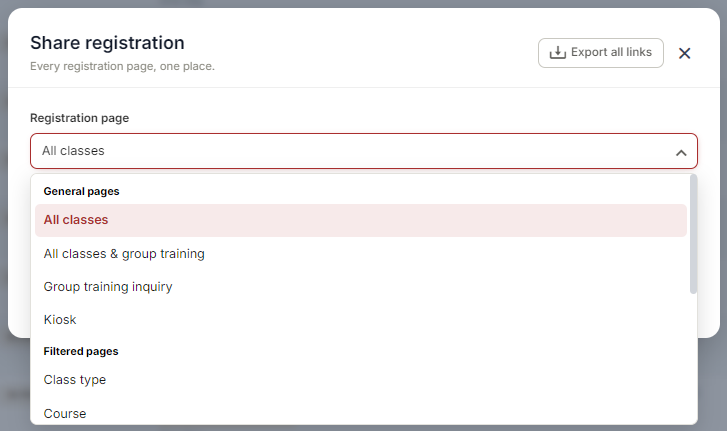
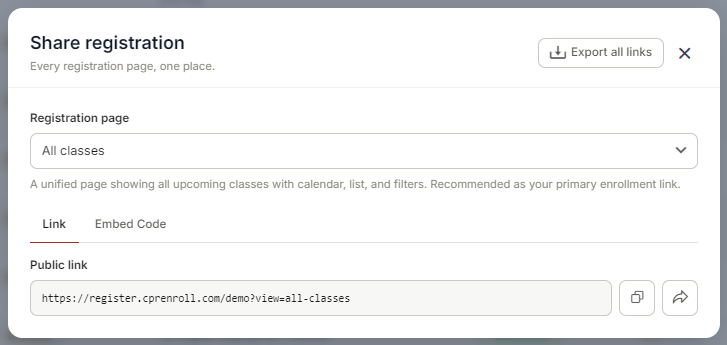
3. Select Share Registration. From there, you can choose which share page you'd like to use.
Finding a Specific Class URL
Go to Classes in the sidebar. Find the class you want to share. Click ⋮ > Share Registration on the class row. The modal shows a direct link to that specific class’s registration page.
Finding URLs in the Browser Address Bar
CPR Enroll+ uses hash-based URLs (URLs with a # symbol). You can bookmark specific pages in your dashboard by copying the URL from your browser’s address bar while on that page. Common dashboard URLs include #/classes/list (Classes list), #/course-builder/courses/list (Courses list), and #/enrollments/enrollments/calendar (Enrollments calendar).
ℹ Do not share your dashboard URL (dashboard.cprenroll.com) with students — it requires login and shows admin features. Always share the classes.cprenroll.com enrollment URLs.
Was this article helpful?
Related articles
- Creating and Using Short LinksShort links in CPR Enroll+ are shortened URLs using the cprenroll.me domain that redirect to your full registration pages, class pages, or any other URL. They are automatically generated for key platform items and can also be created manually. Short links are ideal for sharing in text messages, sociGetting Started
- Understanding Share RegistrationThe Share Registration screen is where you'll find every link and embed code you need — your full class catalog, appointment booking, and group training — along with embeddable website widgets, all from one place. Before You Begin - Your classes are scheduled and visible on your calendar, since the Getting Started
- What Is an Enrollment URL?An Enrollment URL is the link you share with prospective students so they can browse your class schedule and register. It points to your student-facing registration page at classes.cprenroll.com — this is completely separate from your admin dashboard. Students who visit this link never see any adminGetting Started
- Creating and Using QR CodesQR codes let prospective students scan and land directly on your class registration page with a single camera tap — no typing required. CPR Enroll+ includes a built-in QR code generator with 10 link types and full visual customization. Download your QR codes as SVG, PNG, or JPEG files and place themGetting Started