Creating and Using Short Links
Short links in CPR Enroll+ are shortened URLs using the cprenroll.me domain that redirect to your full registration pages, class pages, or any other URL. They are automatically generated for key platform items and can also be created manually. Short links are ideal for sharing in text messages, social media posts, or print materials where long URLs are impractical.
Where Short Links Are Auto-Generated
CPR Enroll+ automatically creates short links for your class registration page (all three views: Layout Based, List, Calendar), individual class pages, and each QR code you create.
Finding Your Short Links
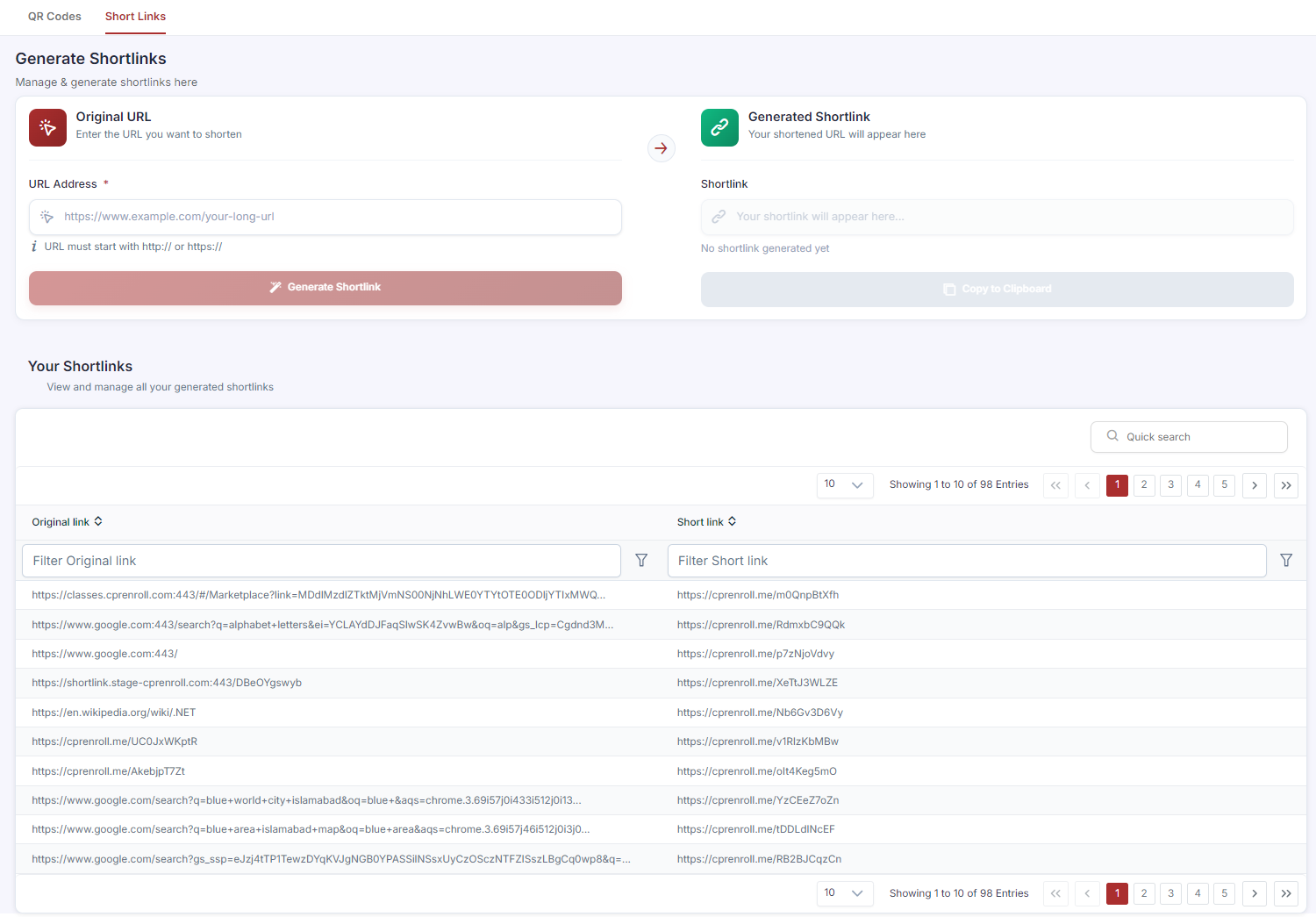
From the sidebar, click QR Codes, then click the Short Links tab. All auto-generated and custom short links are listed in the Your Shortlinks table with two columns: “Original link” and “Short link.” Use the Quick search field to find a specific link, or scroll the table to browse.
Creating a Custom Short Link
From the sidebar, click QR Codes, then click the Short Links tab.
In the Original URL section, enter the long URL you want to shorten in the URL Address field. The URL must start with http:// or https://.
Click Generate Shortlink. Your new cprenroll.me short link appears immediately in the Generated Shortlink section on the right.
Click Copy to Clipboard to copy it.
Where to Use Short Links
Short links work anywhere a long URL would be inconvenient: text messages to prospective students, social media bios and posts, email newsletters, printed flyers and business cards, and verbal sharing.
Was this article helpful?
Related articles
- Understanding Share RegistrationThe Share Registration screen is where you'll find every link and embed code you need — your full class catalog, appointment booking, and group training — along with embeddable website widgets, all from one place. Before You Begin - Your classes are scheduled and visible on your calendar, since the Getting Started
- How to Find Important URLs for EnrollmentsCPR Enroll+ uses three domains that serve different purposes. Knowing which URL to use — and where to find it — ensures you share the right link with students and embed the right widget on your website. The Three CPR Enroll+ Domains Domain Purpose Who Uses It dashboard.cprenroll.com Admin dashboardGetting Started
- What Is an Enrollment URL?An Enrollment URL is the link you share with prospective students so they can browse your class schedule and register. It points to your student-facing registration page at classes.cprenroll.com — this is completely separate from your admin dashboard. Students who visit this link never see any adminGetting Started
- Creating and Using QR CodesQR codes let prospective students scan and land directly on your class registration page with a single camera tap — no typing required. CPR Enroll+ includes a built-in QR code generator with 10 link types and full visual customization. Download your QR codes as SVG, PNG, or JPEG files and place themGetting Started