How to Get Technical Support for the CPR Enroll Platform
Technical issues — login problems, page errors, unexpected behavior, or data not saving — are rare but can happen. This article explains how to troubleshoot common issues yourself and when and how to escalate to the CPR Enroll support team.
Step 1: Try These Quick Fixes First
Most technical issues are resolved by one of the following:
- Hard refresh the page: Press
Ctrl+Shift+R(Windows) orCmd+Shift+R(Mac). This clears your browser cache and reloads the app fresh. - Try Incognito mode: Open
dashboard.cprenroll.comin a private/incognito browser window. If it works there, a cached session or browser extension is the cause. - Try a different browser: If the issue is browser-specific, try Chrome, Firefox, or Edge.
- Log out and log back in: Click your username at the bottom of the sidebar and select Log Out, then log back in.
- Check your internet connection: CPR Enroll requires a stable internet connection to function correctly.
Step 2: Search the Knowledge Base
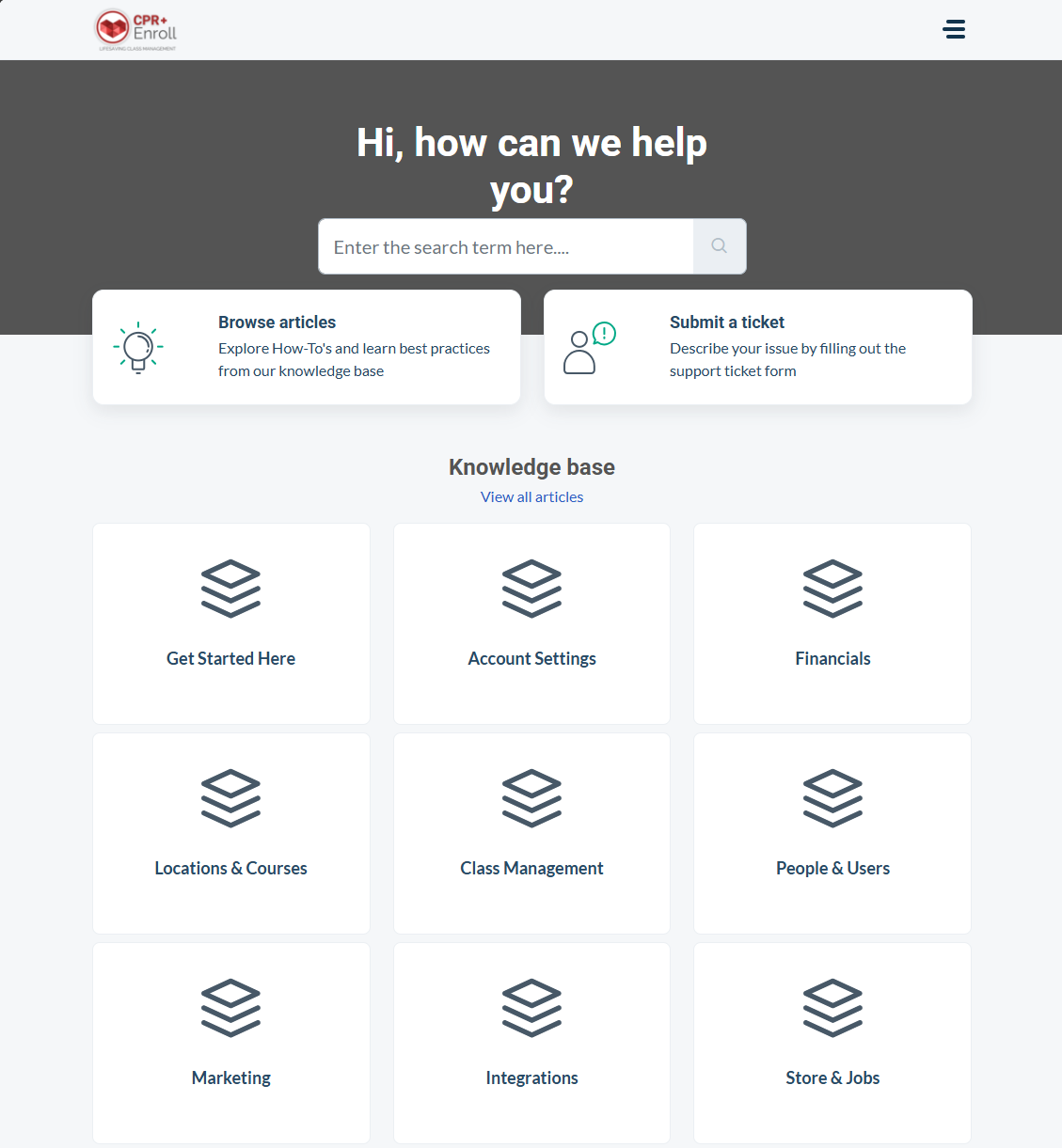
Go to help.cprenroll.com and search for the feature or error message you are experiencing. Many issues are documented with step-by-step solutions.
Step 3: Submit a Support Ticket
If self-service does not resolve the issue, contact the support team. Include the following information in your ticket to get a faster resolution:
- Account name and email associated with your CPR Enroll account.
- Browser and operating system (e.g., Chrome 120 on Windows 11).
- Steps to reproduce the issue — exactly what you clicked and in what order.
- What you expected to happen vs. what actually happened.
- Screenshots or screen recordings — these dramatically speed up diagnosis.
- Error messages — copy the exact text of any error messages you see.
What to Expect After Submitting
You will receive an email confirmation with your ticket number immediately. The support team will review your ticket and respond with a solution, a request for more information, or an escalation timeline. For critical issues (data loss, payment failures, platform unavailability), include "Urgent" in the subject line.
⚠ Never share your password. CPR Enroll support staff will never ask for your account password. If you need to give the team visibility into your account, they may ask for a screen share during a support call instead.
Was this article helpful?
Related articles
- Welcome to CPR Enroll+Welcome to CPR Enroll+ — a complete operating system built specifically for CPR, first aid, and lifesaving training businesses. Whether you are an independent instructor running weekend classes or a training center managing dozens of instructors and hundreds of students a month, CPR Enroll+ is desiWelcome and Onboarding
- The Launchpad is Gone, What Now?We've upgraded the way new accounts get started with CPR Enroll. The Launchpad has been retired, and in its place we've introduced the Setup Guide — a more organized, more complete home for everything you need to set up and start selling classes. Same purpose, better experience. ✔ Why the change is Welcome and Onboarding
- What Browsers do you need to use your AccountCPR Enroll is a modern web application built as a Single-Page Application (SPA). The admin dashboard at dashboard.cprenroll.com and the student registration pages at classes.cprenroll.com both require a current, JavaScript-enabled web browser to function correctly. Supported Browsers — Admin DashboaWelcome and Onboarding
- Schedule an Onboarding CallGetting started with a new platform is much easier when you have a guide. CPR Enroll+ offers a free one-on-one onboarding call for new account holders. In 30–45 minutes, a member of our team will walk through your specific setup, answer your questions live, and make sure you are ready to take your fWelcome and Onboarding