Your NEW Setup Guide: Set Up Keycode Banks
Keycode Banks let you store and distribute access codes or links for digital courses and add-ons — such as SCORM modules, third-party licenses, or downloadable resources — automatically at the time of purchase. Instead of manually emailing codes to each student, a Keycode Bank issues them for you, based on the rules you set.
This article walks you through creating and configuring a Keycode Bank from start to finish.
Before You Begin
Before creating a bank, decide:
- Which courses or classes will use this bank.
- How codes should be issued — through a general bank tied to a course/add-on, or a bank tied to one specific class.
- Where your codes are coming from — typed in manually, or available as a CSV file.
✔ Important: The issuing mode you choose cannot be changed after the bank is created. Review the options below carefully before proceeding.
Step-by-Step Instructions
Step 1: Open Your Setup Guide
- From the opening screen, click Settings on the left menu.
- Click Setup Guide.
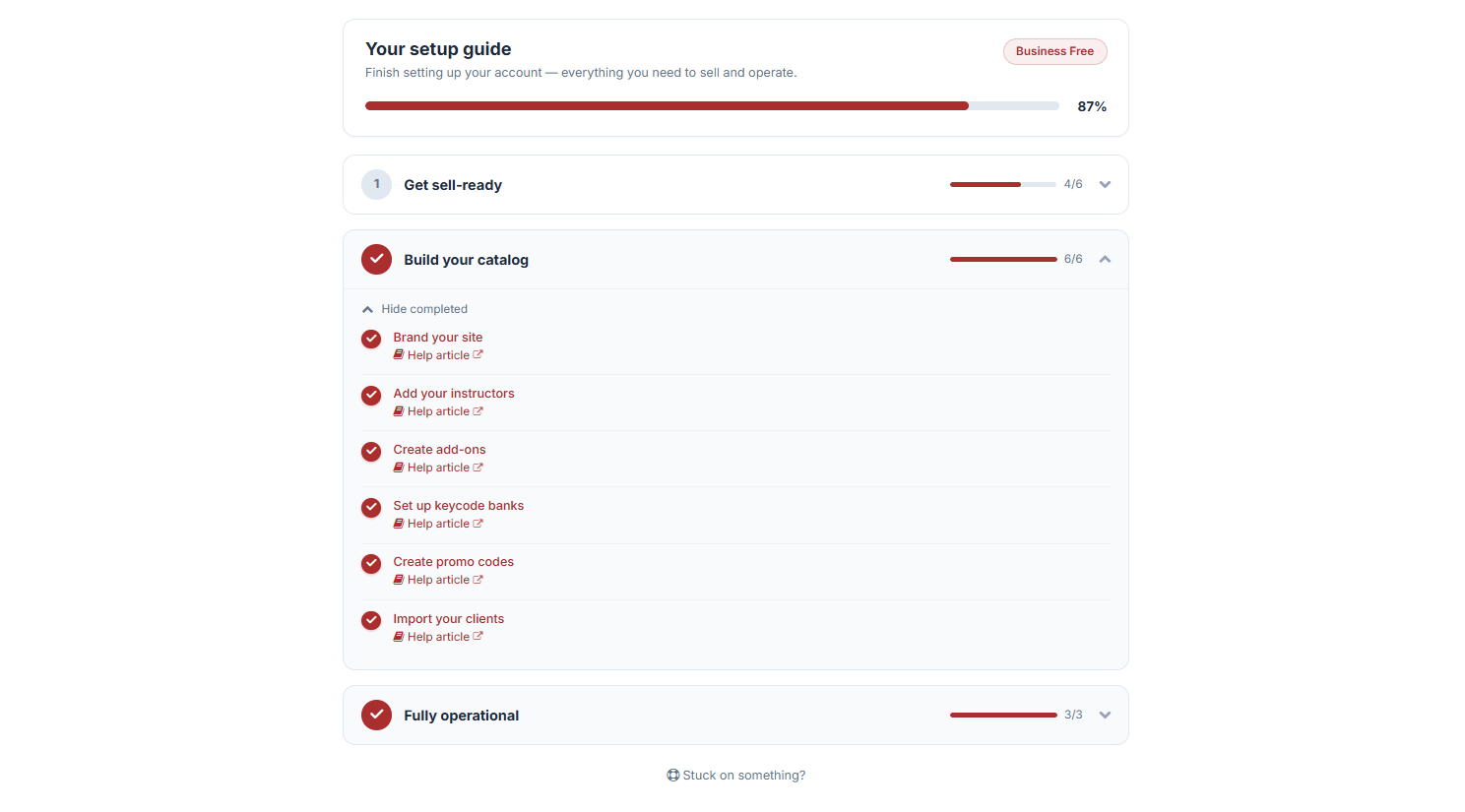
You'll land on Your Setup Guide, where you can finish setting up your account with everything you need to sell and operate.
Step 2: Navigate to Key Codes
- Click Build Your Catalog. Here you'll find six different setups you can complete to build out your catalog.
- Select Set Up Keycode Banks.
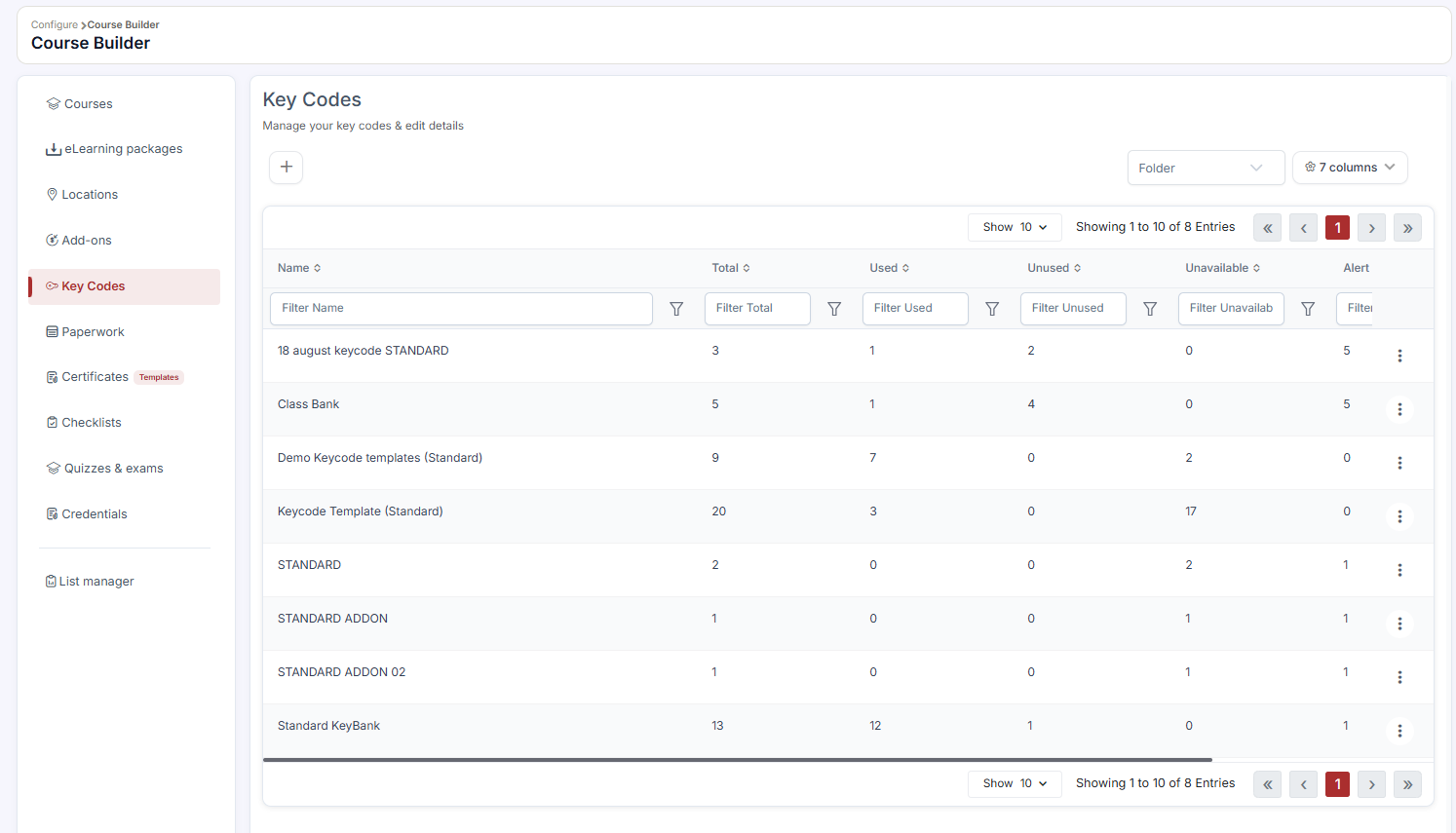
You'll be directed to the Key Codes section of the Course Builder page, where you can manage your key codes and edit their details.
Step 3: Create a New Bank
Click + Add New. The Create Bank Keycodes window will open.
Step 4: Name Your Bank
Enter a Name for the bank. Choose something descriptive so you can easily identify it later (e.g., "BLS Digital Module – 2026" or "Heartsaver Class Bank – Q1").
Step 5: Choose an Issuing Mode
Select one of the following:
| Mode | How It Works | Best For |
|---|---|---|
| A. Standard (FIFO) | The bank attaches to courses & add-ons. The next available code is automatically issued at the time of purchase. | Digital courses or add-ons sold on an ongoing basis, where any available code can go to any purchaser. |
| B. Class Bank | Codes attach to a specific class and are issued only to that class's students. One bank serves every session of that class. | Situations where codes must be reserved for a particular class or session. |
Choose carefully, since this setting is permanent once the bank is created.
Step 6: Write Delivery Instructions
Enter the Instructions that will accompany each code. These instructions appear in:
- The keycode delivery email.
- The confirmation page.
- The student portal.
Use this space to explain how to redeem the code or link — for example, which website to visit or how to activate a license.
Step 7: Add Your Keycodes
You have two options for loading codes into the bank:
- Add Keycodes Manually — enter one keycode per line in the text field.
- Upload CSV — upload a file with one code or link per line. Any duplicates already in the bank are automatically skipped, so it's safe to re-upload a file if you're unsure what's already been added.
Step 8: Set Low-Inventory Alerts
Set a threshold to alert admins when a chosen number of keycodes remain. This helps you restock the bank before it runs out.
Step 9: Configure Empty-Bank Behavior
Toggle Allow keycodes to be sent when no keycodes are available based on your preference:
- When enabled and the bank is empty: Students can still enroll. They'll receive a "your keycode will be sent separately" email and will appear as awaiting-code records. Once the bank is refilled, you can send their codes individually (per-row) or in bulk.
Step 10: Save Your Bank
Once everything looks correct, click Create to finalize your Keycode Bank.
Best Practices
- Name banks clearly so you can quickly tell them apart when assigning them to courses, add-ons, or classes.
- Restock proactively — set your low-inventory alert with enough buffer time to reorder or generate new codes before you run out.
- Double-check issuing mode before creating the bank, since this cannot be edited afterward. If you chose incorrectly, you'll need to create a new bank and migrate your codes.
- Use CSV upload for large batches of codes to save time and reduce manual entry errors.
Frequently Asked Questions
| Question | Answer |
|---|---|
| Can I change the issuing mode after creating a bank? | No. Issuing mode is permanent once a bank is created. If you need a different mode, create a new bank. |
| What happens if I upload a CSV with codes that are already in the bank? | Duplicate codes are automatically detected and skipped, so they won't be added twice. |
✔ You're all set. Your Keycode Bank is now live and ready to issue codes automatically as students purchase the courses, add-ons, or classes it's linked to. You can return to the Key Codes section anytime to restock, edit instructions, or review awaiting-code records.
Was this article helpful?
Related articles
- Welcome to CPR Enroll+Welcome to CPR Enroll+ — a complete operating system built specifically for CPR, first aid, and lifesaving training businesses. Whether you are an independent instructor running weekend classes or a training center managing dozens of instructors and hundreds of students a month, CPR Enroll+ is desiWelcome and Onboarding
- The Launchpad is Gone, What Now?We've upgraded the way new accounts get started with CPR Enroll. The Launchpad has been retired, and in its place we've introduced the Setup Guide — a more organized, more complete home for everything you need to set up and start selling classes. Same purpose, better experience. ✔ Why the change is Welcome and Onboarding
- What Browsers do you need to use your AccountCPR Enroll is a modern web application built as a Single-Page Application (SPA). The admin dashboard at dashboard.cprenroll.com and the student registration pages at classes.cprenroll.com both require a current, JavaScript-enabled web browser to function correctly. Supported Browsers — Admin DashboaWelcome and Onboarding
- Schedule an Onboarding CallGetting started with a new platform is much easier when you have a guide. CPR Enroll+ offers a free one-on-one onboarding call for new account holders. In 30–45 minutes, a member of our team will walk through your specific setup, answer your questions live, and make sure you are ready to take your fWelcome and Onboarding