Your NEW Setup Guide: How to Set Your Policies
Clear policies build trust with your students and protect your business. By setting up your privacy policy, refund policy, terms, and disclaimers upfront, students know exactly what to expect before they check out — reducing confusion, disputes, and support requests down the line.
This article walks you through setting up your site's compliance policies from start to finish.
Before You Begin
Before starting this setup, have the following ready:
- Links to your existing policy documents, if you already have a Privacy Policy, Refund Policy, Terms Policy, or Disclaimer published elsewhere (such as on your main business website).
- Your cancellation and rescheduling terms, if you haven't already documented them, since these will inform your Class and Store Terms & Conditions.
- If you don't yet have formal policy documents, consider drafting them (or consulting legal guidance) before completing this step, since these policies carry real legal and business implications.
Step-by-Step Instructions
Step 1: Open Your Setup Guide
- From the opening screen, click Settings on the left menu.
- Click Setup Guide.
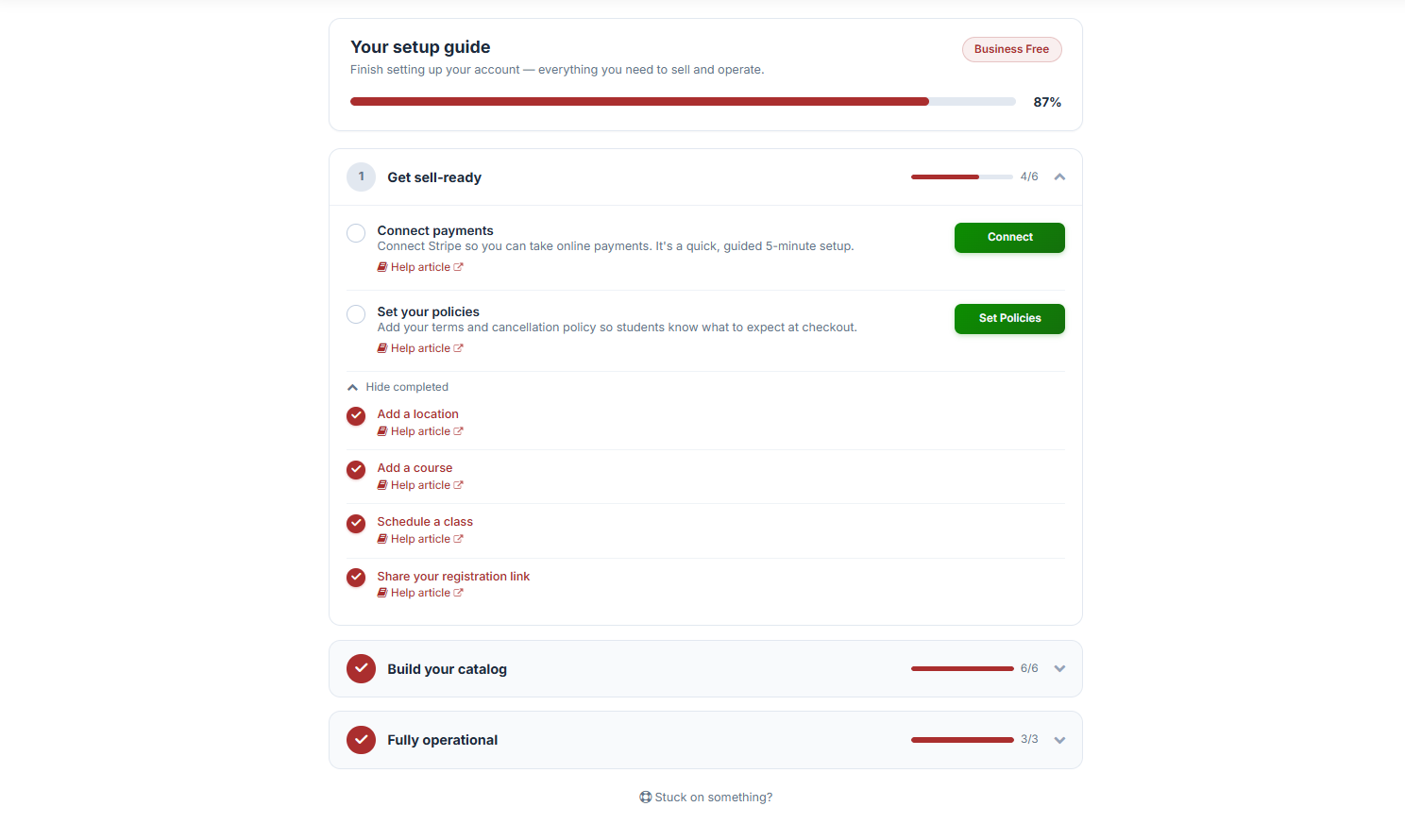
You'll land on Your Setup Guide, where you can finish setting up your account with everything you need to sell and operate.
Step 2: Locate Set Your Policies
Under 1. Get Sell-Ready, find Set Your Policies and click Set Policies.
This opens the Set Your Policies screen, where you'll add your terms and cancellation policy so students know what to expect at checkout.
Step 3: Manage Site Compliance
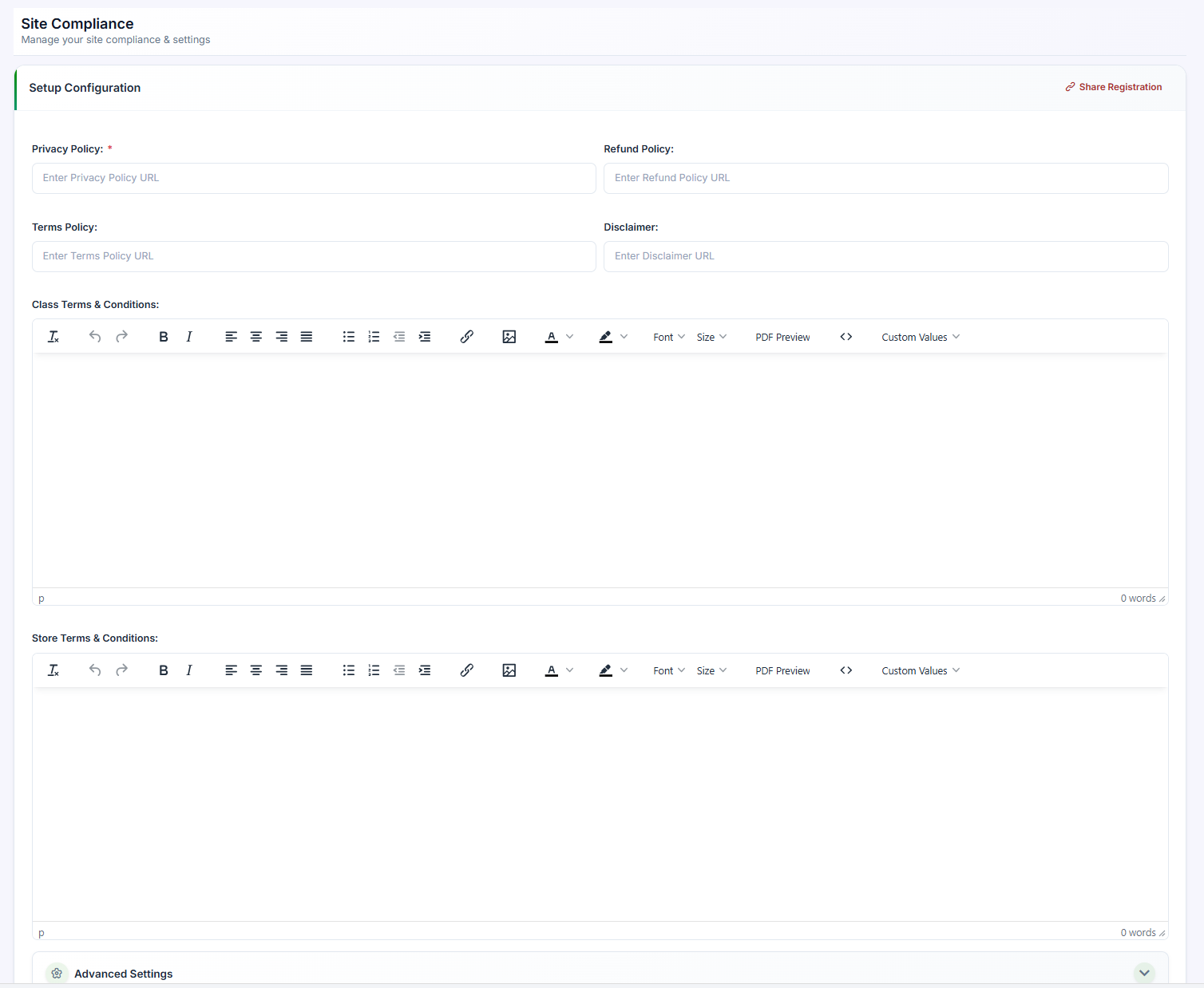
Under Site Compliance, add links to the following:
| Policy | What It Covers |
|---|---|
| Privacy Policy | How you collect, use, and protect student data. |
| Refund Policy | Under what conditions students can receive a refund. |
| Terms Policy | The general terms governing use of your site and services. |
| Disclaimer | Any limitations of liability or important legal disclosures. |
Enter the URL for each policy document. These links will be made accessible to students during checkout and elsewhere on your site.
Step 4: Set Your Terms & Conditions
In addition to the compliance links above, set:
- Class Terms & Conditions — specific terms that apply to class registrations, such as cancellation and rescheduling rules.
- Store Terms & Conditions — terms that apply to any store purchases, such as add-ons or merchandise.
Step 5: Save Your Changes
Once you've entered your policy links and terms, click Save.
Best Practices
- Keep policy documents up to date. If your refund or cancellation terms change, update the linked document promptly so students always see accurate information.
- Host policies on a stable URL. Avoid linking to documents that may move or be deleted, since broken links can create confusion or compliance issues.
- Align Class and Store Terms with your actual practices. Make sure the terms you publish match how your business actually handles refunds, rescheduling, and cancellations, to avoid disputes.
- Review policies periodically, especially if your business practices, pricing, or applicable regulations change.
Frequently Asked Questions
| Question | Answer |
|---|---|
| Do I need separate policies for classes and store purchases? | Yes. Class Terms & Conditions apply specifically to class registrations, while Store Terms & Conditions apply to any add-on or merchandise purchases, since these often carry different rules (e.g., refund eligibility, shipping terms). |
| What if I don't have a Privacy Policy or Refund Policy yet? | It's strongly recommended to have these documents in place before accepting payments, since they set clear expectations with students and may be required for compliance depending on your location. Consider drafting these with the help of a legal professional if you don't already have them. |
| Can I update these links later? | Yes. You can return to the Set Your Policies screen anytime to update any of your policy links or terms. |
| Where will students see these policies? | These policies are typically displayed at checkout and may be linked elsewhere on your site, giving students a clear reference before they complete a purchase. |
✔ You're all set. Your site's policies are now in place, giving your students clear expectations and keeping your business compliant from the moment they check out.
Was this article helpful?
Related articles
- Welcome to CPR Enroll+Welcome to CPR Enroll+ — a complete operating system built specifically for CPR, first aid, and lifesaving training businesses. Whether you are an independent instructor running weekend classes or a training center managing dozens of instructors and hundreds of students a month, CPR Enroll+ is desiWelcome and Onboarding
- The Launchpad is Gone, What Now?We've upgraded the way new accounts get started with CPR Enroll. The Launchpad has been retired, and in its place we've introduced the Setup Guide — a more organized, more complete home for everything you need to set up and start selling classes. Same purpose, better experience. ✔ Why the change is Welcome and Onboarding
- What Browsers do you need to use your AccountCPR Enroll is a modern web application built as a Single-Page Application (SPA). The admin dashboard at dashboard.cprenroll.com and the student registration pages at classes.cprenroll.com both require a current, JavaScript-enabled web browser to function correctly. Supported Browsers — Admin DashboaWelcome and Onboarding
- Schedule an Onboarding CallGetting started with a new platform is much easier when you have a guide. CPR Enroll+ offers a free one-on-one onboarding call for new account holders. In 30–45 minutes, a member of our team will walk through your specific setup, answer your questions live, and make sure you are ready to take your fWelcome and Onboarding