The Launchpad is Gone, What Now?
We've upgraded the way new accounts get started with CPR Enroll. The Launchpad has been retired, and in its place we've introduced the Setup Guide — a more organized, more complete home for everything you need to set up and start selling classes. Same purpose, better experience.
✔ Why the change is good news. Instead of a single scrolling list of cards, the Setup Guide gives every setup step its own dedicated Knowledge Base article — with clearer instructions, more detail, and screenshots for each one. It's easier to find exactly the step you're on, and easier to come back to later if you need a refresher.
Where to Find the Setup Guide
The Setup Guide now lives inside Settings, so it's always within reach as you build out your account — not just on your very first login.
- From the left-hand menu, click Settings.
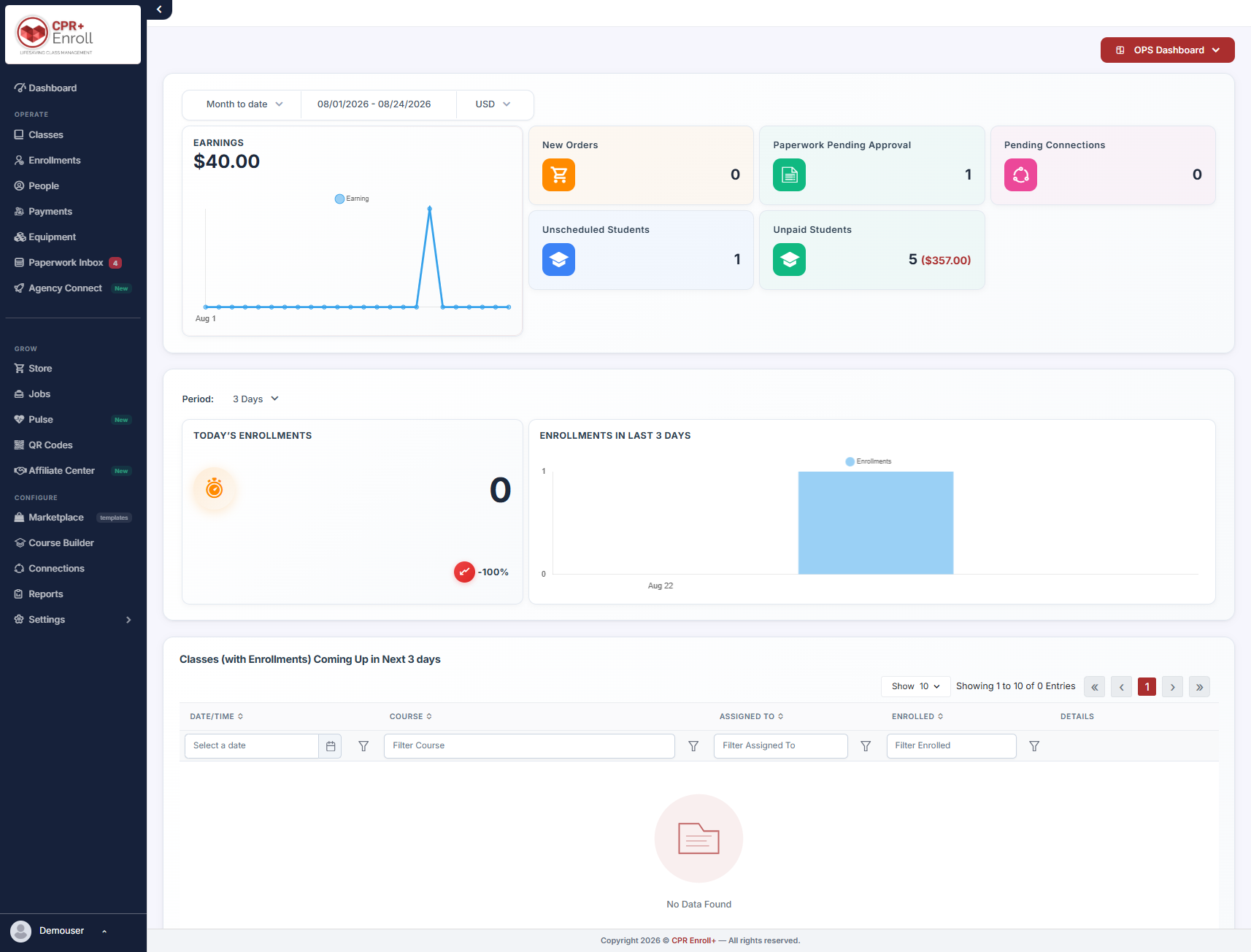
- Click Setup Guide.
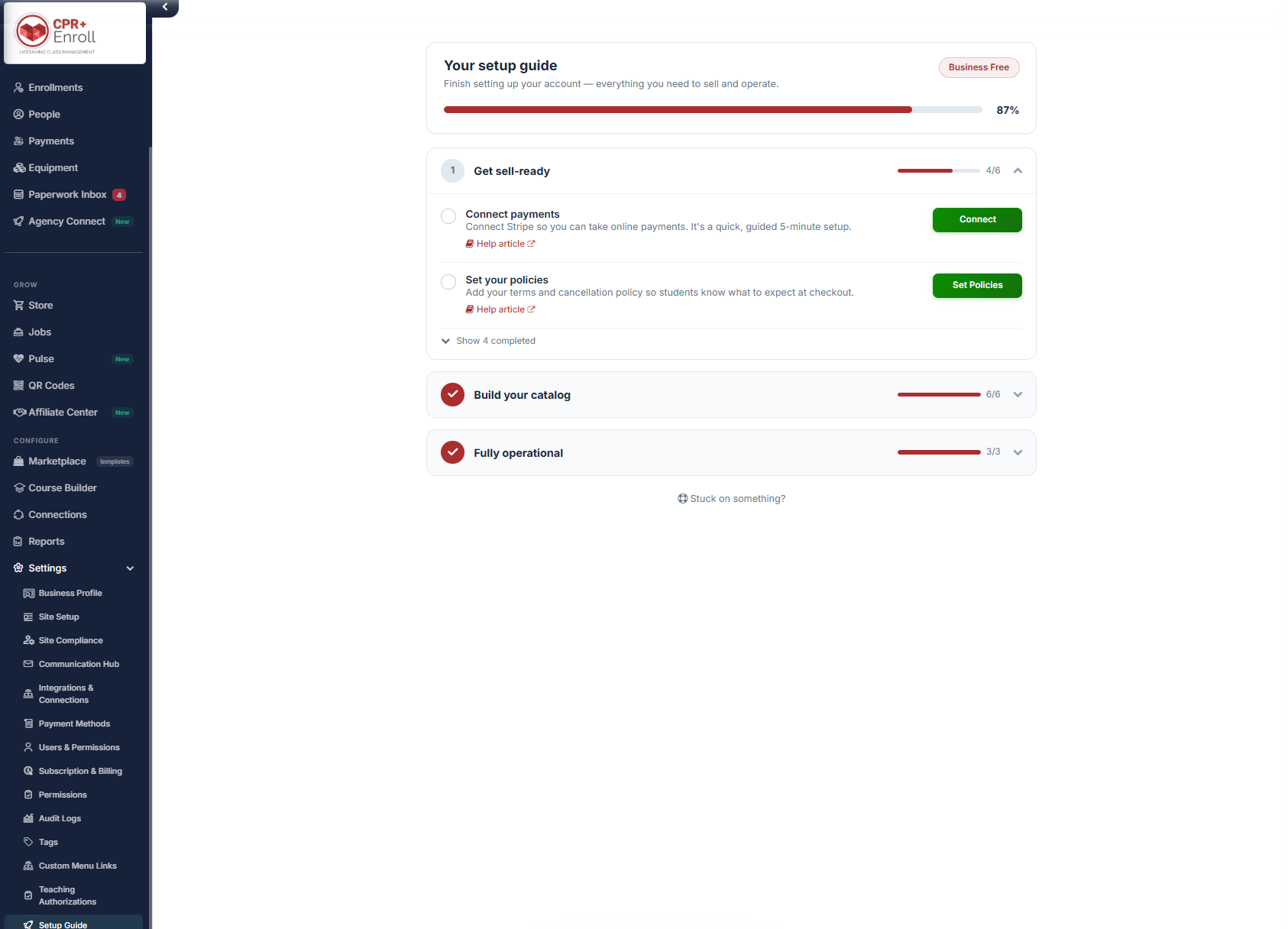
- You'll see all of your Setup Options in one place — everything you need to sell and operate your training business, from accepting payments to sharing your registration link.
✔ Why order matters. Each step in the setup sequence still builds on the one before it. You'll want a Location and a Course in place before you create a Class, and a Class in place before you share your registration link. Working through the Setup Guide in order helps you avoid "missing dependency" messages along the way.
New Knowledge Base Articles for Every Step
To go along with the new Setup Guide, we've published a full set of new Knowledge Base articles — one for each setup option — so you have step-by-step instructions for every part of getting your account ready. Here's what's available:
- Your NEW Setup Guide: How to Connect Payments — connect Stripe so you can accept credit cards and digital wallets directly from your registration page, with automated payouts to your account.
- Your NEW Setup Guide: How to Set Your Policies — define the cancellation, refund, and other policies your students see and agree to when they register.
- Your NEW Setup Guide: Adding a Course — build the course blueprints — name, price, expiration years, certification body — that every class you schedule is based on.
- Your NEW Setup Guide: Adding a Location — set up the physical addresses or virtual meeting links where your classes take place.
- Your NEW Setup Guide: Share Your Registration Link — get your public registration link so prospective students can browse your classes and self-enroll.
- Your NEW Setup Guide: Schedule a Class — put your Locations and Courses together to schedule the classes students will register for.
- Your NEW Setup Guide: Create Add-Ons — set up supplementary products — textbooks, pocket masks, digital access codes, and more — that students can add to their enrollment.
- Your NEW Setup Guide: Add Your Instructors — get your instructors into the system so you can assign them to classes.
- Your NEW Setup Guide: Brand Your Site — upload your logo, set your brand color, and personalize the student-facing pages your clients see.
- Your NEW Setup Guide: Import Your Clients — load your corporate or organizational client records if you work with groups of employees.
- Your NEW Setup Guide: Create Coupons (Promo Codes) — create flat-dollar or percentage discount codes students can apply at checkout.
- Your NEW Setup Guide: Set Up Keycode Banks — manage batches of digital access keycodes for add-ons and course materials.
- Your NEW Setup Guide: Get Listed on CPRClassFinder — get your classes listed on CPRClassFinder to reach students searching for training near them.
- Your NEW Setup Guide: Offer Group Training — set up options for corporate or group bookings alongside your individual class registrations.
✔ Nothing you rely on today is going away. Every action the Launchpad cards used to support — connecting Stripe, adding locations and courses, adding instructors, sharing your registration link, and more — is still there. It's simply organized under Settings → Setup Guide, and now backed by a dedicated article for each step.
Coming Soon
In the coming weeks, we'll also be updating the other Knowledge Base articles affected by this change, so every guide that referenced the Launchpad points you to the new Setup Guide instead. If you land on an older article that still mentions the Launchpad in the meantime, use this article — and the list above — as your up-to-date reference.
✔ Questions? If you can't find a setup option you're looking for, or run into any issues while working through the Setup Guide, reach out to [email protected] and our team will help you get set up.
Related: How to Add a Class? · Understanding Share Registration · Setup & Connecting Your Stripe Account
Was this article helpful?
Related articles
- Welcome to CPR Enroll+Welcome to CPR Enroll+ — a complete operating system built specifically for CPR, first aid, and lifesaving training businesses. Whether you are an independent instructor running weekend classes or a training center managing dozens of instructors and hundreds of students a month, CPR Enroll+ is desiWelcome and Onboarding
- What Browsers do you need to use your AccountCPR Enroll is a modern web application built as a Single-Page Application (SPA). The admin dashboard at dashboard.cprenroll.com and the student registration pages at classes.cprenroll.com both require a current, JavaScript-enabled web browser to function correctly. Supported Browsers — Admin DashboaWelcome and Onboarding
- Schedule an Onboarding CallGetting started with a new platform is much easier when you have a guide. CPR Enroll+ offers a free one-on-one onboarding call for new account holders. In 30–45 minutes, a member of our team will walk through your specific setup, answer your questions live, and make sure you are ready to take your fWelcome and Onboarding
- How to contact Support?The CPR Enroll support team is here to help you resolve issues, answer questions, and get the most out of the platform. We offer several ways to reach us — choose the one that fits your urgency and preference. Support Channels ChannelHow to Use ItBest For [email protected] questions,Welcome and Onboarding