Your NEW Setup Guide: Create Coupons (Promo Codes)
Coupons — previously called promo codes — let you offer discounts to your students across invoices, class registrations, and store checkout. You can create a single reusable code for general promotions, or generate a batch of unique, single-use vouchers for more controlled campaigns — such as employer partnerships or event giveaways.
This article walks you through creating both types of coupons from start to finish.
Before You Begin
Before creating a coupon, decide:
- Which type of code you need — a single reusable code, or a batch of unique vouchers.
- What the discount applies to — the entire order, or specific courses/products.
- Whether the promotion has an expiration date.
- Whether the discount should apply to add-ons and shipping.
Step-by-Step Instructions
Step 1: Open Your Setup Guide
- From the opening screen, click Settings on the left menu.
- Click Setup Guide.
You'll land on Your Setup Guide, where you can finish setting up your account with everything you need to sell and operate.
Step 2: Navigate to Coupons
- Click Build Your Catalog. Here you'll find six different setups you can complete to build out your catalog.
- Select Create Promo Codes — this is the coupons step. You’ll be directed to the Payments window.
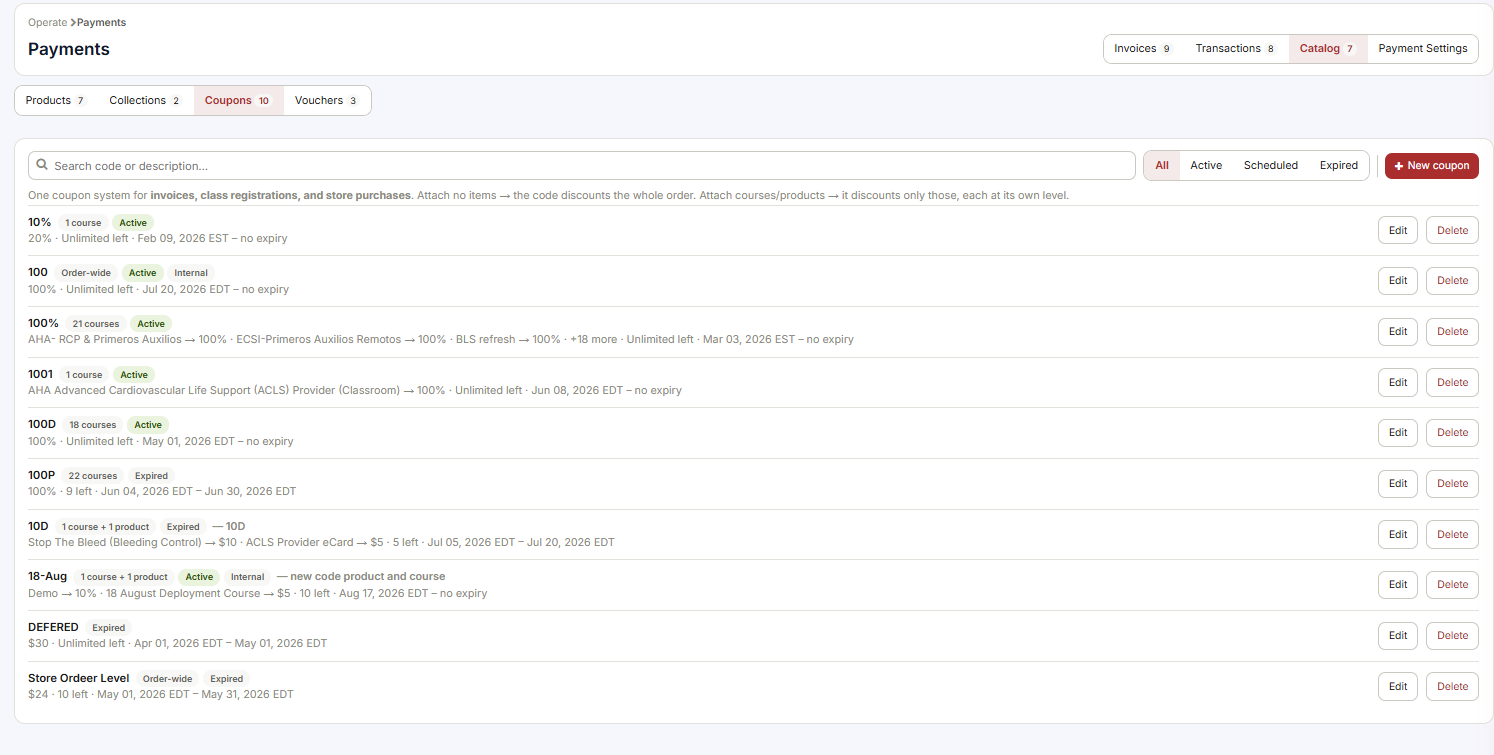
You'll be directed to the Payments window.
Step 3: Start a New Coupon
Click + New Coupon. The New Coupon window will open. Coupons created here work everywhere — invoices, class registrations, and store checkout.
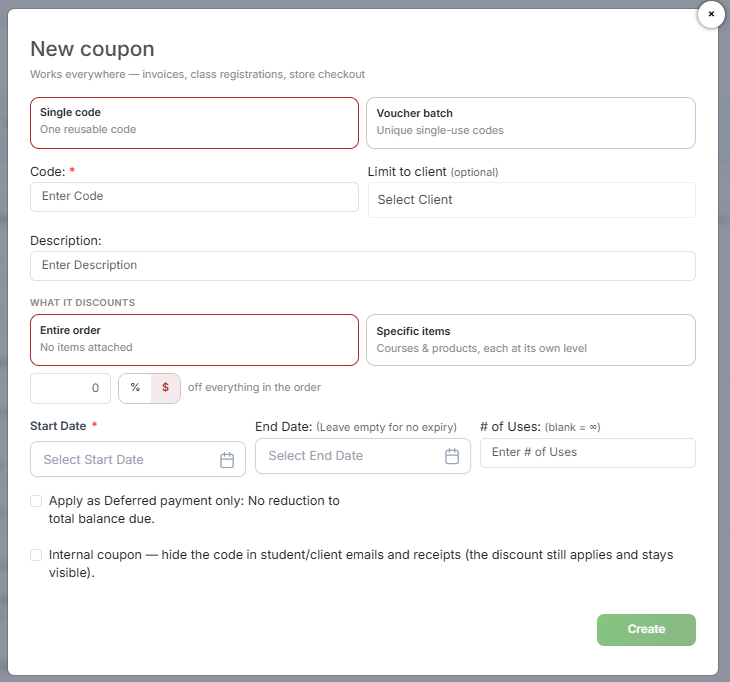
Choose one of the following coupon types:
- A. Single Code — one reusable code.
- B. Voucher Batch — unique, single-use codes generated in bulk.
Option A: Creating a Single Code
- Enter Code — type the code students will use (e.g.,
SAVE10). - Select Client (Optional) — restrict this code to a specific client, if applicable.
- Enter Description — add an internal description to help you remember the purpose of this code.
- Choose What the Code Discounts:
Option Description Entire Order No items attached. Applies a percentage discount off everything in the order. Specific Items Applies to selected courses & products individually, each at its own discount level. For example, one course can be discounted 10% while a product on the same order is discounted 5%. Any items not attached to the code will not be discounted. Click + Add All Courses to add at least one course or product. - Select Start Date and End Date — leave empty for a code with no expiration.
- Enter Number of Uses — set how many times the code can be used.
- Optional Toggles:
- Apply Discount to Add-ons & Shipping
- Apply as Deferred Payment Only — the discount does not reduce the total balance due; it defers a portion of payment instead.
Option B: Creating a Voucher Batch
- Enter Voucher Description — add an internal description for this batch.
- Select Start Date and End Date — leave empty for no expiration.
- Select Discount Type:
- Dollars Off
- Percentage Off
- Specify Discount Value — enter the dollar amount or percentage.
- Enter Number of Codes — choose how many unique codes to generate (1–1,000 codes per batch).
- Select Linked Class — choose the class this voucher batch applies to.
- Select Link to Clients — restrict the batch to specific clients, if applicable.
- Optional Toggles:
- Apply Discount to Add-ons & Shipping
- Apply as Deferred Payment Only — the discount does not reduce the total balance due; it defers a portion of payment instead.
Step 4: Finalize
- For a Single Code, click Create.
- For a Voucher Batch, click Generate Codes.
Best Practices
- Use clear, memorable codes for single-use promotions (e.g.,
SUMMER25rather than random characters), since students will need to type or recall them. - Set expiration dates for time-limited promotions to avoid codes being used indefinitely.
- Use Voucher Batches when distributing codes to a defined group, such as a partner organization or event attendees, since each code can only be used once.
- Double-check item-level discounts when using "Specific Items," since unattached items will not receive any discount even if the code is applied.
Frequently Asked Questions
| Question | Answer |
|---|---|
| What's the difference between a Single Code and a Voucher Batch? | A Single Code is one reusable code that can be used multiple times (based on the number of uses you set). A Voucher Batch generates many unique codes, each usable only once — ideal for controlled distribution. |
| Can I limit a coupon to specific courses only? | Yes. Choose Specific Items when setting up a Single Code, or select a Linked Class for a Voucher Batch. |
| What does "Apply as Deferred Payment Only" mean? | This option applies the discount without reducing the total balance due upfront — it defers part of the payment rather than lowering the overall price. |
| Can a coupon apply to shipping or add-ons? | Yes, if you enable the Apply Discount to Add-ons & Shipping toggle during setup. |
✔ You're all set. Your coupon or voucher batch is now ready to use. You can return to the Payments window anytime to review usage, create new codes, or deactivate existing ones.
Was this article helpful?
Related articles
- Welcome to CPR Enroll+Welcome to CPR Enroll+ — a complete operating system built specifically for CPR, first aid, and lifesaving training businesses. Whether you are an independent instructor running weekend classes or a training center managing dozens of instructors and hundreds of students a month, CPR Enroll+ is desiWelcome and Onboarding
- The Launchpad is Gone, What Now?We've upgraded the way new accounts get started with CPR Enroll. The Launchpad has been retired, and in its place we've introduced the Setup Guide — a more organized, more complete home for everything you need to set up and start selling classes. Same purpose, better experience. ✔ Why the change is Welcome and Onboarding
- What Browsers do you need to use your AccountCPR Enroll is a modern web application built as a Single-Page Application (SPA). The admin dashboard at dashboard.cprenroll.com and the student registration pages at classes.cprenroll.com both require a current, JavaScript-enabled web browser to function correctly. Supported Browsers — Admin DashboaWelcome and Onboarding
- Schedule an Onboarding CallGetting started with a new platform is much easier when you have a guide. CPR Enroll+ offers a free one-on-one onboarding call for new account holders. In 30–45 minutes, a member of our team will walk through your specific setup, answer your questions live, and make sure you are ready to take your fWelcome and Onboarding