Not every class starts life on the calendar. Some are asked for by a client, some are published to gather interest, and some arrive as an enquiry from your group training page. All of them land on the Requests tab, and working that tab is what keeps demand from quietly going cold.
Before You Begin
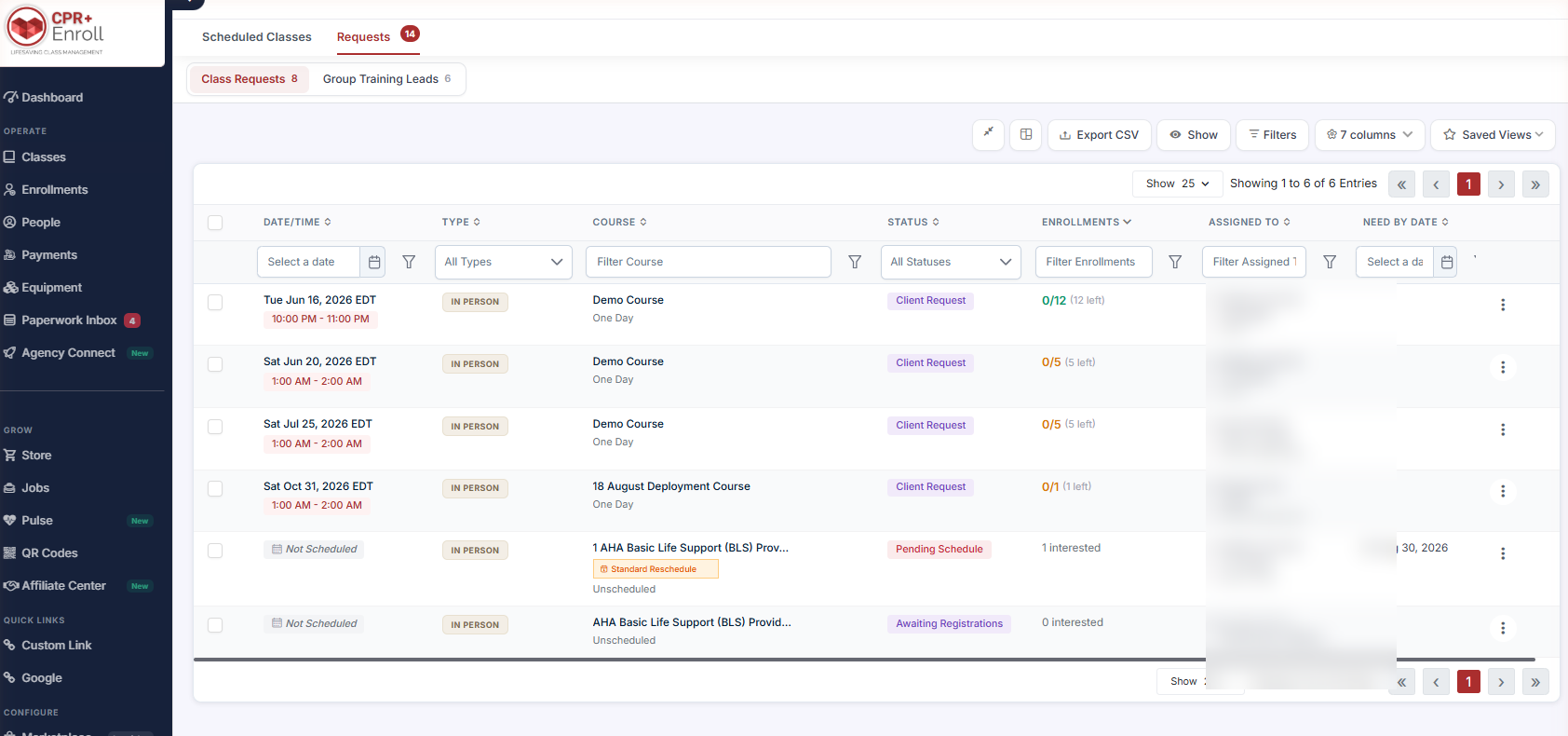
- Find it at Classes → Requests. The tab carries a badge showing the combined count.
- Inside are two sub-tabs: Class Requests and Group Training Leads.
- Notification recipients are configured under Settings → Communication Hub → Recipients → Classes & Operations → Booking requests. Set these before you rely on the queue.
Step 1: Work the Class Requests Queue
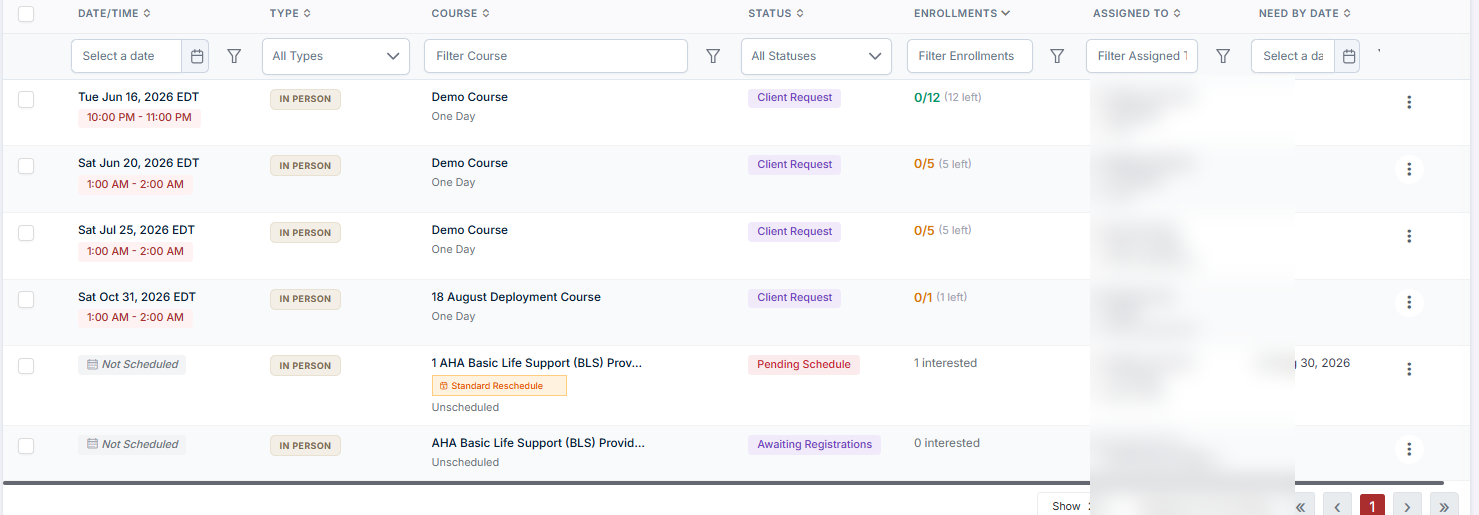
These are classes that have been asked for but not yet scheduled. The grid has the same shape as the Scheduled Classes list — Date/Time, Type, Course, Status, Interest — with an action menu on each row.
Three statuses tell you what each row needs:
| Status | Meaning |
|---|---|
| Client Request | A client has requested a class on a specific date. The Interest column shows enrollment against capacity, e.g. 0/12 (12 left). |
| Pending Schedule | The request has been accepted but no date is set. Date/Time reads Not Scheduled. |
| Awaiting Registrations | An unscheduled class published to gather interest. The Interest column shows how many people have registered interest. |
Rows may also carry a reschedule-rule chip such as Standard Reschedule.
Step 2: Work the Group Training Leads Queue
These are inbound enquiries from your group training page.
✔ The leads badge counts only New leads. In Review, Converted and Lost are excluded, and the badge updates automatically as statuses change — so it always reflects work that still needs attention, not work you have already touched.
Step 3: Rely on the Notifications
- When a new Class Request is submitted, a notification appears prominently and stays visible until it is viewed or dismissed, so requests are not missed.
- Instructors, administrators and staff are also emailed when a Flexible Class Booking Request or Training Request is submitted.
- Each notification includes the requester’s name and contact information, the requested class or training, and the preferred date and time.
Configure who receives these under Settings → Communication Hub → Recipients → Classes & Operations → Booking requests.
Step 4: Turn a Request Into a Class
- Open the row’s action menu.
- Schedule it.
- The class moves to the Scheduled Classes tab and drops out of the Requests badge.
✔ The badge is your to-do list. A Requests badge at zero means every piece of inbound demand has been either scheduled or dispositioned.
Best Practices
- Clear the Requests badge daily. A Client Request left sitting is a booking your competitor takes.
- Move accepted-but-undated requests to Pending Schedule promptly so the client sees progress even before a date exists.
- Use Awaiting Registrations deliberately — publishing an unscheduled class to gauge interest is cheaper than canceling a scheduled one.
- Disposition leads honestly. Marking dead leads Lost keeps the badge meaningful.
- Check your notification recipients whenever staff change roles.
Frequently Asked Questions
| Question | Answer |
|---|---|
| What does the Requests badge count? | The combined count across Class Requests and Group Training Leads. |
| Why is my leads badge lower than the number of leads I can see? | The badge counts only leads with a New status. In Review, Converted and Lost are excluded. |
| What does Not Scheduled in Date/Time mean? | The request is Pending Schedule — accepted, but no date has been set. |
| What is Awaiting Registrations? | An unscheduled class published to gather interest. The Interest column shows how many people have registered. |
| Will I be emailed about new requests? | Yes. Instructors, administrators and staff are emailed for Flexible Class Booking Requests and Training Requests. |
| Where do I change who gets notified? | Settings → Communication Hub → Recipients → Classes & Operations → Booking requests. |
| Where does a request go once scheduled? | To the Scheduled Classes tab. It drops out of the Requests badge. |
✔ You’re all set. With the Requests tab worked daily and notification recipients configured, inbound demand stops slipping through.
Was this article helpful?
That’s Great!
Thank you for your feedback
Sorry! We couldn't be helpful
Thank you for your feedback
Feedback sent
We appreciate your effort and will try to fix the article