Access in CPR Enroll is managed by role. Assign a person to a role and they inherit that role’s permissions; change the role and everyone holding it changes with it. Where one individual genuinely needs something different, you add a per-person override on top — without disturbing anyone else.
Before You Begin
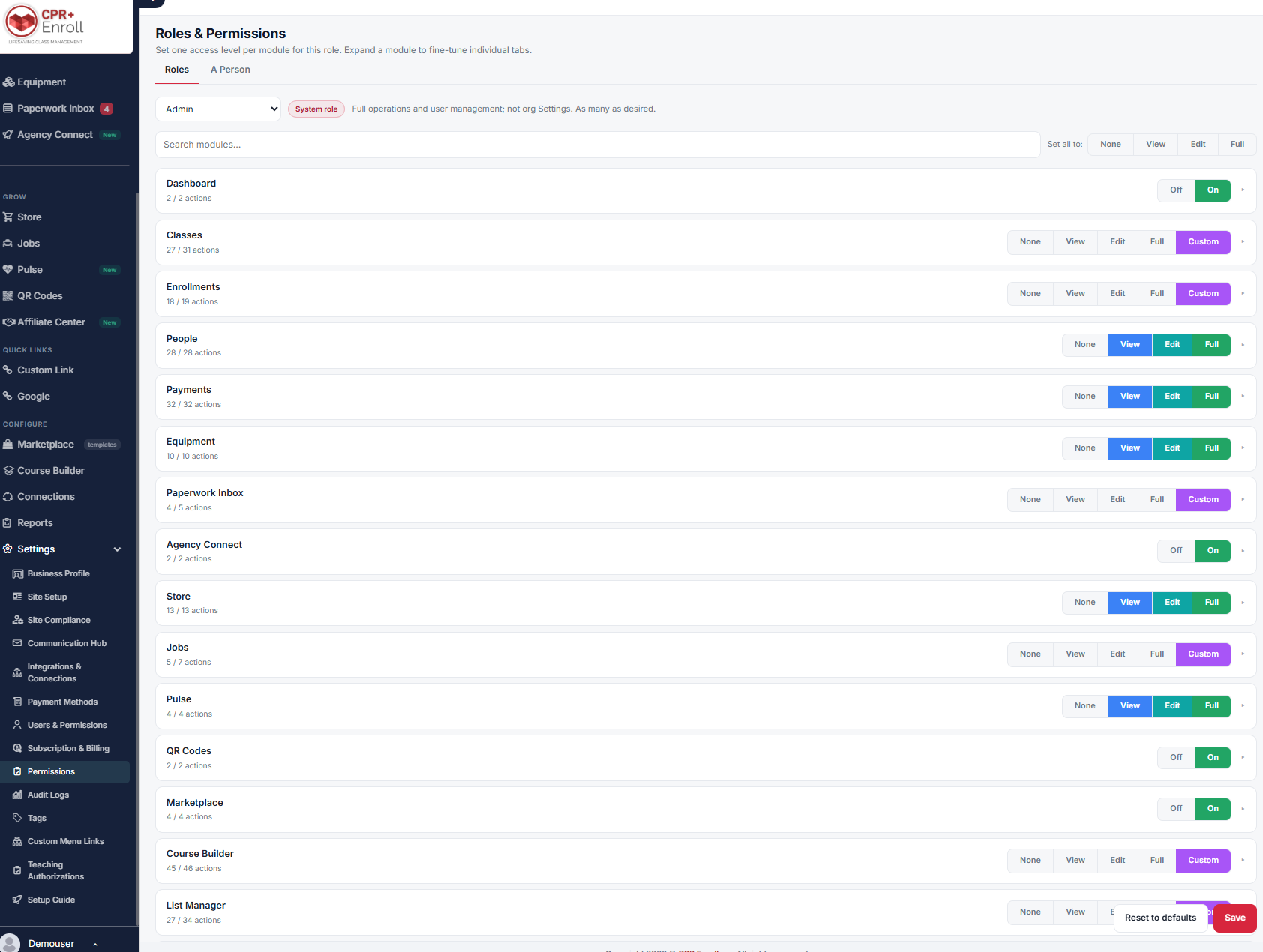
- Find it at Settings → Permissions. The page has two tabs: Roles and A Person.
- The header sets the model: set one access level per module for this role, then expand a module to fine-tune individual tabs.
- Built-in roles are marked System role and carry a description — for example, Admin reads “Full operations and user management; not org Settings. As many as desired.”
✔ Users only see what they can access. Modules a user has no access to are hidden from their navigation entirely — which is why a colleague may not see a menu item you can see.
Step 1: Edit a Role
- Open the Roles tab.
- Choose a role from the dropdown.
- Set the level for each module using the buttons on the right.
- Expand a module (the chevron on the far right) to switch individual actions on and off.
- Click Save.
Each module is listed with an action count, such as Classes — 27 / 31 actions, so you can see at a glance how far a role has been narrowed.
Step 2: Understand the Access Levels
| Level | Applies to |
|---|---|
| None / View / Edit / Full | Standard modules. |
| Off / On | Simple modules such as Dashboard, Agency Connect, QR Codes and Marketplace. |
| Custom | Appears automatically when you have fine-tuned individual actions inside a module. |
Step 3: Use the Bulk Controls
- Search modules… filters the list.
- Set all to: None / View / Edit / Full applies one level across every module at once — useful as a starting point before you narrow it down.
- Reset to defaults returns the role to its shipped configuration.
✔ Start restrictive. Set all to: None, then grant what the role actually needs. It is far easier to justify than working down from Full.
Step 4: Push the Change to Existing Users
When you save an updated role, you can choose to apply the change to everyone already assigned to it. This removes the need to touch users one at a time and keeps permissions in step with the role.
Step 5: Override One Person
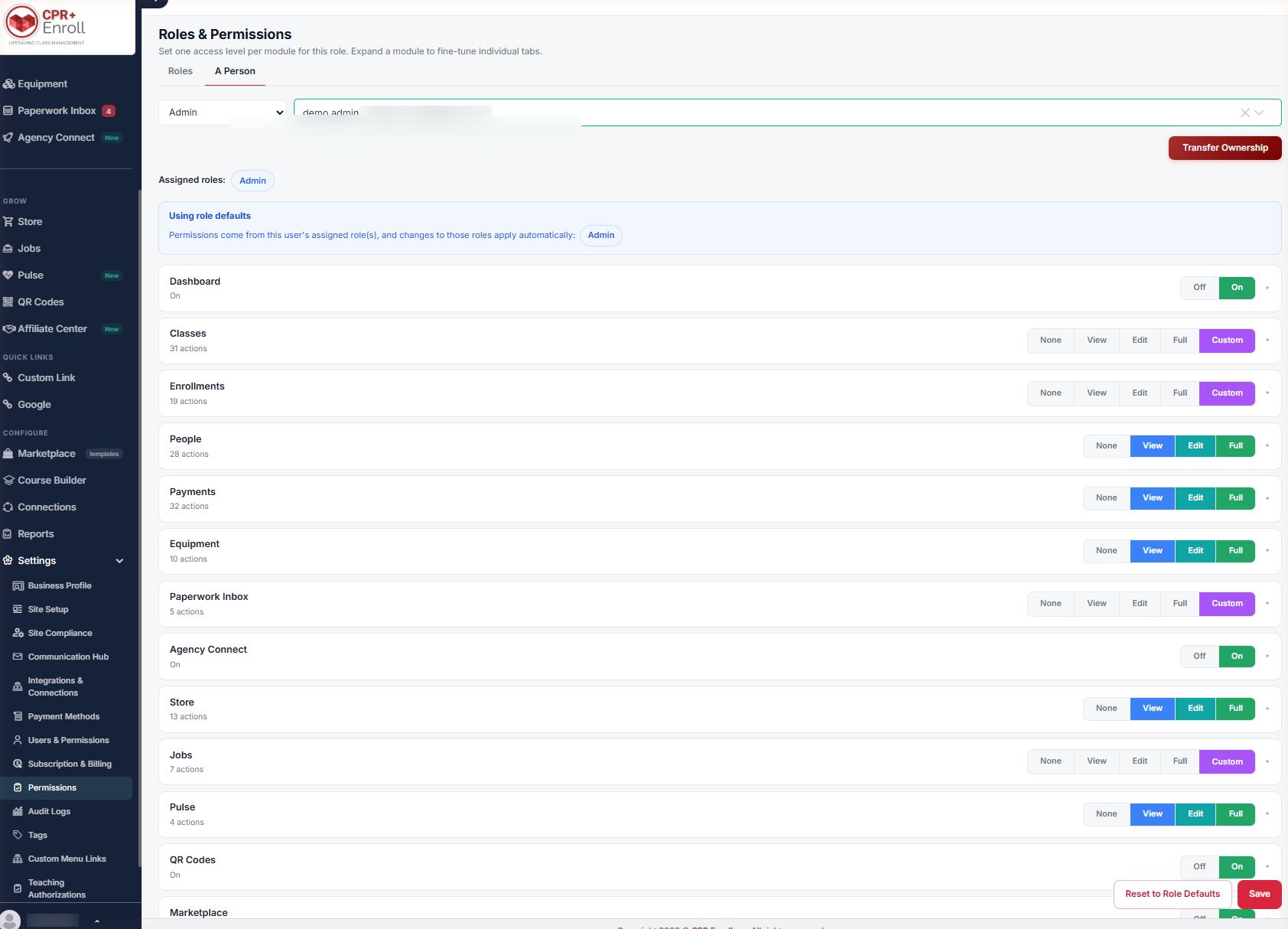
- Open the A Person tab.
- Pick the role, then search for the person.
- Grant or remove a single permission for that individual.
Overrides are flagged clearly and can be removed at any time. They sit on top of the role and do not alter the underlying role for anyone else.
Step 6: Know What Happens When New Features Ship
When CPR Enroll adds a new permission, it is evaluated against default access and assigned to applicable roles automatically, so new features become available without manual admin work. Your custom overrides are preserved unless a default rule applies.
Best Practices
- Change the role first and the person second. If two people need the same exception, it is a role, not an override.
- Apply role changes to existing users when you save — otherwise the role and the people holding it drift apart.
- Review overrides periodically. They are flagged for a reason: each one is an exception someone has to remember.
- Use Reset to defaults when a role has been edited past recognition, then re-narrow deliberately.
- Before troubleshooting “the menu is missing”, check the role. Hidden modules are a permissions outcome, not a bug.
Frequently Asked Questions
| Question | Answer |
|---|---|
| Why can’t my colleague see a menu item I can see? | Modules a user has no access to are hidden from their navigation entirely. |
| What does Custom mean next to a module? | It appears automatically when you have fine-tuned individual actions inside that module. |
| Do role changes reach people already assigned to the role? | They can. When you save, you can choose to apply the change to everyone already assigned. |
| Does a per-person override change the role? | No. Overrides sit on top of the role and do not alter it for anyone else. |
| Can I undo an override? | Yes. Overrides are flagged clearly and can be removed at any time. |
| What happens to my permissions when CPR Enroll adds a feature? | New permissions are evaluated against default access and assigned to applicable roles automatically. Custom overrides are preserved unless a default rule applies. |
| How do I start a role from scratch? | Use Set all to: None, then grant what the role needs. Reset to defaults restores the shipped configuration. |
✔ You’re all set. Roles for the rule, overrides for the exception — and the navigation each person sees follows automatically.
Was this article helpful?
That’s Great!
Thank you for your feedback
Sorry! We couldn't be helpful
Thank you for your feedback
Feedback sent
We appreciate your effort and will try to fix the article