CPR Enroll+ uses a role-based access control system to determine what each user can see and do in the dashboard. As an administrator, you can customize the permissions for each role — controlling access at both the module level (e.g., Classes, Payments) and the individual tab level within each module. This is essential for multi-instructor organizations where you want instructors to manage their own classes without accessing financial data.
This article walks you through accessing permission settings and configuring both module-level and tab-level access for each role.
Before You Begin
- Decide which roles need access to which modules — Classes, Enrollments, Payments, Reports, Store, Settings, and so on.
- Identify any sensitive areas, such as Payments, that should be restricted for certain roles.
- Review the common permission configurations below as a starting point for your own setup.
Step-by-Step Instructions
Step 1: Access Permission Settings
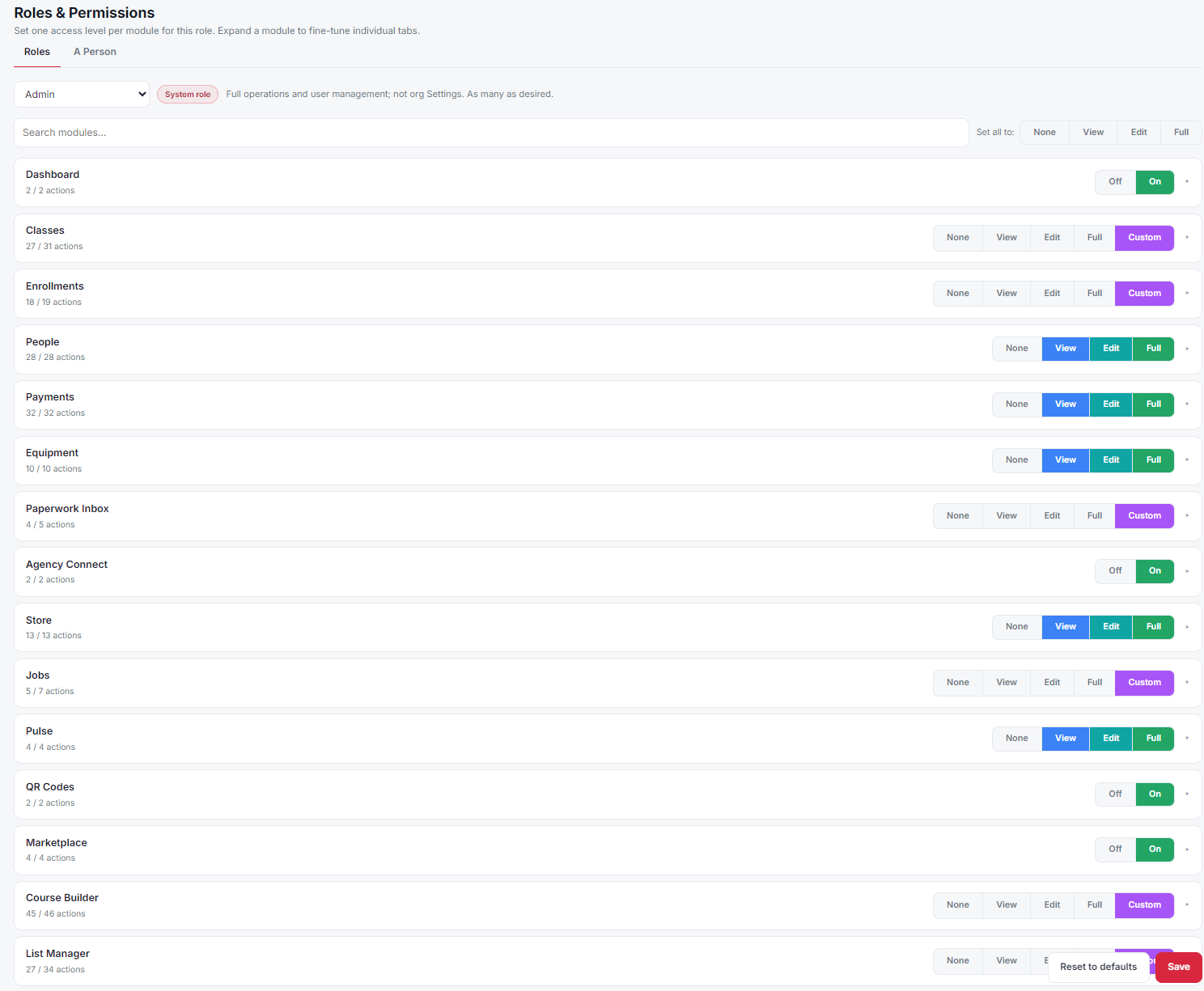
- From the sidebar, go to Settings > Permissions.
- Select a Role from the dropdown at the top. Common roles include Admin and Instructor.
Step 2: Configure Module-Level Access
- With a role selected, you will see a list of all modules in the dashboard (Classes, Enrollments, Payments, Reports, Store, etc.).
- Toggle the switch next to any module ON to grant the role access to that module, or OFF to hide it entirely from users with that role.
- A count such as "2 / 4 tabs enabled" shows how many tabs within the module are currently visible for this role.
Step 3: Configure Tab-Level Access
- Click the expand arrow next to a module to reveal its individual tabs.
- Toggle each tab's switch independently. For example, you can give Instructors access to the Classes module but disable the Payments tab so they cannot see financial data.
- Click Save after configuring each role.
✔ Store permission label: The Store module permission is labeled "Purchase from Store" — this controls whether the role can make purchases from the store, not whether they can see it. Enable this for instructor roles who need to purchase training materials.
Common Permission Configurations
| Role Setup | Recommended Permissions |
|---|---|
| Instructor (limited) | Classes (view only), Enrollments (no payments tab), Reports (Certificates, Attendance only) |
| Instructor (full) | Classes, Enrollments, Reports, Store (purchase) |
| Admin | All modules and tabs enabled |
| Staff / Manager | Classes, Enrollments, Payments, Reports — no Settings access |
Best Practices
- Restrict the Payments tab for instructor roles in multi-instructor organizations, so they can manage classes without seeing financial data.
- Use the tab-level count (e.g., "2 / 4 tabs enabled") to quickly audit how open a role's access is within a module.
- Start from the common permission configurations above and adjust to fit your organization's structure.
- Review role permissions periodically, especially after adding new modules or promoting staff to new roles.
Frequently Asked Questions
| Question | Answer |
|---|---|
| Can I control access at both the module and tab level? | Yes. Toggling a module ON/OFF controls access to the whole module, while expanding it lets you toggle individual tabs within that module. |
| What does the "Purchase from Store" permission actually control? | It controls whether the role can make purchases from the store, not whether they can see the Store module. |
| How do I stop instructors from seeing financial data? | Give the Instructor role access to the Classes module, but disable the Payments tab within Enrollments or Classes. |
✔ You're all set. Your roles now have the appropriate module and tab-level access, keeping sensitive data visible only to the right people.
Was this article helpful?
That’s Great!
Thank you for your feedback
Sorry! We couldn't be helpful
Thank you for your feedback
Feedback sent
We appreciate your effort and will try to fix the article