Profile pictures in CPR Enroll+ are associated with individual user accounts. Administrators and instructors with portal access can update their own profile pictures through their account settings, and administrators can also update profile pictures on behalf of any instructor.
This article walks you through changing your own profile picture and updating an instructor's profile picture as an admin.
Before You Begin
- Have your image file ready — JPG or PNG recommended, kept under 2 MB for best performance.
- Note the recommended proposed size of 40×40 px for profile images.
Step-by-Step Instructions
Step 1: Change Your Own Profile Picture
- Click your username at the bottom of the left sidebar.
- Select My Settings from the menu.
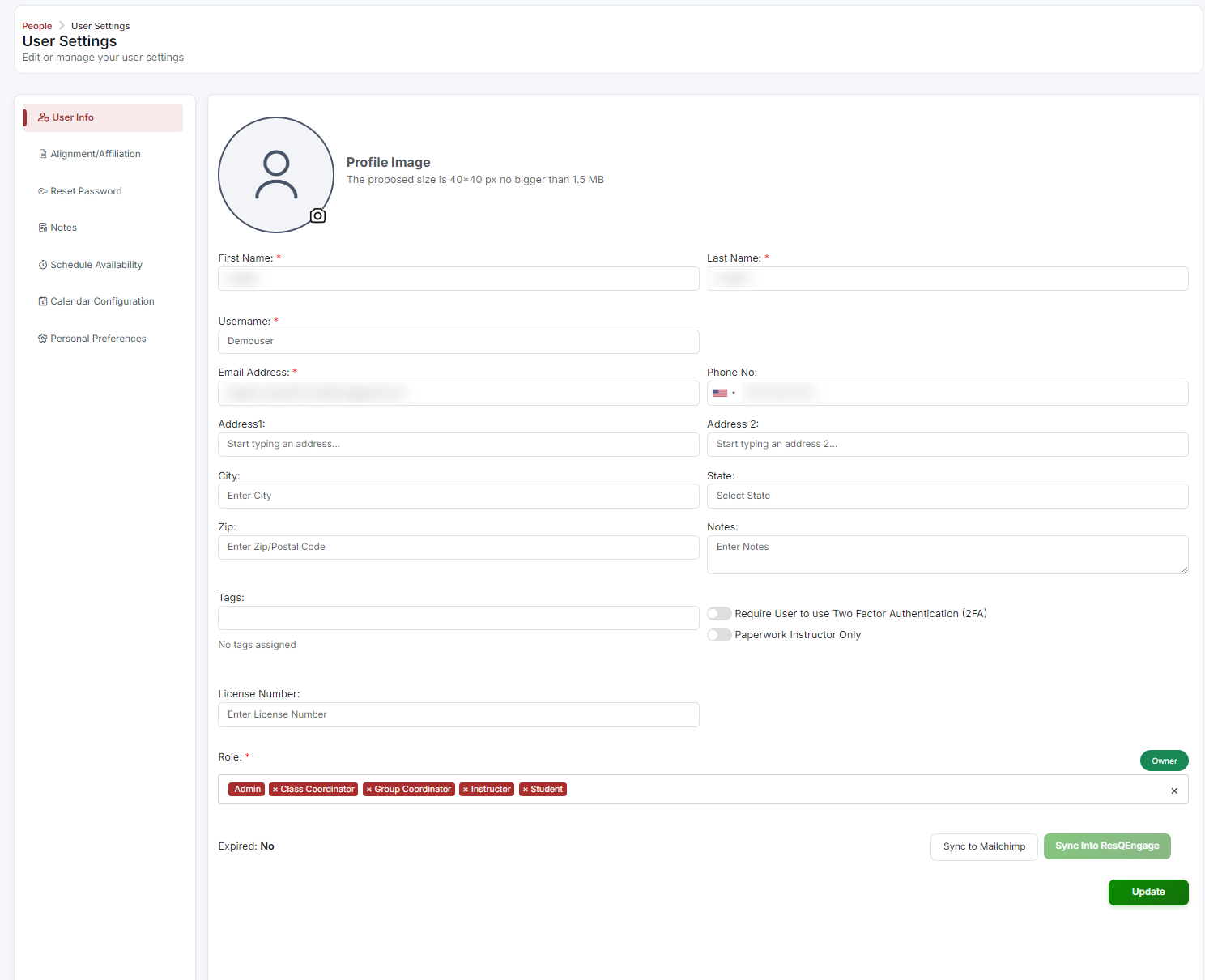
- Look for the profile picture/avatar section.
- Click Upload or the camera icon on the existing avatar.
- Select an image file from your device (JPG or PNG recommended; keep the file under 2 MB for best performance).
- Crop or adjust the image if prompted, then confirm the upload.
- Click Save.
Step 2: Update an Instructor's Profile Picture (Admin)
As an administrator, you can update the profile picture for any instructor in your account:
- Go to People > Instructors in the sidebar.
- Click ⋮ > Edit on the instructor whose picture you want to update.
- Click the Edit info, then find the profile picture / avatar upload area.
- Upload the new image and click Save.
ℹ Profile pictures and student-facing pages: Profile pictures are visible in the admin dashboard to help identify users. Whether they appear on student-facing registration pages depends on your theme and branding configuration.
Best Practices
- Use JPG or PNG files under 2 MB to keep uploads fast and avoid quality loss on cropping.
- Keep profile pictures close to the recommended 40×40 px proposed size for the sharpest display.
- Check your theme and branding configuration if you expect profile pictures to appear on student-facing pages, since this isn't automatic.
- As an admin, periodically review instructor profiles to make sure pictures are current and appropriate.
Frequently Asked Questions
| Question | Answer |
|---|---|
| Can I change another instructor's profile picture? | Yes, if you're an administrator. Go to People > Instructors, edit their profile, and upload a new image. |
| What file types and sizes are supported? | JPG or PNG is recommended, kept under 2 MB for best performance. |
| Will my profile picture show up to students? | That depends on your theme and branding configuration — profile pictures are always visible in the admin dashboard, but student-facing visibility varies. |
✔ You're all set. Your profile picture (or the instructor's) is now updated and visible in the admin dashboard.
Was this article helpful?
That’s Great!
Thank you for your feedback
Sorry! We couldn't be helpful
Thank you for your feedback
Feedback sent
We appreciate your effort and will try to fix the article