The Owner role is the highest level of access in an organization. Transferring it is a deliberate, verified process rather than a single click — both parties verify their identity, both are notified, and a waiting period runs before anything changes.
Before You Begin
- Confirm the incoming Owner already has an active account in the organization.
- Confirm they can receive the verification email at the address on their profile.
- If billing is tied to the Owner, review Settings → Subscription & Billing first.
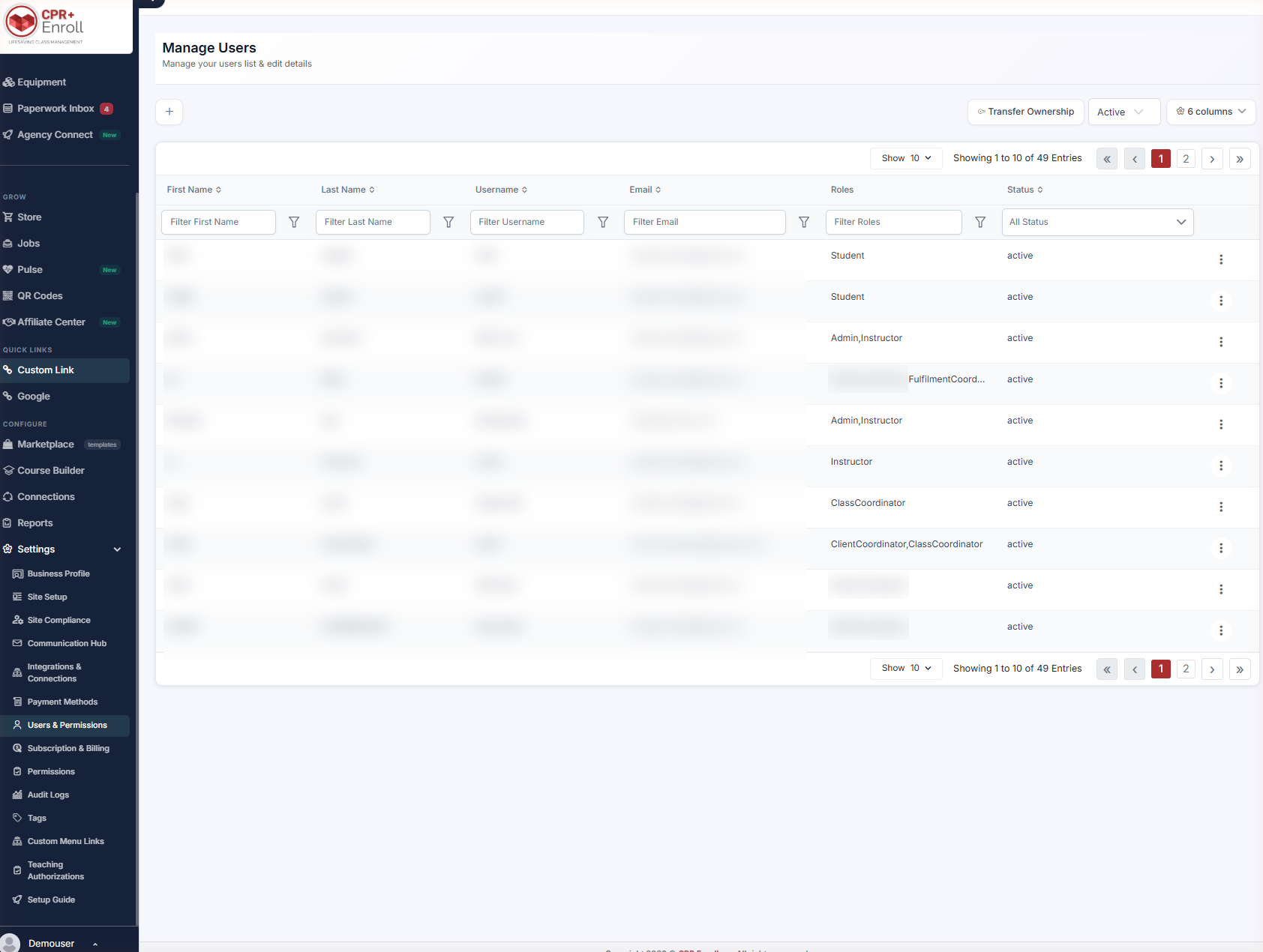
- Start the transfer at Settings → Users & Permissions → Transfer Ownership, at the top of the grid.
Step 1: Follow the Transfer Sequence
- The current Owner starts the transfer and nominates the new Owner.
- Both parties verify their identity.
- The nominated person approves the transfer.
- Email and in-app notifications are sent to both parties.
- A waiting period runs before the transfer completes.
- On completion, the previous Owner is automatically moved to the Admin role.
✔ The previous Owner is not locked out. On completion they move automatically to the Admin role — full operations and user management, but not org Settings.
Step 2: Know the Safeguards
- You cannot remove the last Owner from an organization.
- Every ownership and permission change is recorded for auditing — see Settings → Audit Logs.
Step 3: If the Transfer Stalls
Check that the nominated person has completed their side of the identity verification. The waiting period does not begin until both parties have verified.
✔ A stalled transfer is almost always an unverified second party. Before raising a ticket, confirm the nominee received the verification email and acted on it.
Best Practices
- Do the transfer while the outgoing Owner is still available and responsive — not on their last afternoon.
- Verify the nominee’s profile email before starting, not after the verification email fails to arrive.
- Settle billing ownership first if the subscription is tied to the Owner account.
- Tell both parties to expect the waiting period, so nobody assumes the transfer failed.
- Check Settings → Audit Logs afterwards to confirm the change was recorded as expected.
Frequently Asked Questions
| Question | Answer |
|---|---|
| Where do I start a transfer? | Settings → Users & Permissions, then Transfer Ownership at the top of the grid. |
| Does the transfer happen immediately? | No. Both parties verify their identity, the nominee approves, and a waiting period runs before completion. |
| What happens to the previous Owner? | They are automatically moved to the Admin role. |
| Can I remove the only Owner? | No. You cannot remove the last Owner from an organization. |
| Is the change recorded anywhere? | Yes. Every ownership and permission change is recorded for auditing — see Settings → Audit Logs. |
| My transfer seems stuck. Why? | The waiting period does not begin until both parties have verified. Check the nominee’s side. |
| Does the nominee need an existing account? | Yes — an active account in the organization, with a working email on their profile. |
✔ You’re all set. Verified on both sides, notified, waited out, and logged — ownership transfers are meant to be slow.
Was this article helpful?
That’s Great!
Thank you for your feedback
Sorry! We couldn't be helpful
Thank you for your feedback
Feedback sent
We appreciate your effort and will try to fix the article