The List Manager is the single place to manage the disciplines, categories and associations your courses use. Get these right early — they drive your public class listings, marketplace filters and CPR Class Finder, and they are much harder to tidy once courses depend on them.
Before You Begin
- Find it at Course Builder → List Manager. Four tabs: Discipline, Categories, Associations and Folders.
- Check the usage count before deleting anything. Once a value has been used, archive is your only option.
- Associations are held to a stricter standard than disciplines and categories — read Step 4 before creating one.
- The Folders tab is covered separately in Organizing Records with Folders.
Step 1: Add a Discipline or Category
Both work the same way.
- Type a name into the Add a discipline… (or category) box.
- Click + Add.
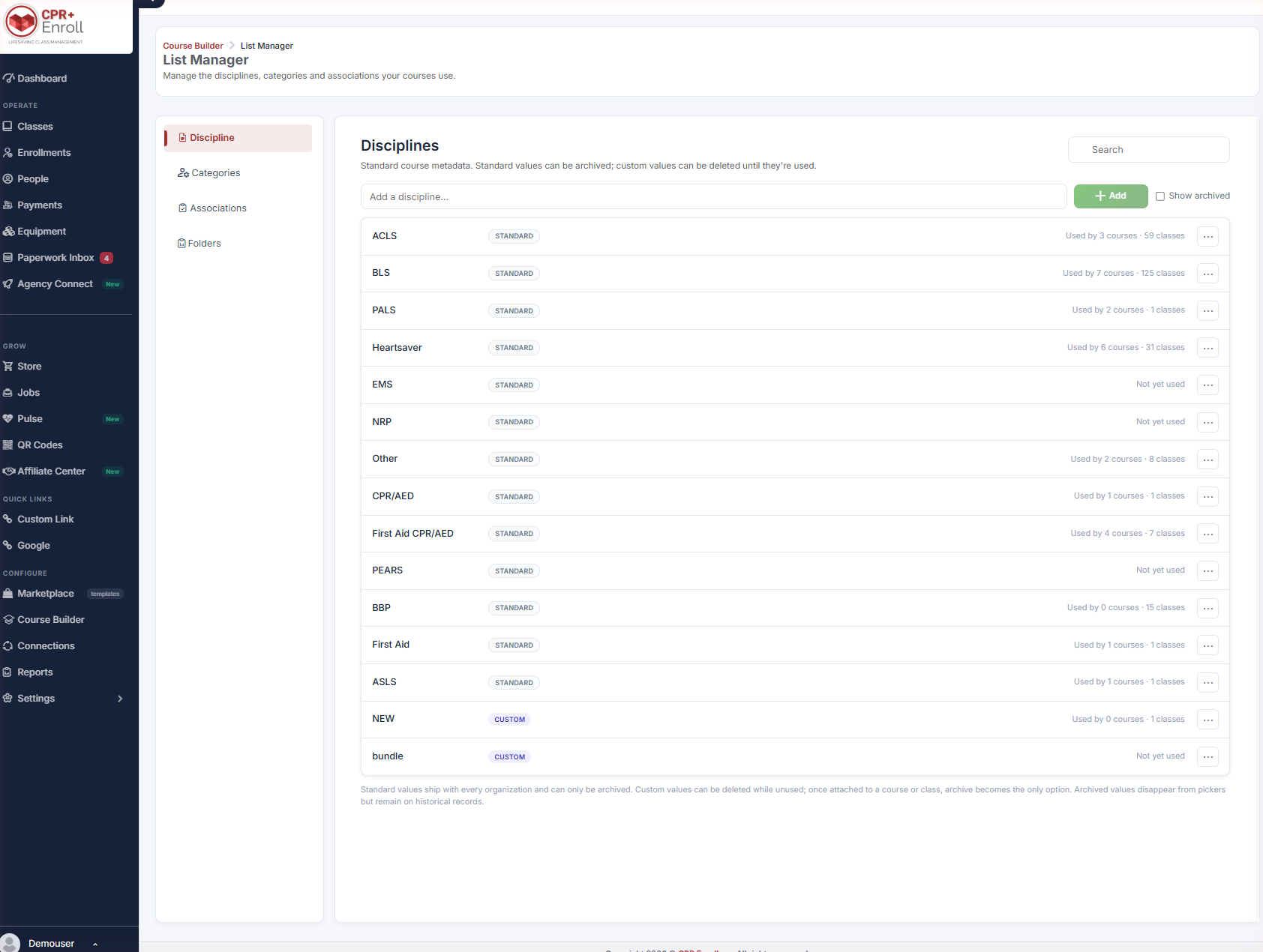
Each row shows:
- A STANDARD or CUSTOM badge.
- A usage count — Used by 3 courses · 59 classes, or Not yet used.
- An action menu (⋯).
Step 2: Know the Rules on Deleting
The footer spells them out:
| Value type | What you can do |
|---|---|
| Standard | Ships with every organization. Can only be archived. |
| Custom, unused | Can be deleted. |
| Custom, in use | Once attached to a course or class, archive becomes the only option. |
Archived values disappear from pickers but remain on historical records. Tick Show archived to see archived values and restore them.
✔ Check the usage count before you try to delete. If it has been used, archive it — the record it is attached to still needs it.
Step 3: Use Category Colors
Custom course category headings can be assigned a color, which makes long course lists far easier to scan on your public page. Default categories use their predefined colors and cannot be changed.
Step 4: Work With Associations
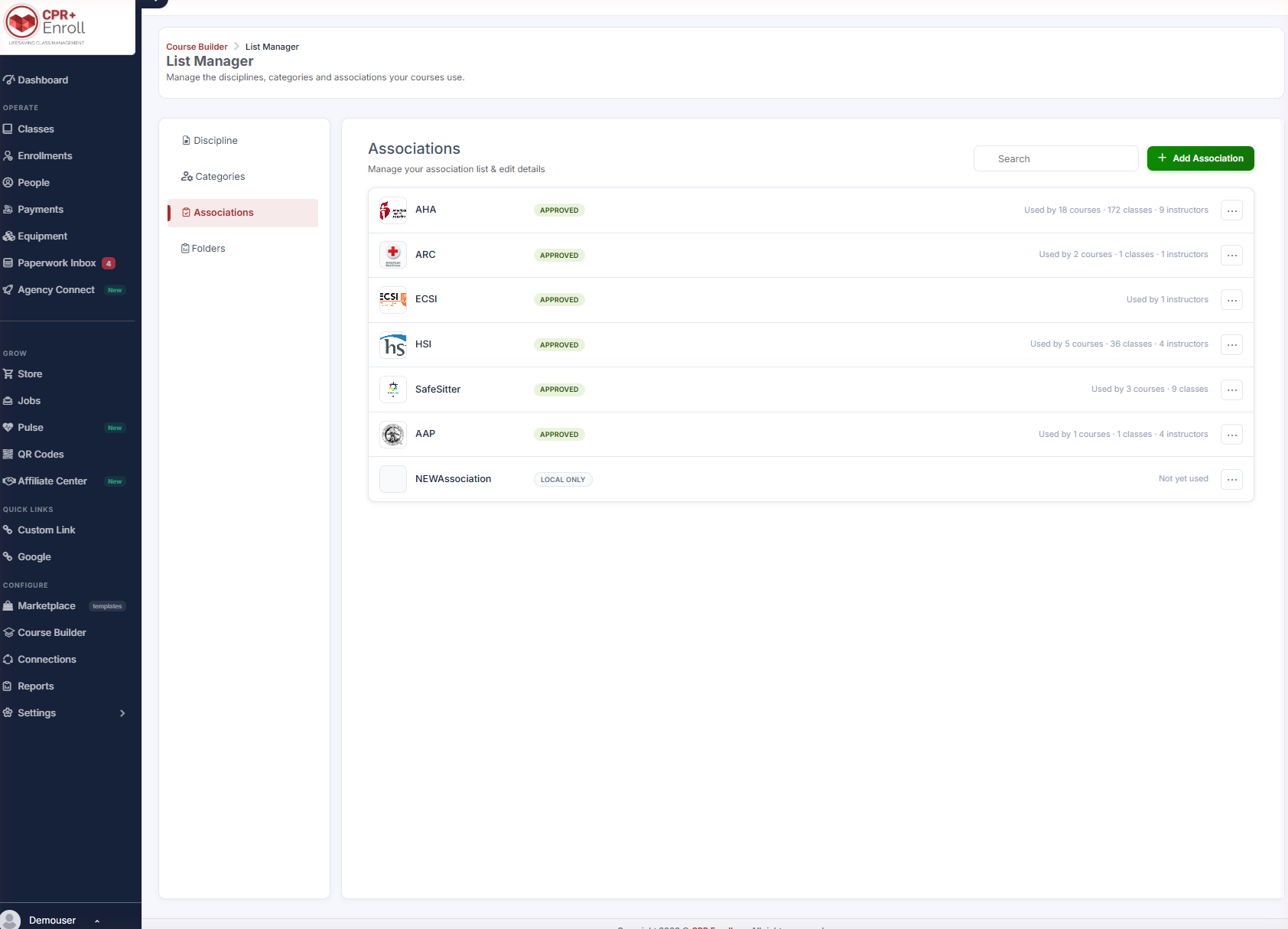
Associations drive class listings, marketplace filters and CPR Class Finder, so they are held to a stricter standard. There is a centralized, approved catalog for consistent naming, plus organization-specific custom associations.
| Status | Meaning |
|---|---|
| Approved | In the central catalog. |
| Pending Approval | Submitted for marketplace inclusion, awaiting review. |
| Local Only | Yours alone; not in the marketplace. |
To request approval, use the row action and supply the required justification and contact information.
✔ Duplicate detection works for you. If an equivalent association already exists as approved or pending, your entry is linked to it rather than creating a near-duplicate.
Step 5: Share Registrations by Discipline or Category
Row-level actions let you generate:
- A public registration link for a specific discipline, category or association.
- Embeddable filtered registration forms for external websites.
These links stay valid even if the discipline or category is later renamed.
Best Practices
- Settle your discipline and category list before building a large catalog. Renaming is easy; restructuring after 200 courses is not.
- Color-code custom categories deliberately — it is the cheapest usability win on your public page.
- Search the approved catalog before creating a custom association. Duplicate detection helps, but a good first choice helps more.
- Use Local Only for genuinely internal groupings and request approval only for associations you want discoverable in the marketplace.
- Archive rather than delete when in doubt. Archived values vanish from pickers but keep history intact.
Frequently Asked Questions
| Question | Answer |
|---|---|
| Why can’t I delete a standard value? | Standard values ship with every organization and can only be archived. |
| Why can’t I delete my own custom value? | Once it is attached to a course or class, archive becomes the only option. |
| What happens to records using an archived value? | Nothing. Archived values disappear from pickers but remain on historical records. |
| Can I change the color of a default category? | No. Default categories use their predefined colors. |
| What does Local Only mean? | The association is yours alone and is not in the marketplace. |
| How do I get an association into the marketplace? | Use the row action to request approval, supplying justification and contact information. |
| Will a registration link break if I rename a category? | No. These links stay valid after a rename. |
✔ You’re all set. Related reading: Organizing Records with Folders for the fourth tab.
Was this article helpful?
That’s Great!
Thank you for your feedback
Sorry! We couldn't be helpful
Thank you for your feedback
Feedback sent
We appreciate your effort and will try to fix the article