How to Easily Download Enrollment Data?
Exporting your enrollment data as a spreadsheet gives you a complete, portable snapshot of your student roster for a class, date range, or your entire account. Use exports for external analysis, bulk email campaigns, certification body submissions, or simply as a backup of your records.
Exporting All Enrollments
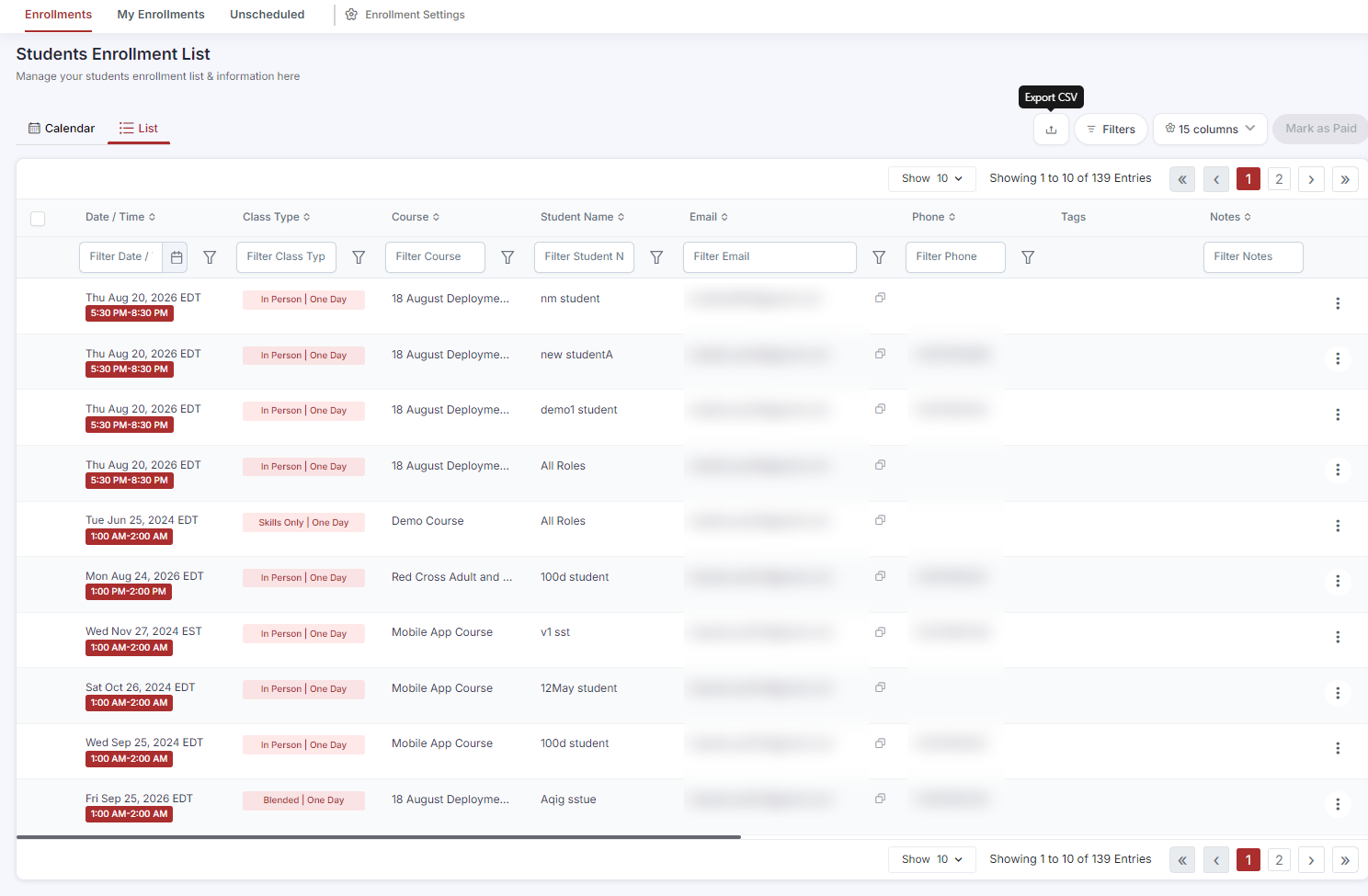
From the sidebar, go to Enrollments.
Switch to List view using the view toggle.
Apply any filters you need — by class, date range, instructor, payment status, or tags — to narrow the data before exporting.
Click the Export button in the toolbar.
A spreadsheet file downloads to your computer containing all visible enrollment records.
What the Export Includes
The exported spreadsheet includes all 14 enrollment columns: Date/Time, Class Type, Course, Slot Time, Student Name, Email, Phone, Tags, Notes, Enrollment Date, Expiration Date, Client, Instructor, and Payment Status — plus any custom registration question answers.
Exporting Enrollments for a Specific Class
Go to Classes in the sidebar.
Find the class whose enrollment data you want to export.
Click ⋮ > View Details on the class row.
In the class detail view, go to the Enrollments or Roster section.
Click Export to download the roster for this specific class only.
✔ Use filters before exporting Always apply your filters first, then export. CPR Enroll+ exports only the records currently displayed in the list. Filtering first saves you from exporting and then cleaning up a large spreadsheet manually. |
Was this article helpful?
Related articles
- The DashboardWhen users refer to “the Dashboard” in CPR Enroll+, they typically means the data and operations view accessible from “Dashboard” in the sidebar. This article explains both and describes the overall layout of the platform. ℹ If you are looking for the home screen with action cards for Courses, LocaReports
- What Kind of Reports Can I Get?CPR Enroll+ includes ten built-in reports covering certifications, compliance, attendance, communications, client activity, and financial data. All reports can be filtered, sorted, and exported. This article describes each report and when to use it. Accessing Reports From the left sidebar, click RepReports
- How to See the Status of an Email Sent to a Student?CPR Enroll+ logs every email sent from the platform and records its delivery status. This lets you confirm that a student received their enrollment confirmation, class reminder, or other communication — and investigate if they claim they never got it. Finding Email Delivery Status From the sidebar, Reports
- How to Download Class Information?Class information exports give you a downloadable record of your scheduled classes — dates, times, locations, instructors, enrollment counts, and status. Use these exports for scheduling reviews, instructor coordination, or submitting class records to your certification body. Exporting Your Full ClReports