What Kind of Reports Can I Get?

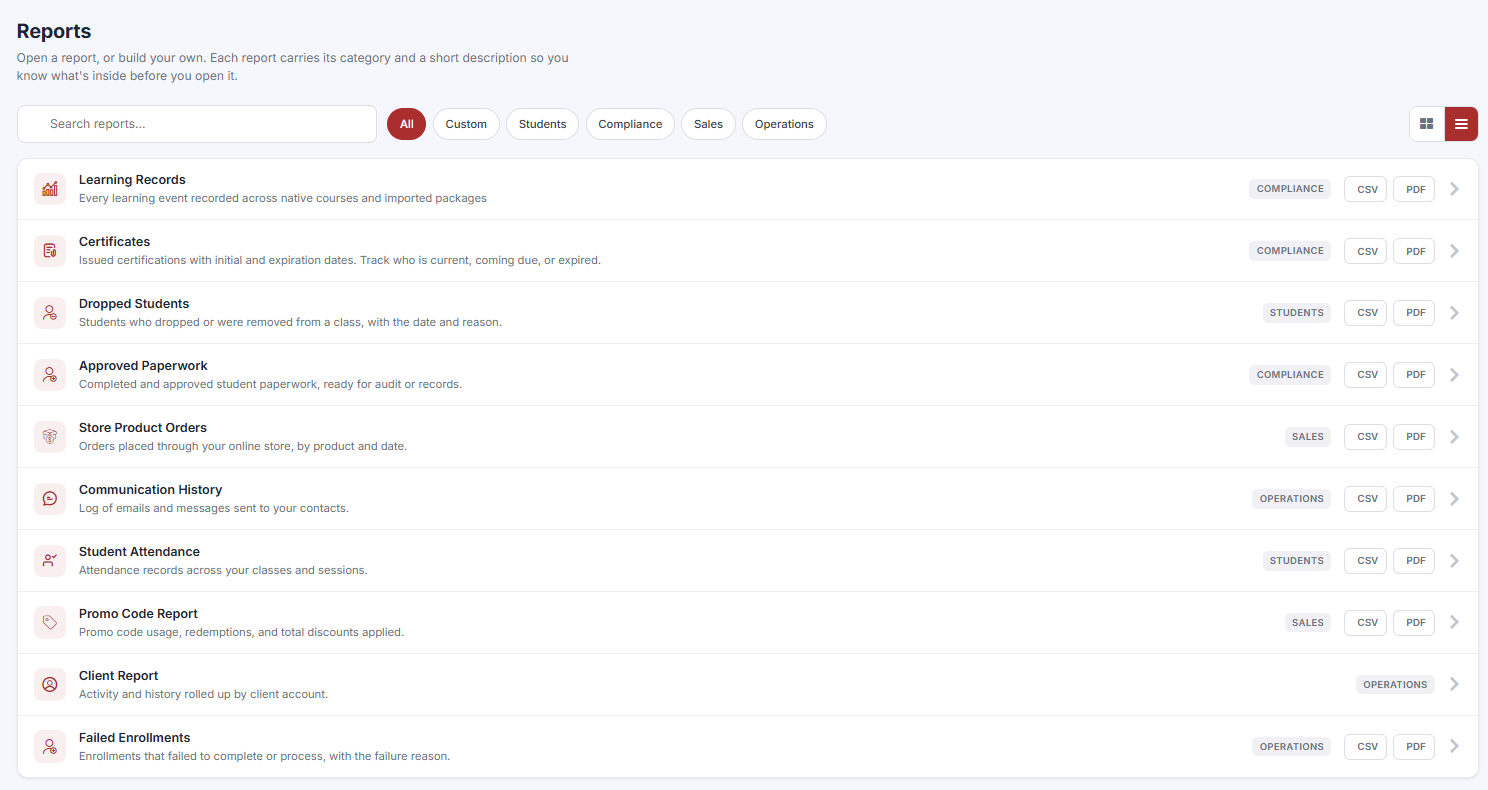
CPR Enroll+ includes ten built-in reports covering certifications, compliance, attendance, communications, client activity, and financial data. All reports can be filtered, sorted, and exported. This article describes each report and when to use it.
Accessing Reports
From the left sidebar, click Reports to open the Reports hub. Use the search box or the Custom, Students, Compliance, Sales and Operations filters to narrow the list, then click a report to open it. Most reports offer CSV and PDF export from the hub.
Report 1 — Certificates
Path: Reports > Certificates. Two tabs: Student (student certifications issued) and Instructor (instructor certifications on file). Each tab has two sub-tabs: Coming Due (expiring soon) and Expired (already lapsed). Filter by discipline, association, or date range. Export for renewal planning or audit submission.
Report 2 — Dropped Students
Path: Reports > Dropped Students. Shows all students who were removed or dropped from a class. Columns: Student Name, Email, Course, Class, Drop Date, Instructor. Filter by instructor, course, or date range. Export for re-engagement outreach.
Report 3 — Approved Paperwork
Path: Reports > Approved Paperwork. Lists all skills testing paperwork that has been approved through the submission workflow. Filter by course, instructor, location, discipline, or association. The primary compliance document for AHA, ARC, and HSI audits — export for audit submission.
Report 4 — Store Product Orders
Path: Reports > Store Product Orders. Tracks all store purchases with order status, purchaser details, and amounts. Used alongside Store > Fulfillment for complete order management.
Report 5 — Communication History
Path: Reports > Communication History. Every email sent from CPR Enroll+ is logged here. Filter by delivery status (Delivered, Bounce, Soft Bounce, Spam, Unsub, Reject, Open, Click) or by email type. Click View Email on any row to see the full email content sent. Invaluable for confirming students received their confirmation emails and for dispute resolution.
Report 6 — Student Attendance
Path: Reports > Student Attendance. Shows every enrolled student with their class, date, and attendance status. Unique feature: Mark as Present bulk action — select students and mark attendance in bulk. Export for compliance documentation.
Report 7 — Promo Code Report
Path: Reports > Promo Code Report. Tracks discount code usage with a date range picker in the toolbar. Shows code, usage count, discount amount, and revenue impact.
Report 8 — Client Report
Path: Reports > Client Report. A consolidated view of all enrollments tied to a specific organization. Select an organization from the Select a Client dropdown and all enrollments for that organization load in one place — no manual filtering required.
Report 9 — Failed Enrollments
Report 10 — Learning Records
Path: Reports > Learning Records. Every learning event recorded across native courses and imported packages. See Understanding the Learning Records Report for a full walkthrough.
Was this article helpful?
Related articles
- The DashboardWhen users refer to “the Dashboard” in CPR Enroll+, they typically means the data and operations view accessible from “Dashboard” in the sidebar. This article explains both and describes the overall layout of the platform. ℹ If you are looking for the home screen with action cards for Courses, LocaReports
- How to See the Status of an Email Sent to a Student?CPR Enroll+ logs every email sent from the platform and records its delivery status. This lets you confirm that a student received their enrollment confirmation, class reminder, or other communication — and investigate if they claim they never got it. Finding Email Delivery Status From the sidebar, Reports
- How to Easily Download Enrollment Data?Exporting your enrollment data as a spreadsheet gives you a complete, portable snapshot of your student roster for a class, date range, or your entire account. Use exports for external analysis, bulk email campaigns, certification body submissions, or simply as a backup of your records. Exporting AlReports
- How to Download Class Information?Class information exports give you a downloadable record of your scheduled classes — dates, times, locations, instructors, enrollment counts, and status. Use these exports for scheduling reviews, instructor coordination, or submitting class records to your certification body. Exporting Your Full ClReports