How to Use the Student Attendance Report

The Student Attendance report in CPR Enroll+ lets you view and record attendance for every enrolled student across all your classes. It is the only report in CPR Enroll+ with a built-in bulk action — the Mark as Present button — making it the fastest way to update attendance records for an entire class at once.
Accessing the Report
From the sidebar, go to Reports > Student Attendance.
The report loads showing all enrolled students and their attendance status.
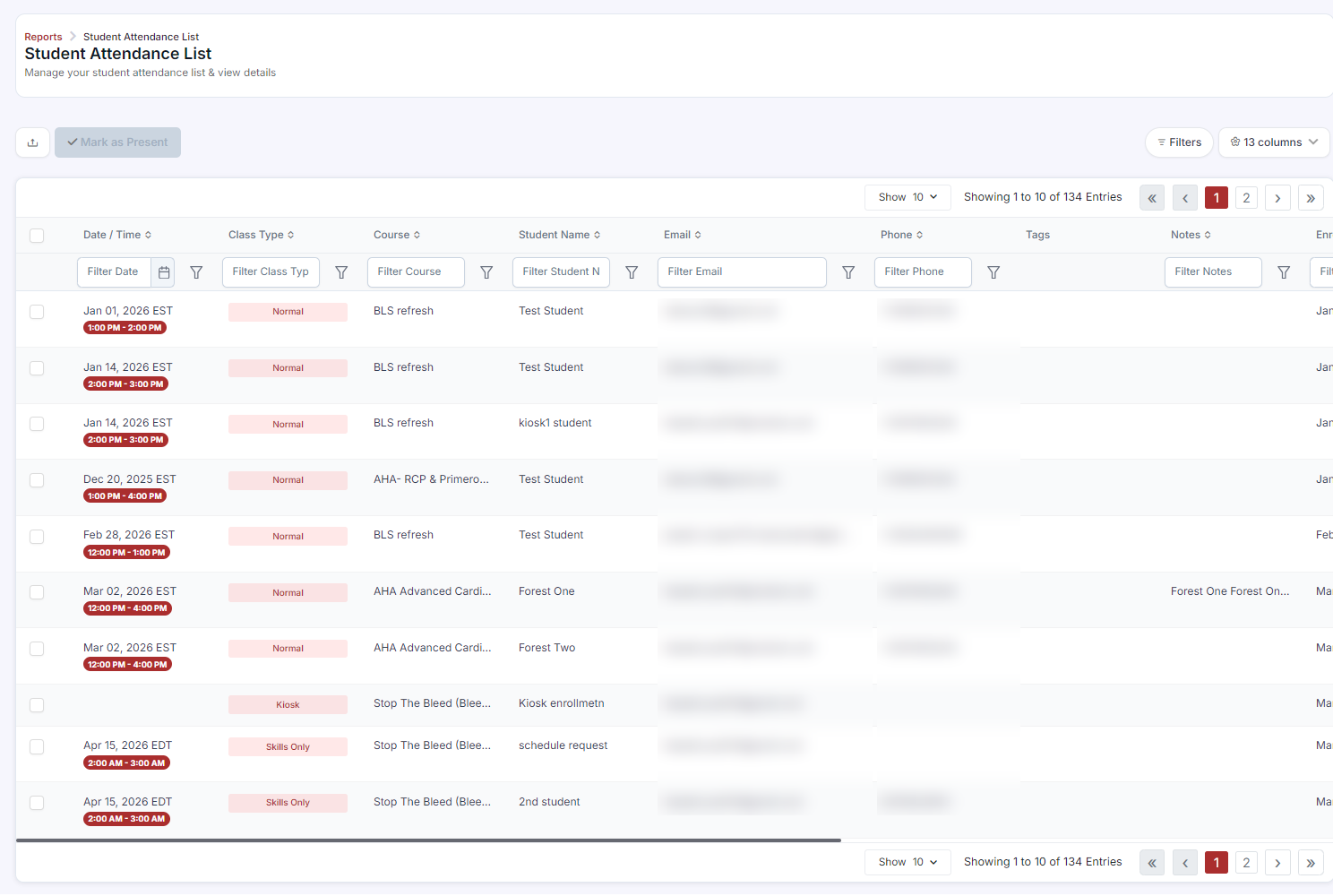
Understanding the Report Columns
Student Name — enrolled student
Class — the class the student is enrolled in
Date — the class date
Instructor — the lead instructor
Attendance Status — Present, Absent, or not yet recorded
Marking Students as Present
Filter the report to the class you want to update — use the Filters button to select by class name, instructor, or date.
Check individual student rows using the checkboxes, or use the select-all checkbox at the top to select the entire class.
Click the Mark as Present button in the toolbar.
All selected students are immediately updated to Present status.
✔ Mark attendance right after class Build attendance marking into your post-class routine — go to Reports > Student Attendance immediately after class ends while the roster is fresh. Accurate attendance records are required for most certification body compliance programs. |
Exporting Attendance Records
Apply your filters (by class, date range, or instructor).
Click Export to download the filtered attendance data as a spreadsheet.
Include this export in your compliance audit package (see Running a Compliance Audit Report).
Was this article helpful?
Related articles
- The DashboardWhen users refer to “the Dashboard” in CPR Enroll+, they typically means the data and operations view accessible from “Dashboard” in the sidebar. This article explains both and describes the overall layout of the platform. ℹ If you are looking for the home screen with action cards for Courses, LocaReports
- What Kind of Reports Can I Get?CPR Enroll+ includes ten built-in reports covering certifications, compliance, attendance, communications, client activity, and financial data. All reports can be filtered, sorted, and exported. This article describes each report and when to use it. Accessing Reports From the left sidebar, click RepReports
- How to See the Status of an Email Sent to a Student?CPR Enroll+ logs every email sent from the platform and records its delivery status. This lets you confirm that a student received their enrollment confirmation, class reminder, or other communication — and investigate if they claim they never got it. Finding Email Delivery Status From the sidebar, Reports
- How to Easily Download Enrollment Data?Exporting your enrollment data as a spreadsheet gives you a complete, portable snapshot of your student roster for a class, date range, or your entire account. Use exports for external analysis, bulk email campaigns, certification body submissions, or simply as a backup of your records. Exporting AlReports