Understanding the Learning Records Report
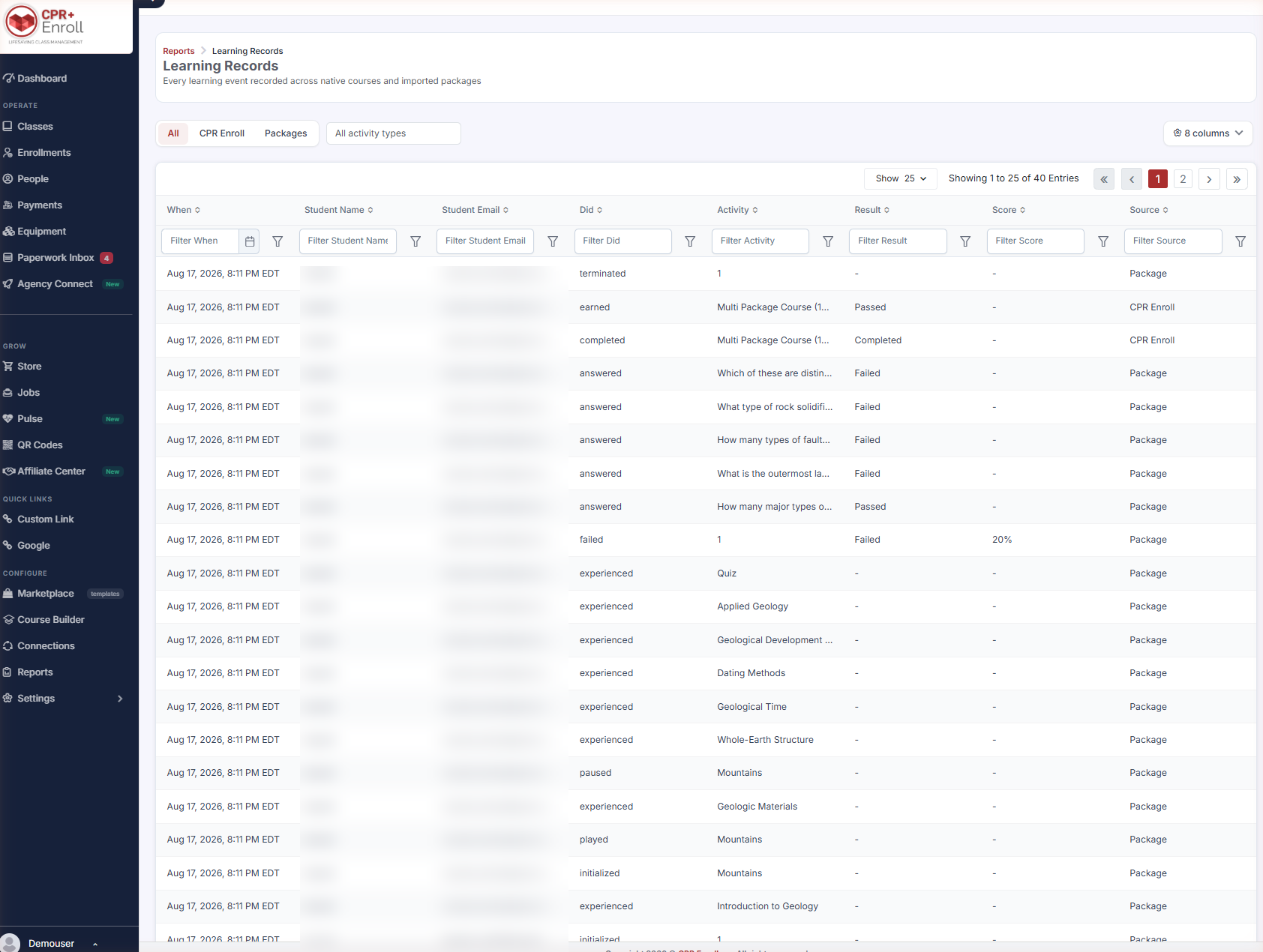
Learning Records is the audit trail for everything a learner does inside CPR Enroll — every learning event recorded across native courses and imported packages. When someone asks you to prove a learner completed a module, this is the report that answers.
Before You Begin
- Find it at Reports → Learning Records.
- Access is permission-based. Users without the permission cannot open the report; Admin has it by default. Grant access under Settings → Permissions.
- Expect a lot of rows. A single quiz attempt produces many events — that is by design, and it is what makes the report defensible.
Step 1: Open the Report and Choose a Source
- Go to Reports → Learning Records.
- Use the three chips at the top to select where the events came from.
| Chip | What it shows |
|---|---|
| All | Every learning event, from both sources. |
| CPR Enroll | Quizzes, lessons, courses, certificates and attendance recorded natively. |
| Packages | SCORM, xAPI and cmi5 activity from imported eLearning packages. |
Beside the chips, All activity types narrows the view to a single activity type.
Step 2: Read the Columns
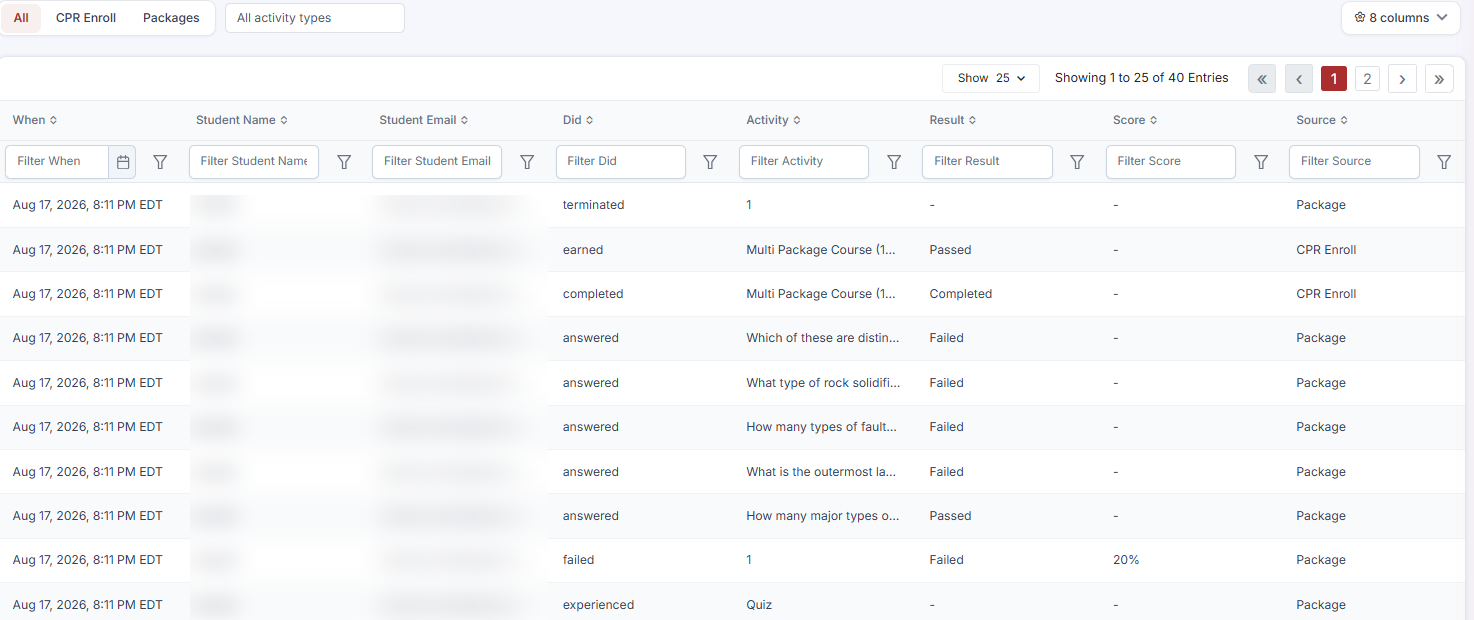
| Column | Contents |
|---|---|
| When | Date and time of the event. |
| Student Name | The learner. |
| Student Email | The learner’s email. |
| Did | The verb — what happened. |
| Activity | What it happened to. |
| Result | Passed, Failed, Completed, or a dash. |
| Score | A percentage where one applies. |
Use the 8 columns control to show or hide fields, and the filter row beneath the headers to search any column.
Step 3: Read the “Did” Verb
Verbs come from the learning standard the activity was recorded against. These are the ones you will see most often:
| Verb | Meaning |
|---|---|
| initialized | The learner opened the activity. |
| experienced | The learner viewed a lesson or page. |
| played / paused | Video interaction. |
| answered | A quiz question was answered — Result shows Passed or Failed. |
| completed | The activity was finished. |
| earned | A credential or outcome was awarded. |
| failed | The attempt did not reach the passing score — Score shows the percentage. |
| terminated | The session ended. |
✔ Many rows per attempt is normal. A single quiz attempt produces one initialized, one answered per question, and one completed or failed. Filter by student and activity before you try to read it.
Step 4: Put It to Work
- Compliance evidence. Proving that a learner completed a required module, with a timestamp.
- Dispute resolution. A student says they finished the course; the record shows exactly where they stopped.
- Content quality. A question that almost everyone answers Failed is usually a badly worded question, not a cohort of poor students.
Step 5: See the Full Value in a Truncated Cell
When the summary row is not enough, you can open the original activity record for full detail — useful when a package reports something the summary columns do not capture.
Best Practices
- Filter to one student and one activity before reading. Unfiltered, the report is a firehose.
- Use the Packages chip when troubleshooting a SCORM course — it isolates what the package reported from what CPR Enroll recorded natively.
- Export the filtered view rather than the whole report when responding to an audit request.
- Review failed and answered rows periodically by question. Consistently failed questions are a content problem worth fixing.
- Grant the Learning Records permission deliberately. It contains student names and emails alongside performance data.
Frequently Asked Questions
| Question | Answer |
|---|---|
| Why does one quiz attempt produce so many rows? | Each event is recorded separately: initialized, one answered per question, then completed or failed. |
| What is the difference between the CPR Enroll and Packages chips? | CPR Enroll shows natively recorded quizzes, lessons, courses, certificates and attendance. Packages shows SCORM, xAPI and cmi5 activity from imported packages. |
| Where does the “Did” verb come from? | From the learning standard the activity was recorded against. |
| A row shows failed — where do I see how close they were? | The Score column shows the percentage. |
| Can I hide columns I don’t need? | Yes — use the 8 columns control. |
| My colleague cannot open this report. | Access is permission-based. Admin has it by default; grant it under Settings → Permissions. |
✔ You’re all set. Learning Records is your evidence of record. Pair it with the Certificates report when assembling an audit package.
Was this article helpful?
Related articles
- The DashboardWhen users refer to “the Dashboard” in CPR Enroll+, they typically means the data and operations view accessible from “Dashboard” in the sidebar. This article explains both and describes the overall layout of the platform. ℹ If you are looking for the home screen with action cards for Courses, LocaReports
- What Kind of Reports Can I Get?CPR Enroll+ includes ten built-in reports covering certifications, compliance, attendance, communications, client activity, and financial data. All reports can be filtered, sorted, and exported. This article describes each report and when to use it. Accessing Reports From the left sidebar, click RepReports
- How to See the Status of an Email Sent to a Student?CPR Enroll+ logs every email sent from the platform and records its delivery status. This lets you confirm that a student received their enrollment confirmation, class reminder, or other communication — and investigate if they claim they never got it. Finding Email Delivery Status From the sidebar, Reports
- How to Easily Download Enrollment Data?Exporting your enrollment data as a spreadsheet gives you a complete, portable snapshot of your student roster for a class, date range, or your entire account. Use exports for external analysis, bulk email campaigns, certification body submissions, or simply as a backup of your records. Exporting AlReports