The Dashboard
When users refer to “the Dashboard” in CPR Enroll+, they typically means the data and operations view accessible from “Dashboard” in the sidebar. This article explains both and describes the overall layout of the platform.
ℹ If you are looking for the home screen with action cards for Courses, Locations, Payments, etc., see the Setup Guide (Settings > Setup Guide). This article covers the Dashboard and sidebar navigation.
Sidebar Navigation — Top to Bottom
Sidebar Item | What It Contains |
Classes | All scheduled classes |
People | Students, Clients, Instructors |
Enrollments | Enrollment list, calendar, and management |
Payments | Invoices, Transactions, Products, Payment Settings |
QR Codes | QR code builder and Short Links |
Store | Student-facing product catalog |
Jobs | Job posting and application board |
Marketplace | Pre-built course, paperwork, and other templates |
Administration | Course Builder, Connections, Submitted Paperwork, Users |
Reports | 9 report types (see below) |
Settings | Business Profile, Branding, Notifications, Integrations, and more |
The 9 Report Types
Click Reports in the sidebar to expand the full list of available reports:
Certificates — student and instructor certification tracking with Coming Due and Expired sub-views.
Dropped Students — students removed from classes.
Approved Paperwork — approved skills testing documents.
Store Product Orders — store purchase tracking.
Communication History — every email sent from the platform with delivery status.
Student Attendance — class attendance tracking with a Mark as Present bulk action.
Promo Code Report — discount code usage statistics.
Client Report — all enrollments filtered by a specific organization.
Failed Enrollments — enrollments that did not complete successfully.
The OPS Dashboard
Click Dashboard in the sidebar. The page defaults to the OPS Dashboard. This view shows real-time operational metrics including Earnings (with a chart), New Orders, Paperwork Pending Approval, Pending Connections, Unscheduled Students, Unpaid Students, Today’s Enrollments, Enrollments in Last 3 Days, and Classes (with Enrollments) Coming Up in Next 3 Days.
Use the date range picker and currency selector at the top to adjust the period shown.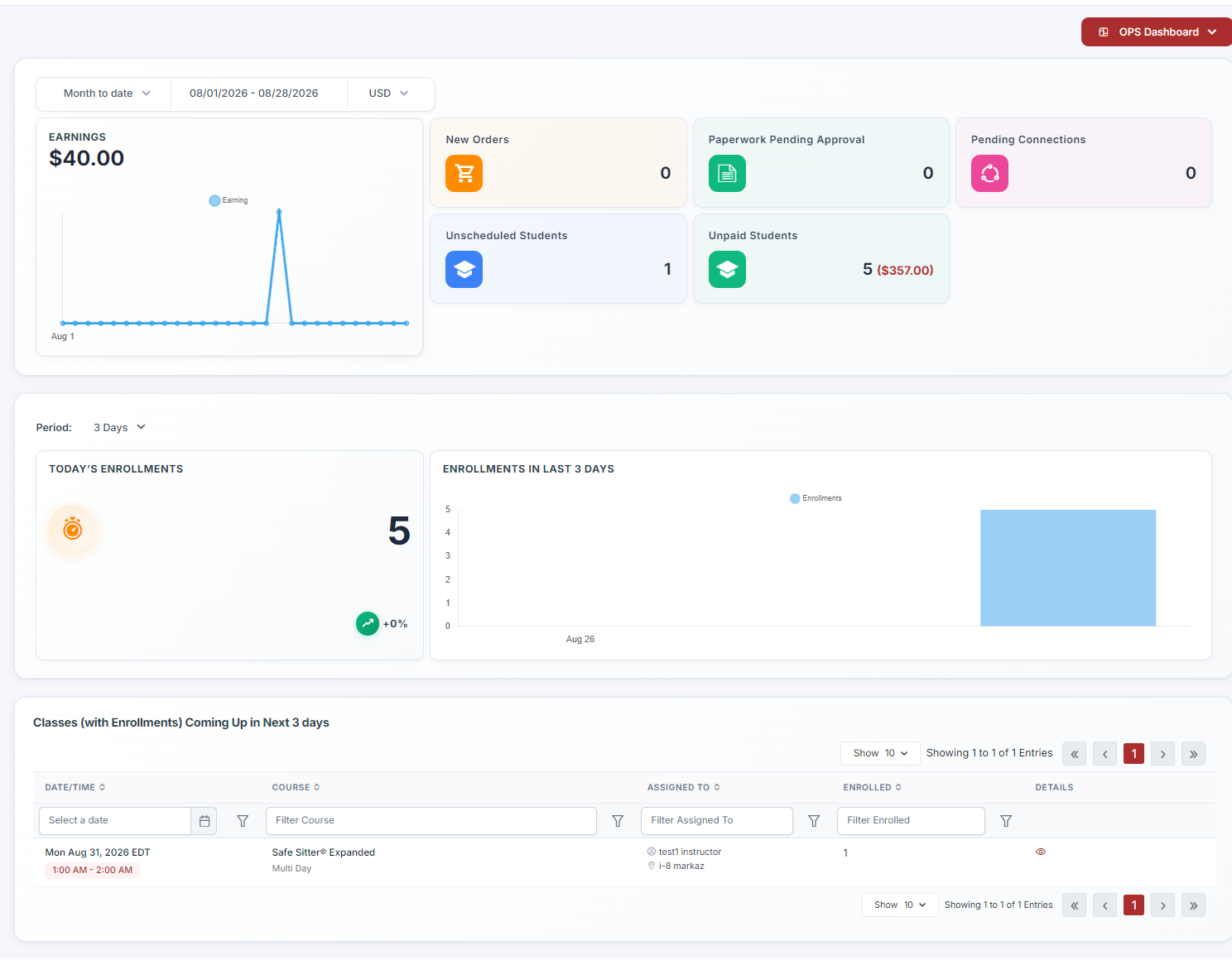
Switching to the Admin Dashboard
Click the OPS Dashboard dropdown button in the upper right corner of the Dashboard page. Select Admin Dashboard from the dropdown. The Admin Dashboard focuses on course and paperwork management metrics.
Was this article helpful?
Related articles
- What Kind of Reports Can I Get?CPR Enroll+ includes ten built-in reports covering certifications, compliance, attendance, communications, client activity, and financial data. All reports can be filtered, sorted, and exported. This article describes each report and when to use it. Accessing Reports From the left sidebar, click RepReports
- How to See the Status of an Email Sent to a Student?CPR Enroll+ logs every email sent from the platform and records its delivery status. This lets you confirm that a student received their enrollment confirmation, class reminder, or other communication — and investigate if they claim they never got it. Finding Email Delivery Status From the sidebar, Reports
- How to Easily Download Enrollment Data?Exporting your enrollment data as a spreadsheet gives you a complete, portable snapshot of your student roster for a class, date range, or your entire account. Use exports for external analysis, bulk email campaigns, certification body submissions, or simply as a backup of your records. Exporting AlReports
- How to Download Class Information?Class information exports give you a downloadable record of your scheduled classes — dates, times, locations, instructors, enrollment counts, and status. Use these exports for scheduling reviews, instructor coordination, or submitting class records to your certification body. Exporting Your Full ClReports