How to See the Status of an Email Sent to a Student?
 CPR Enroll+ logs every email sent from the platform and records its delivery status. This lets you confirm that a student received their enrollment confirmation, class reminder, or other communication — and investigate if they claim they never got it.
Finding Email Delivery Status
From the sidebar, go to Reports > Communication History.
The report opens on the Email History tab. Use the Select Status dropdown to filter by delivery outcome. Each row in the table represents one email sent, showing the recipient, subject, email type, send time, and delivery status.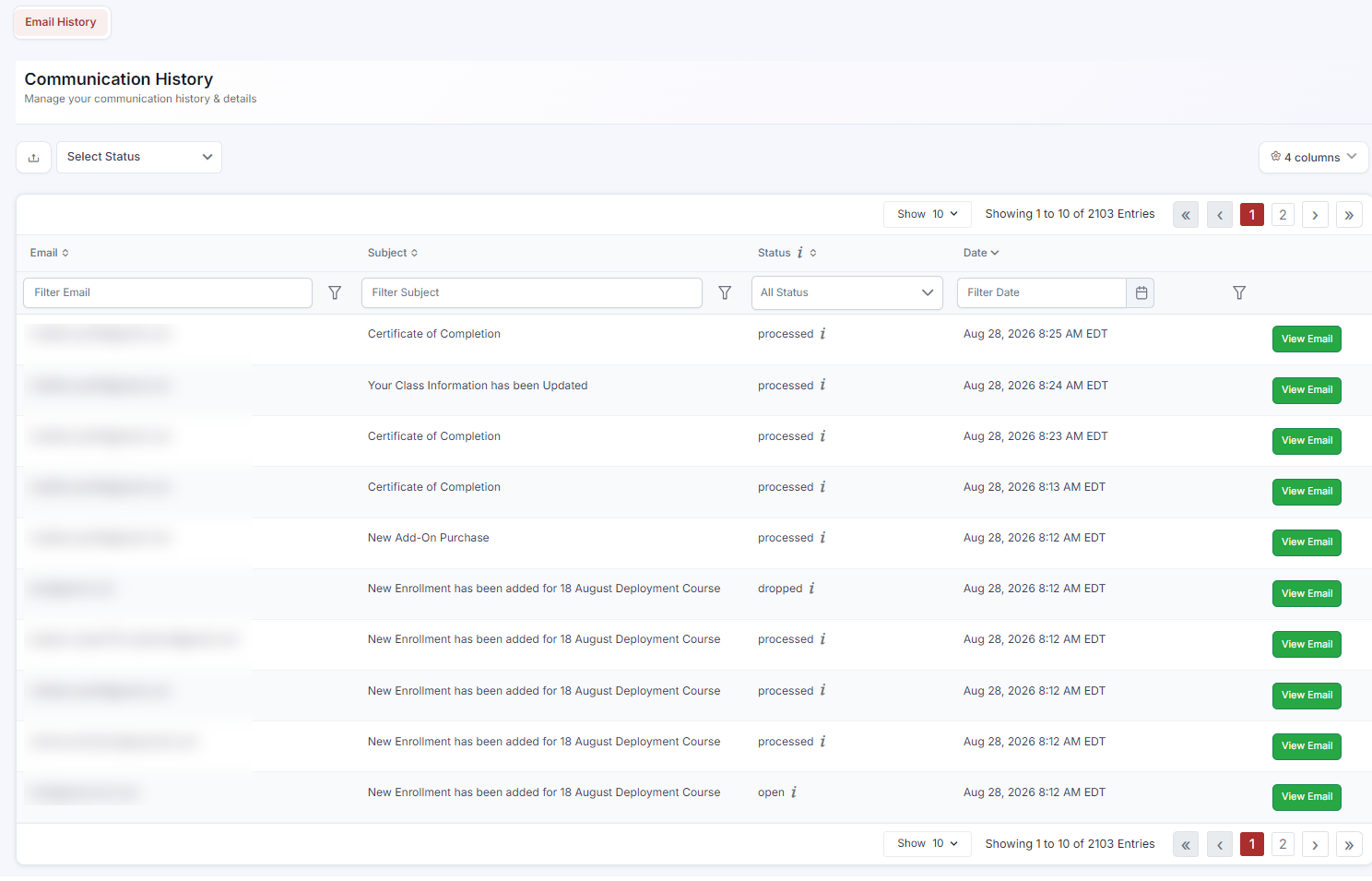
Delivery Statuses Explained
Delivered — the email reached the recipient’s inbox.
Bounce — the email could not be delivered (invalid address or full inbox).
Soft Bounce — temporary delivery failure; the system may retry.
Spam — the email was flagged or delivered to the spam folder.
Unsub — the recipient unsubscribed from this email type.
Reject — the email was rejected before delivery.
Open — the recipient opened the email.
Click — the recipient clicked a link in the email.
Viewing the Full Email Content
Click View Email on any row to see the exact email content that was sent, including all enrollment details. This is useful when a student claims their email had incorrect information.
Filtering by Student or Email Type
Use the filter controls to search for a specific student’s emails by name or email address, or to narrow by email type (for example, to see all Enrollment Confirmation emails sent during a specific date range).
ℹ The “Email Confirmed” column in People > Students shows something different — whether a student has confirmed their CPR Enroll+ account, not email delivery. See “Using the Email Confirmed Column.”
Was this article helpful?
Related articles
- The DashboardWhen users refer to “the Dashboard” in CPR Enroll+, they typically means the data and operations view accessible from “Dashboard” in the sidebar. This article explains both and describes the overall layout of the platform. ℹ If you are looking for the home screen with action cards for Courses, LocaReports
- What Kind of Reports Can I Get?CPR Enroll+ includes ten built-in reports covering certifications, compliance, attendance, communications, client activity, and financial data. All reports can be filtered, sorted, and exported. This article describes each report and when to use it. Accessing Reports From the left sidebar, click RepReports
- How to Easily Download Enrollment Data?Exporting your enrollment data as a spreadsheet gives you a complete, portable snapshot of your student roster for a class, date range, or your entire account. Use exports for external analysis, bulk email campaigns, certification body submissions, or simply as a backup of your records. Exporting AlReports
- How to Download Class Information?Class information exports give you a downloadable record of your scheduled classes — dates, times, locations, instructors, enrollment counts, and status. Use these exports for scheduling reviews, instructor coordination, or submitting class records to your certification body. Exporting Your Full ClReports