A/B Testing in Email Campaigns

Overview
Boost your email performance with A/B Testing in the Email Builder. A/B testing allows you to send up to six variations of your email (either subject line or content) to a portion of your audience.
The system automatically identifies the winning version based on engagement metrics, such as open rate or click rate and sends that version to the remaining recipients.
TABLE OF CONTENTS
- Overview
- What Is A/B Testing?
- Why Use A/B Testing
- ⚙️ How to Enable A/B Testing
- Winning Criteria Explained
- Frequently Asked Questions
What Is A/B Testing?
A/B Testing (also called split testing) is a method used to compare two or more versions of an email to determine which performs better.
By testing small variations like subject lines or content, you can understand what resonates best with your audience and improve engagement over time.
Why Use A/B Testing
Optimise engagement: Identify which email version drives higher open or click rates.
Data-backed decisions: Eliminate guesswork by using real recipient behaviour.
Improve deliverability: Refine subject lines and send times for better inbox placement.
Boost conversions: Use performance insights to continuously enhance your email strategy.
⚙️ How to Enable A/B Testing
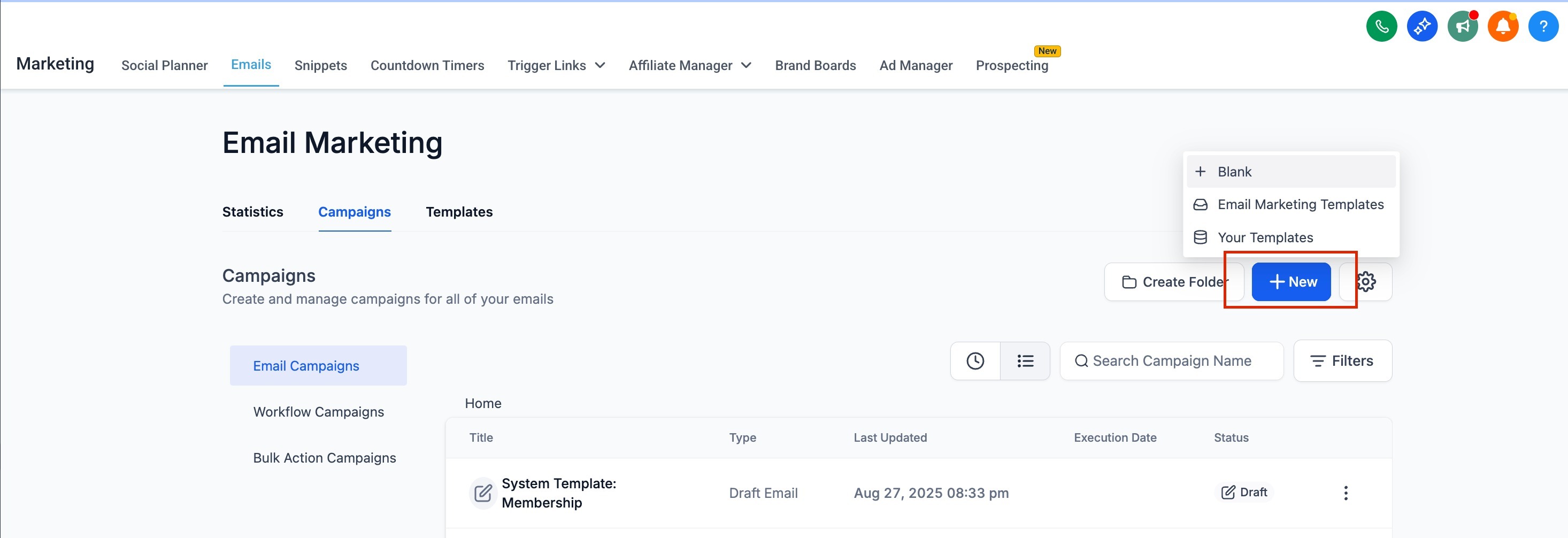
Open your Email Campaign in the Email Builder.
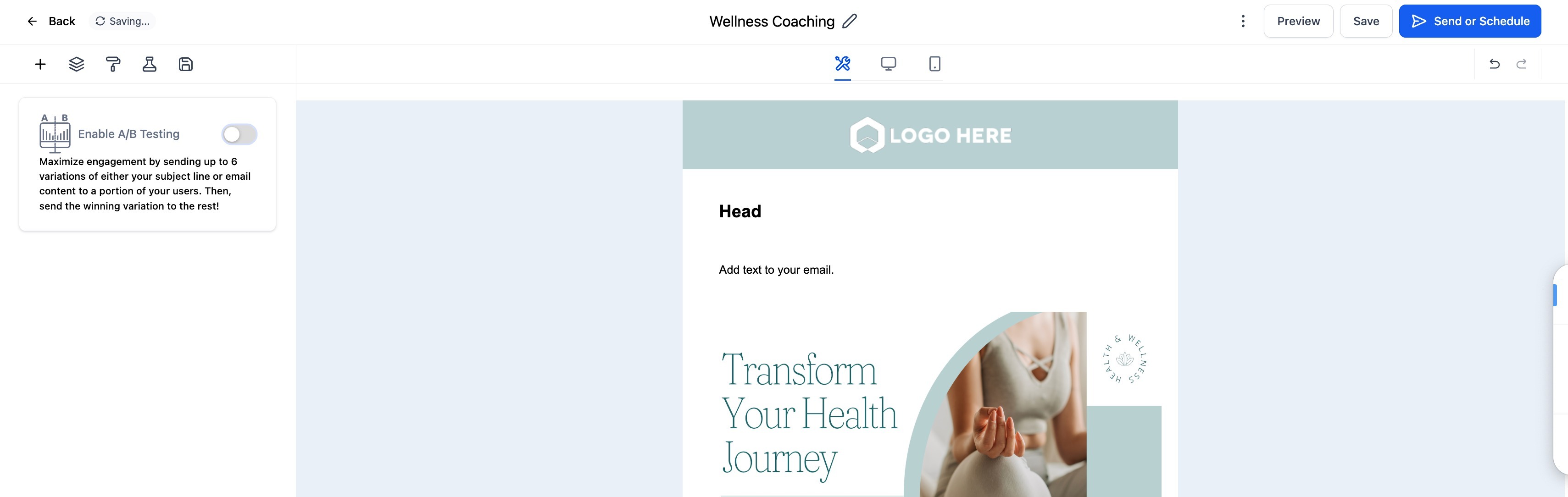
Toggle Enable A/B Testing on the left panel.
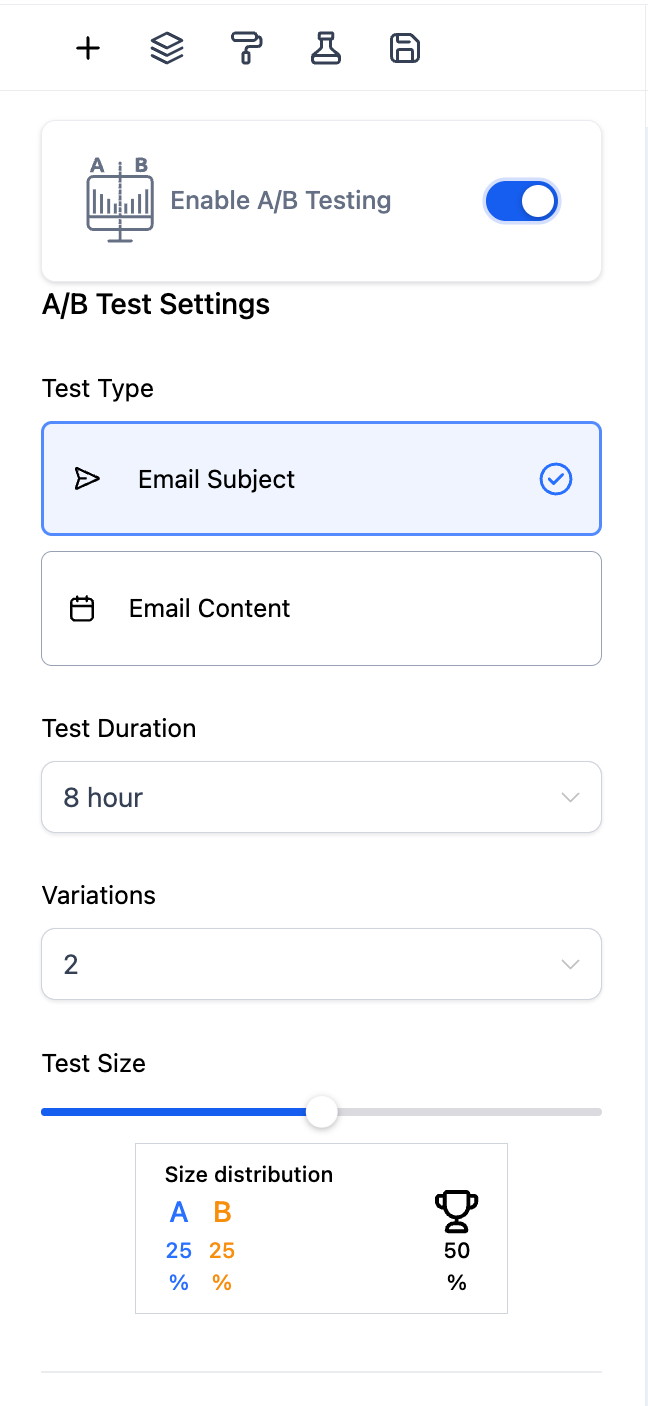
Choose the Test Type:
Email Subject: Test different subject lines to find which attracts more opens.
Email Content: Test variations in content, such as images, buttons, or copy.
Set the Test Duration (e.g., 4 hours, 8 hours, etc.).
This determines how long the test runs before selecting a winner.
Choose the Number of Variations (up to 6).
Adjust the Test Size using the slider.
Example: If you test two variations (A and B), you might send each to 25% of your audience and reserve the remaining 50% for the winning version.
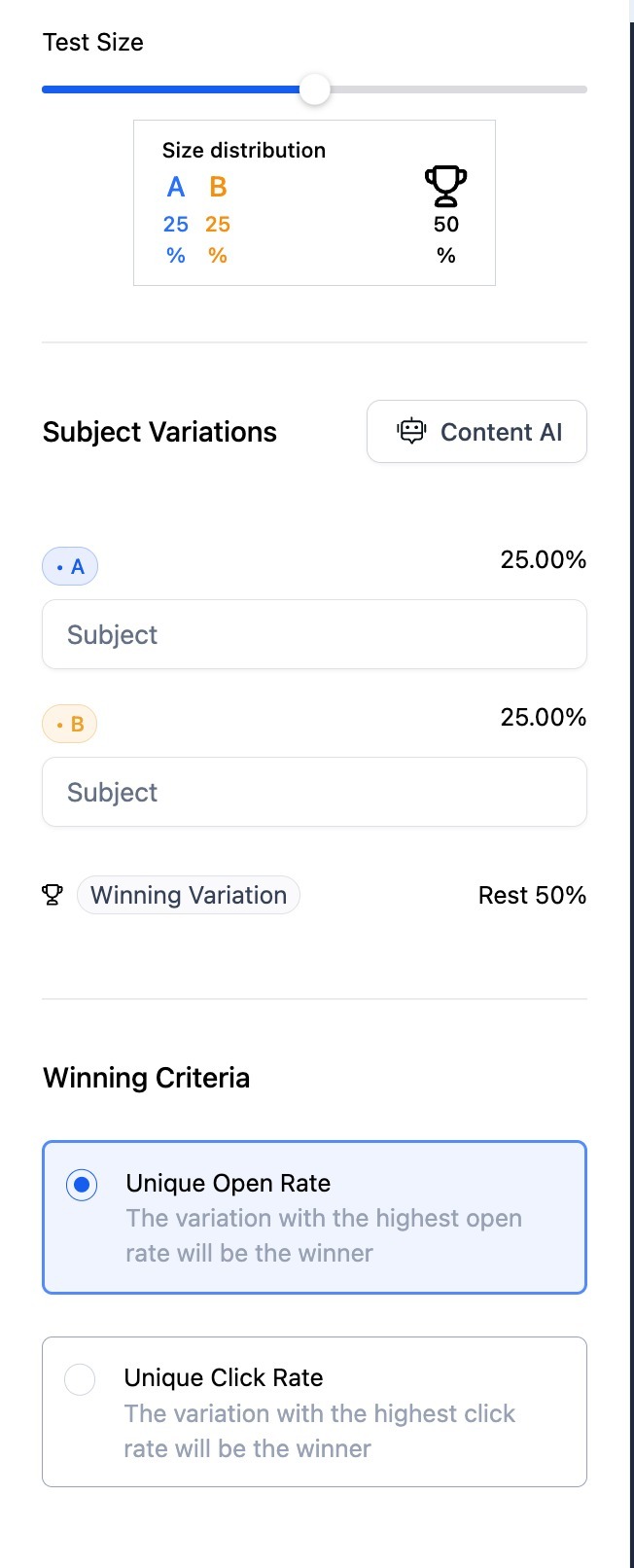
Add your Subject Variations or Content Variations.
Optionally, use Content AI to generate creative variations automatically.
Choose your Winning Criteria:
Unique Open Rate → Best for subject line tests.
Unique Click Rate → Best for content tests.
Once configured, click Send or Schedule. The system will automatically run the test and deliver the best-performing version to the remaining audience.
Winning Criteria Explained
Unique Open Rate: The version that gets the highest number of unique opens wins.
Unique Click Rate: The version that generates the most clicks wins.
After the test duration ends, the winning email automatically goes out to the remaining percentage of your audience.
Frequently Asked Questions
Q: What’s the maximum number of variations I can test?
You can test up to six variations at a time.
Q: Can I test both subject lines and content in the same A/B test?
No. You can choose only one test type per campaign, either Email Subject or Email Content.
Q: Will the results appear in Analytics?
Yes. You can view A/B test results for open rate, click rate, and winner in your Campaign Statistics dashboard.
Q: Can I reuse the winning variation for future campaigns?
Absolutely! Duplicate the winning version and use it as a starting point for future campaigns.
Was this article helpful?
Related articles
- Border Customization: Color, Radius, and ThicknessThe Border Customization feature allows you to fully control the appearance of borders on layouts. With this feature, you can adjust the color, radius, and thickness of borders to enhance your design and improve user experience. TABLE OF CONTENTS - Key Features - How to Use Border Customization- SteEmail Campaigns
- Image Element in Email BuilderThe Image Element in Email Builder allows you to easily add and customise images within your email templates. With support for multiple image sources, sizing options, and alignment controls, this element helps you create visually engaging and professional-looking emails that capture attention and imEmail Campaigns
- Video Element in Email BuilderEmbedding videos in emails can be tricky due to limitations in email client support. The Video element solves this by letting you insert clickable video thumbnails that link to your video content. This article explains how to use the Video element in the Email Builder, including how to choose video Email Campaigns
- Text Element in Email BuilderThe Text Element in s Email Builder allows you to easily add and style written content such as headings, paragraphs. It provides flexible formatting options, helping you create visually appealing and readable email designs that align with your brand’s tone and message. TABLE OF CONTENTS - What is tEmail Campaigns