Visibility Section for Layouts in Email Builder
You can now control the visibility of entire layouts in email templates! This powerful new setting lets you hide or show full sections based on device type—making responsive email design faster and more flexible than ever.
TABLE OF CONTENTS
- What Is Layout-Level Visibility in Email Templates?
- Key Benefits of Layout Visibility Controls
- How To Use Layout-Level Visibility in Email Templates
- Best Practices for Responsive Layouts
- Frequently Asked Questions
- Next Steps
What Is Layout-Level Visibility in Email Templates?
Previously, users could only control visibility at the element level, which made hiding large sections for mobile or desktop tedious. With this update, you can now apply visibility settings directly to layout blocks, allowing you to show or hide entire sections depending on the device.
Key Benefits of Layout Visibility Controls
These controls help you build more responsive and device-optimized emails with less effort.
Save Time – Hide entire sections in one click instead of adjusting elements individually
Consistency – Unified editing flow between elements and layouts
Device Optimization – Customize mobile vs desktop versions of your email layout
Better Previews – Use mobile/desktop views to test visibility logic
Improved Testing – Send test emails with the correct visibility settings reflected
How To Use Layout-Level Visibility in Email Templates
Create or open an email template in the drag-and-drop builder.
Add a layout block to your email design.
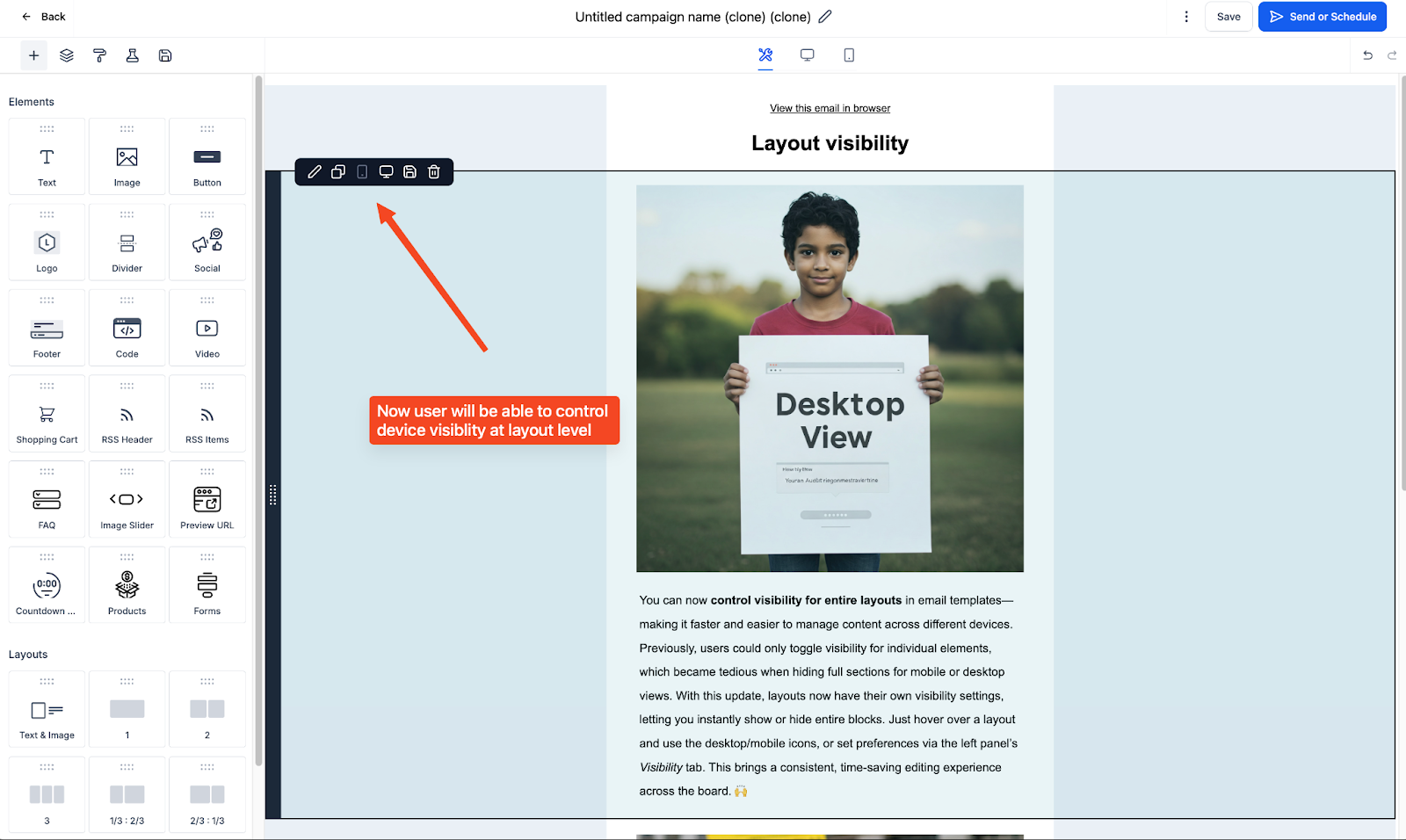
Hover over the layout — you’ll see desktop and mobile icons appear on the block.
Click either icon to toggle visibility for that device.
A grayed-out icon indicates that the layout is hidden on that view.
Alternatively, click on the layout block and use the Visibility tab in the left-hand panel.
Switch between Desktop and Mobile view using the preview icons in the builder toolbar.
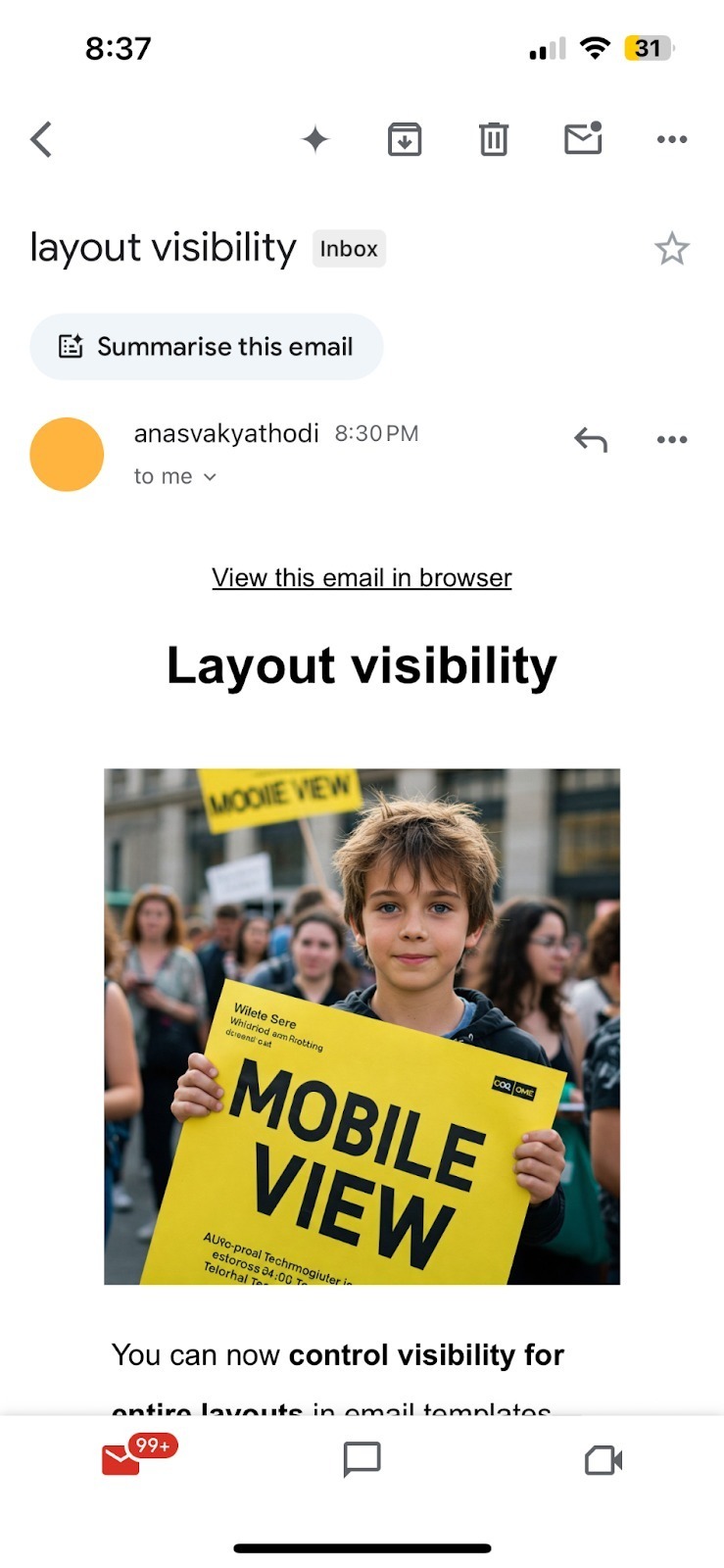
Send a test email to confirm how visibility behaves in a real inbox.
Best Practices for Responsive Layouts
To create polished, device-specific email experiences:
Use desktop-only layouts for wide or multi-column designs.
Use mobile-only layouts for single-column content or CTA buttons.
Don’t forget to preview and test send to confirm what’s shown or hidden.
Pair layout visibility with element-level visibility for extra precision.
Frequently Asked Questions
Q: What happens if I hide a layout for both desktop and mobile?
The layout will be hidden from all views and will not be sent. Ensure at least one view is active.
Q: Can I adjust element visibility separately inside a layout?
Yes, but if the layout itself is hidden, the visibility of inner elements won’t matter—they will not render.
Q: Are visibility settings reflected in test emails?
Yes. Both desktop and mobile visibility settings are preserved when sending test or live emails.
Q: How is this different from hiding individual elements?
Layout-level visibility saves time by letting you hide entire sections, rather than toggling each component individually.
Next Steps
Open an email template and try out layout visibility settings
Use the desktop/mobile preview toggle to test layout behavior
Send a test email to validate how your layout appears across devices
Save time by using layout-level controls instead of adjusting individual elements
Was this article helpful?
Related articles
- Border Customization: Color, Radius, and ThicknessThe Border Customization feature allows you to fully control the appearance of borders on layouts. With this feature, you can adjust the color, radius, and thickness of borders to enhance your design and improve user experience. TABLE OF CONTENTS - Key Features - How to Use Border Customization- SteEmail Campaigns
- Image Element in Email BuilderThe Image Element in Email Builder allows you to easily add and customise images within your email templates. With support for multiple image sources, sizing options, and alignment controls, this element helps you create visually engaging and professional-looking emails that capture attention and imEmail Campaigns
- Video Element in Email BuilderEmbedding videos in emails can be tricky due to limitations in email client support. The Video element solves this by letting you insert clickable video thumbnails that link to your video content. This article explains how to use the Video element in the Email Builder, including how to choose video Email Campaigns
- Text Element in Email BuilderThe Text Element in s Email Builder allows you to easily add and style written content such as headings, paragraphs. It provides flexible formatting options, helping you create visually appealing and readable email designs that align with your brand’s tone and message. TABLE OF CONTENTS - What is tEmail Campaigns