FAQ Element in Email Builder
The FAQ Element allows you to add structured question-and-answer sections inside your email templates. It’s designed to help you address common customer queries directly in your emails, improving clarity, reducing follow-up questions, and creating a more informative reader experience.
TABLE OF CONTENTS
- What is the FAQ Element in Email Builder?
- Key Benefits of the FAQ Element
- How To Setup the FAQ Element
- Frequently Asked Questions
What is the FAQ Element in Email Builder?
The FAQ Element is a drag-and-drop block that lets you organise content in a simple Q&A format. It’s perfect for newsletters, onboarding sequences, product updates, or promotional emails where you want to proactively answer common questions.
Each FAQ item typically includes a question title and a collapsible answer section, allowing recipients to scan for relevant information quickly while keeping your email layout clean and easy to read.
Note: The FAQ Element is a static design block questions and answers are displayed visually (not interactive accordions). It’s optimised for clarity and readability across devices.
Key Benefits of the FAQ Element
Using the FAQ Element in your email design provides several advantages:
Helps readers find important information quickly.
Reduces customer support queries by addressing common concerns.
Keeps your email organised with a structured Q&A layout.
Easy to customise change colours, fonts, and spacing for a branded look.
Fully responsive and optimised for both desktop and mobile devices.
How To Setup the FAQ Element
Follow these steps to add and configure the FAQ Element in your email template:
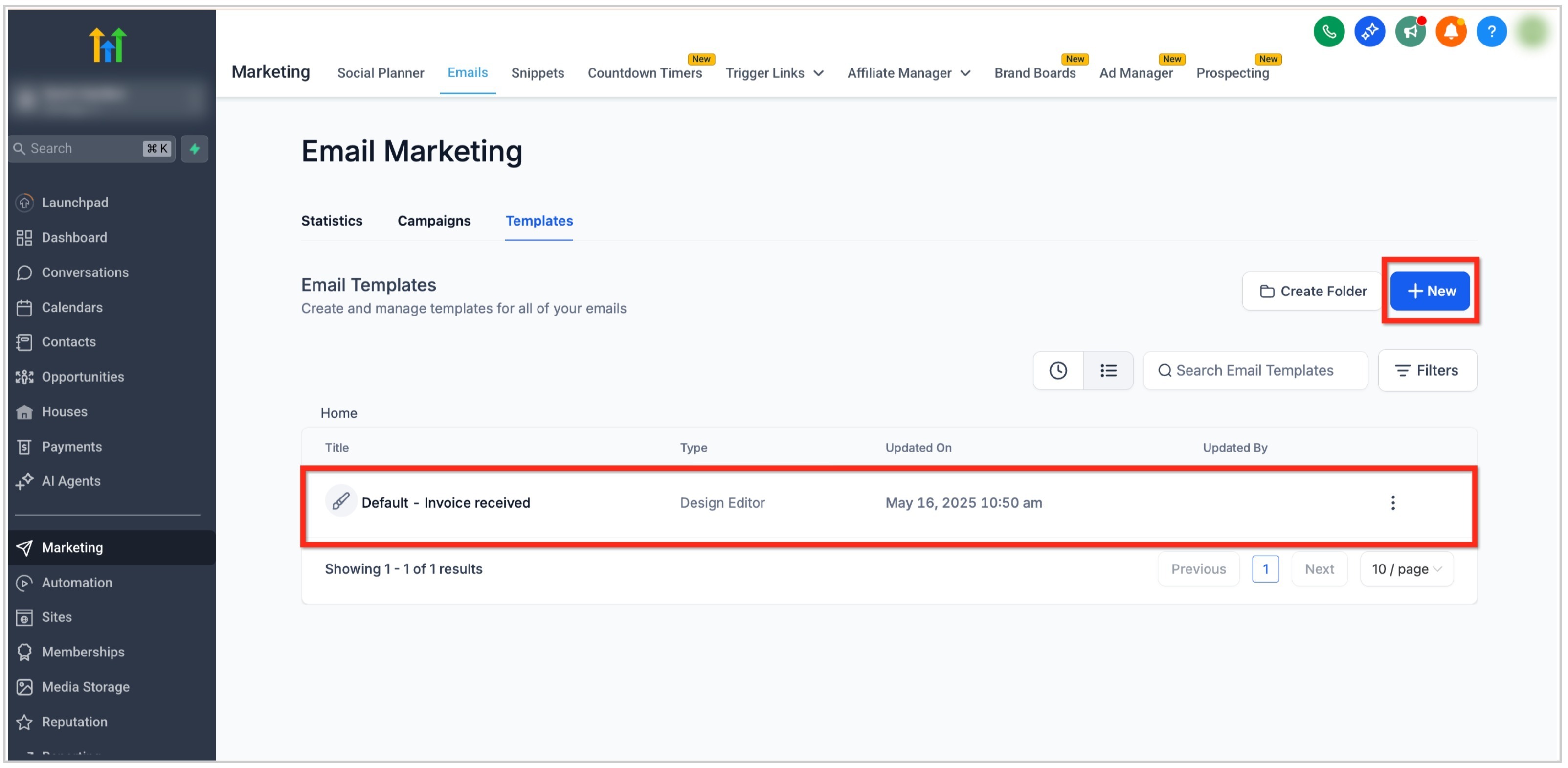
Navigate to Marketing → Emails → Templates from your sub-account dashboard.
Open an existing template or click the + New button to create one.
In the Email Builder, click the Add Elements (+) icon in the left sidebar.
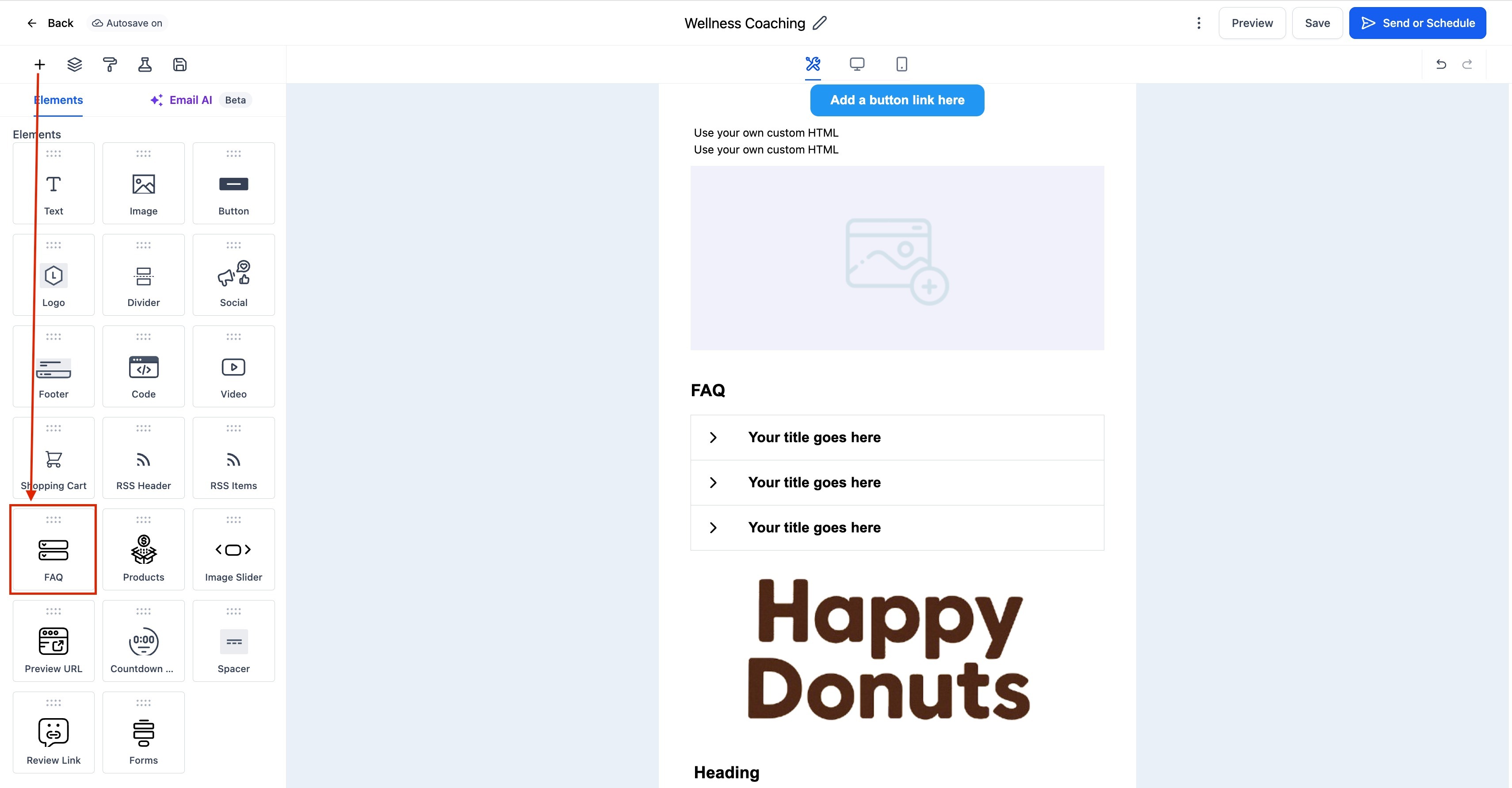
Locate the FAQ Element under the Elements section.
Drag and drop the FAQ Element into your desired section of the email layout.
Click on the FAQ Element to open the Edit tab on the left panel. Here you can:
Add Questions and Answers: Type or paste your questions and answers directly.
Edit Formatting: Use the text toolbar to style your questions (bold, colour, or size).
Adjust Layout: Modify padding, spacing, and alignment between FAQ items.
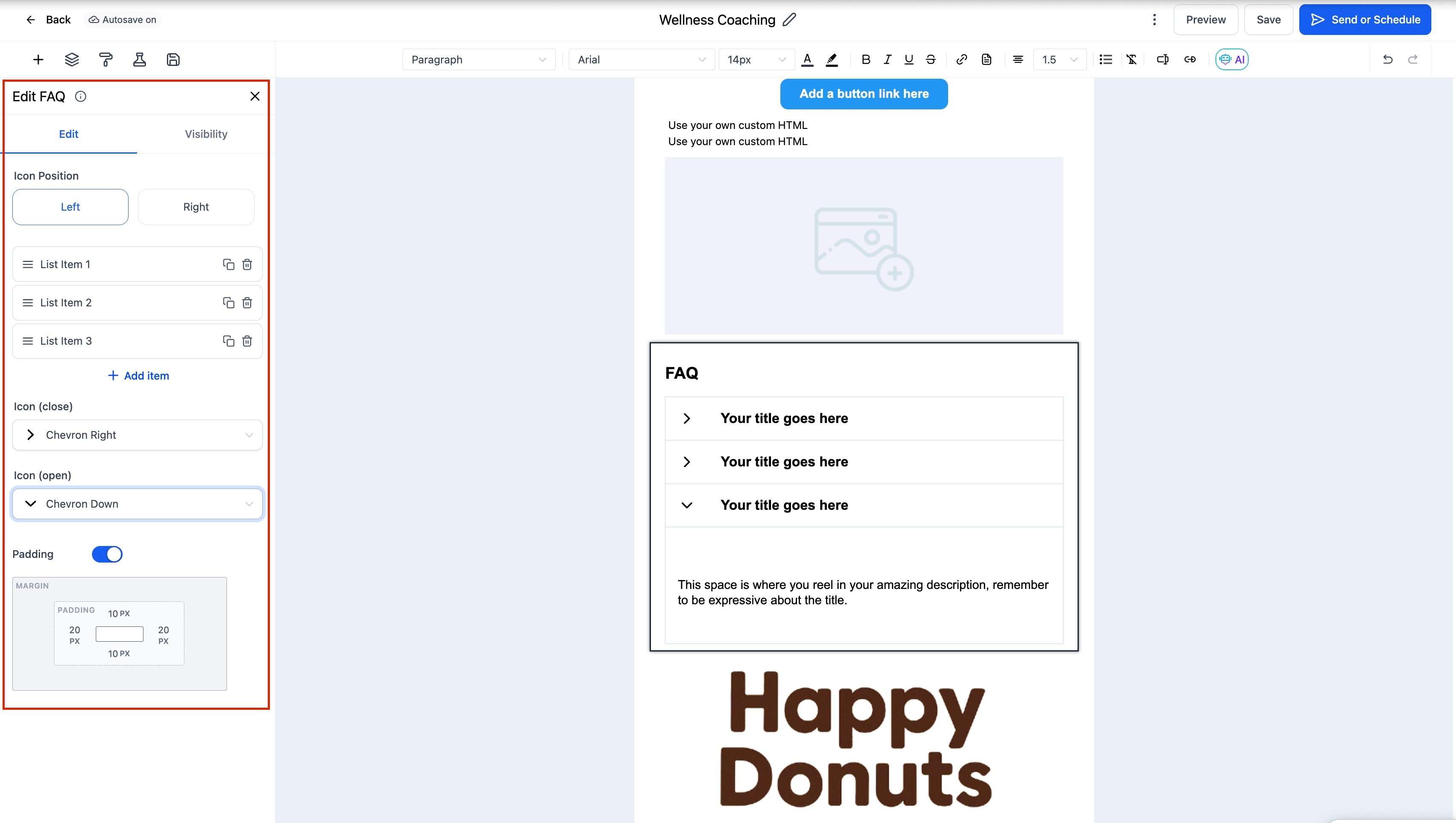
(Optional) Use the Visibility tab to manage Device-Based Visibility or Conditional Sending rules.
Preview your email on both desktop and mobile to ensure the layout looks clean and balanced.
Frequently Asked Questions
Q: How many questions can I add in one FAQ section?
There’s no strict limit, but 3–6 questions per section is ideal for readability. For longer lists, consider splitting FAQs across multiple emails.
Q: Can I style each question differently?
Yes, you can format individual questions and answers using the inline text editor adjusting font size, weight, and color for better emphasis.
Q: Will the FAQ Element adjust for mobile viewing?
Yes, it’s fully responsive and automatically adjusts text wrapping, spacing, and padding for smaller screens.
Q: Can I reuse my FAQ block in other email templates?
Yes, you can duplicate or save the FAQ block as a reusable section to maintain consistency across campaigns.
Was this article helpful?
Related articles
- Border Customization: Color, Radius, and ThicknessThe Border Customization feature allows you to fully control the appearance of borders on layouts. With this feature, you can adjust the color, radius, and thickness of borders to enhance your design and improve user experience. TABLE OF CONTENTS - Key Features - How to Use Border Customization- SteEmail Campaigns
- Image Element in Email BuilderThe Image Element in Email Builder allows you to easily add and customise images within your email templates. With support for multiple image sources, sizing options, and alignment controls, this element helps you create visually engaging and professional-looking emails that capture attention and imEmail Campaigns
- Video Element in Email BuilderEmbedding videos in emails can be tricky due to limitations in email client support. The Video element solves this by letting you insert clickable video thumbnails that link to your video content. This article explains how to use the Video element in the Email Builder, including how to choose video Email Campaigns
- Text Element in Email BuilderThe Text Element in s Email Builder allows you to easily add and style written content such as headings, paragraphs. It provides flexible formatting options, helping you create visually appealing and readable email designs that align with your brand’s tone and message. TABLE OF CONTENTS - What is tEmail Campaigns