Logo Element in Email Builder
The Logo Element allows you to easily insert your brand logo into email templates, helping you maintain consistent branding and visual identity across all communications. You can upload, resize, and align your logo while ensuring it displays clearly on both desktop and mobile devices.
TABLE OF CONTENTS
- What is the Logo Element in Email Builder?
- Key Benefits of the Logo Element
- How To Setup the Logo Element
- Frequently Asked Questions
What is the Logo Element in Email Builder?
The Logo Element is a drag-and-drop block that lets you add your company or brand logo to an email layout. It helps create instant brand recognition and sets a professional tone for your message.
You can upload a logo image directly or use a hosted image link. The element includes customisation options such as resizing, alignment, and linking, allowing you to control how your logo appears within the design.
Note: For best results, use a transparent PNG or high-quality JPG file.
Key Benefits of the Logo Element
Adding the Logo Element to your email design offers several advantages:
Reinforces brand recognition and consistency.
Simplifies logo placement with easy drag-and-drop functionality.
Supports resizing, alignment, and linking for flexible layout options.
Ensures sharp, clear display across devices and screen sizes.
Allows linking the logo to a homepage or landing page for easy navigation.
How To Setup the Logo Element
Follow these steps to add and configure the Logo Element in your email template:
Navigate to Marketing → Emails → Templates from your sub-account dashboard.
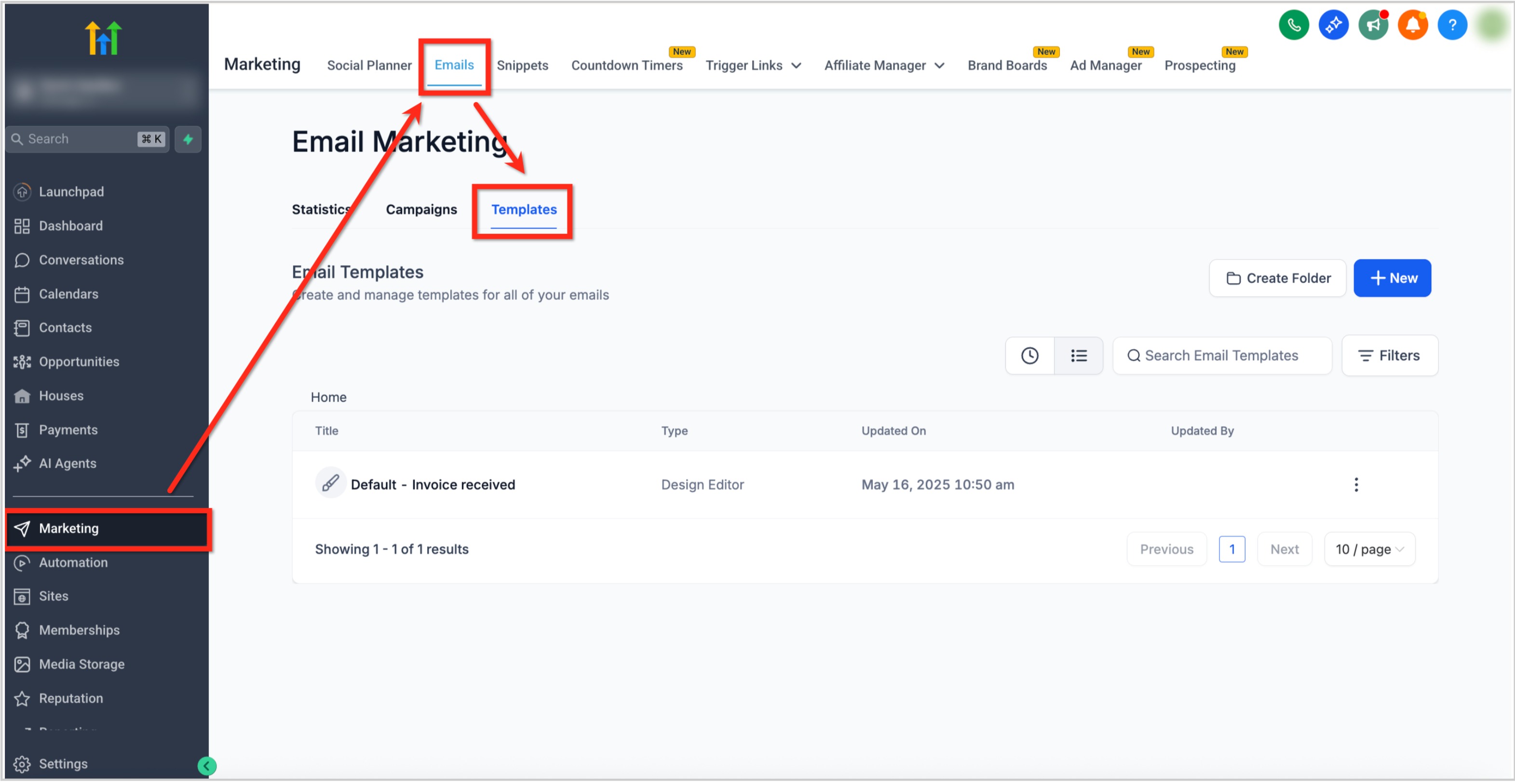
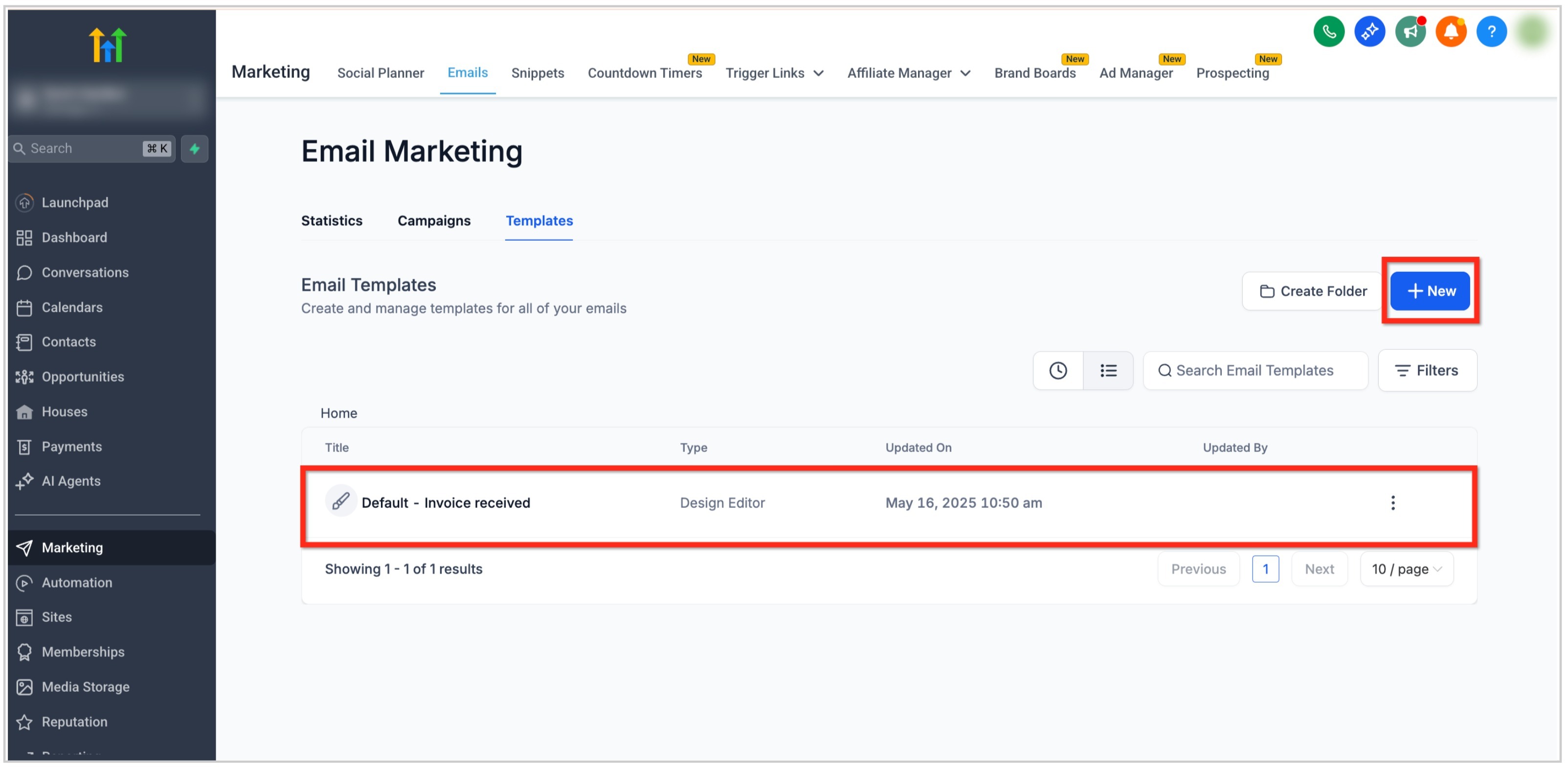
Open an existing email template or click the + New button to create one.
In the Email Builder, click the Add Elements (+) icon in the left sidebar.
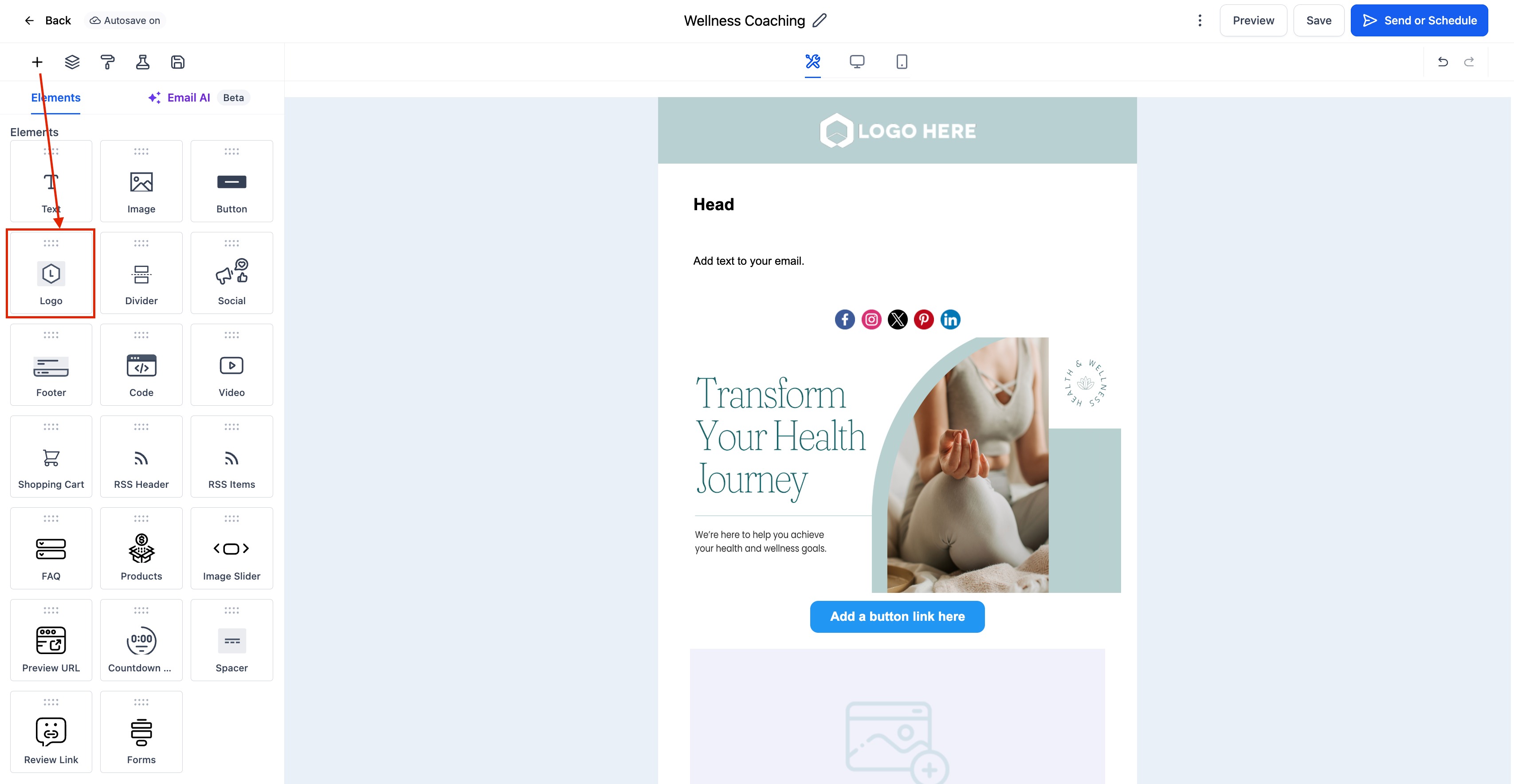
Locate the Logo Element under the Elements section.
Drag and drop the Logo Element to the desired position, usually at the top of your layout.
Click on the Logo Element to open the Edit tab on the left panel. Here you can:
Upload a Logo: Select an image from your device.
Use an Image URL: Paste a direct link to a hosted logo image.
Adjust Size: Set custom width and height for proper scaling.
Set Alignment: Align the logo to the left, center, or right of the email layout.
Add a Link: Link your logo to your website or any relevant page.
Control Padding: Add spacing around the logo for a balanced layout.
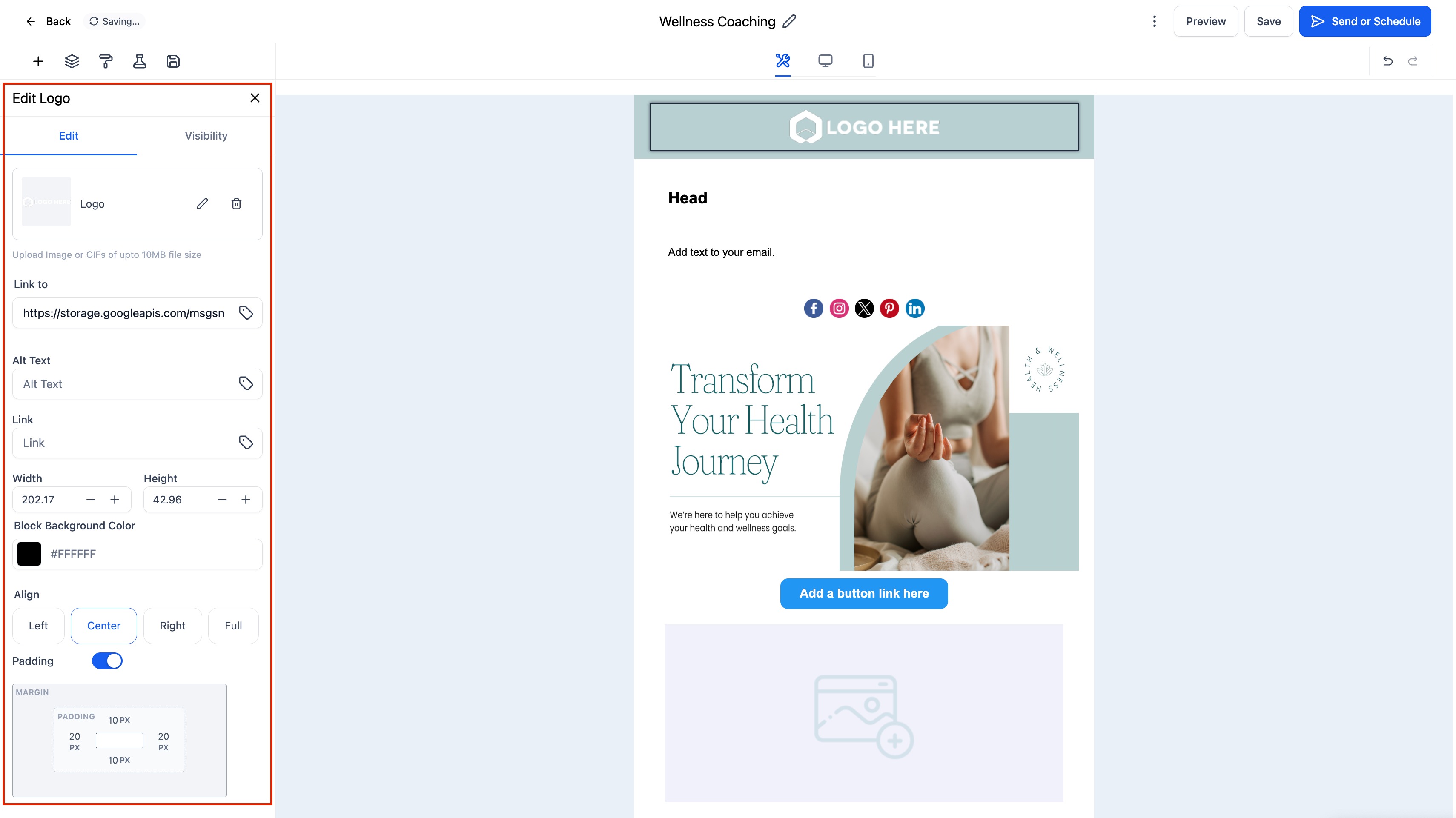
Click the Visibility tab to configure Device-Based Visibility or Conditional Sending settings if needed.
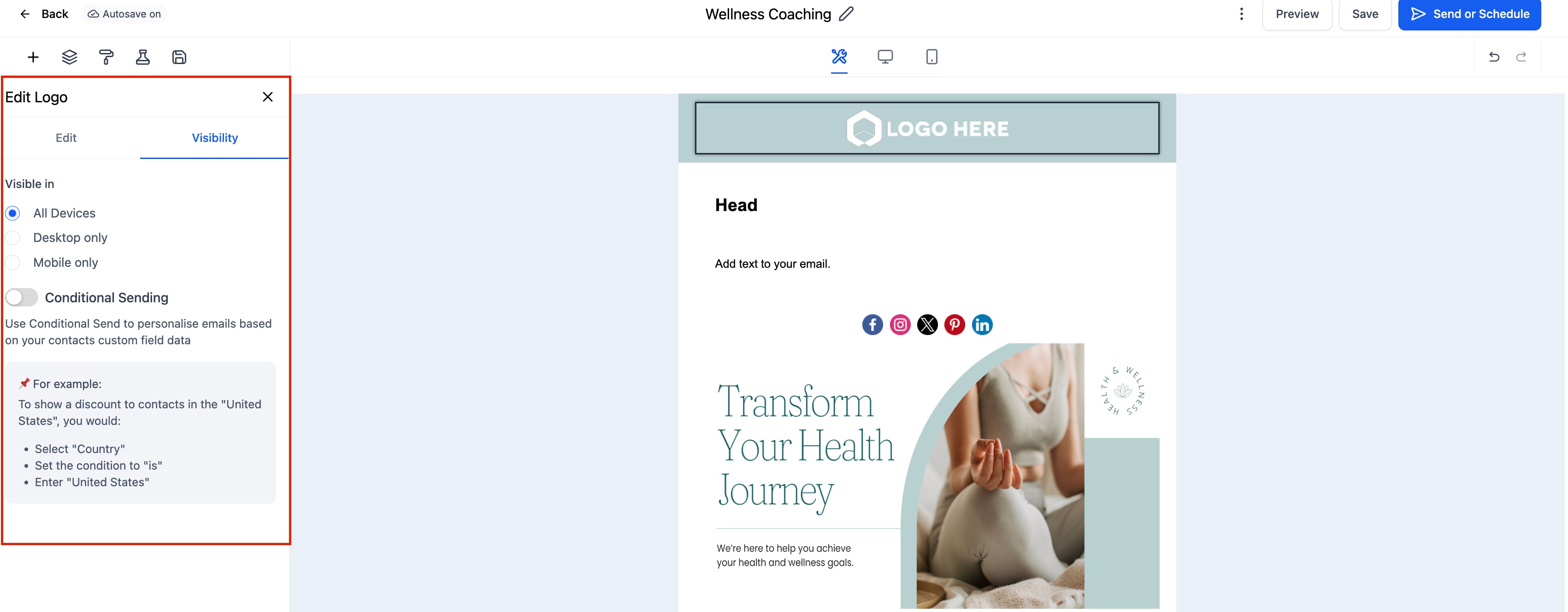
Preview your email on both desktop and mobile to ensure the logo displays perfectly.
Frequently Asked Questions
Q: What file types are supported for logos?
You can use PNG, JPG, or GIF files. PNG is recommended for transparent backgrounds.
Q: Can I link the logo to my website?
Yes, you can add a hyperlink in the settings to make your logo clickable.
Q: Will my logo automatically resize for mobile?
Yes, the Logo Element is responsive and automatically adjusts to fit smaller screens.
Was this article helpful?
Related articles
- Border Customization: Color, Radius, and ThicknessThe Border Customization feature allows you to fully control the appearance of borders on layouts. With this feature, you can adjust the color, radius, and thickness of borders to enhance your design and improve user experience. TABLE OF CONTENTS - Key Features - How to Use Border Customization- SteEmail Campaigns
- Image Element in Email BuilderThe Image Element in Email Builder allows you to easily add and customise images within your email templates. With support for multiple image sources, sizing options, and alignment controls, this element helps you create visually engaging and professional-looking emails that capture attention and imEmail Campaigns
- Video Element in Email BuilderEmbedding videos in emails can be tricky due to limitations in email client support. The Video element solves this by letting you insert clickable video thumbnails that link to your video content. This article explains how to use the Video element in the Email Builder, including how to choose video Email Campaigns
- Text Element in Email BuilderThe Text Element in s Email Builder allows you to easily add and style written content such as headings, paragraphs. It provides flexible formatting options, helping you create visually appealing and readable email designs that align with your brand’s tone and message. TABLE OF CONTENTS - What is tEmail Campaigns