How to Use Template Library to Create Branded Review Request Emails
 Discover how the Template Library Integration in Email Review Requests empowers you to craft personalized review emails effortlessly. This guide explains how to choose between a fully customizable blank canvas and a time-saving collection of pre-built templates, streamlining your Reputation Management process.
TABLE OF CONTENTS
- What is Template Library Integration ?
What is Template Library Integration ?
Key Benefits of Template Library Integration in Email Review Requests
- Create from Scratch: Enjoy full control over every design element with a blank email canvas.
- Template Library: Gain immediate access to a collection of polished, ready-to-use templates that you can quickly tailor to match your brand identity.
- Faster Campaigns: Reduce the time spent on email design by leveraging pre-built layouts, so you can focus on engaging with your clients and improving your online reputation.
Create from Scratch
- Customize layouts, colors, and fonts to ensure alignment with your brand guidelines.
- Enjoy the flexibility to experiment and build unique campaigns from the ground up.
Template Library
- Access a variety of layouts tailored for review request emails.
- Adjust pre-designed templates with your content and branding elements effortlessly.
- Save significant time in campaign creation while maintaining a consistent brand presentation.
How To Setup Template Library Integration in Email Review Requests
Accessing Email Requests
Navigate to the Reputation section from the main menu. Select Settings from the Reputation dropdown options. Click on Email Requests.
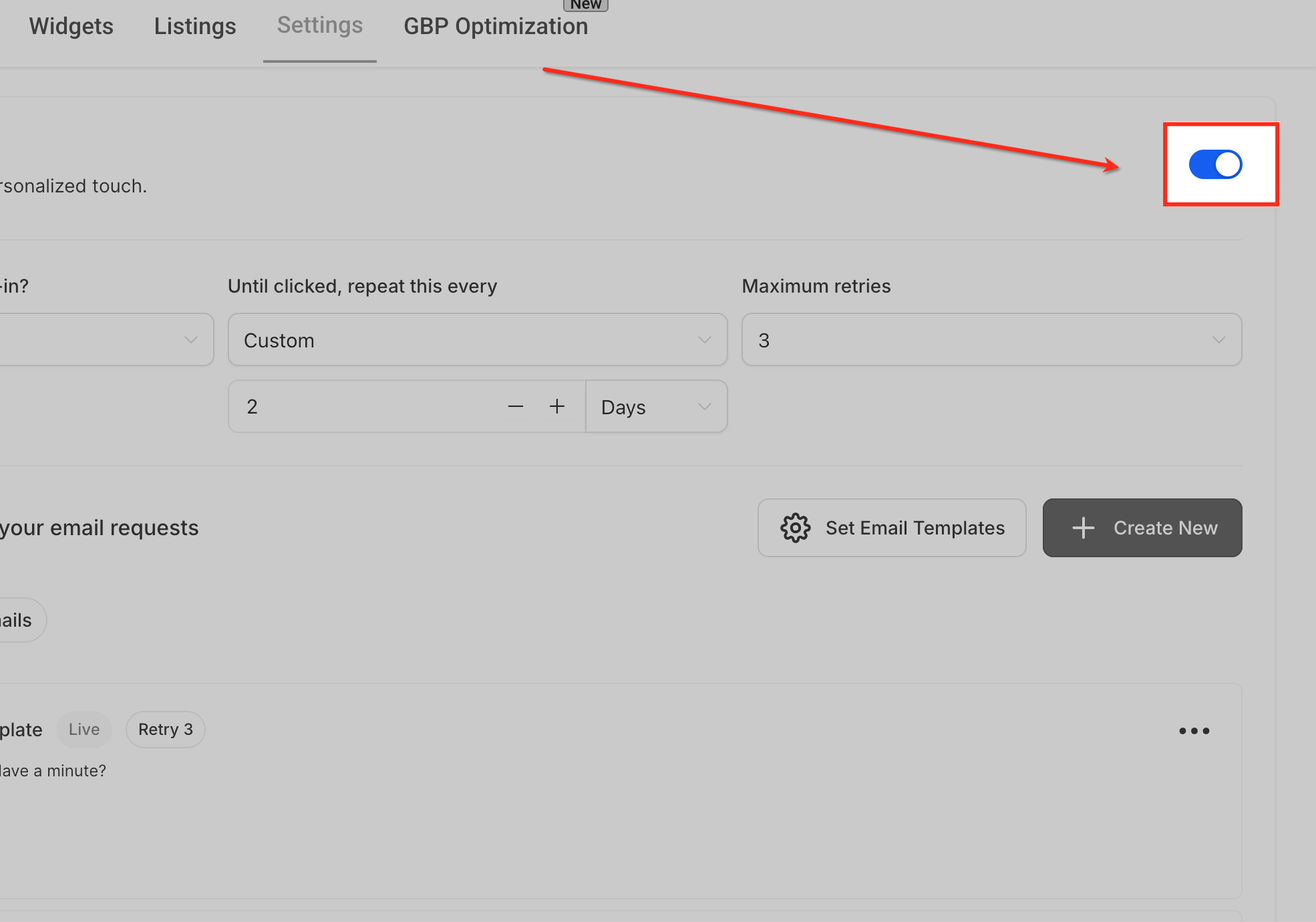
Turn On Email Requests
Here, you’ll see a toggle switch—just turn it ON to activate email requests. You can also decide:
When the first email should go out (e.g., 1 hour after check-in).
How often to resend until the contact clicks.
The maximum number of retries.
This ensures your review requests are consistent without overwhelming your audience.
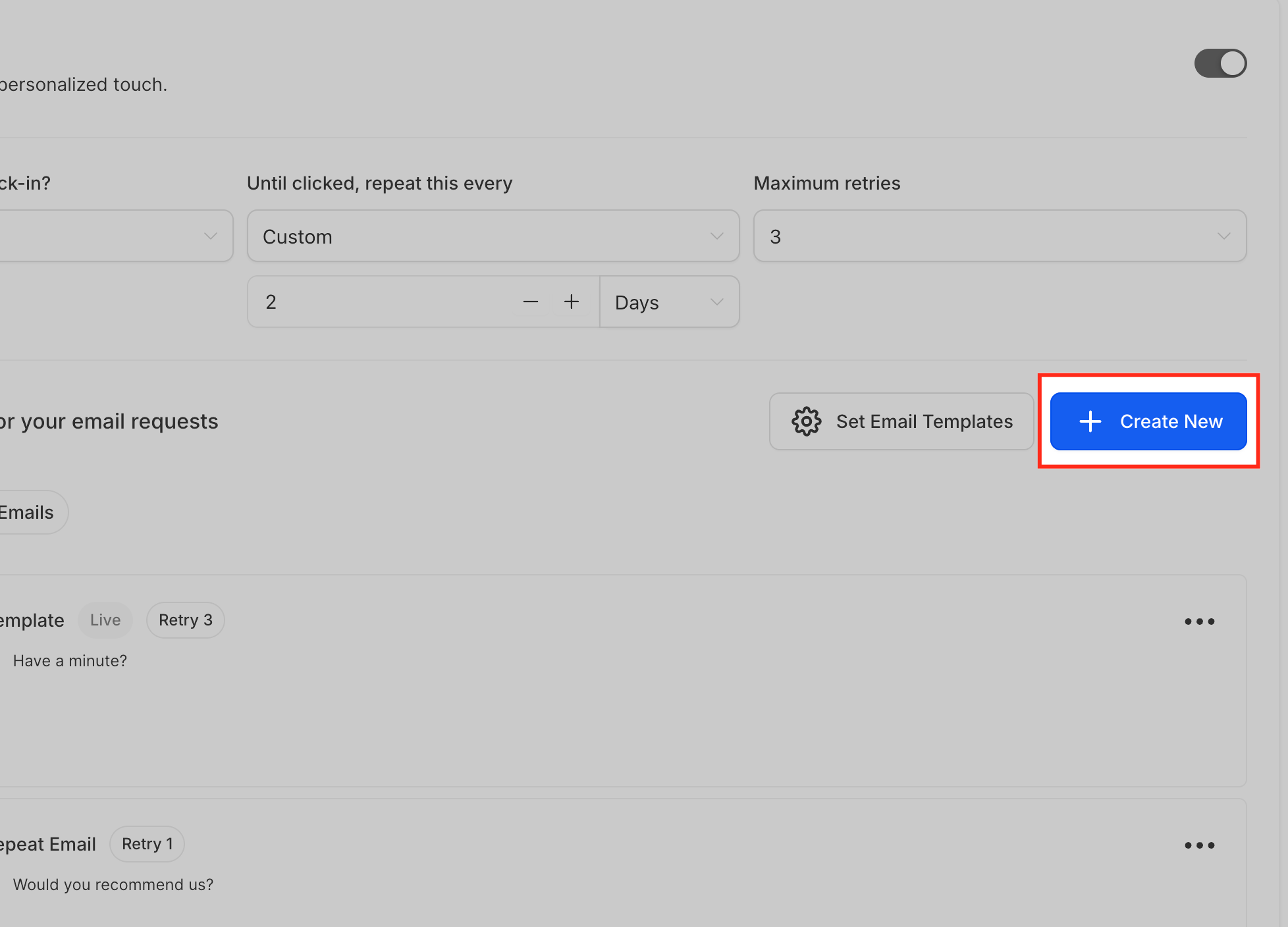
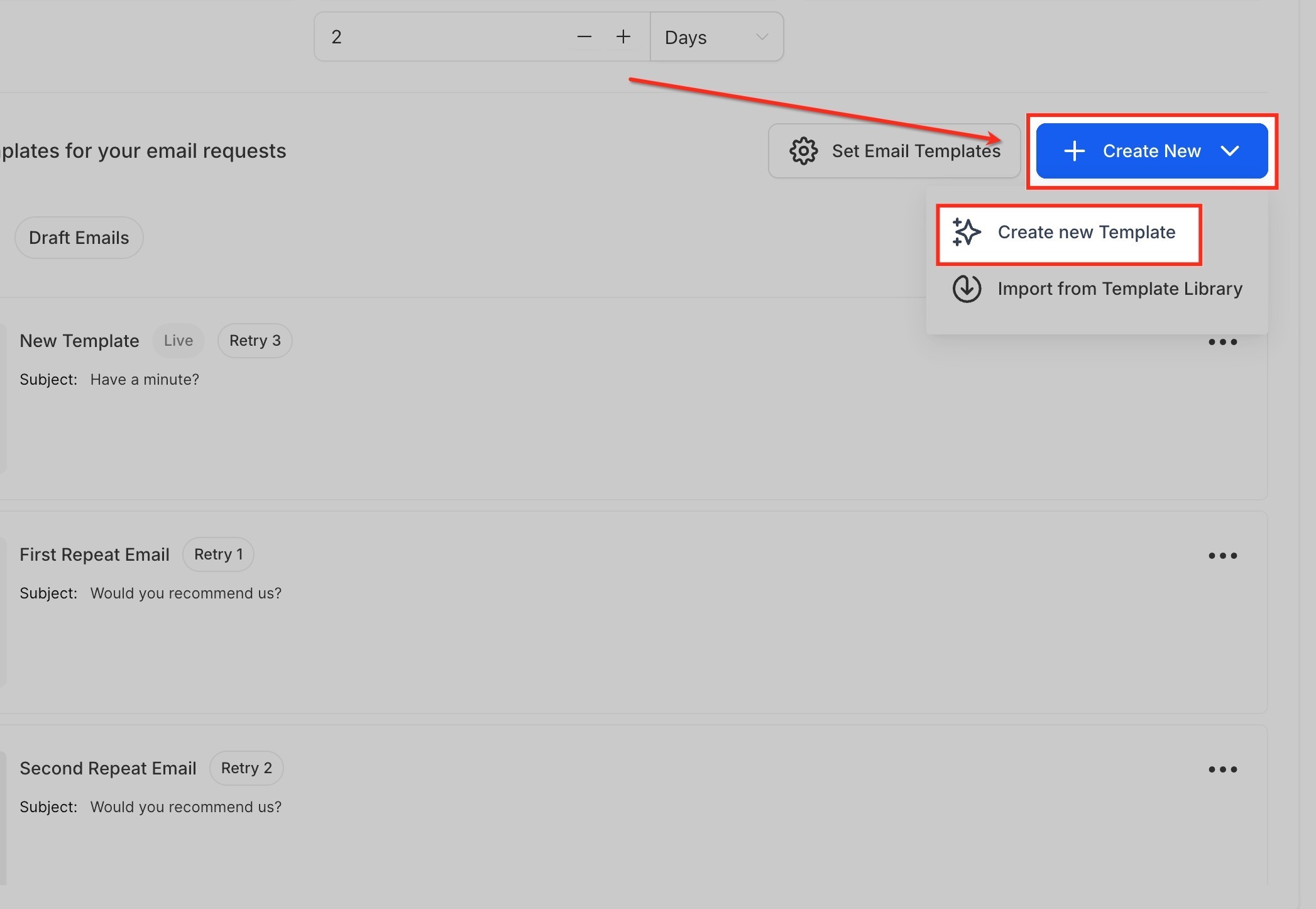
Start a New Email
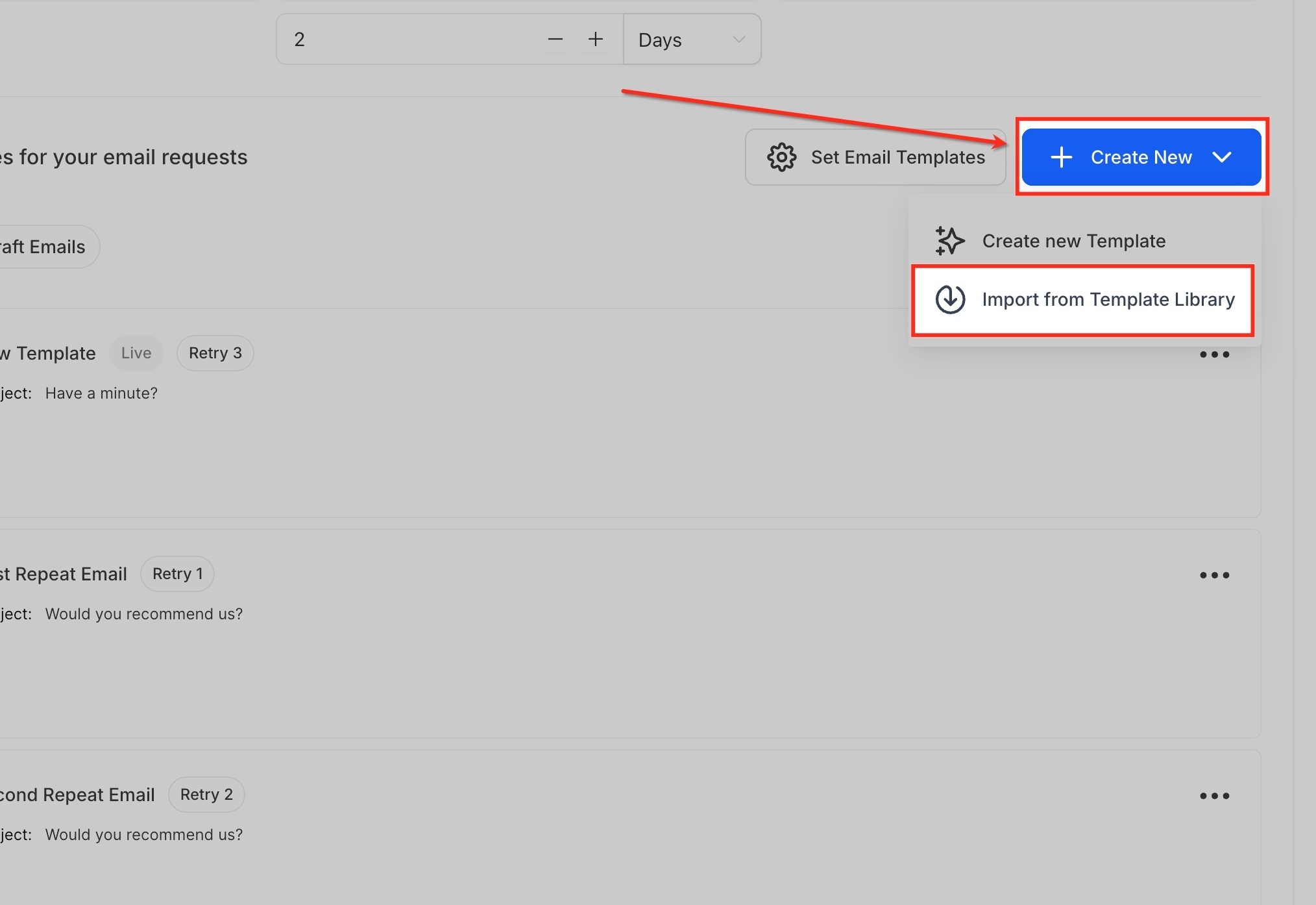
Click the Create New button. You’ll be given two options:
Create New Template – start with a completely blank design.
Import from Template Library – browse pre-built layouts and pick one that fits your style.
Build a Template from Scratch
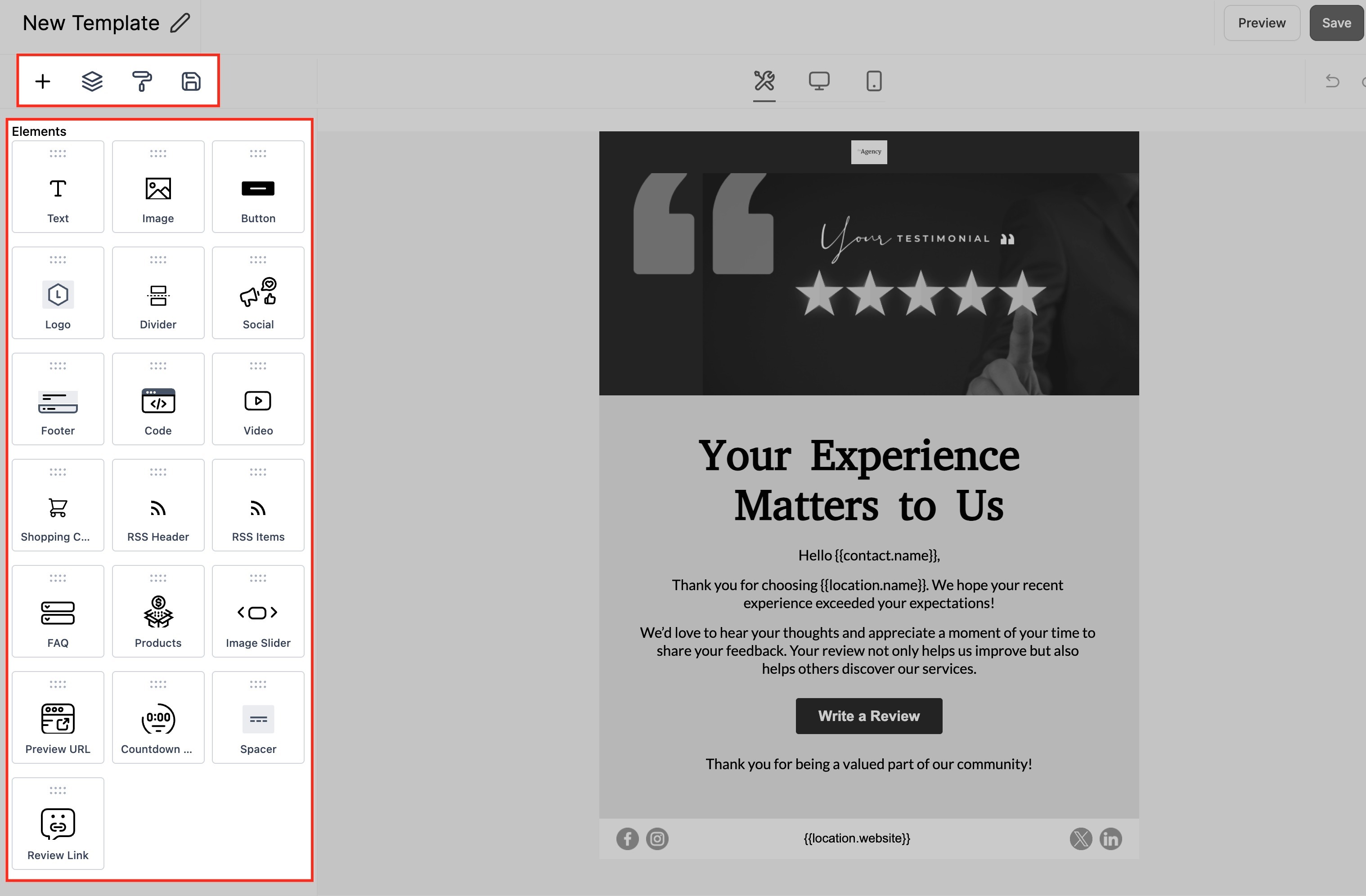
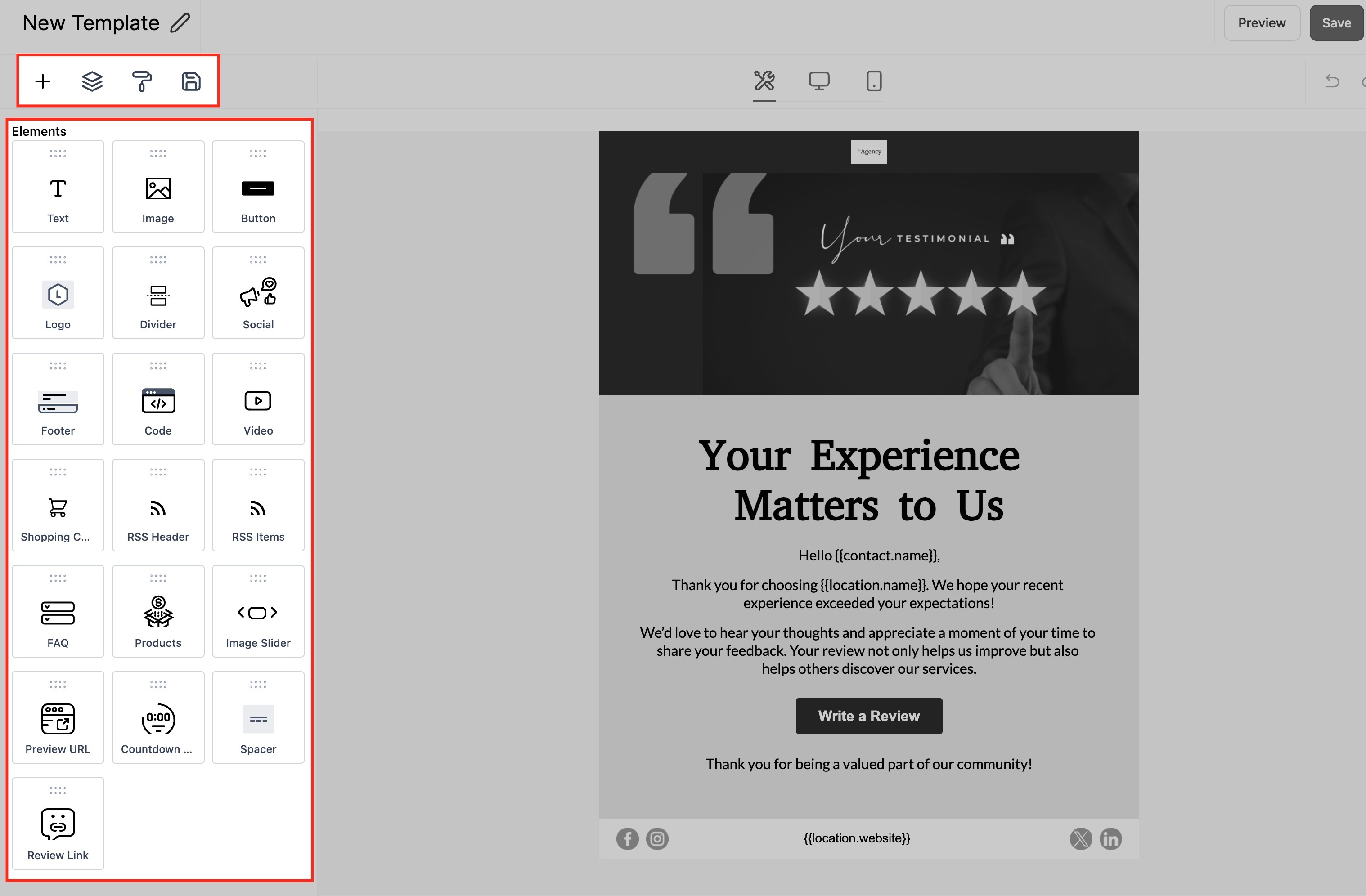
If you choose the blank canvas(Create new Template option), you’ll use the drag-and-drop builder.
Email Builder
Here you can add:
Text, images, and buttons to structure your message.
A Review Link so contacts can leave feedback easily.
Logos, social icons, and dividers to make your email look polished.
When you’re happy with the design, click Save.
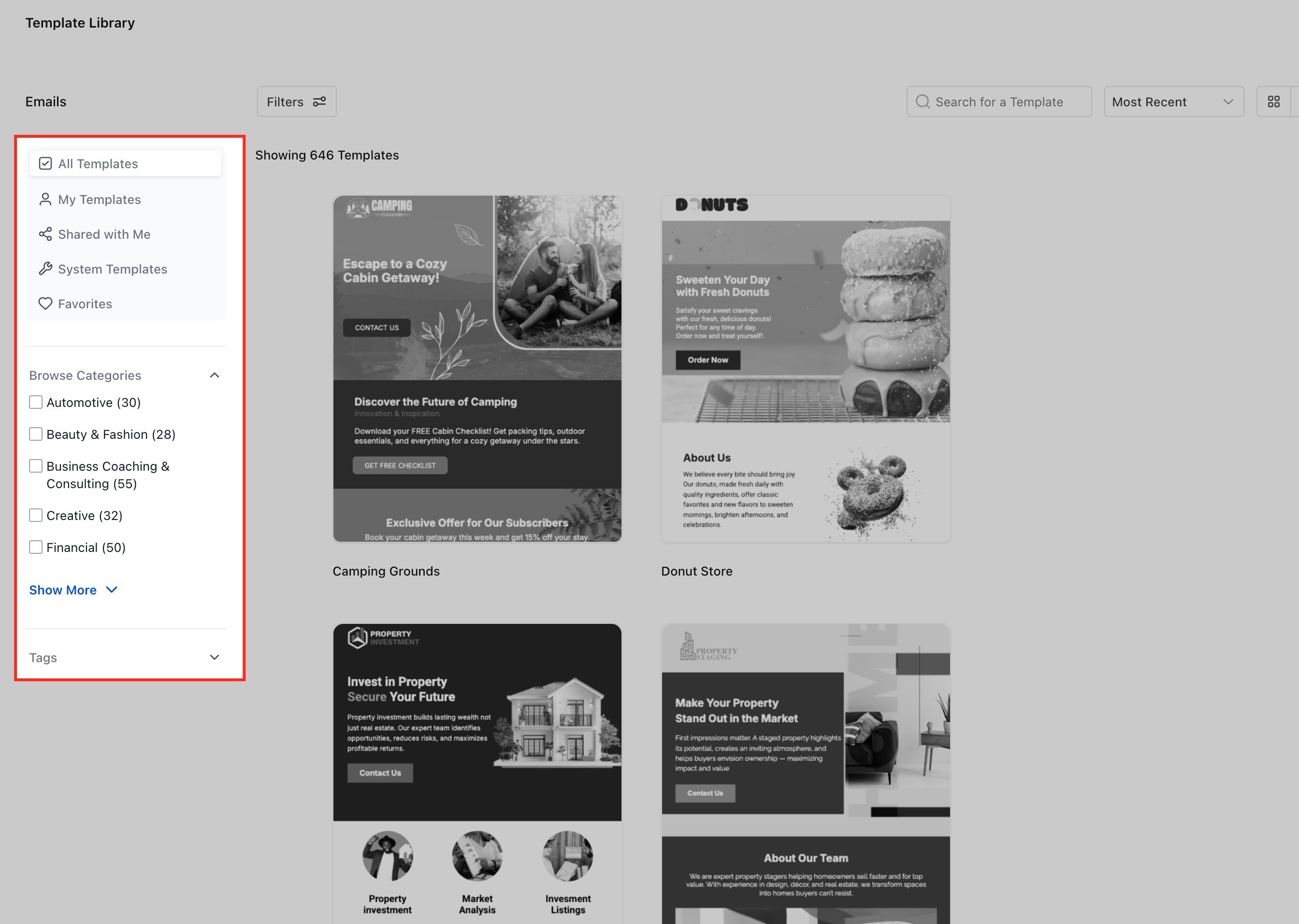
Use the Template Library
If you prefer a faster route, select Template Library. You’ll see a collection of professionally designed templates, organized by categories such as Business Coaching, Financial, Creative, and more.
Choose a design you like, swap in your text and branding, and you’re ready to go.
Manage Your Templates
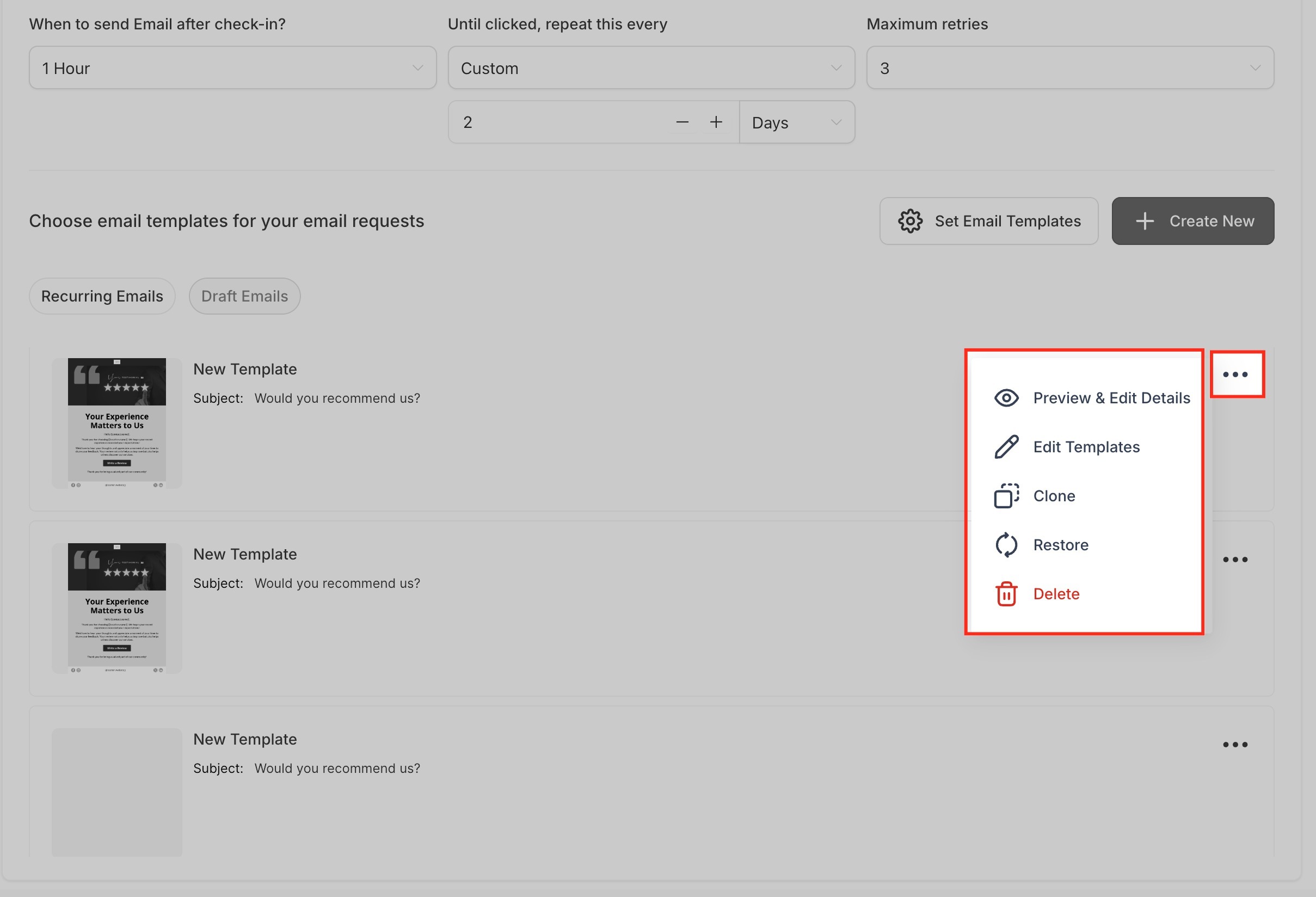
Once your templates are saved, you’ll find them listed in the Email Requests dashboard. Next to each template, click the three dots (⋮) to open management options:
- Preview & Edit Details – See how your email looks before sending, and adjust key details like subject line or sender name.
- Edit Template: Open the full drag-and-drop editor to make design changes.
- Clone: Duplicate an existing template if you want to create a variation without starting from scratch.
- Restore: Bring back a previously deleted template if you change your mind.
- Delete: Permanently remove a template you no longer need.
This makes it easy to keep your library organized and fine-tuned.
Frequently Asked Questions
Was this article helpful?
Related articles
- Border Customization: Color, Radius, and ThicknessThe Border Customization feature allows you to fully control the appearance of borders on layouts. With this feature, you can adjust the color, radius, and thickness of borders to enhance your design and improve user experience. TABLE OF CONTENTS - Key Features - How to Use Border Customization- SteEmail Campaigns
- Image Element in Email BuilderThe Image Element in Email Builder allows you to easily add and customise images within your email templates. With support for multiple image sources, sizing options, and alignment controls, this element helps you create visually engaging and professional-looking emails that capture attention and imEmail Campaigns
- Video Element in Email BuilderEmbedding videos in emails can be tricky due to limitations in email client support. The Video element solves this by letting you insert clickable video thumbnails that link to your video content. This article explains how to use the Video element in the Email Builder, including how to choose video Email Campaigns
- Text Element in Email BuilderThe Text Element in s Email Builder allows you to easily add and style written content such as headings, paragraphs. It provides flexible formatting options, helping you create visually appealing and readable email designs that align with your brand’s tone and message. TABLE OF CONTENTS - What is tEmail Campaigns