How to Personalise Your Campaigns with Conditional Elements
Use conditional element to effortlessly personalize your campaigns.
TABLE OF CONTENTS
- Use conditional element to effortlessly personalize your campaigns.
- When Can You Use Them?
- Benefits
- How to Use Conditional Elements:
What is a Conditional Element?
A conditional element allows you to display content—such as images or text—only if a contact meets certain criteria. This enables you to tailor your messaging to individual contacts automatically.
When Can You Use Them?
- Location-based content: Display different images or offers depending on a contact’s geographic location.
- Field-based text: Change a text element based on specific contact fields, like their job title or interests.
Benefits
- Personalization: Make your campaigns more relevant by showing customized content to each contact.
- Time-Saving: Avoid the need to create smart lists and separate campaigns—use one campaign with conditional elements instead.
Increased Engagement: Showing content that's personalized to each recipient increases the likelihood of higher click-through rates, responses, and conversions.
Simplified Campaign Management: Instead of juggling various lists and campaigns, manage all variations of content in one place, reducing complexity and chances for error.
How to Use Conditional Elements:
- Go to Marketing > Email Marketing.
- Create an email campaign or template.
- Select any element and go to the Visibility tab.
- Enable the Conditional Element toggle.
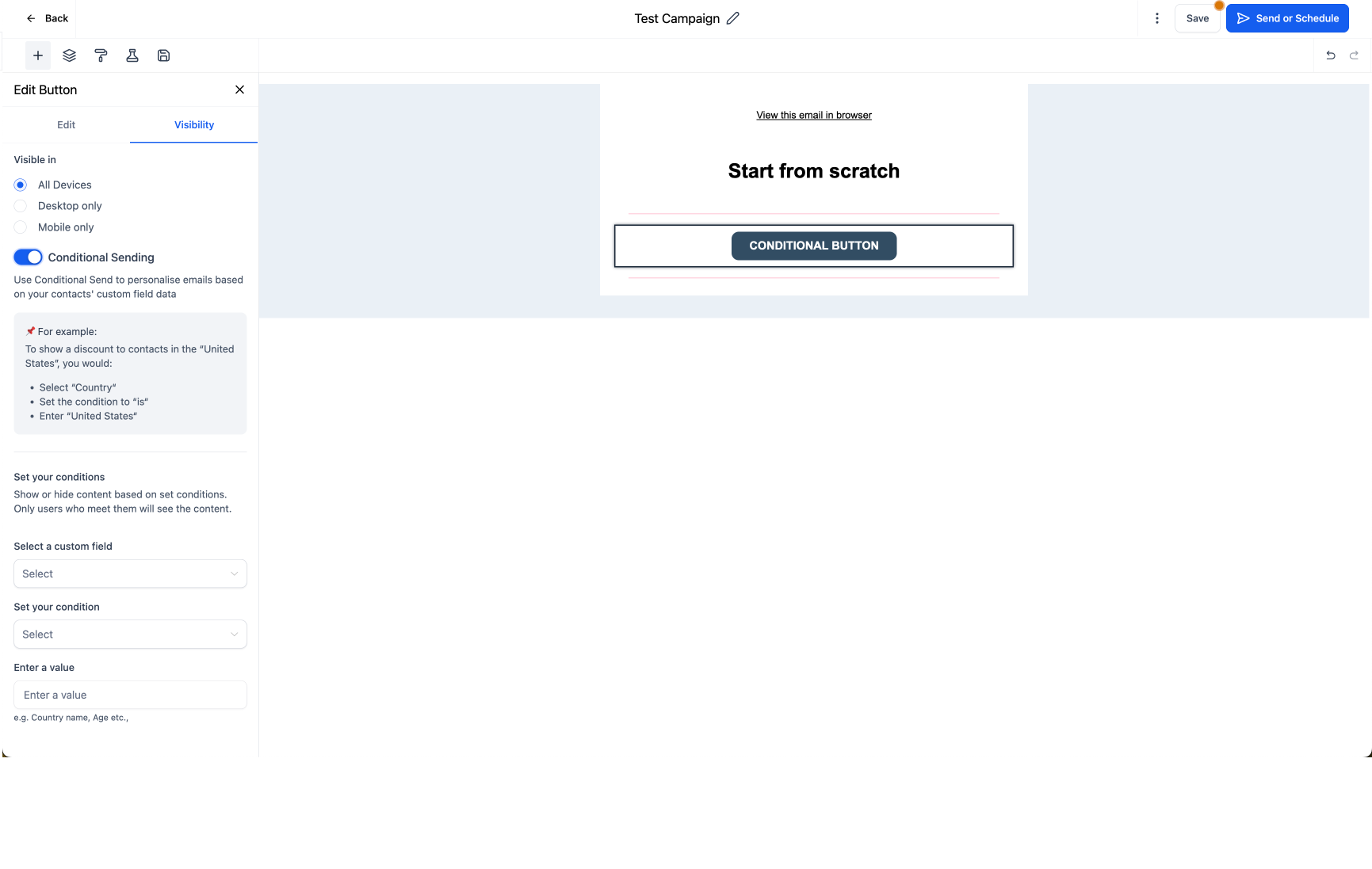
- Set the conditions based on contact fields.
- Alternatively, click on the Conditional Element icon in the element overlay action to add conditions easily.

Was this article helpful?
Related articles
- Border Customization: Color, Radius, and ThicknessThe Border Customization feature allows you to fully control the appearance of borders on layouts. With this feature, you can adjust the color, radius, and thickness of borders to enhance your design and improve user experience. TABLE OF CONTENTS - Key Features - How to Use Border Customization- SteEmail Campaigns
- Image Element in Email BuilderThe Image Element in Email Builder allows you to easily add and customise images within your email templates. With support for multiple image sources, sizing options, and alignment controls, this element helps you create visually engaging and professional-looking emails that capture attention and imEmail Campaigns
- Video Element in Email BuilderEmbedding videos in emails can be tricky due to limitations in email client support. The Video element solves this by letting you insert clickable video thumbnails that link to your video content. This article explains how to use the Video element in the Email Builder, including how to choose video Email Campaigns
- Text Element in Email BuilderThe Text Element in s Email Builder allows you to easily add and style written content such as headings, paragraphs. It provides flexible formatting options, helping you create visually appealing and readable email designs that align with your brand’s tone and message. TABLE OF CONTENTS - What is tEmail Campaigns