How to save items in email builder for quick access?
Creating professional and symmetric emails can be challenging and time-consuming. This guide will show you how to save design elements and layouts for reuse, helping you maintain symmetry and consistency in your emails.
By following these tips, you can streamline your email creation process and ensure your emails always look polished and well-structured. Let's dive in!
In this Article, find the guide to:
1. Save elements/ sections or layouts
2. Rename these sections for better administration
3. Search the items for quick access
Steps to save an element or layout:
Step 1 | Navigate to the Marketing -> Email Marketing and open any Campaign/ Template
Step 2 | Create the Layout or Element you wish to save
Step 3 | Hover over the element or layout and click on the "Save" icon
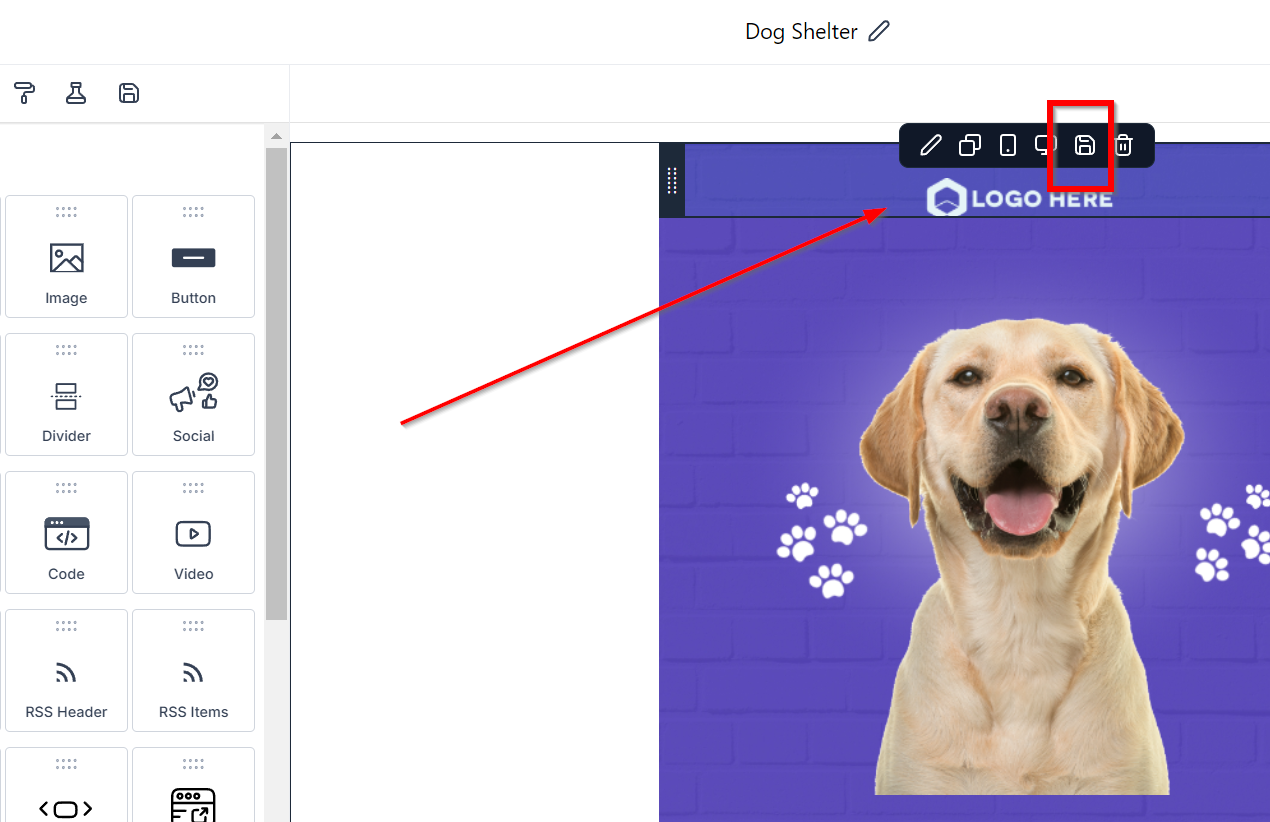
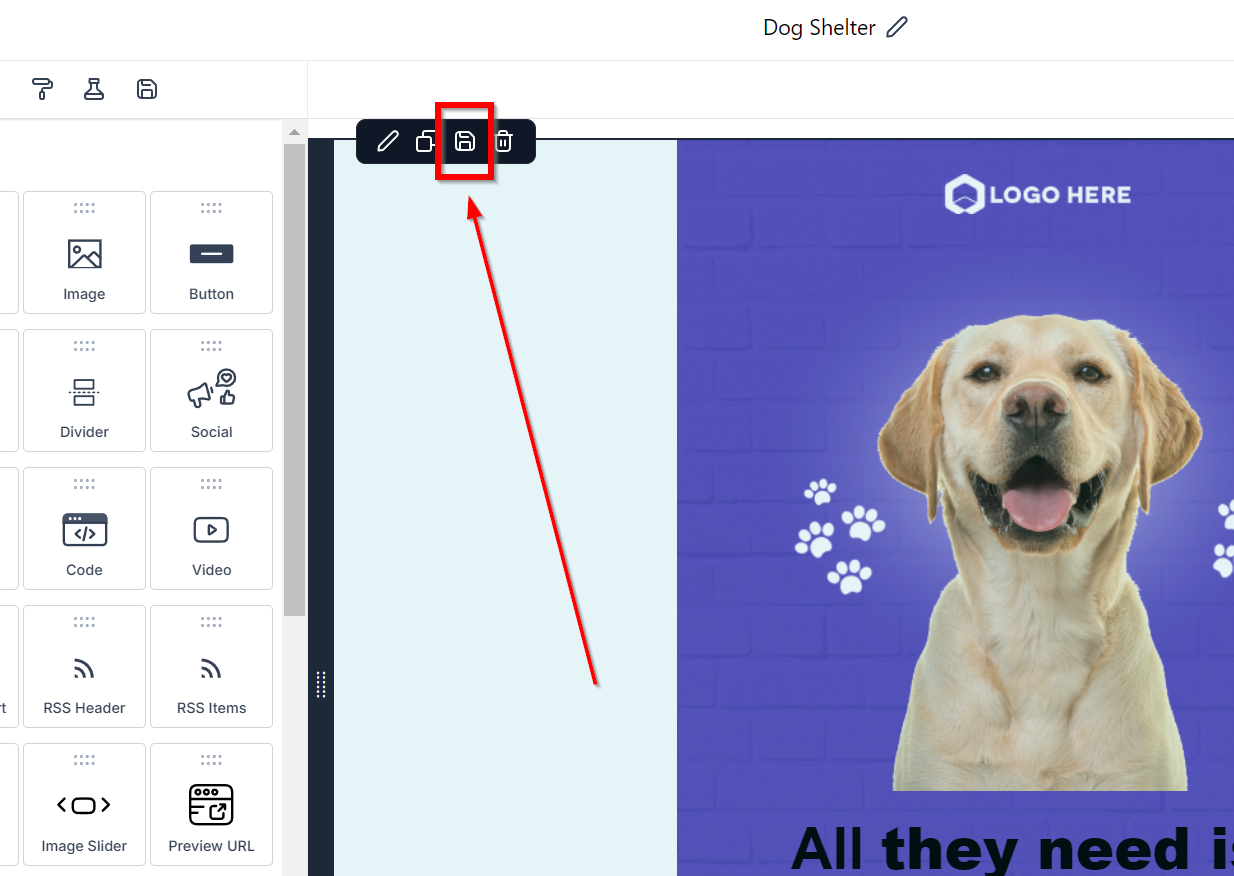
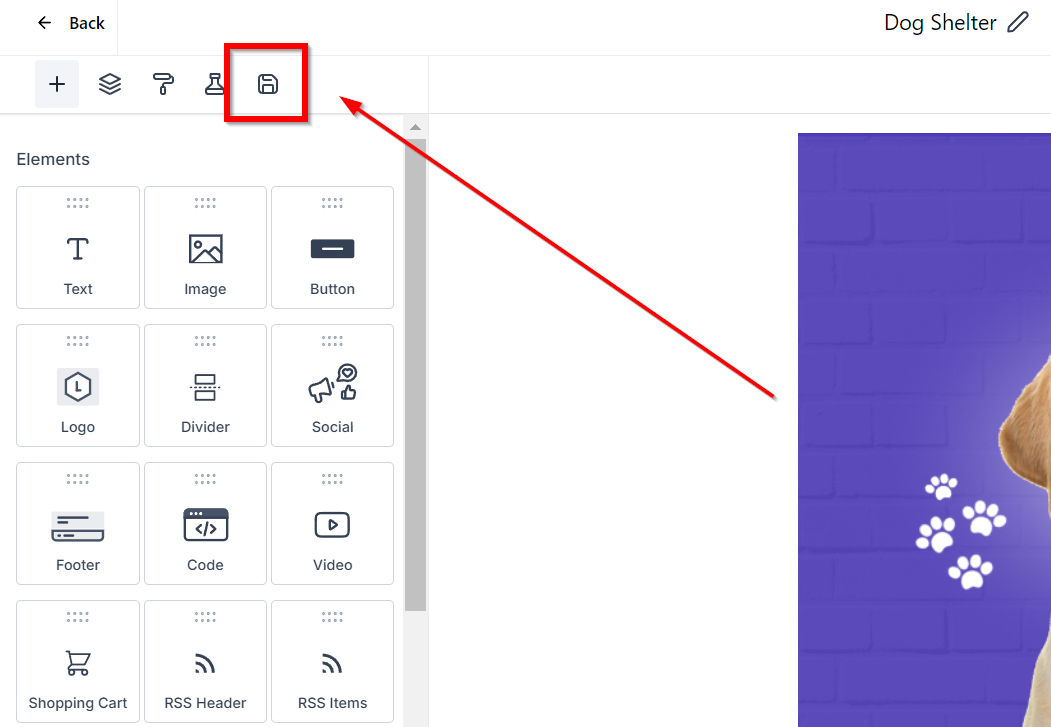
Step 4| Access the element under the Saved Items section at right hand top
Please Note* This will be stored globally and available in builders for all existing or new email templates/ campaigns for quick access for that location*
Step 5| User can now also rename the elements for quick search by clicking on three dots and selecting "Rename"
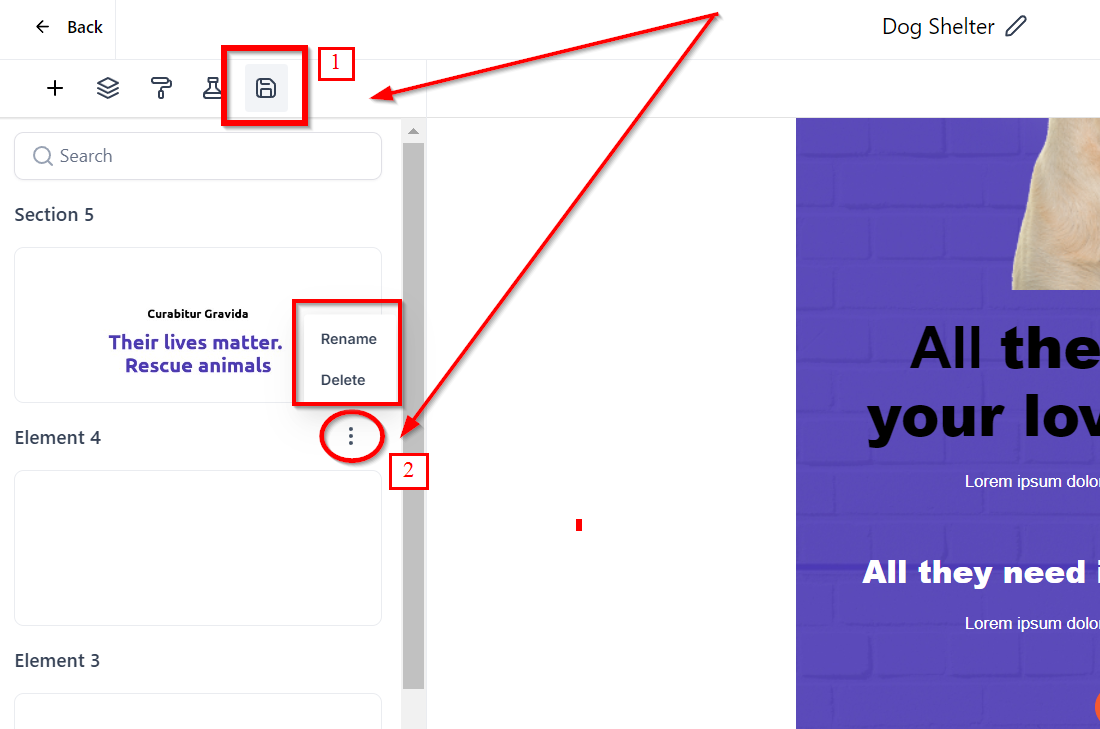
Click the Rename button to Edit the text to desired name, in this example we have renamed it as "Weekly Update Body Content".
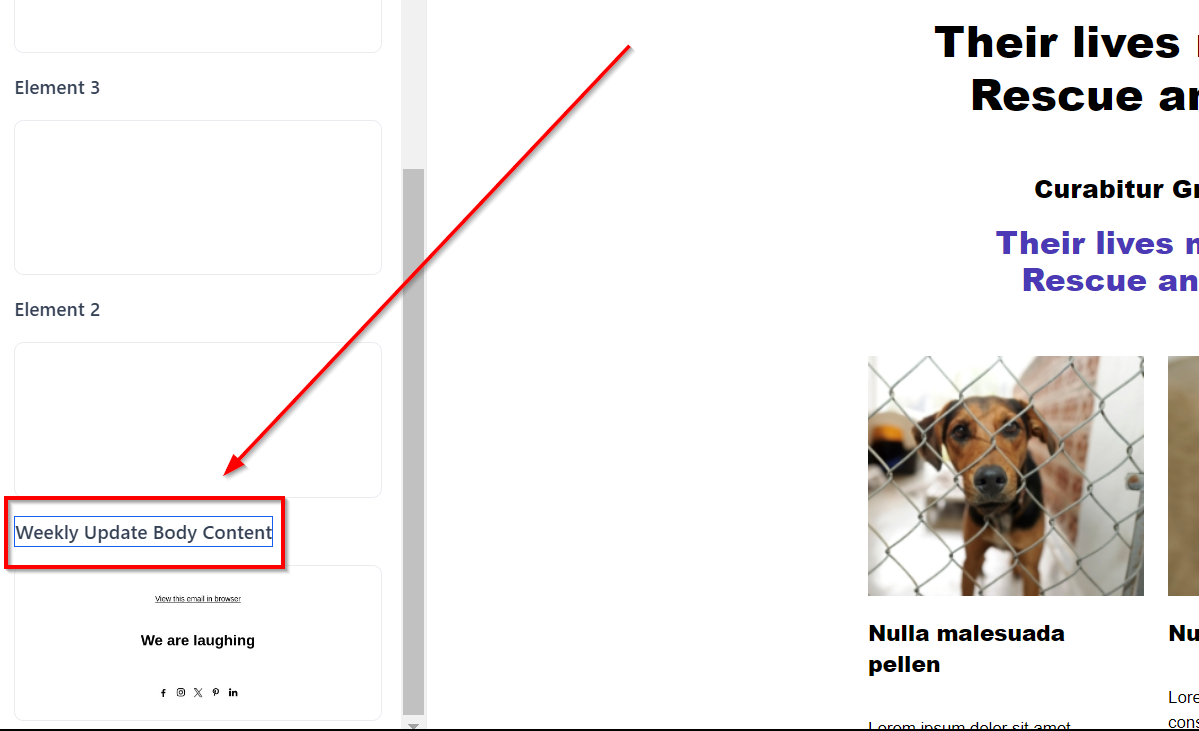
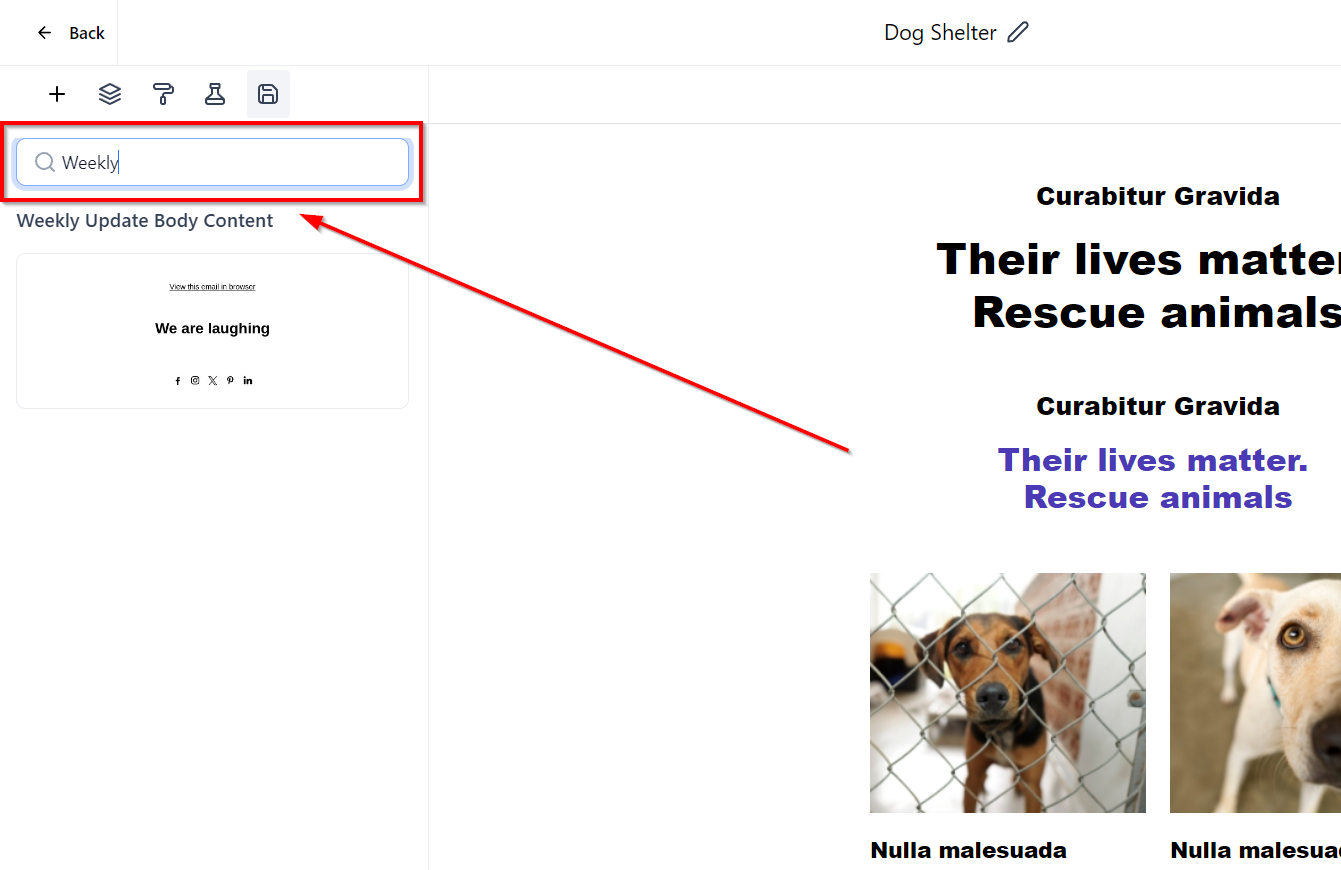
Step 6| Use the search bar to quickly access the required item.
Was this article helpful?
Related articles
- Border Customization: Color, Radius, and ThicknessThe Border Customization feature allows you to fully control the appearance of borders on layouts. With this feature, you can adjust the color, radius, and thickness of borders to enhance your design and improve user experience. TABLE OF CONTENTS - Key Features - How to Use Border Customization- SteEmail Campaigns
- Image Element in Email BuilderThe Image Element in Email Builder allows you to easily add and customise images within your email templates. With support for multiple image sources, sizing options, and alignment controls, this element helps you create visually engaging and professional-looking emails that capture attention and imEmail Campaigns
- Video Element in Email BuilderEmbedding videos in emails can be tricky due to limitations in email client support. The Video element solves this by letting you insert clickable video thumbnails that link to your video content. This article explains how to use the Video element in the Email Builder, including how to choose video Email Campaigns
- Text Element in Email BuilderThe Text Element in s Email Builder allows you to easily add and style written content such as headings, paragraphs. It provides flexible formatting options, helping you create visually appealing and readable email designs that align with your brand’s tone and message. TABLE OF CONTENTS - What is tEmail Campaigns