How to edit your Email Format for Mobile under Appearance tab
Mobile devices are an increasingly popular way for your contacts or subscribers to view your email campaigns. This means it's now more important than ever to design with mobile devices in mind.
Covered in this article:
To edit mobile styles in a drag-and-drop template
The default styles include font size and line height settings that work well on a smaller screen for Design Editor (Drag and Drop Editor). You can make additional changes to these at any time.
To edit mobile styles in a drag-and-drop template - Design Editor, follow these steps:
1. After creating an Email template or campaign, go to the Appearances
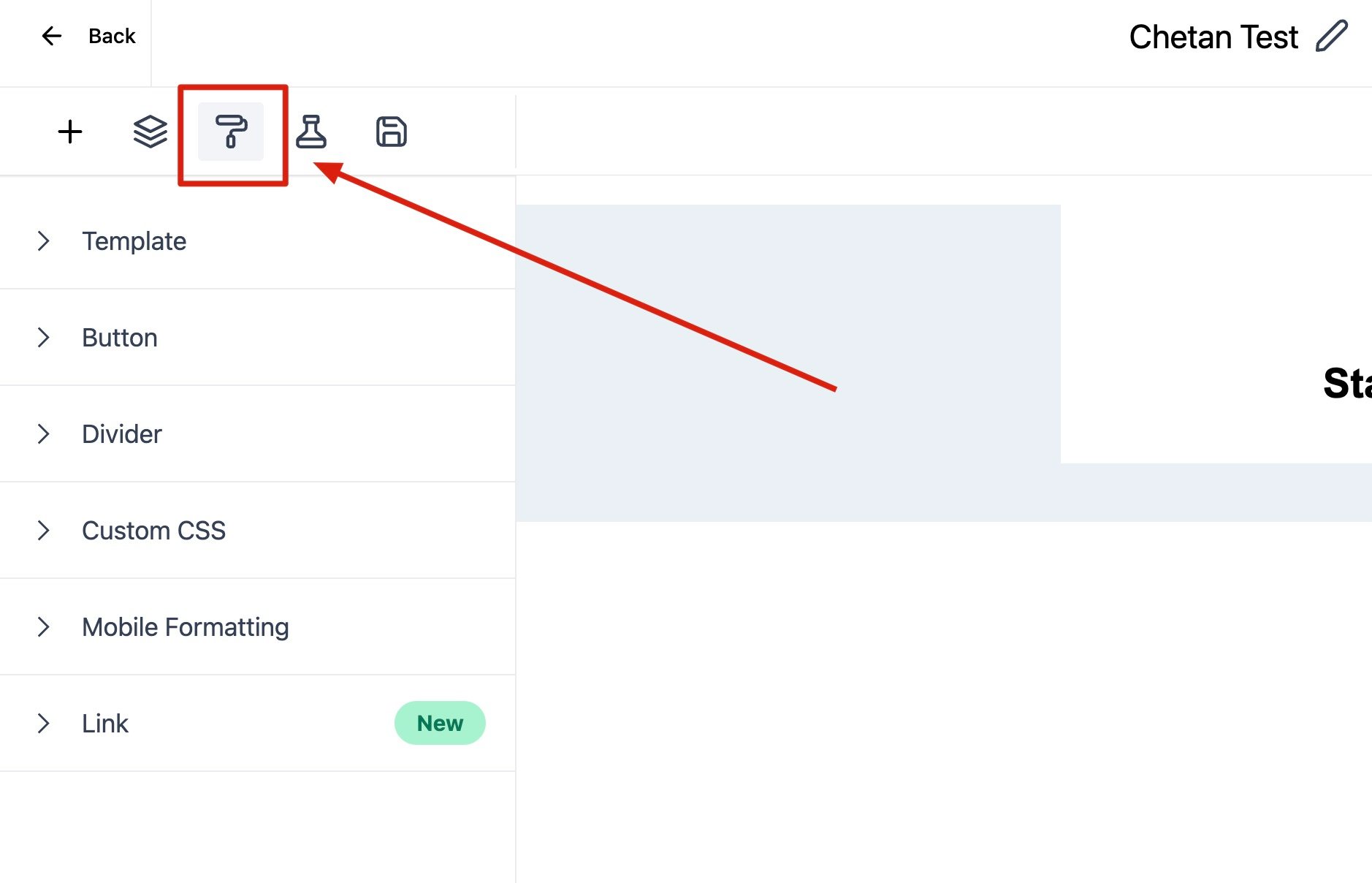
2. Click the Appearance tab and choose Mobile Formatting
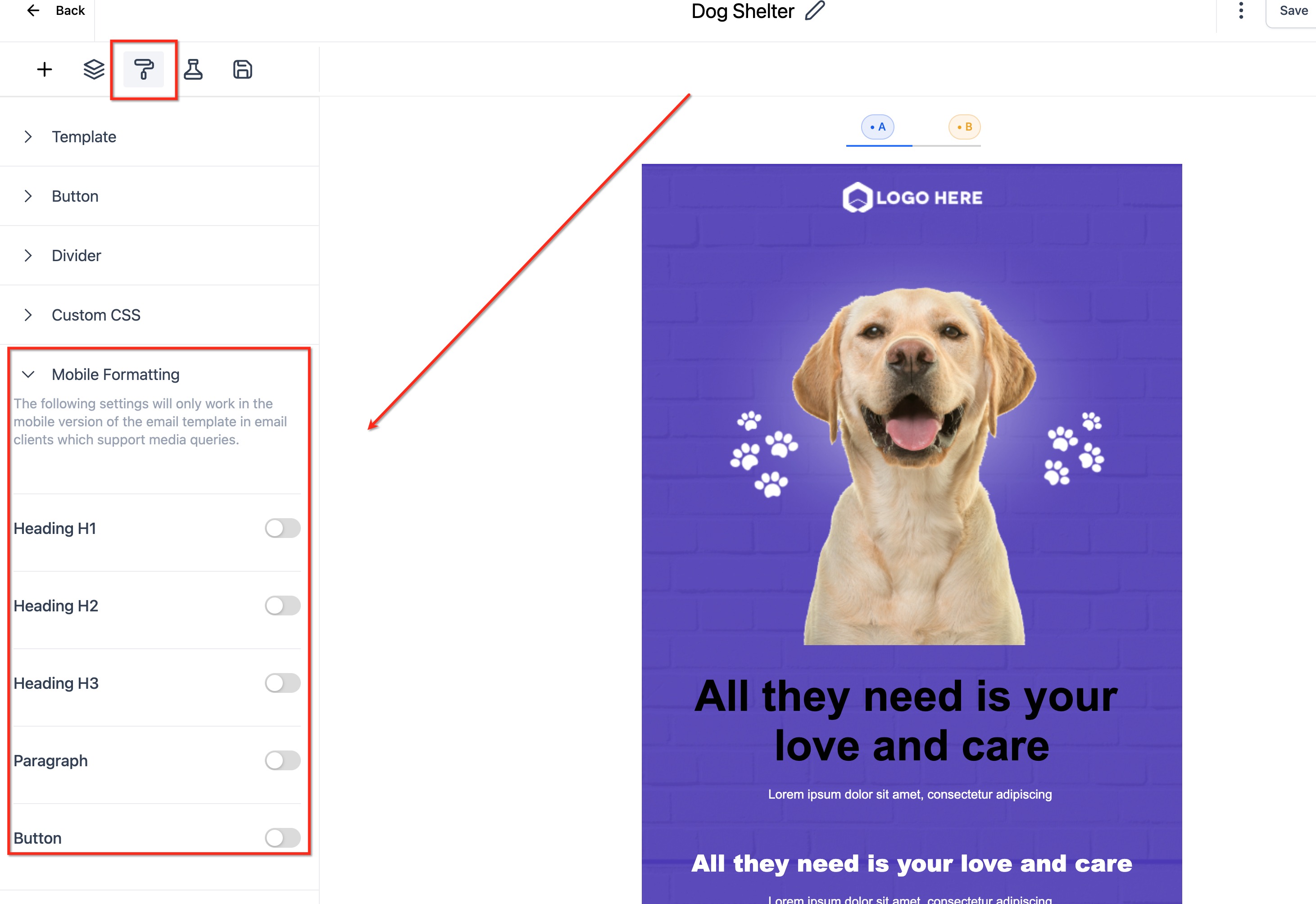
3. In Mobile Formatting, there are options for different styles, font heights, and alignment.
For font size or button style, the toggle needs to be enabled to apply for the mobile formatting.
Note - The following settings will only work in the mobile version of the email template in email clients which support media queries.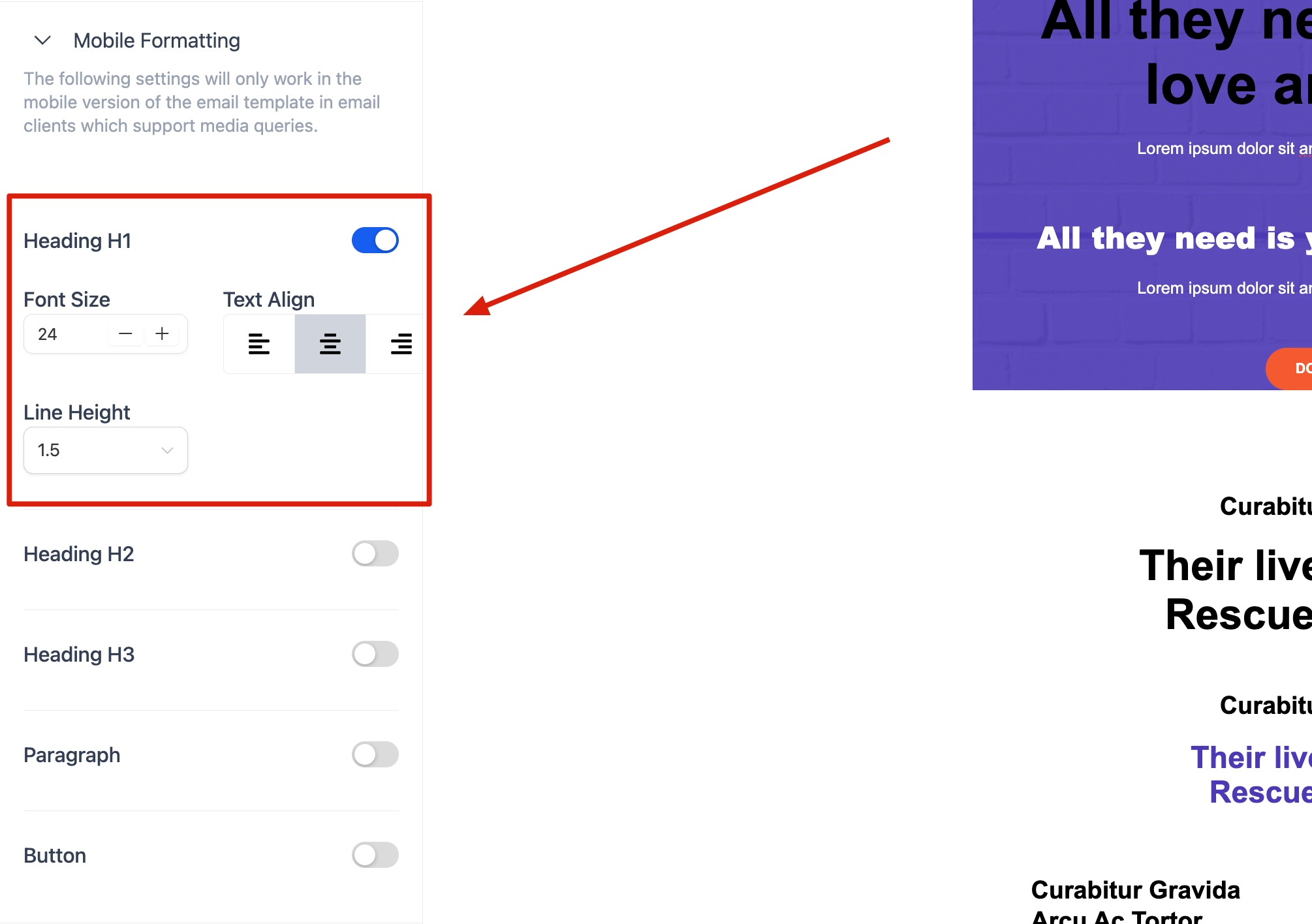
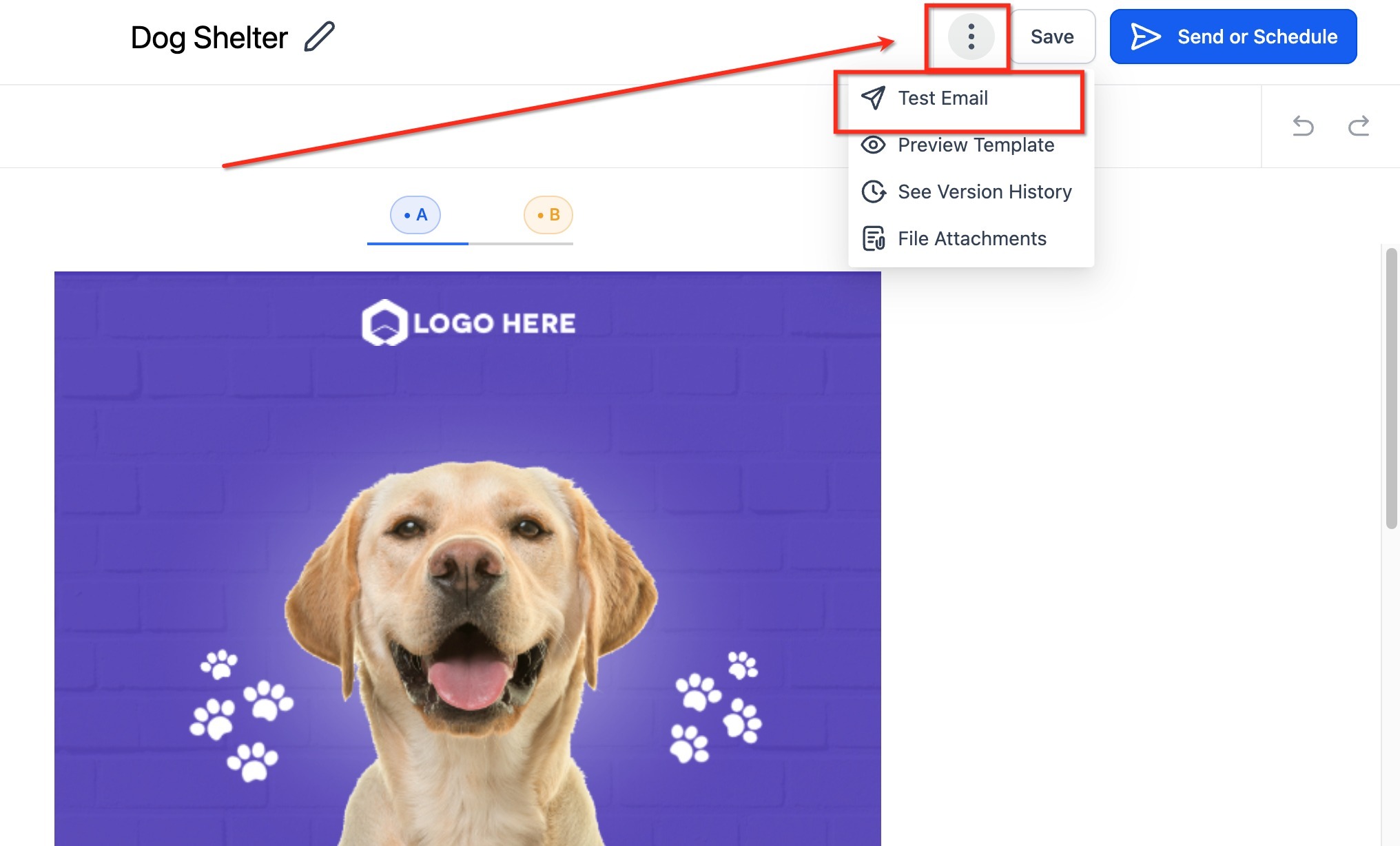
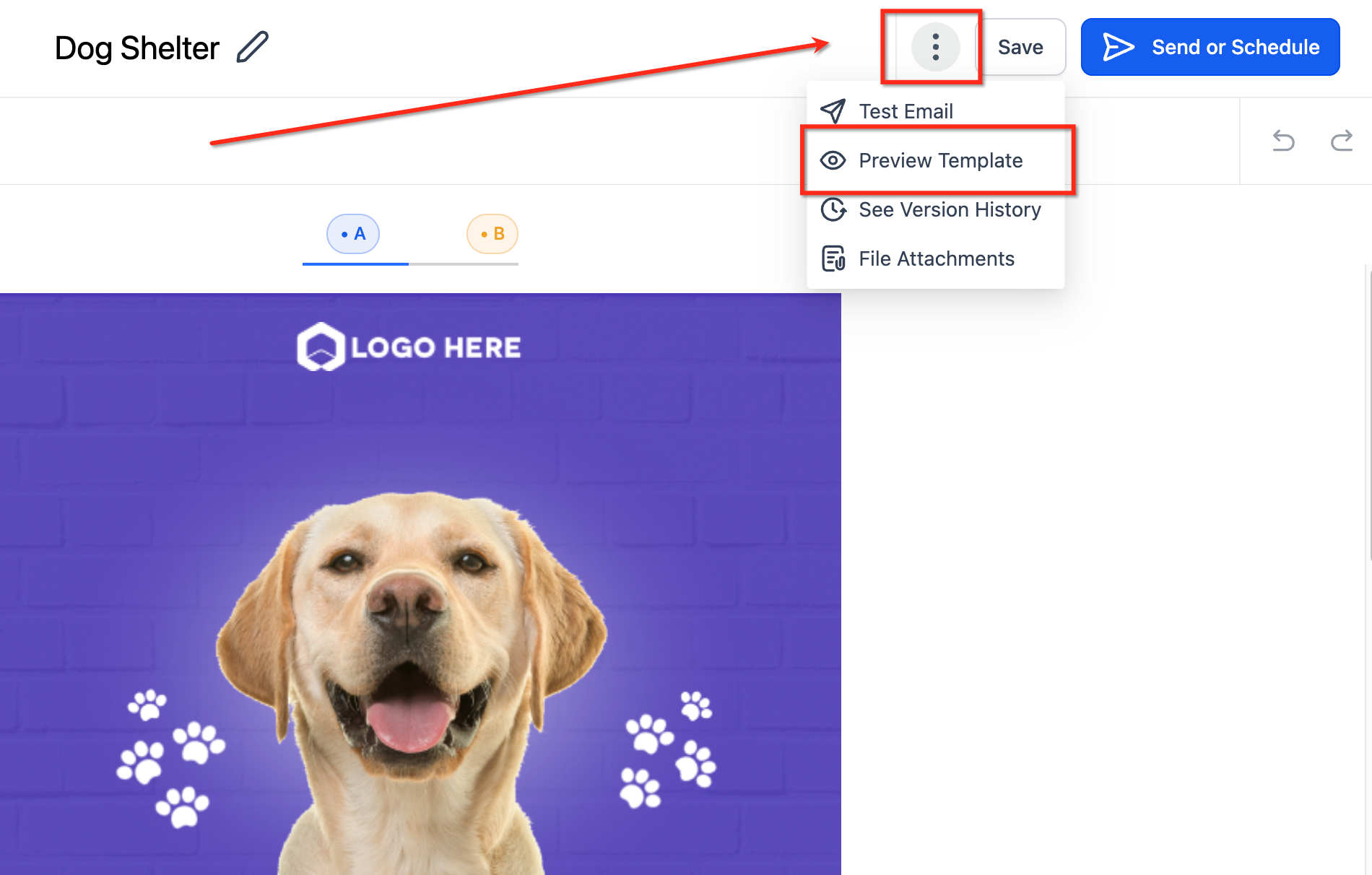
4. Once the settings are implemented for mobile, click the three dots after saving the template for preview in the mobile view.
Preview and test your email campaign
Preview and test your email campaign on a mobile device to view the changes.
Was this article helpful?
Related articles
- Border Customization: Color, Radius, and ThicknessThe Border Customization feature allows you to fully control the appearance of borders on layouts. With this feature, you can adjust the color, radius, and thickness of borders to enhance your design and improve user experience. TABLE OF CONTENTS - Key Features - How to Use Border Customization- SteEmail Campaigns
- Image Element in Email BuilderThe Image Element in Email Builder allows you to easily add and customise images within your email templates. With support for multiple image sources, sizing options, and alignment controls, this element helps you create visually engaging and professional-looking emails that capture attention and imEmail Campaigns
- Video Element in Email BuilderEmbedding videos in emails can be tricky due to limitations in email client support. The Video element solves this by letting you insert clickable video thumbnails that link to your video content. This article explains how to use the Video element in the Email Builder, including how to choose video Email Campaigns
- Text Element in Email BuilderThe Text Element in s Email Builder allows you to easily add and style written content such as headings, paragraphs. It provides flexible formatting options, helping you create visually appealing and readable email designs that align with your brand’s tone and message. TABLE OF CONTENTS - What is tEmail Campaigns