How to preview Custom Field in Email Builder?
More Tutorials From the Community
With this new functionality, users can now preview exactly how custom fields will appear for their respective clients before sending out any emails.This feature simplifies the testing process and eliminates the need to create fake test cases, allowing for a more efficient and cost-effective approach to email campaign management.
Steps to preview the custom field:
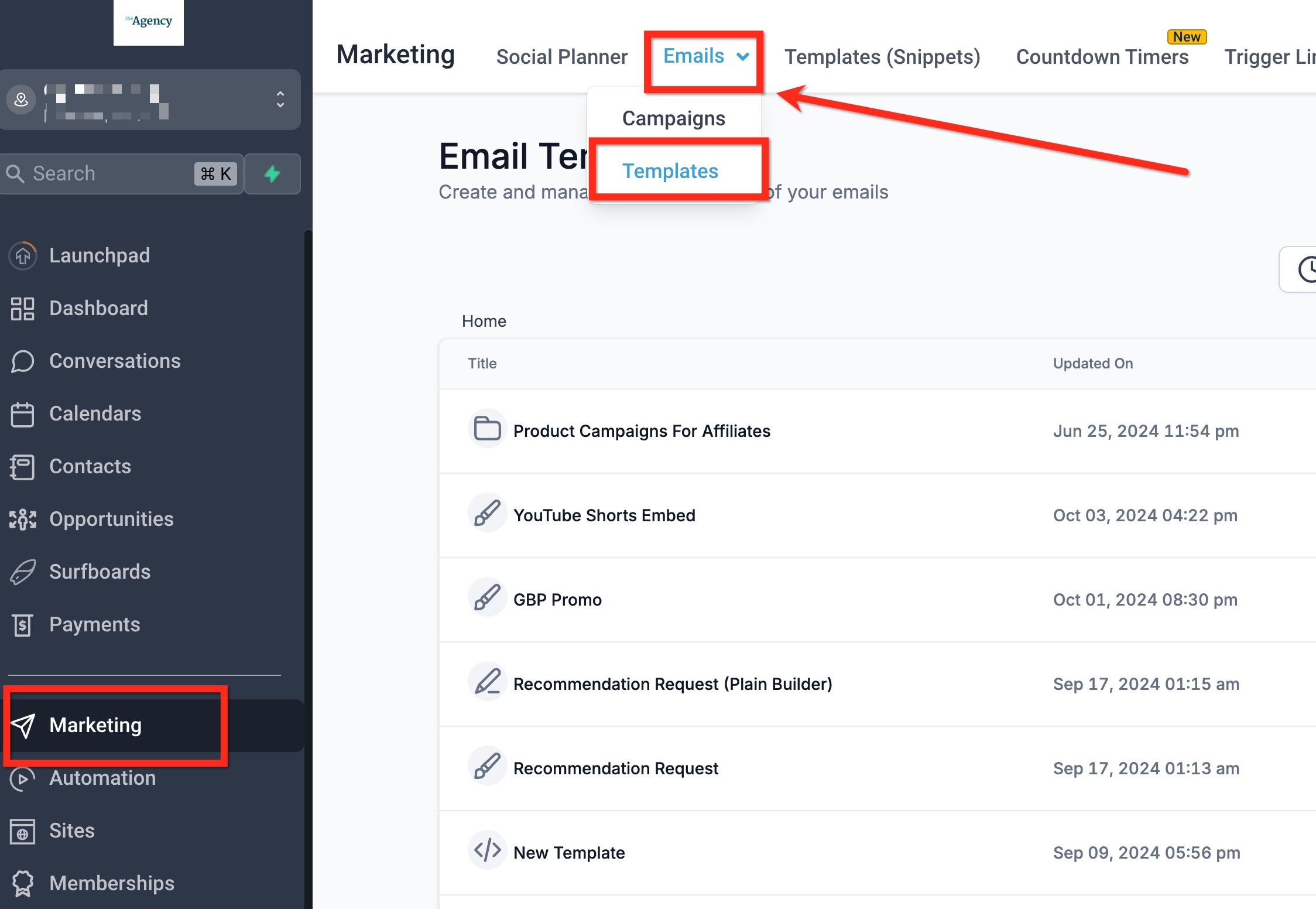
Step 1. Navigate to Marketing -> Email Templates to create your personalized email.
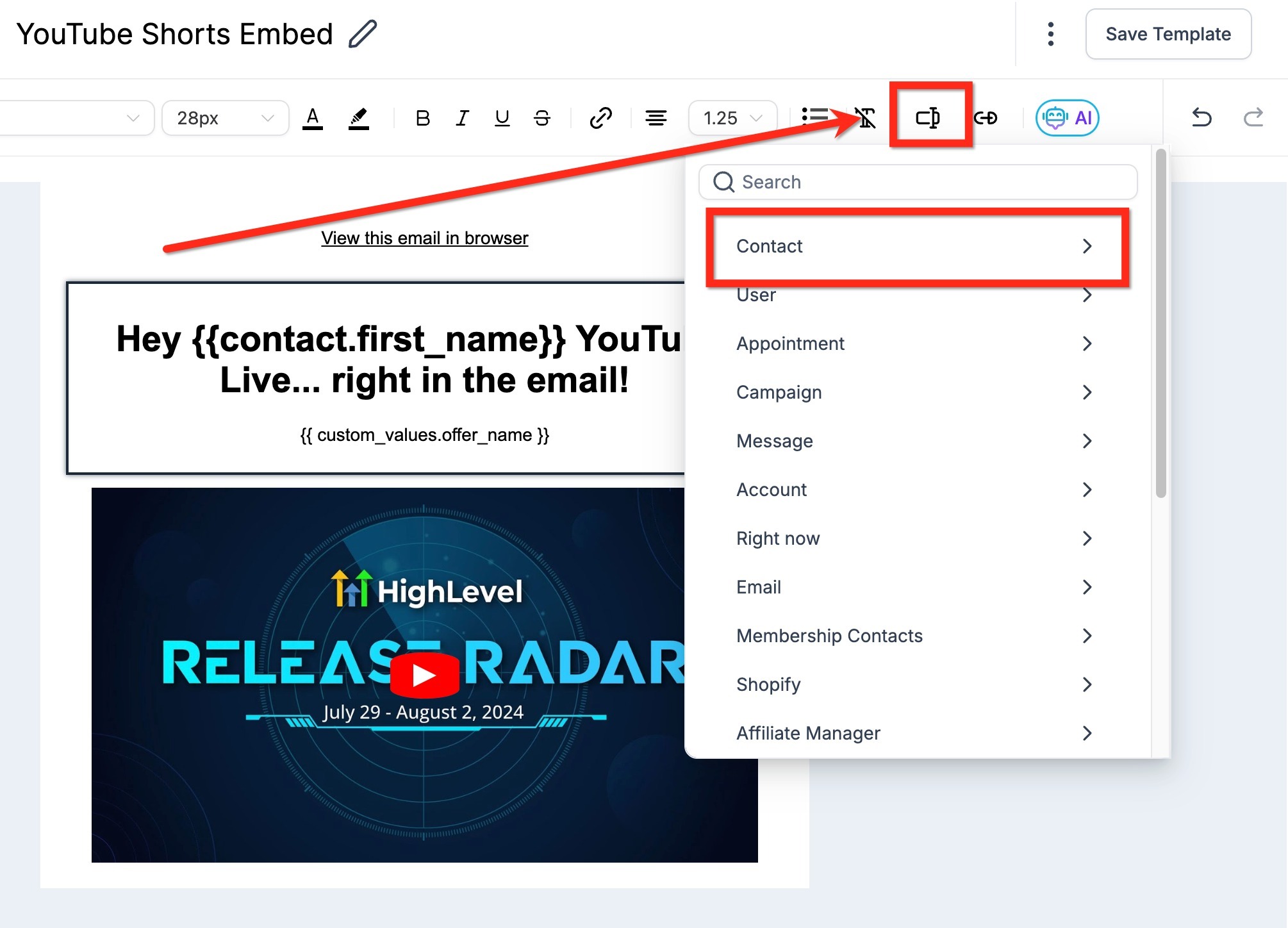
Step 2: Within the Email Builder, incorporate custom fields of the contact based on your preferences.
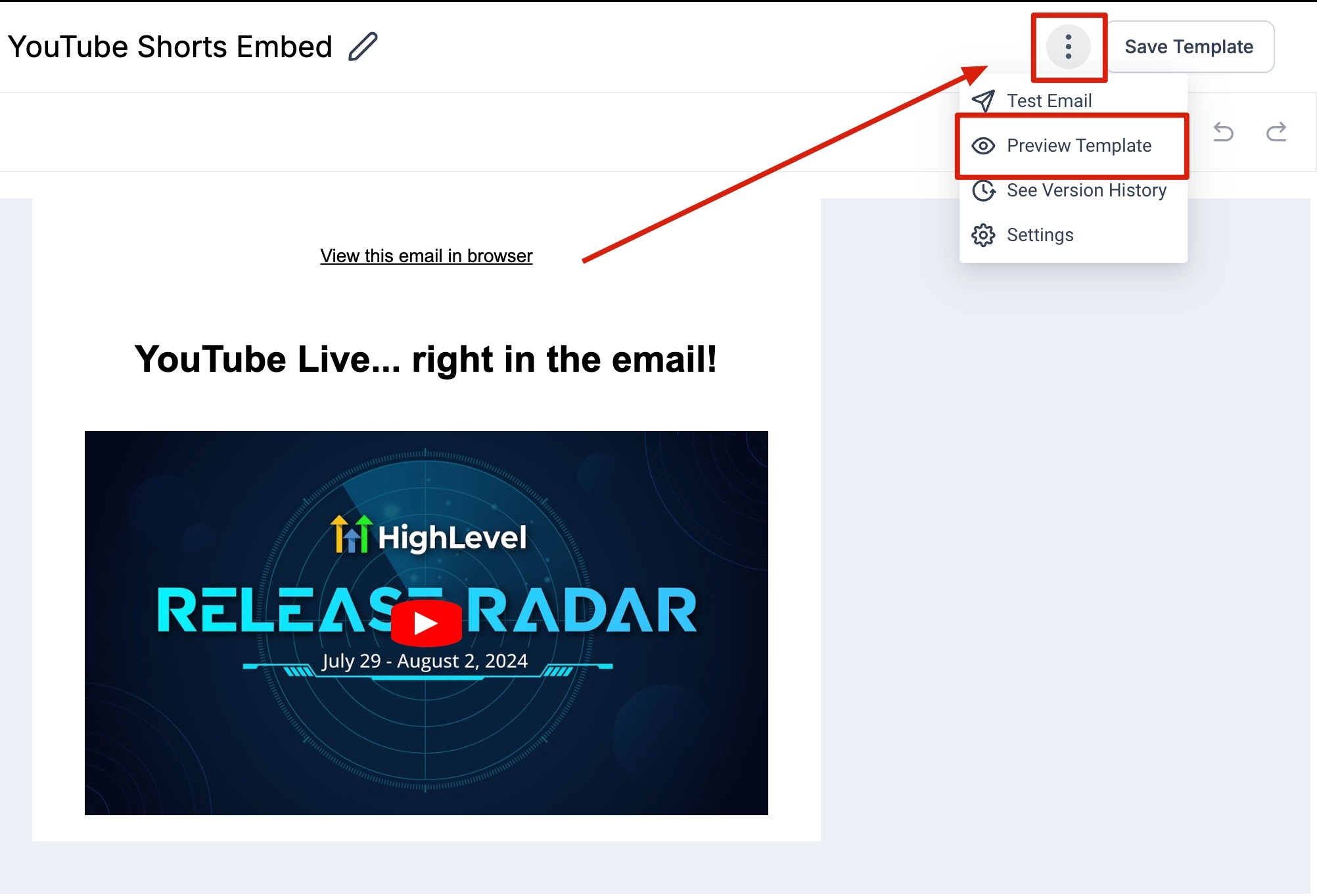
Step 3. Click on the three dots located at the top right corner to access the *Preview Template *
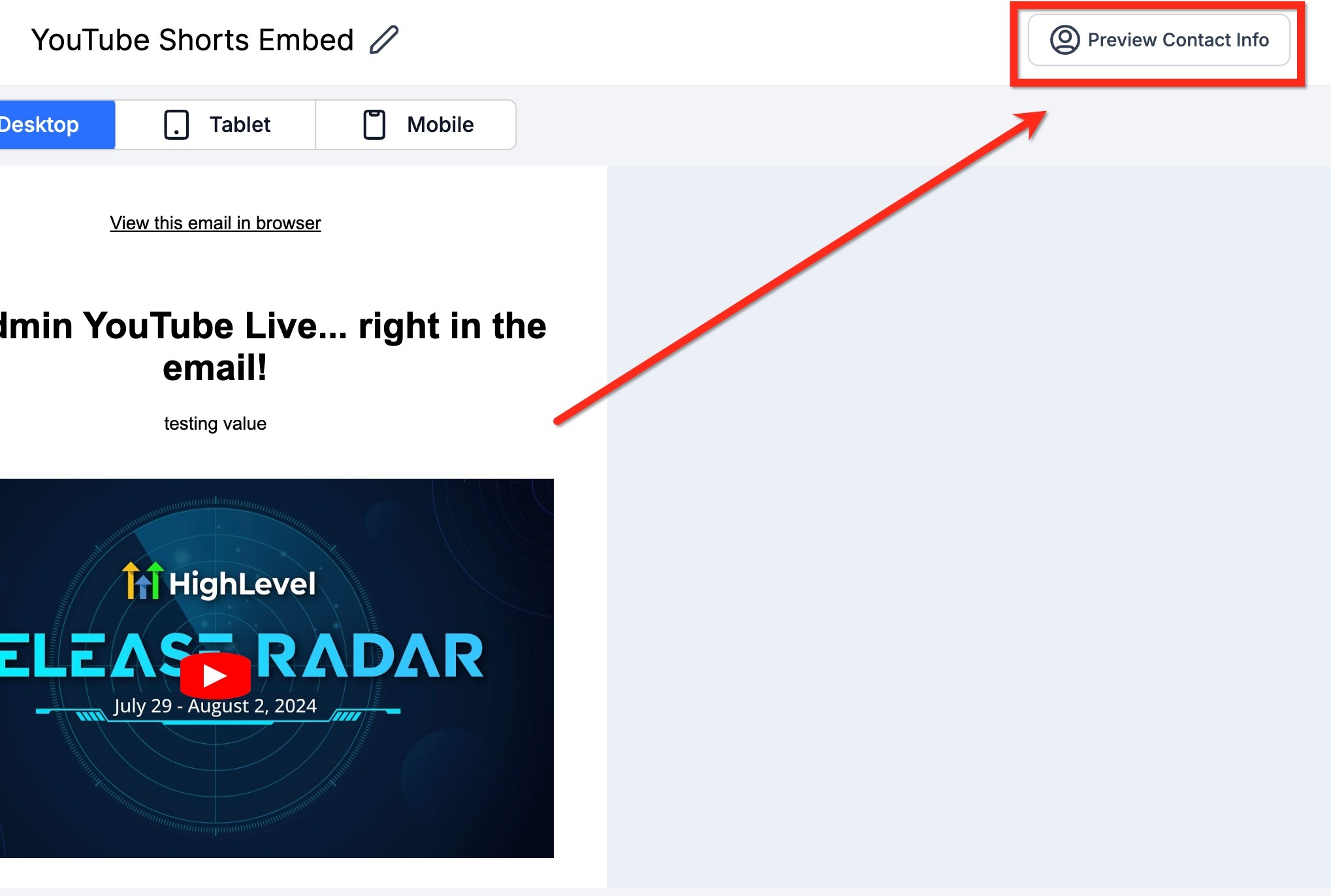
Step 4. On the Preview screen, locate and select Preview Contact Info at the upper right corner.
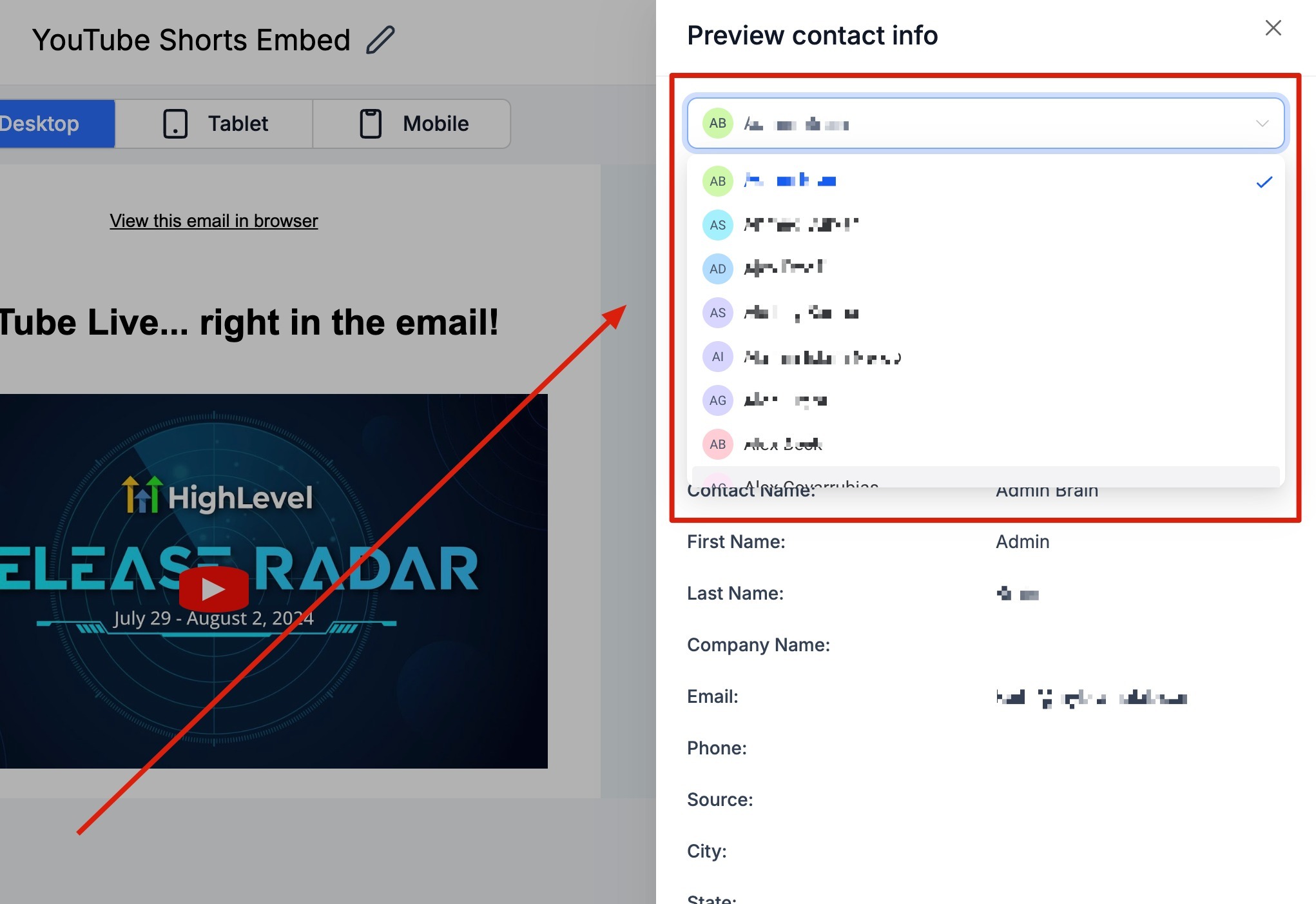
Step 5. By default, a contact's information is displayed in the email. To preview as a specific contact, simply search for the desired contact from the search bar.
Step 6. You'll observe the contact's information and custom field data on the right panel, alongside the email preview on the left. This gives you a glimpse of how the selected contact would view the email.
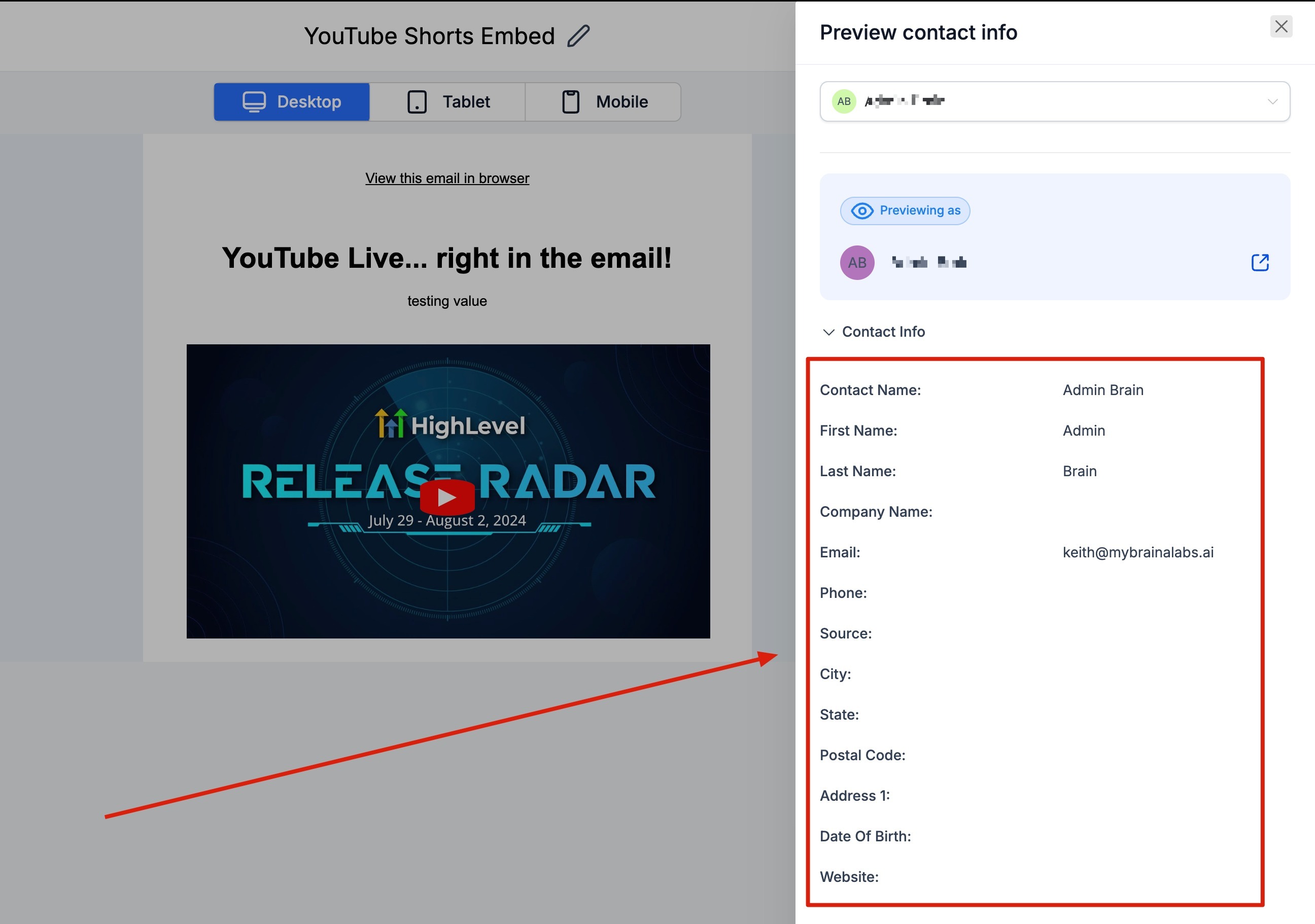
Utilize the search bar once more to find a different customer for further previewing.
Was this article helpful?
Related articles
- Border Customization: Color, Radius, and ThicknessThe Border Customization feature allows you to fully control the appearance of borders on layouts. With this feature, you can adjust the color, radius, and thickness of borders to enhance your design and improve user experience. TABLE OF CONTENTS - Key Features - How to Use Border Customization- SteEmail Campaigns
- Image Element in Email BuilderThe Image Element in Email Builder allows you to easily add and customise images within your email templates. With support for multiple image sources, sizing options, and alignment controls, this element helps you create visually engaging and professional-looking emails that capture attention and imEmail Campaigns
- Video Element in Email BuilderEmbedding videos in emails can be tricky due to limitations in email client support. The Video element solves this by letting you insert clickable video thumbnails that link to your video content. This article explains how to use the Video element in the Email Builder, including how to choose video Email Campaigns
- Text Element in Email BuilderThe Text Element in s Email Builder allows you to easily add and style written content such as headings, paragraphs. It provides flexible formatting options, helping you create visually appealing and readable email designs that align with your brand’s tone and message. TABLE OF CONTENTS - What is tEmail Campaigns