Code Element in Email Builder
The Code Element allows you to insert custom HTML or CSS snippets into your email templates, giving you full creative control beyond standard design options. It’s ideal for embedding widgets, tracking pixels, or adding advanced styling that enhances the functionality and appearance of your emails.
TABLE OF CONTENTS
- What is the Code Element in Email Builder?
- Key Benefits of the Code Element
- How To Setup the Code Element
- Frequently Asked Questions
What is the Code Element in Email Builder?
The Code Element is a drag-and-drop block that enables you to add custom HTML or CSS directly into your email layout. It’s designed for advanced users who want to include specialised content such as embedded countdown timers, tracking tags, or layout modifications that aren’t possible through the standard visual editor.
When used correctly, it allows deeper customisation and helps you integrate third-party tools seamlessly within your email design.
Note: Email clients have limited support for custom code. Always test your email before sending to ensure that all embedded content displays correctly across platforms.
Key Benefits of the Code Element
Using the Code Element in your email design offers several advantages:
Add custom HTML or CSS for unique layouts and designs.
Embed third-party widgets such as timers, forms, or badges.
Insert tracking pixels or analytics scripts for campaign insights.
Fine-tune spacing, colors, and styles beyond standard editor capabilities.
Experiment safely with advanced customization in specific sections of your email.
How To Setup the Code Element
Follow these steps to add and configure the Code Element in your email template:
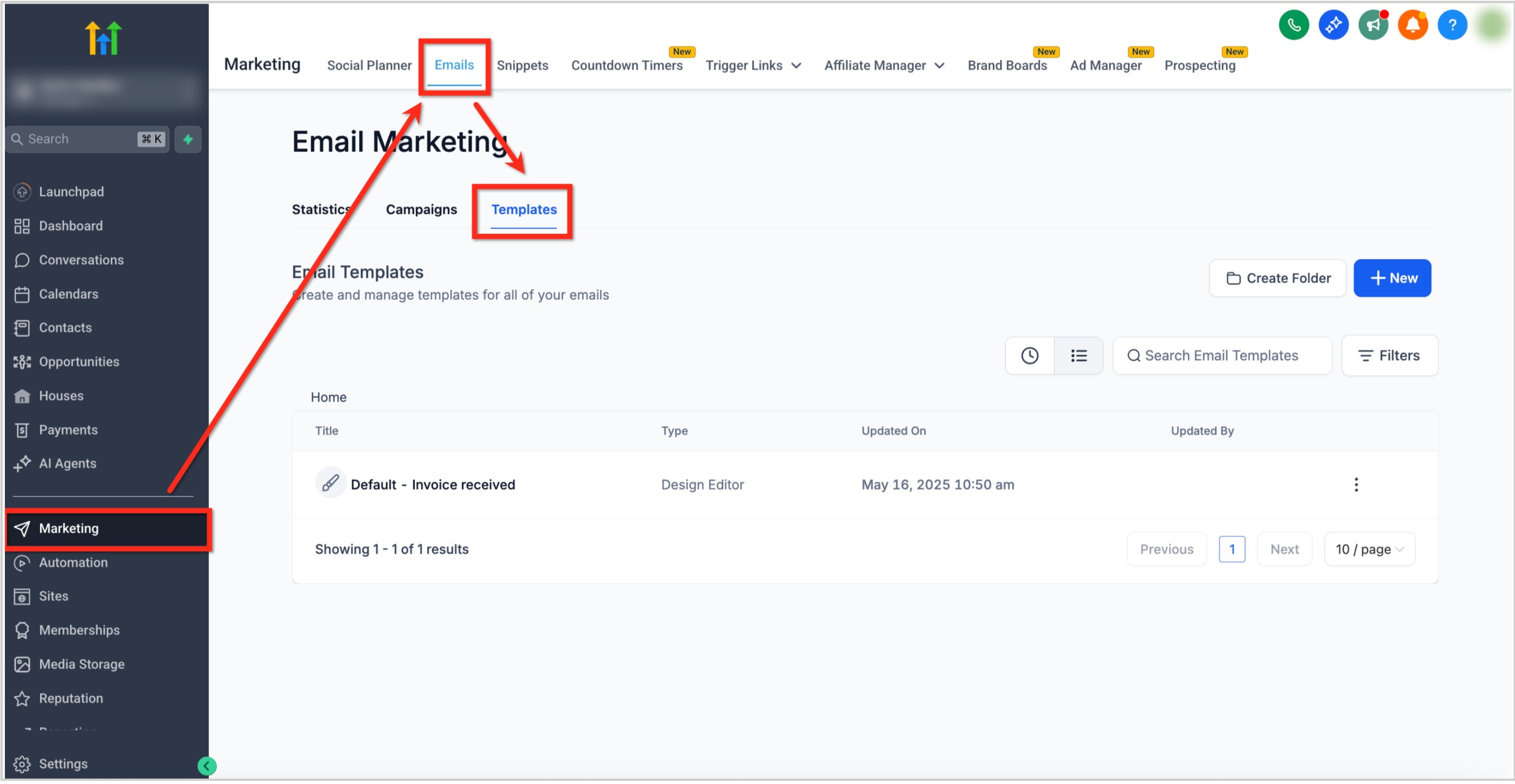
Navigate to Marketing → Emails → Templates from your sub-account dashboard.
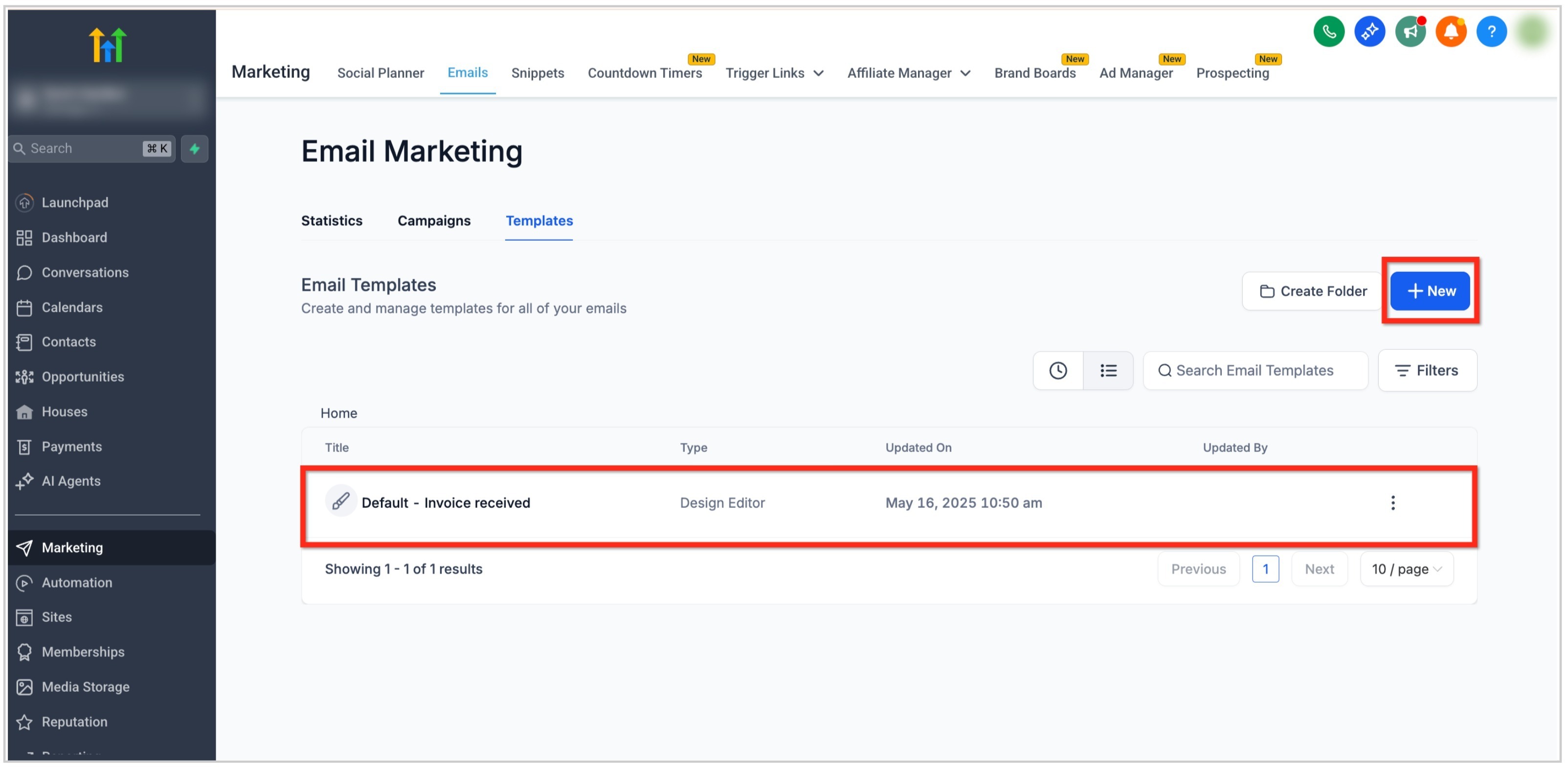
Open an existing email template or create a new one by clicking the + New button.
In the Email Builder, click the Add Elements (+) icon in the left sidebar.
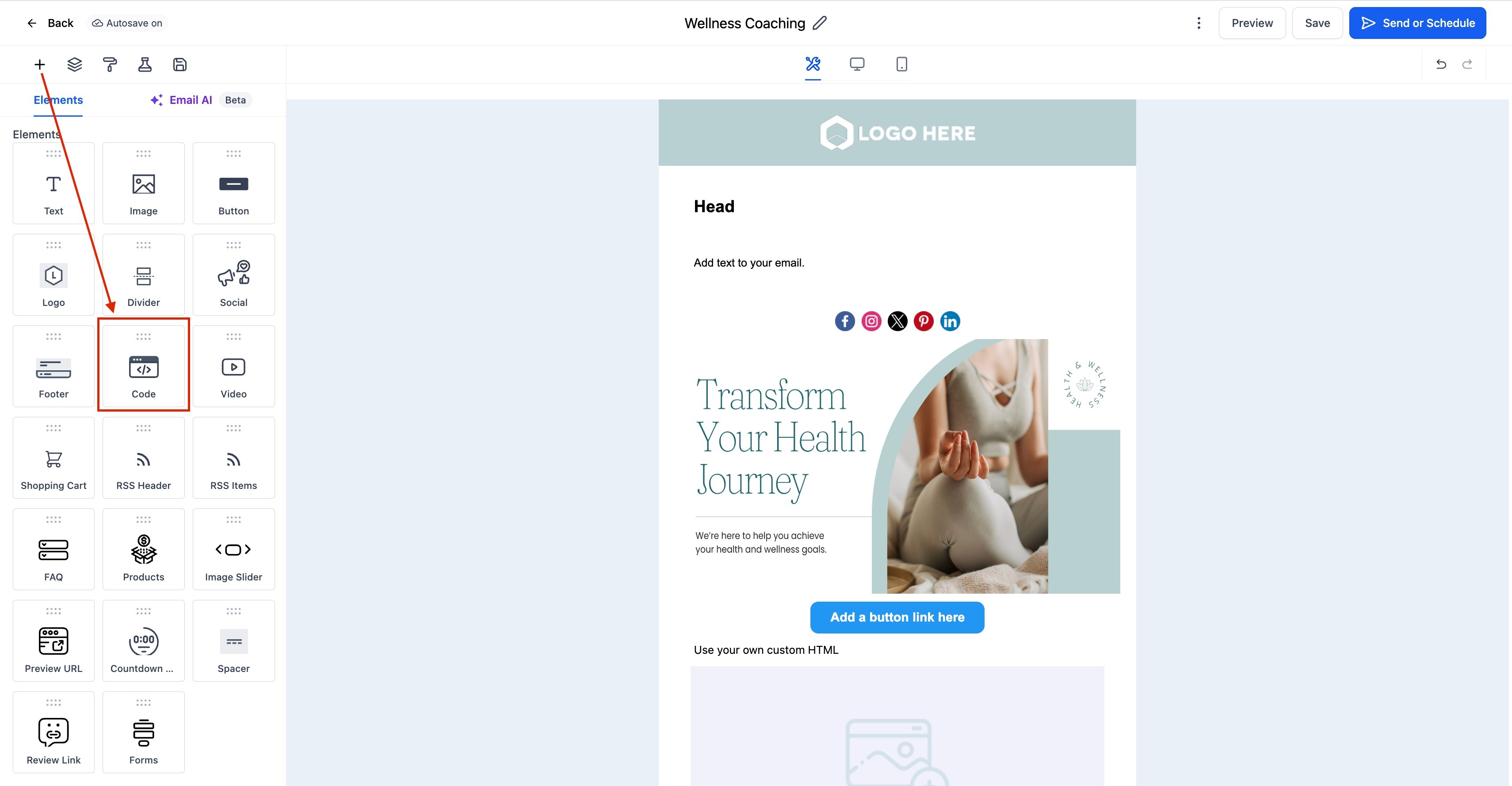
Locate the Code Element under the Elements section.
Drag and drop the Code Element into your desired section of the email layout.
Click on the Code Element to open the Edit tab on the left panel.
In the code editor box, paste or type your custom HTML or CSS code.
Use HTML for structure (e.g., divs, tables, embeds).
Use inline CSS for styling (e.g., colors, spacing, fonts).
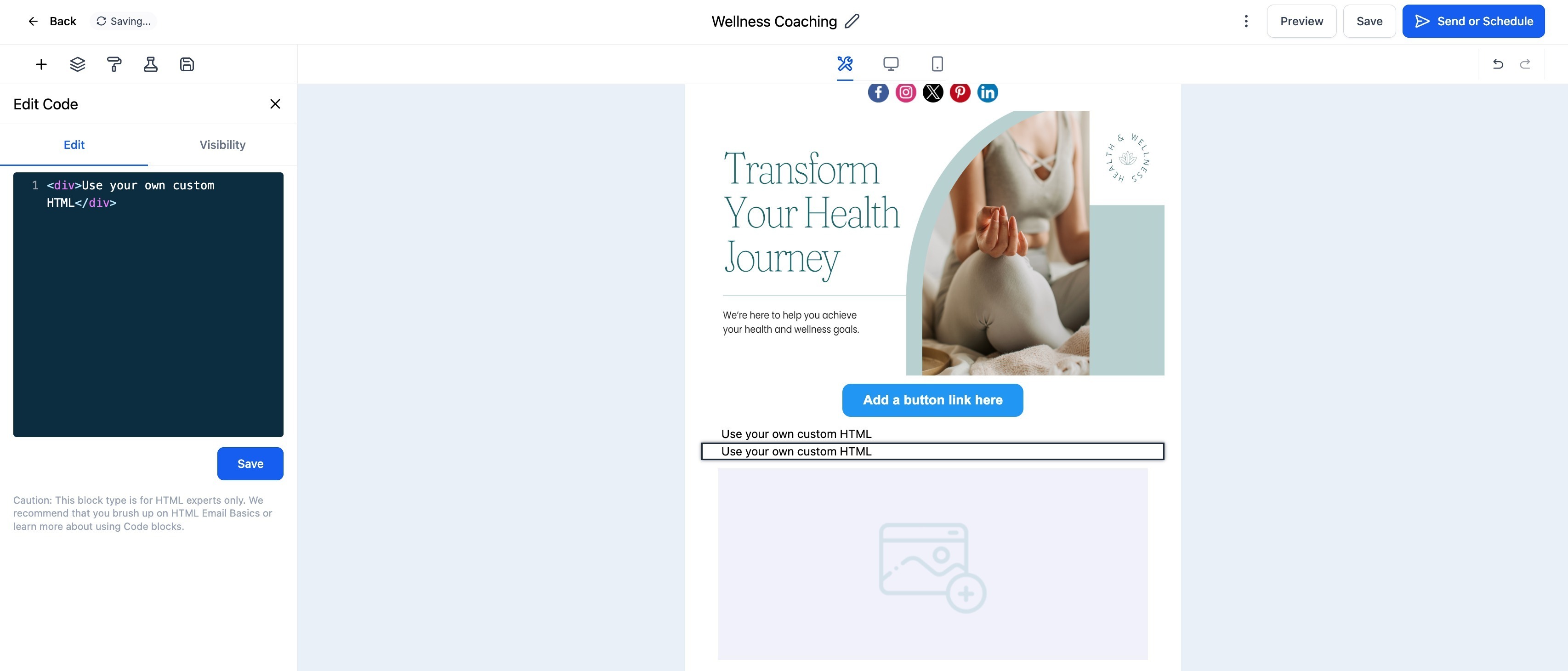
Click Preview to check how your custom code appears in the design.
Test your email in both desktop and mobile previews before sending to ensure proper rendering.
Frequently Asked Questions
Q: What types of code can I add using the Code Element?
You can add HTML and inline CSS. JavaScript and iframe content are generally not supported by most email clients for security reasons.
Q: Will my custom code affect the rest of the email layout?
It can if not written correctly. Keep your code self-contained and use inline styles to prevent it from impacting other elements.
Q: How can I make sure my code displays properly across email clients?
Always test your email using the preview and send test options. Because email clients handle HTML differently, some code may look slightly different in each.
Q: Can I save and reuse my custom code?
Yes, once you’ve created a code block, you can duplicate or copy it across templates to reuse the same design or functionality.
Was this article helpful?
Related articles
- Border Customization: Color, Radius, and ThicknessThe Border Customization feature allows you to fully control the appearance of borders on layouts. With this feature, you can adjust the color, radius, and thickness of borders to enhance your design and improve user experience. TABLE OF CONTENTS - Key Features - How to Use Border Customization- SteEmail Campaigns
- Image Element in Email BuilderThe Image Element in Email Builder allows you to easily add and customise images within your email templates. With support for multiple image sources, sizing options, and alignment controls, this element helps you create visually engaging and professional-looking emails that capture attention and imEmail Campaigns
- Video Element in Email BuilderEmbedding videos in emails can be tricky due to limitations in email client support. The Video element solves this by letting you insert clickable video thumbnails that link to your video content. This article explains how to use the Video element in the Email Builder, including how to choose video Email Campaigns
- Text Element in Email BuilderThe Text Element in s Email Builder allows you to easily add and style written content such as headings, paragraphs. It provides flexible formatting options, helping you create visually appealing and readable email designs that align with your brand’s tone and message. TABLE OF CONTENTS - What is tEmail Campaigns