Border Customization: Color, Radius, and Thickness
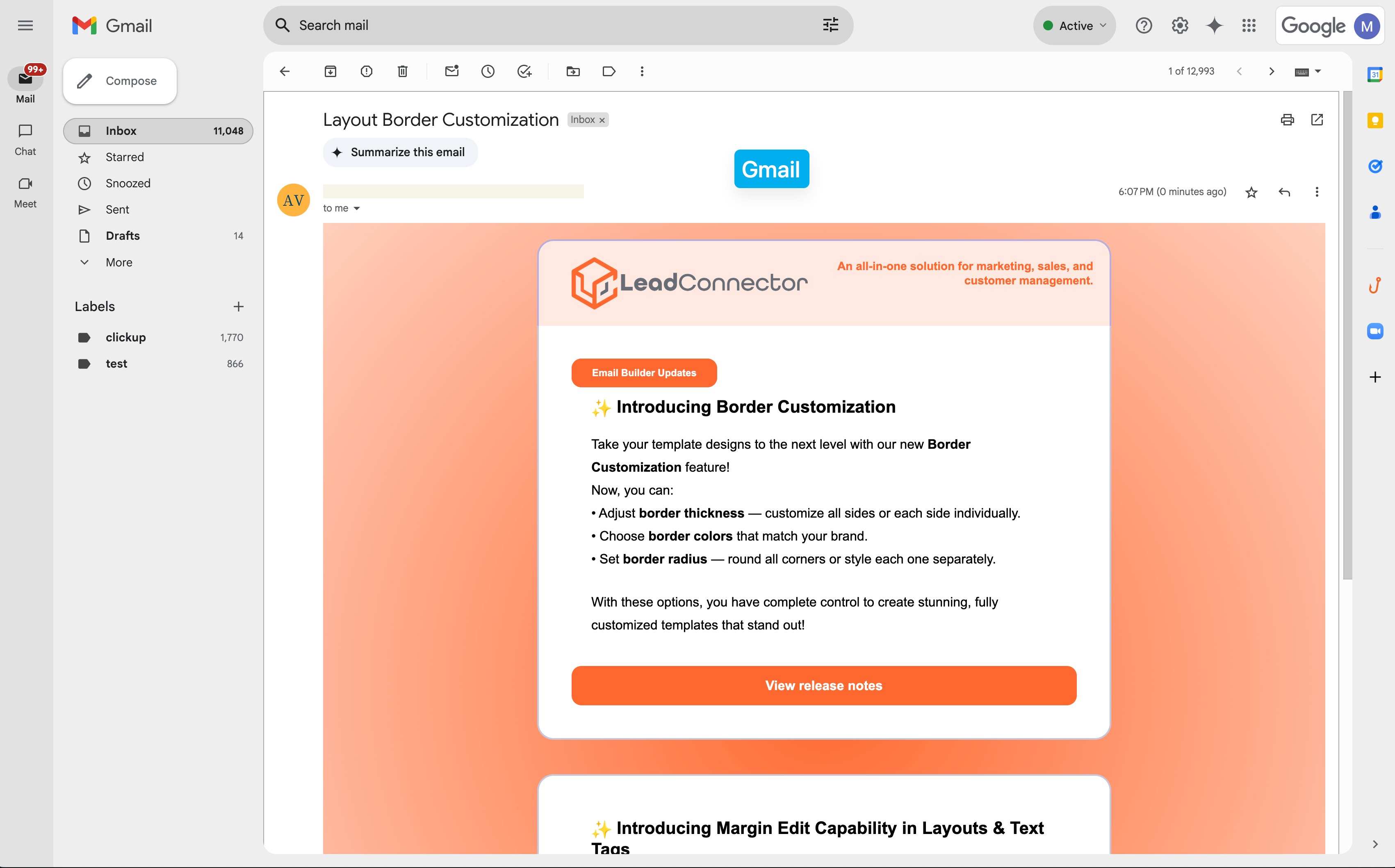
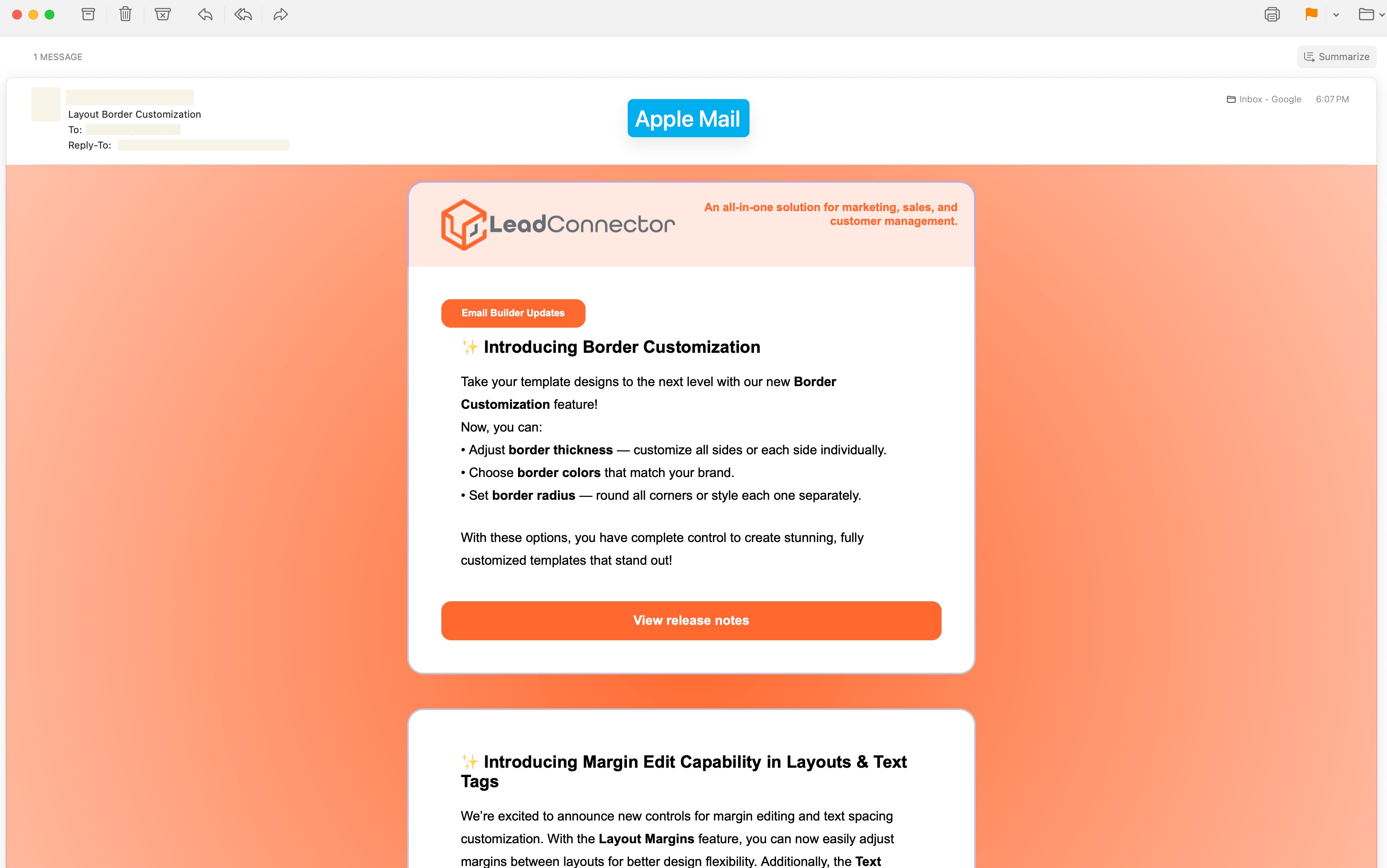
The Border Customization feature allows you to fully control the appearance of borders on layouts. With this feature, you can adjust the color, radius, and thickness of borders to enhance your design and improve user experience.
TABLE OF CONTENTS
Key Features
- Border Color: Choose and apply custom colors to borders using the color picker or hex code.
- Border Radius: Adjust the roundness of corners to create sharp or curved edges.
- Border Thickness: Set the width of the border for a subtle or bold effect.
How to Use Border Customization
Step 1: Access the Border Customization Settings
- Open the Email Builder.
- Select the layout/ section you want to customize.
- The Edit section opens in left panel.
- Navigate to the "Border Settings" section.
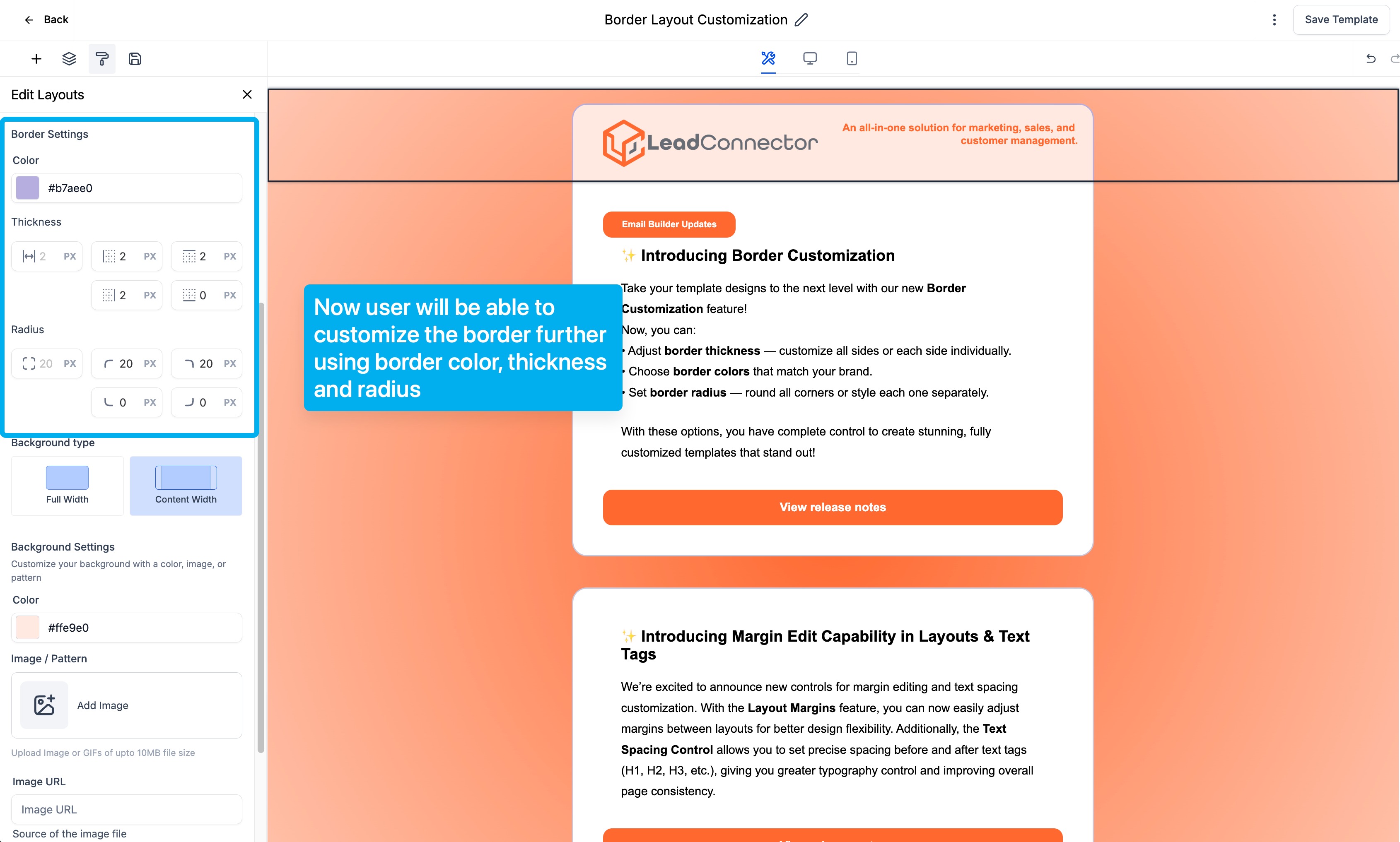
Step 2: Customize Border Properties
- Border Color: Click the color box to select a color.
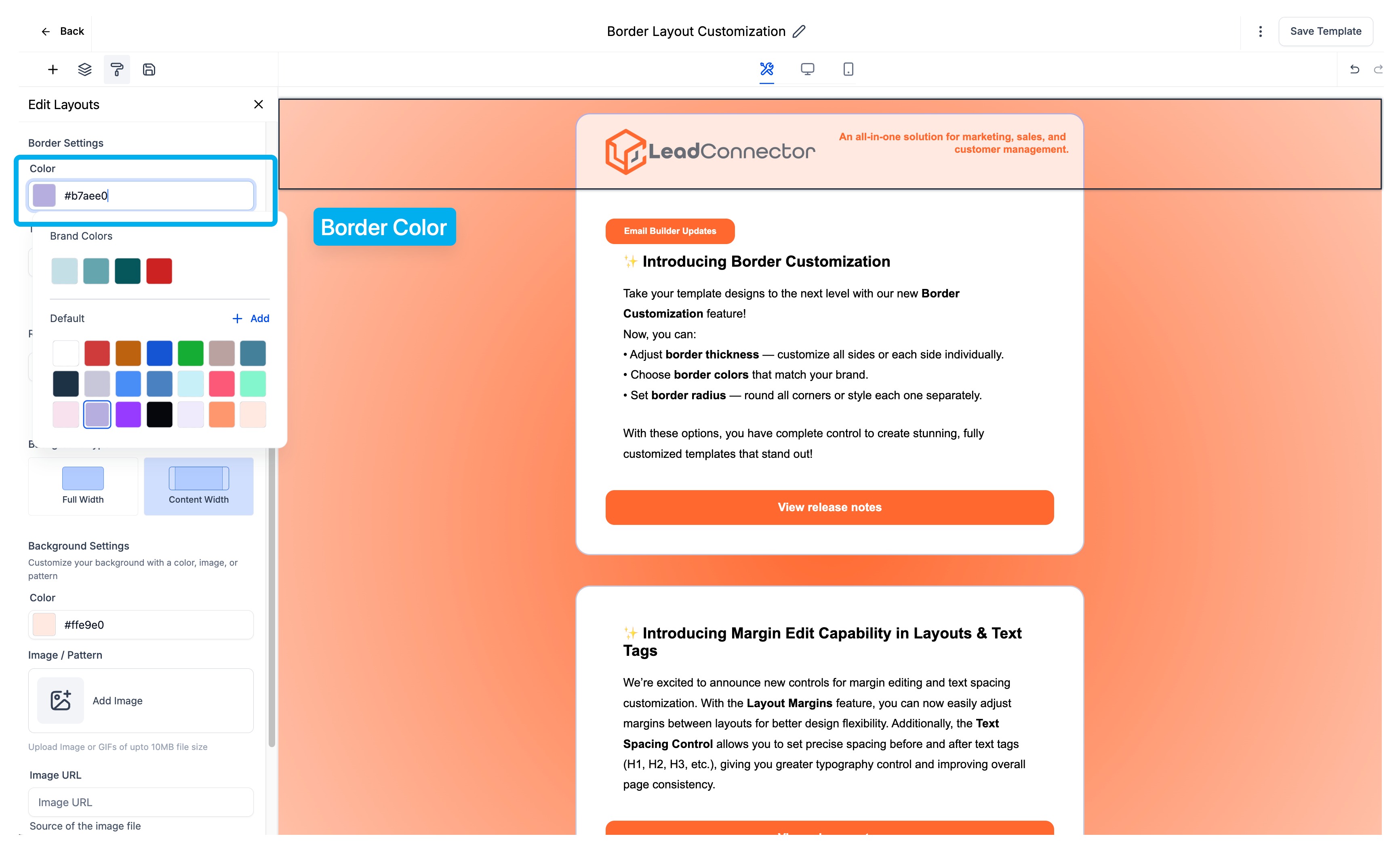
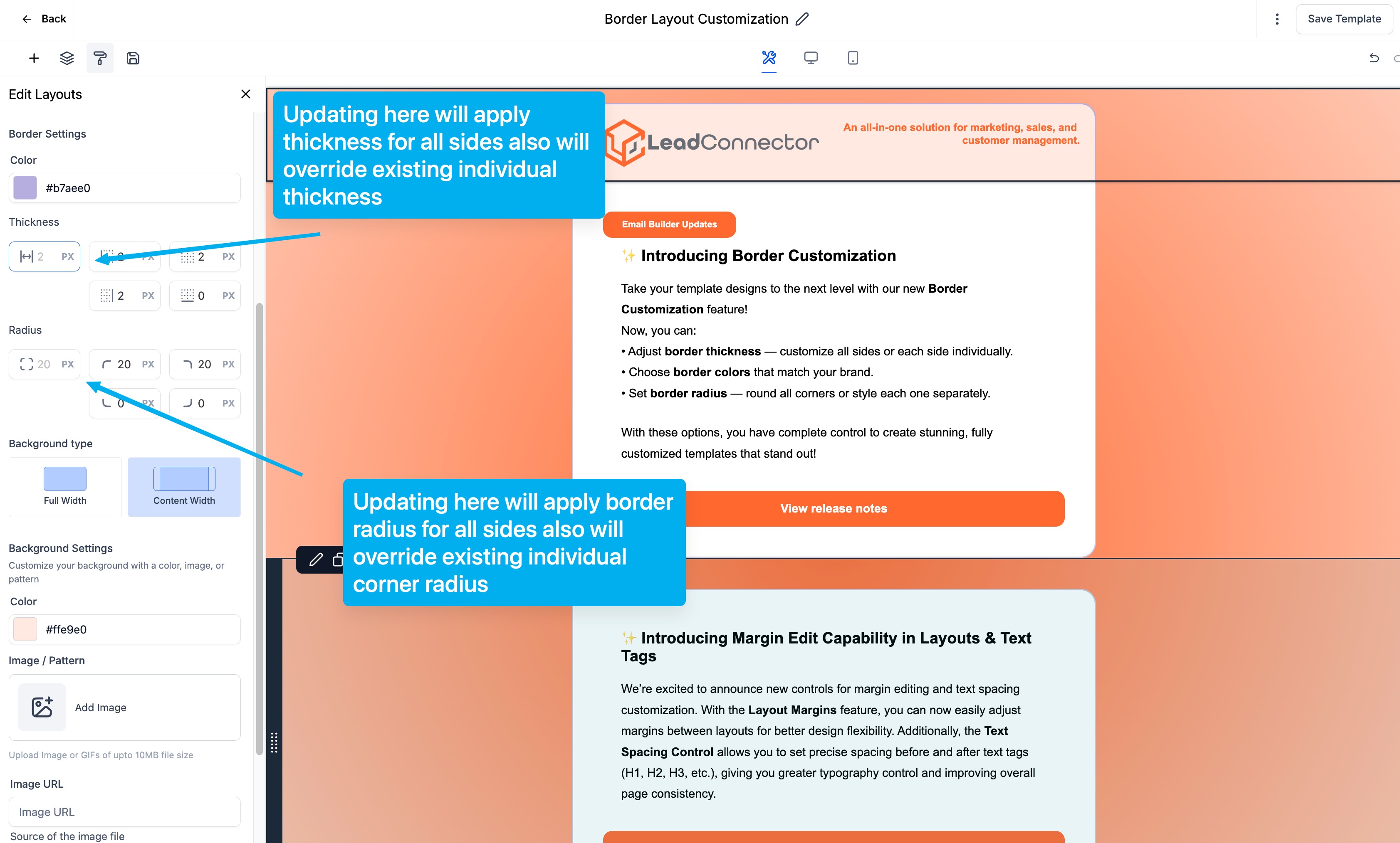
- Border Radius: Use the slider or input a value to round the edges.
- Border Thickness: Adjust the width using the slider or by entering a numeric value.
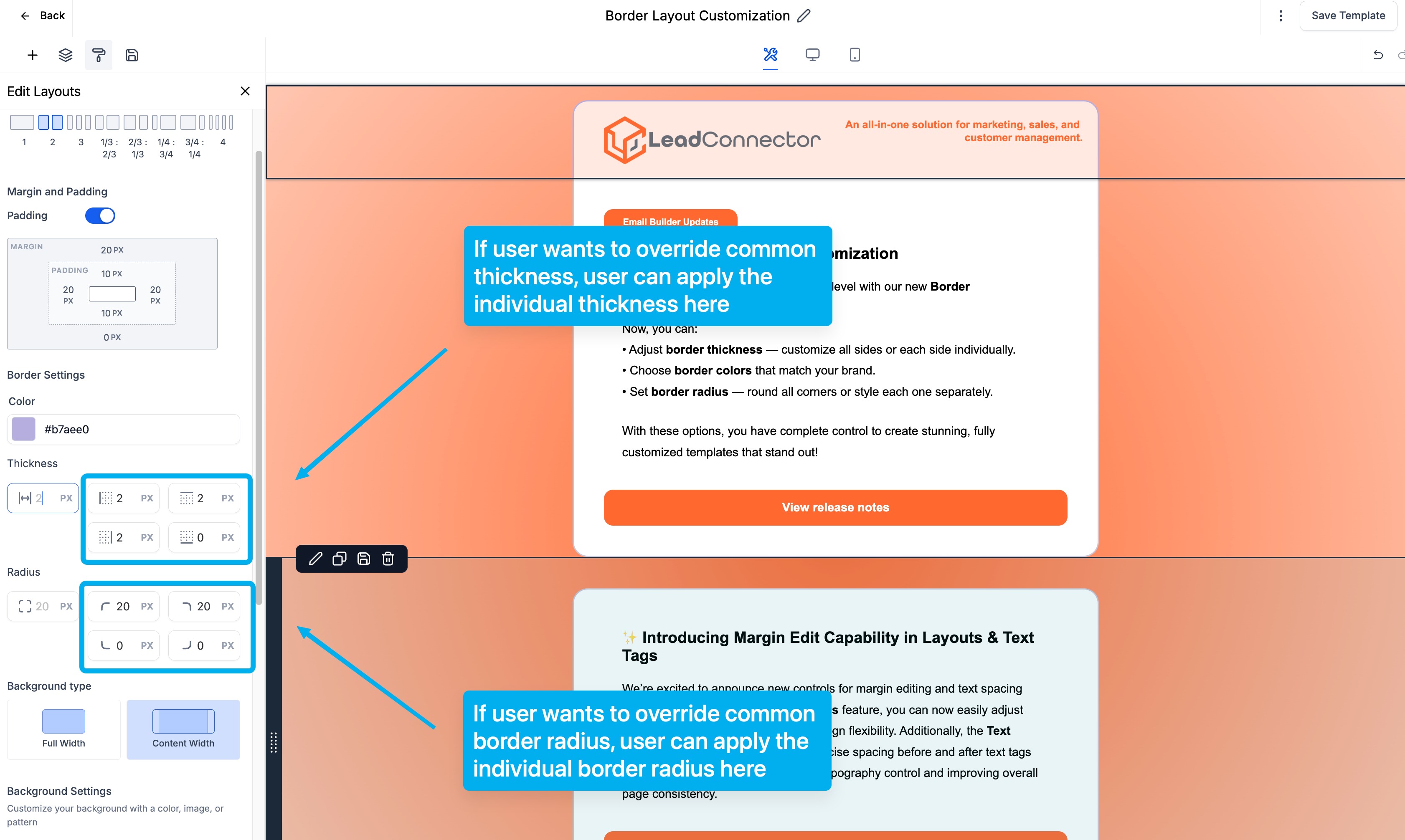
- Customize for an edge: The user can customise it for a specific edge
Step 3: Preview & Save
- Instantly preview the changes in the editor or send a test email
- Click "Save" to apply changes.
Frequently Asked Questions
Q: Can I set different border styles for different sides?
Yes, you can do that in the correct implementation
Q: Is this available for all elements?
No, available only in layouts
Q: Will border settings affect responsiveness?
No, border settings automatically adapt to different screen sizes.
Was this article helpful?
Related articles
- Image Element in Email BuilderThe Image Element in Email Builder allows you to easily add and customise images within your email templates. With support for multiple image sources, sizing options, and alignment controls, this element helps you create visually engaging and professional-looking emails that capture attention and imEmail Campaigns
- Video Element in Email BuilderEmbedding videos in emails can be tricky due to limitations in email client support. The Video element solves this by letting you insert clickable video thumbnails that link to your video content. This article explains how to use the Video element in the Email Builder, including how to choose video Email Campaigns
- Text Element in Email BuilderThe Text Element in s Email Builder allows you to easily add and style written content such as headings, paragraphs. It provides flexible formatting options, helping you create visually appealing and readable email designs that align with your brand’s tone and message. TABLE OF CONTENTS - What is tEmail Campaigns
- How to add Products in Email TemplatesThis article will show you how to add and use the Product Element inside Email Templates using your CRM's Email Builder. This new feature makes it easier to build promotional and sales emails directly in templates with consistent design and functionality. TABLE OF CONTENTS - What is the Product EleEmail Campaigns