Cancellation & Reschedule Policy (Booking Widget)
TABLE OF CONTENTS
Overview
The Cancellation & Reschedule Policy setting allows you to define the time frame during which bookers can access the cancellation or reschedule link on the booking widget.
This feature helps you set a window after which bookers cannot access the cancellation or reschedule link to make changes to their appointments. Instead, they will need to contact the business owner for any modifications. This primarily helps businesses avoid last-minute changes to their appointments.
How to use?
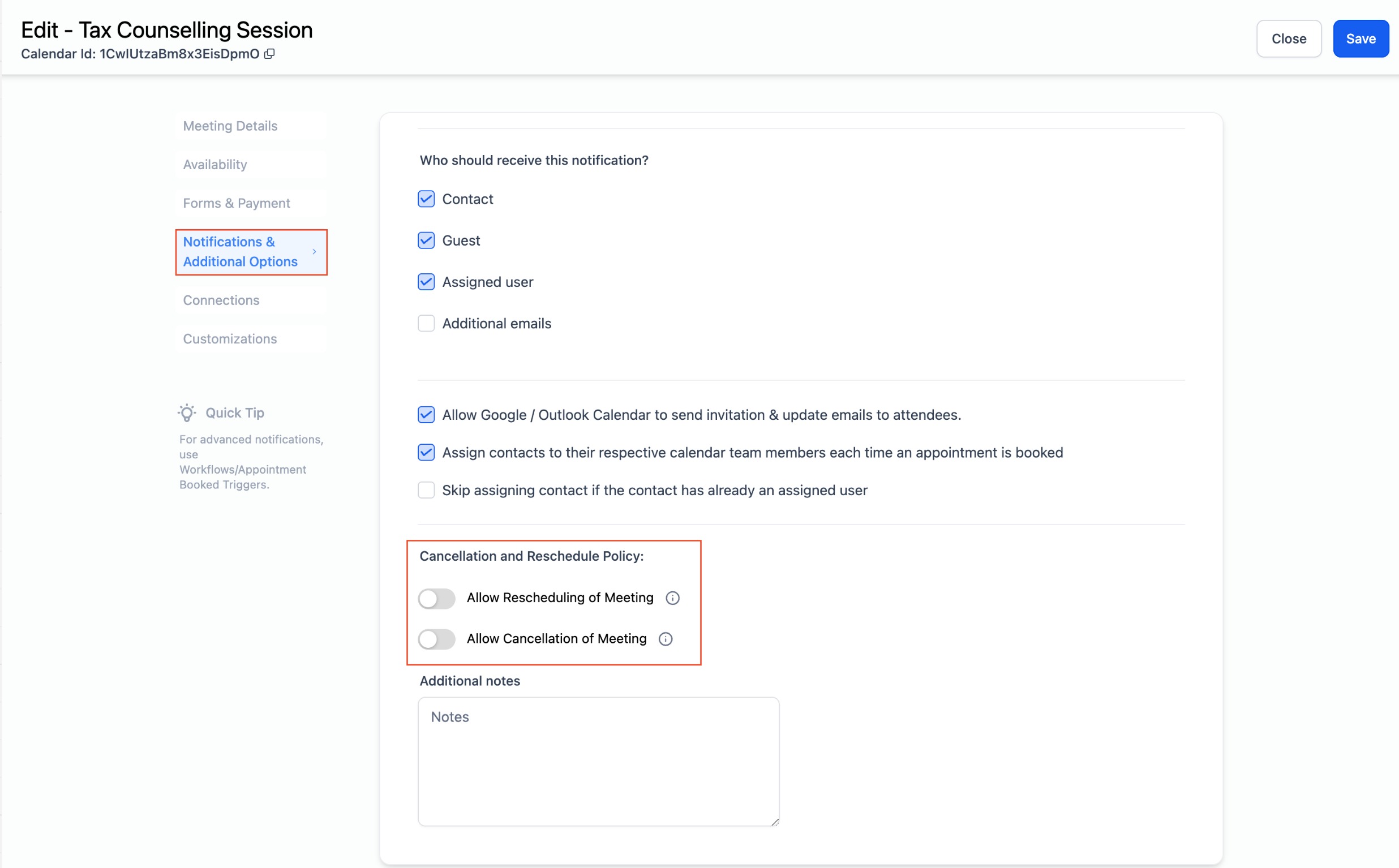
- Navigate to Calendar Settings and select the desired calendar.
- Head to the Notifications and Additional Options section.
- Under Cancellation and Reschedule Policy, turn on "Allow Cancellation of Meeting" and "Allow Rescheduling of Meeting".
- Specify the time range after which the links should be disabled. (Note: Keeping the value blank means the link will never expire and the booker can access it anytime.)
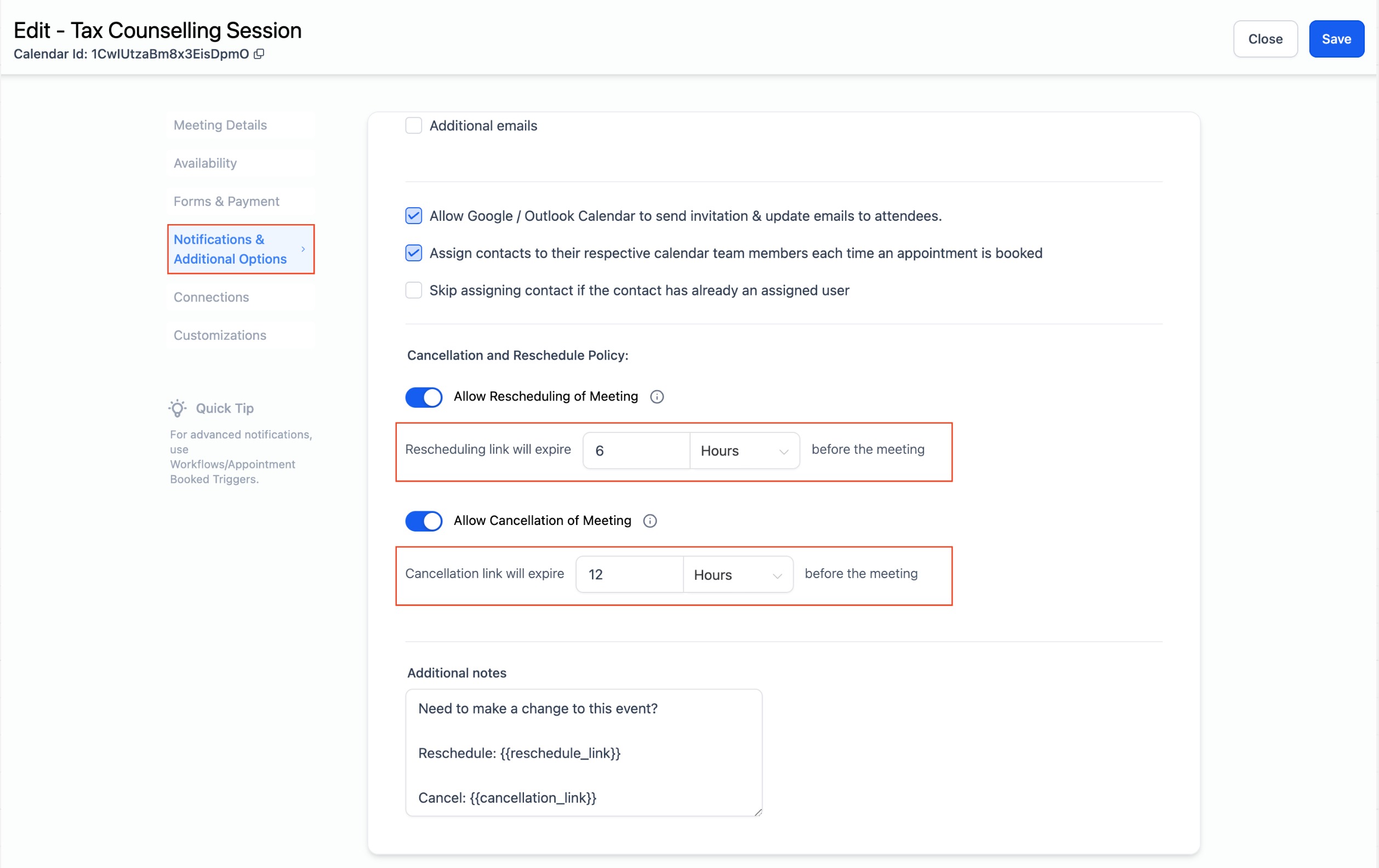
When this setting is enabled:
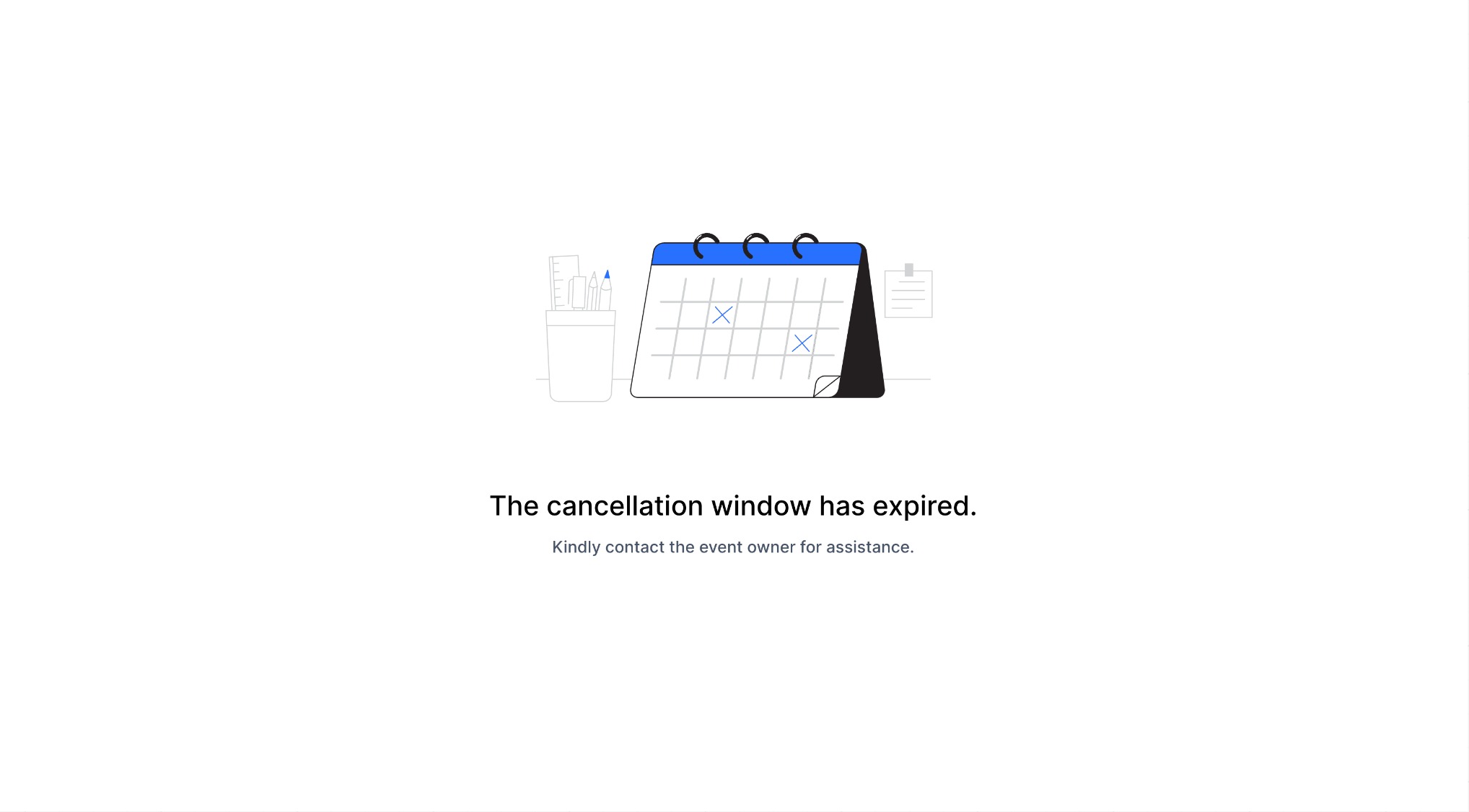
A cancellation and a rescheduling link will be added to the additional notes section and included in the calendar invite. These links will expire as configured, preventing the booker from cancelling or rescheduling the meeting.
How do bookers receive the cancellation & reschedule link?
When you toggle on "Allow Cancellation" and "Allow Reschedule", these links are added to the additional notes section. The content in this section is then included in the calendar invite in the notes section. Bookers can use those links to cancel or reschedule their appointments accordingly.
Alternatively, you can use the custom values {{reschedule_link}} and {{cancellation_link}} in your workflows to send out these links to the bookers.
Was this article helpful?
Related articles
- How to Connect Your Google Calendar?Connecting your Google Calendar helps you sync your bookings from Google Calendar to the system and vice versa. This ensures correct availability, prevents double bookings, and facilitates seamless scheduling and booking management. TABLE OF CONTENTS - Prerequisites - How to Connect a Google CalendCalendars
- How to Connect Your Outlook Calendar?Overview Connecting your Outlook Calendar helps you sync your bookings from Outlook Calendar to the system and vice versa. This ensures correct availability, prevents double bookings, and facilitates seamless scheduling and booking management. Prerequisites You need access to your Outlook accountCalendars
- How to Connect Your iCloud Calendar?TABLE OF CONTENTS - Overview - Prerequisites - Getting Started - Step 1: Obtain your unique app-specific password from Apple - Step 2: How to Connect iCloud Calendar? - Step 3: Calendar Configuration - What is Calendar Configuration? - Limitations with iCloud Integration Overview Connecting your iCCalendars
- How to Connect Your Calendly Account?Connecting Calendly allows your scheduled events to automatically appear as appointments in your calendar system. Once connected, new bookings sync in real time, helping you keep schedules accurate, reduce manual work, and ensure guest information is captured consistently. This integration is desigCalendars