View Custom Form Submissions (Appointment Side Drawer)
TABLE OF CONTENTS
Overview
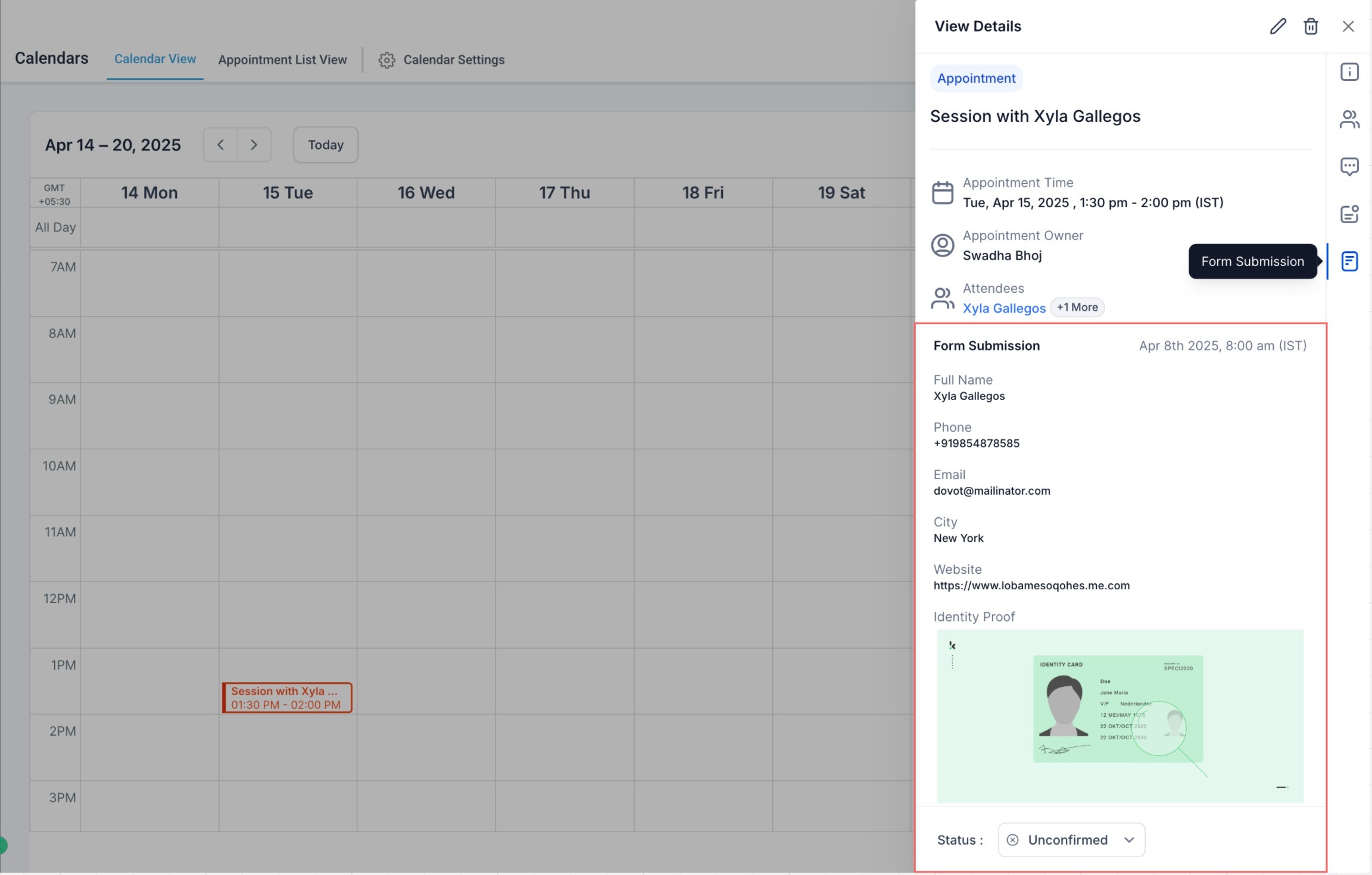
The View Form Submissions feature allows users to see responses from custom booking forms directly within the Appointment Modal. This eliminates the need to navigate to the Forms module or Contacts to review details, making your scheduling workflow faster and more seamless.
What’s New?
Forms Tab in Appointment Modal
A new Forms tab appears within the Appointment Modal if the appointment has a custom form submission attached.Structured Submission View
Submitted form responses are displayed in a clean, structured format that mirrors the layout of the Forms module.Access from Anywhere
Whether you're in the Calendars, Contacts, or Conversations tab, clicking on an appointment will show the Forms tab if applicable.
How to Use
Navigate to Calendars
Go to your Calendar and click on any recent appointment.Open Appointment Modal
Click the appointment card to open its details.Check for the Forms Tab
If a custom form was submitted during the booking process, a Forms tab will be visible in the modal.View Form Responses
Click the Forms tab to see a detailed, structured view of the submission.
Important Notes
This feature supports only custom forms added to the booking flow.
Form submissions will appear only for appointments created on or after April 9, 2025.
Default booking form submissions (Name, Email, Phone) do not appear in the Forms tab at this time, since this data is already shown in the Contact section.
Support for viewing default form submissions inside the Forms tab is coming soon.
Use Cases
Quickly review intake questions and custom data before a meeting.
Reduce back-and-forth between modules.
Improve customer experience with more informed conversations.
Was this article helpful?
Related articles
- How to Connect Your Google Calendar?Connecting your Google Calendar helps you sync your bookings from Google Calendar to the system and vice versa. This ensures correct availability, prevents double bookings, and facilitates seamless scheduling and booking management. TABLE OF CONTENTS - Prerequisites - How to Connect a Google CalendCalendars
- How to Connect Your Outlook Calendar?Overview Connecting your Outlook Calendar helps you sync your bookings from Outlook Calendar to the system and vice versa. This ensures correct availability, prevents double bookings, and facilitates seamless scheduling and booking management. Prerequisites You need access to your Outlook accountCalendars
- How to Connect Your iCloud Calendar?TABLE OF CONTENTS - Overview - Prerequisites - Getting Started - Step 1: Obtain your unique app-specific password from Apple - Step 2: How to Connect iCloud Calendar? - Step 3: Calendar Configuration - What is Calendar Configuration? - Limitations with iCloud Integration Overview Connecting your iCCalendars
- How to Connect Your Calendly Account?Connecting Calendly allows your scheduled events to automatically appear as appointments in your calendar system. Once connected, new bookings sync in real time, helping you keep schedules accurate, reduce manual work, and ensure guest information is captured consistently. This integration is desigCalendars