View Calendar & Appointments in User Timezone
In This Article
How it Works?
Now, you can effortlessly view your calendar, appointments and confirmation emails in your default user timezone, providing a more convenient and efficient experience for users across different locations.
Imagine your business is in New York, USA (Eastern Standard Time - EST). User A is in Paris, France (Central European Time - CET), and User B is in California, USA (Pacific Standard Time - PST).
With the default user timezone set to CET for User A, they see all appointments in Central European Time, while User B views appointments in PST. This eliminates the need for manual conversion, letting users check appointments directly in their own timezone.
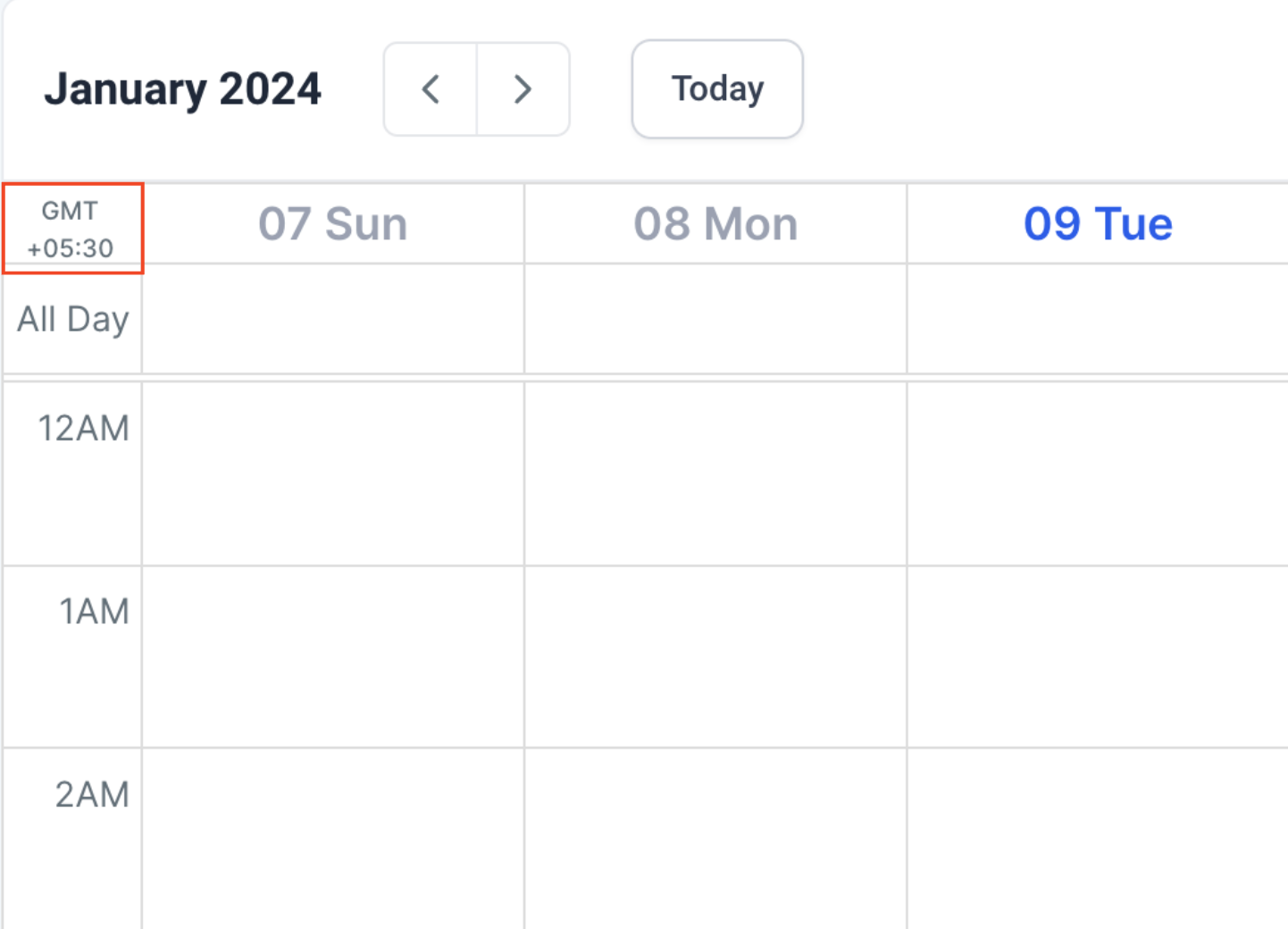
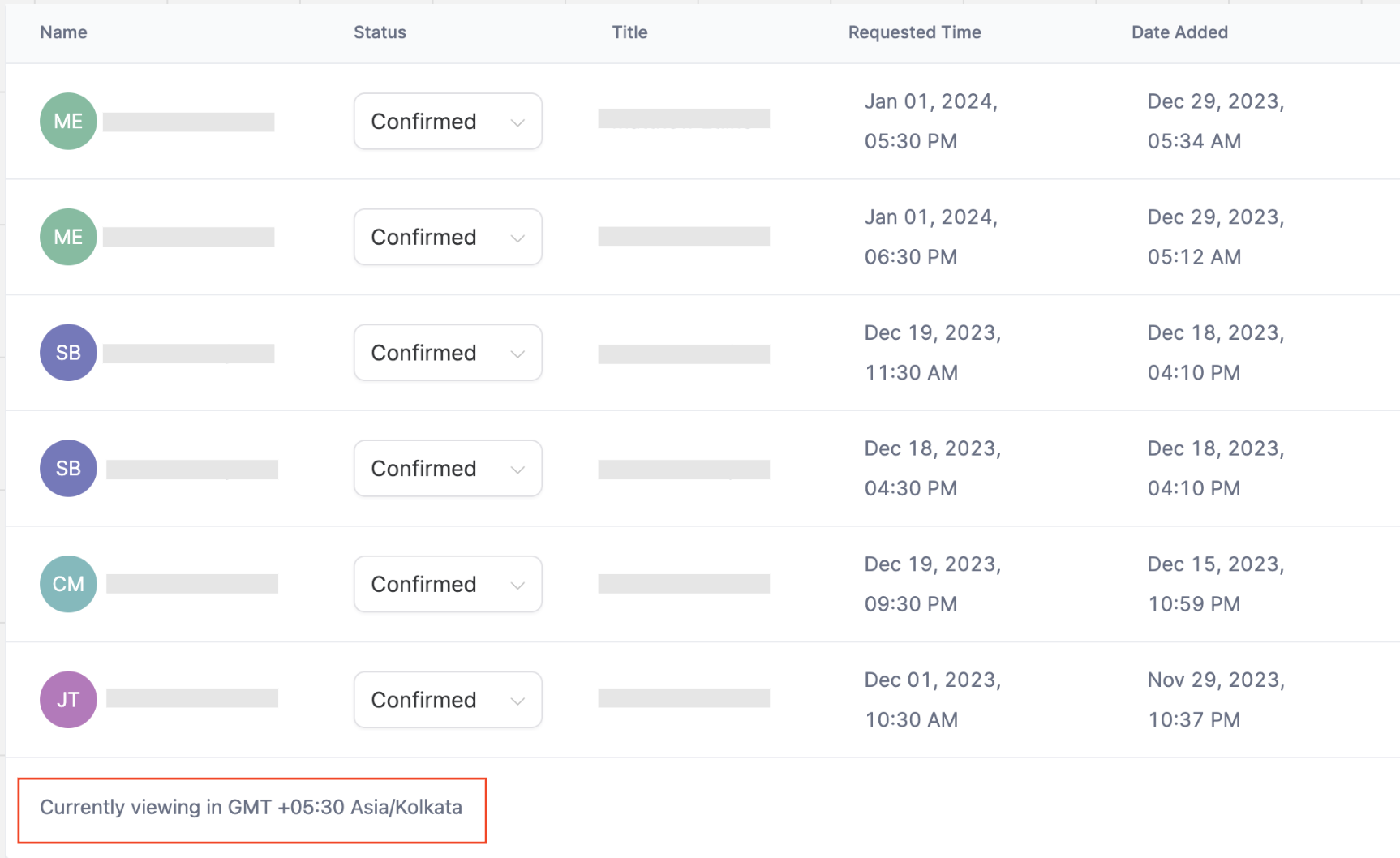
Note: On the Calendar View and Appointment List, you can now identify the timezone you are currently viewing in.
Calendar View
Appointment List
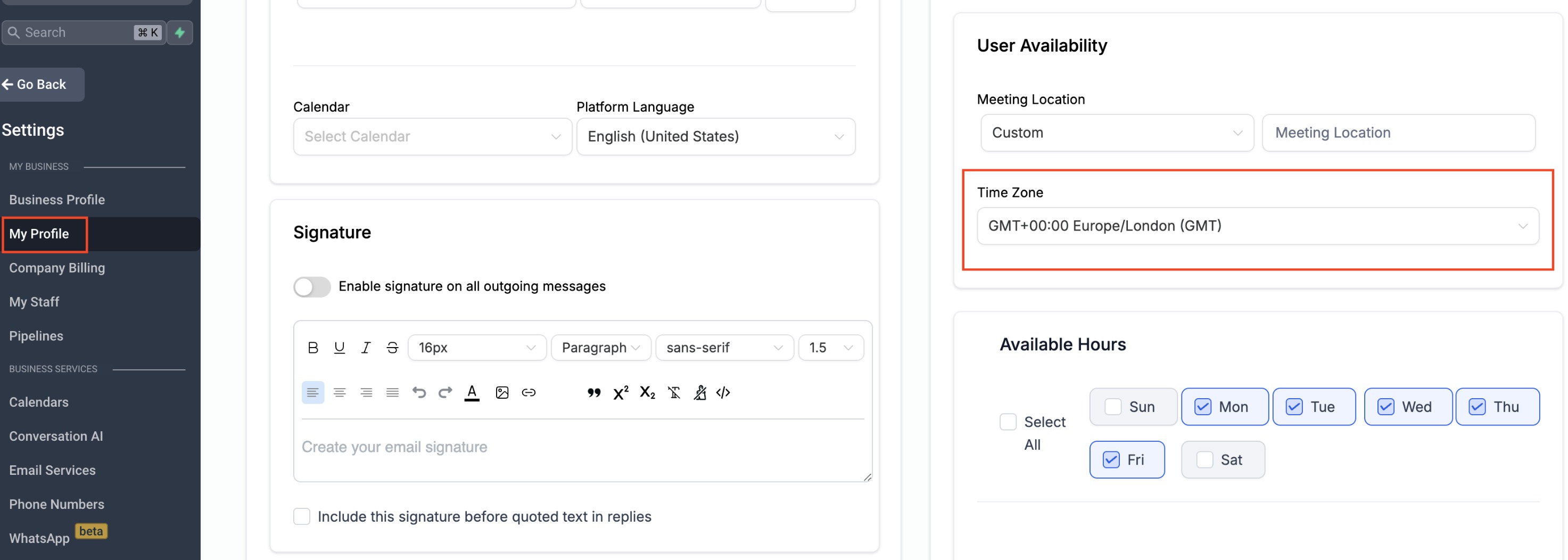
Setting Your Timezone
To set your timezone:
- Navigate to Settings > My Profile.
- Scroll to User Availability and set your timezone.
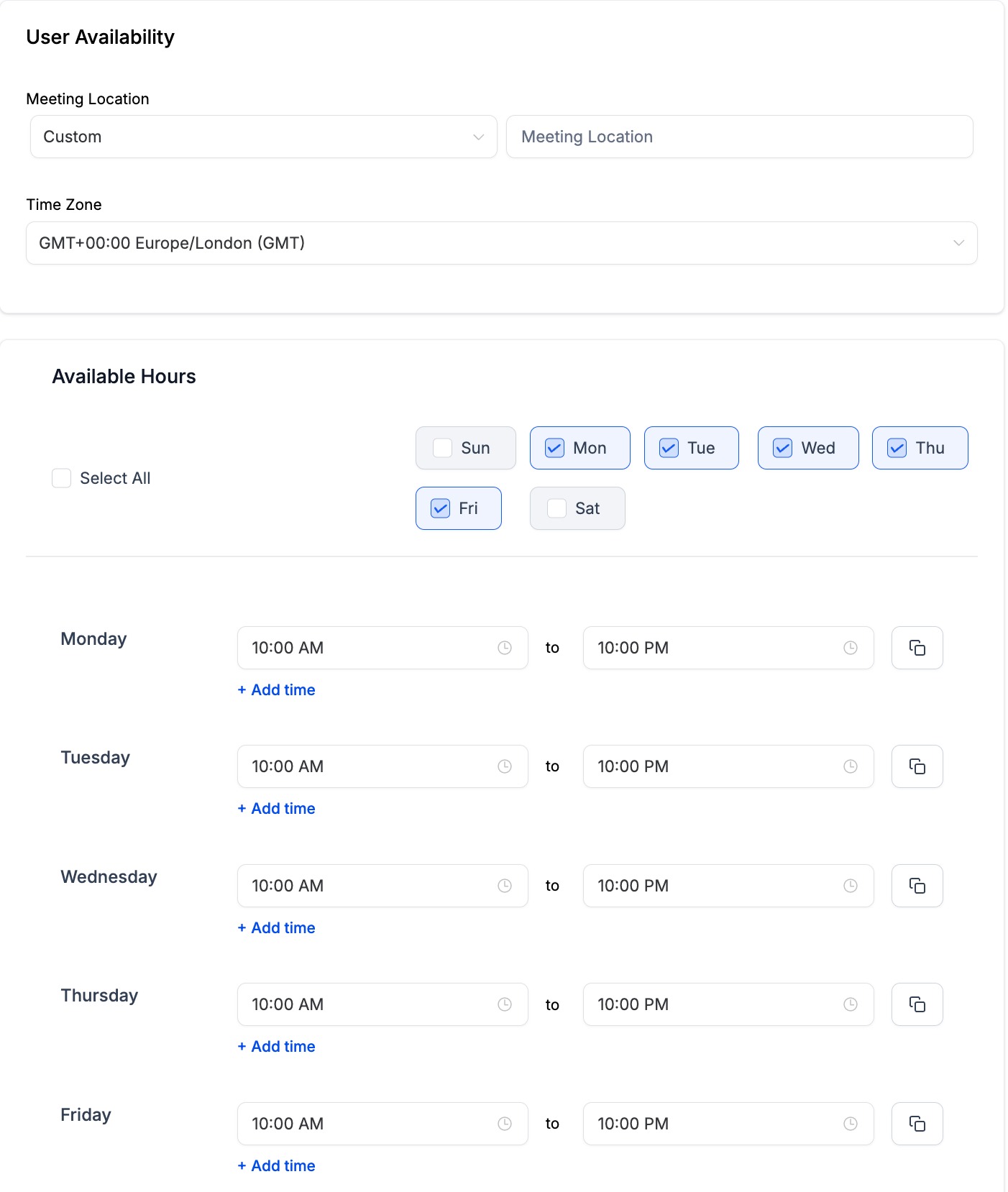
Ensuring Accurate Availability:
If Your User Timezone is Set to Your Actual Location:
- Simply input your usual availability, e.g., 9 am to 5 pm.
If Your User Timezone is Set to a Different Location (for Viewing Appointments):
- Manually adjust your availability to match the selected timezone. For example, if your current location is in the UK (GMT +00:00), but you want to operate in New York (GMT -05:00), ensure to adjust your availability accordingly to align with the New York timezone.
Note: These changes are applicable only in the Calendar Module: Calendar View, Appointment List, Confirmation Emails.
To be implemented for:
Appointments under Contacts, Conversations and Opportunities
FAQ
Q: I want to see appointments in the business timezone. What do I do?
A: To view appointments in the business timezone, set your user timezone to match the business timezone. For example, User A can set their timezone as EST to view appointments in the New York timezone.
Was this article helpful?
Related articles
- How to Connect Your Google Calendar?Connecting your Google Calendar helps you sync your bookings from Google Calendar to the system and vice versa. This ensures correct availability, prevents double bookings, and facilitates seamless scheduling and booking management. TABLE OF CONTENTS - Prerequisites - How to Connect a Google CalendCalendars
- How to Connect Your Outlook Calendar?Overview Connecting your Outlook Calendar helps you sync your bookings from Outlook Calendar to the system and vice versa. This ensures correct availability, prevents double bookings, and facilitates seamless scheduling and booking management. Prerequisites You need access to your Outlook accountCalendars
- How to Connect Your iCloud Calendar?TABLE OF CONTENTS - Overview - Prerequisites - Getting Started - Step 1: Obtain your unique app-specific password from Apple - Step 2: How to Connect iCloud Calendar? - Step 3: Calendar Configuration - What is Calendar Configuration? - Limitations with iCloud Integration Overview Connecting your iCCalendars
- How to Connect Your Calendly Account?Connecting Calendly allows your scheduled events to automatically appear as appointments in your calendar system. Once connected, new bookings sync in real time, helping you keep schedules accurate, reduce manual work, and ensure guest information is captured consistently. This integration is desigCalendars