How to create Equipments?
In this Article
How to create Equipments?
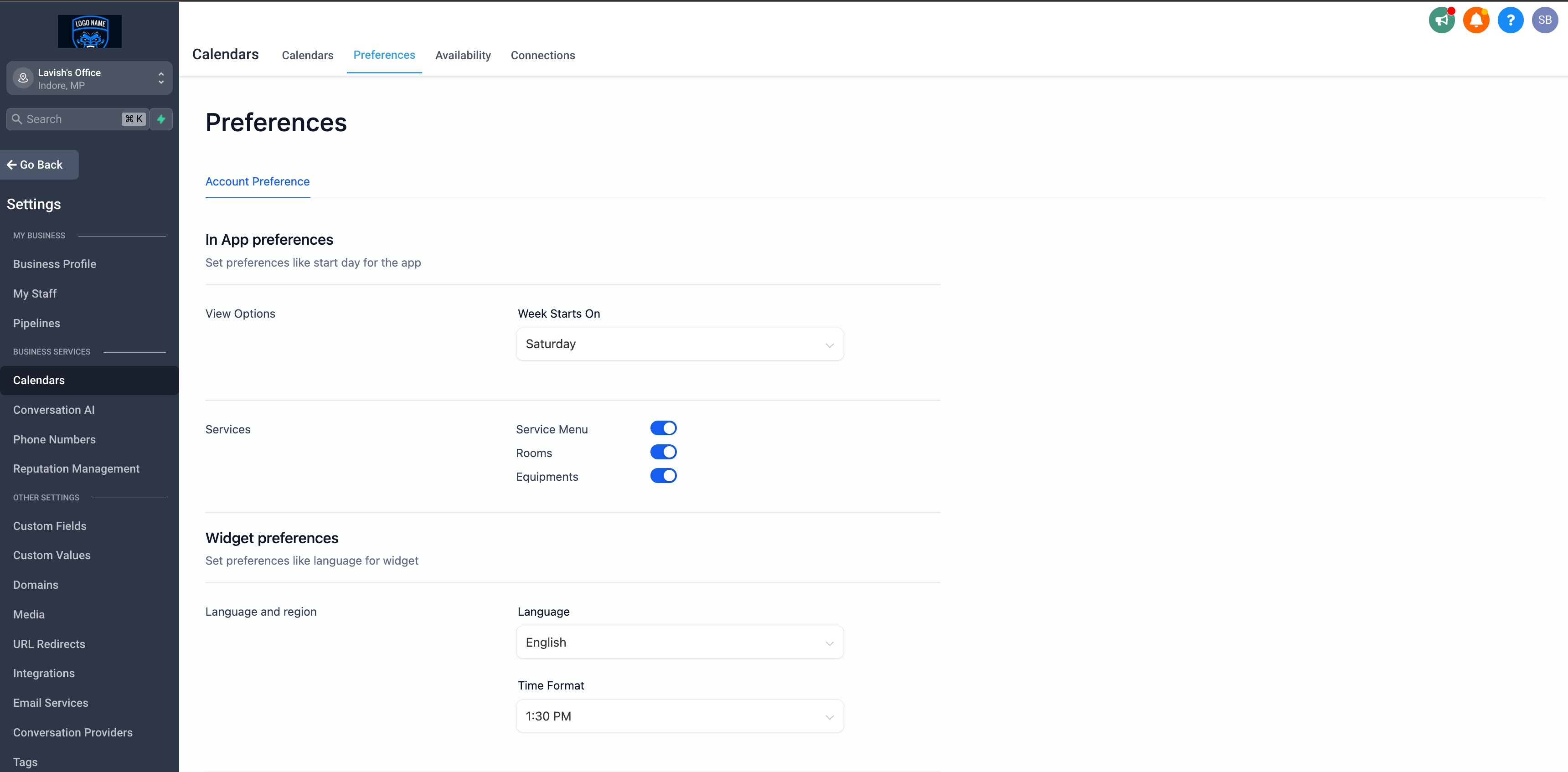
1. Access Calendar Settings and Enable Equipments:
- Go to your account and navigate to Calendars > Calendar Settings.
- Under Preferences > In App Preferences, toggle on Rooms and Equipments.
2. Create an Equipment:
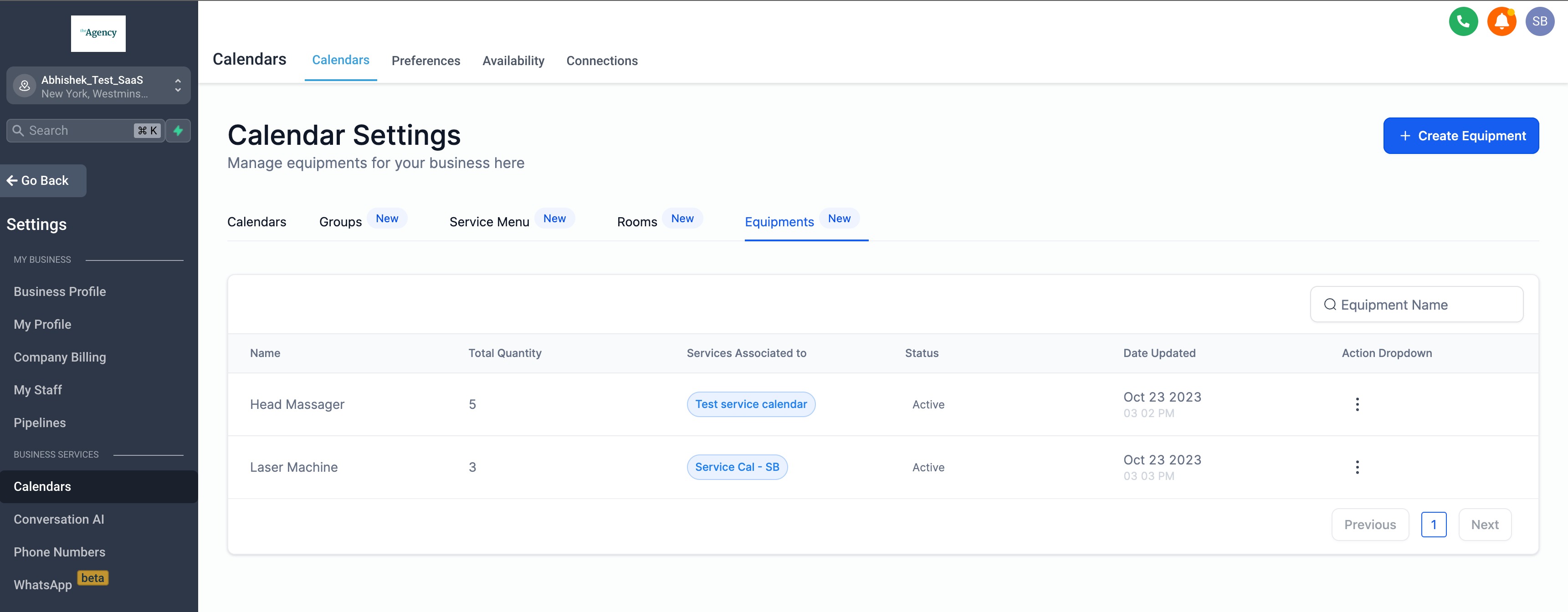
- Once you've enabled the feature, a new 'Equipments' tab will appear.
- Under the 'Equipment' tab > Click on Create Equipment.
3. Provide Equipment Details:
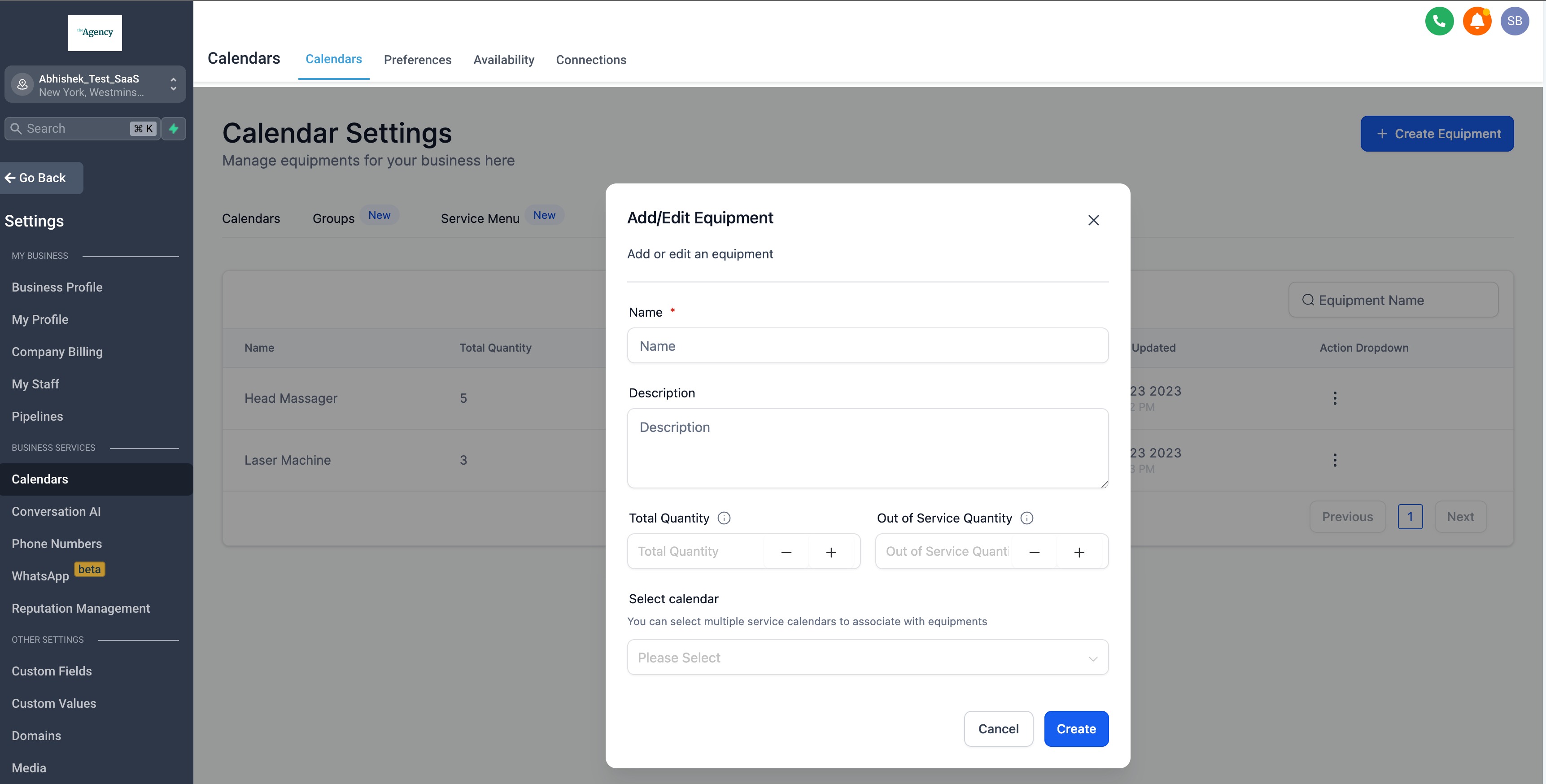
- To set up equipment, enter the following details:
- Equipment Name: Assign a unique name to the equipment.
- Description: Provide a brief description to clarify the equipment's purpose.
- Total Quantity: Specify the total number of available equipment units.
- Out of Service Quantity: Enter the count of equipment units that are currently non-functional, require repair, or are out of service.
- Select Calendar: Choose the calendars you wish to associate with this equipment.
Note: You can only link one equipment to each calendar. For example, if you have a 'Laser Machine', it can be connected to multiple calendars, but each calendar can only have one equipment, here 'Laser Machine' associated with it.
Additional Information
1. Rooms and Equipment Details:
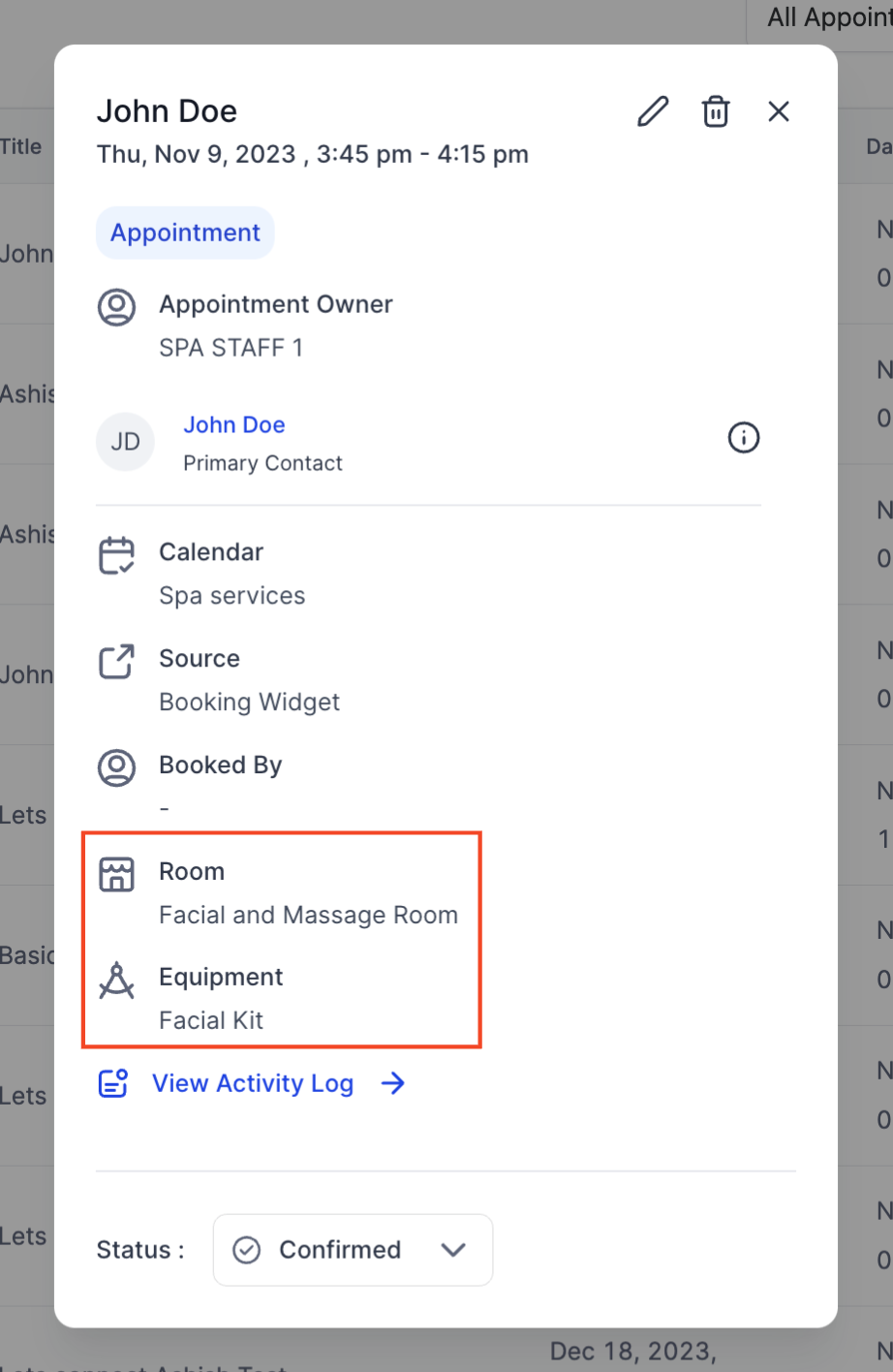
- Find your rooms and equipment details within the appointment modal - details view.
- This ensures you can now easily identify which room has been assigned to a particular appointment and which equipment is being used or has been booked in conjunction with the appointment.
- This feature simplifies the management of appointments, making it more informative and streamlined.
Was this article helpful?
Related articles
- How to Connect Your Google Calendar?Connecting your Google Calendar helps you sync your bookings from Google Calendar to the system and vice versa. This ensures correct availability, prevents double bookings, and facilitates seamless scheduling and booking management. TABLE OF CONTENTS - Prerequisites - How to Connect a Google CalendCalendars
- How to Connect Your Outlook Calendar?Overview Connecting your Outlook Calendar helps you sync your bookings from Outlook Calendar to the system and vice versa. This ensures correct availability, prevents double bookings, and facilitates seamless scheduling and booking management. Prerequisites You need access to your Outlook accountCalendars
- How to Connect Your iCloud Calendar?TABLE OF CONTENTS - Overview - Prerequisites - Getting Started - Step 1: Obtain your unique app-specific password from Apple - Step 2: How to Connect iCloud Calendar? - Step 3: Calendar Configuration - What is Calendar Configuration? - Limitations with iCloud Integration Overview Connecting your iCCalendars
- How to Connect Your Calendly Account?Connecting Calendly allows your scheduled events to automatically appear as appointments in your calendar system. Once connected, new bookings sync in real time, helping you keep schedules accurate, reduce manual work, and ensure guest information is captured consistently. This integration is desigCalendars