How to Add/Change/Remove Calendar Widget Logo?
The Calendar widget logo can be updated to represent your client's company branding. It allows more personalization and customization to be done to the Calendar Booking widget.
Covered in this Article:
Why use a Calendar logo, and who is this useful for?
How to Add a logo to your Calendar Booking widget?
Why use a Calendar logo, and who is this useful for?
The Calendar widget logo is an important feature that can be customized to represent your client's company branding. By replacing the default logo with a custom logo that reflects your client's brand identity, the Calendar widget becomes more personalized and provides a more professional appearance to users.
Customization of the Calendar Booking widget helps strengthen your client's brand identity and image. It allows your client to maintain consistency in their brand's visual appearance, making it easier for users to recognize and remember their brand.
The logo customization feature is easy to use and can be done by uploading a high-resolution image file that meets the required specifications. Once uploaded, the custom logo will replace the default logo on the Calendar Booking widget, providing a professional and personalized appearance representing your client's brand.
Customizing the Calendar Booking widget logo can be useful for any business or individual who uses a calendar booking system to schedule appointments or meetings. This could include individuals such as consultants, freelancers, service providers, and businesses of any size and type, such as healthcare providers, salons, spas, law firms, or any other service-based industry. By customizing the logo, businesses can improve their branding efforts and create a more professional appearance for their clients or customers. It can also help to differentiate them from their competitors and increase brand recognition.helpful for
How to Add a logo to your Calendar Booking widget?
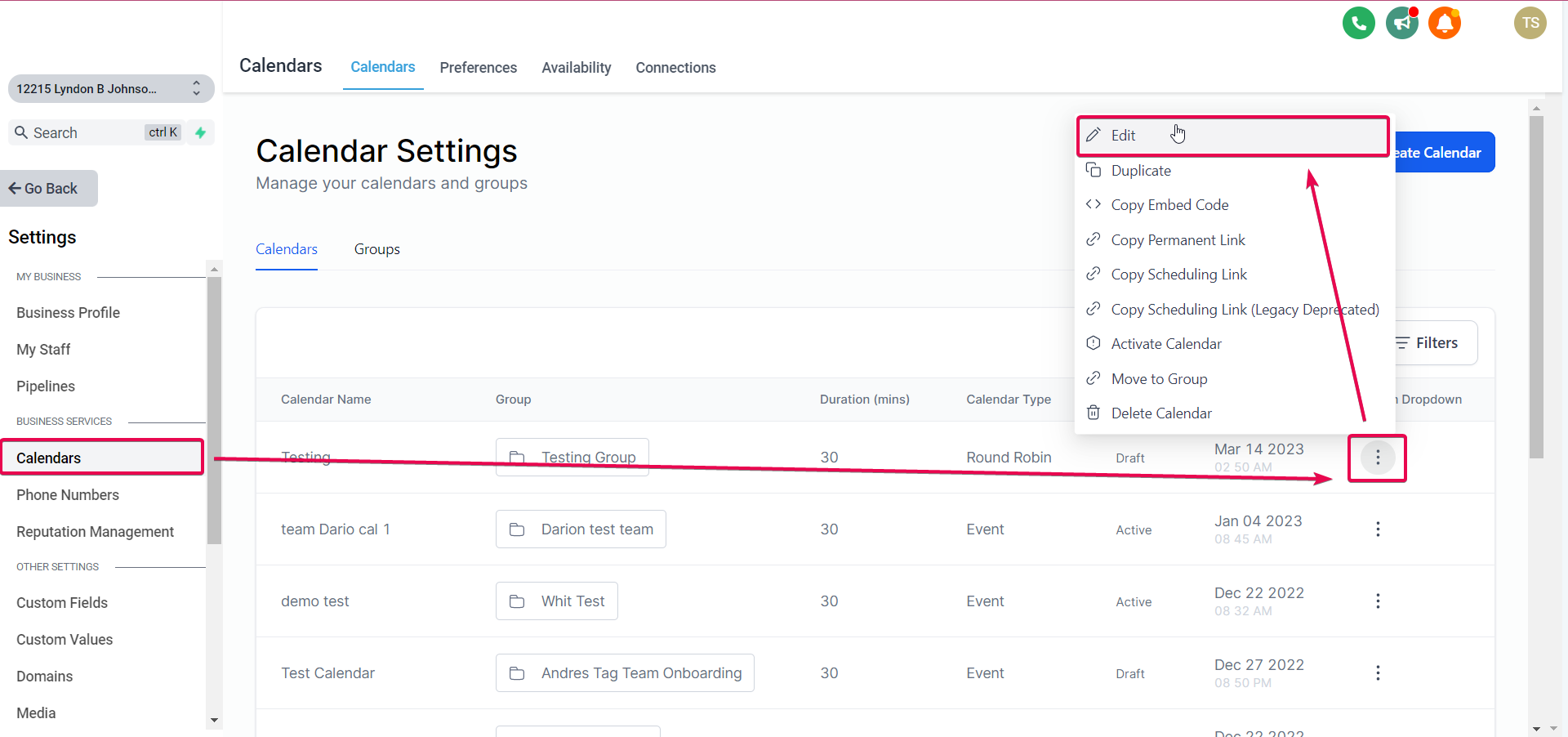
You can edit an existing Calendar or create one to add a logo. Go to Sub-Account Settings>Calendars>Three dots in front of the Calendar you want to edit> Edit Calendar.
In the Team and Event Setup tab, scroll down to add a logo:
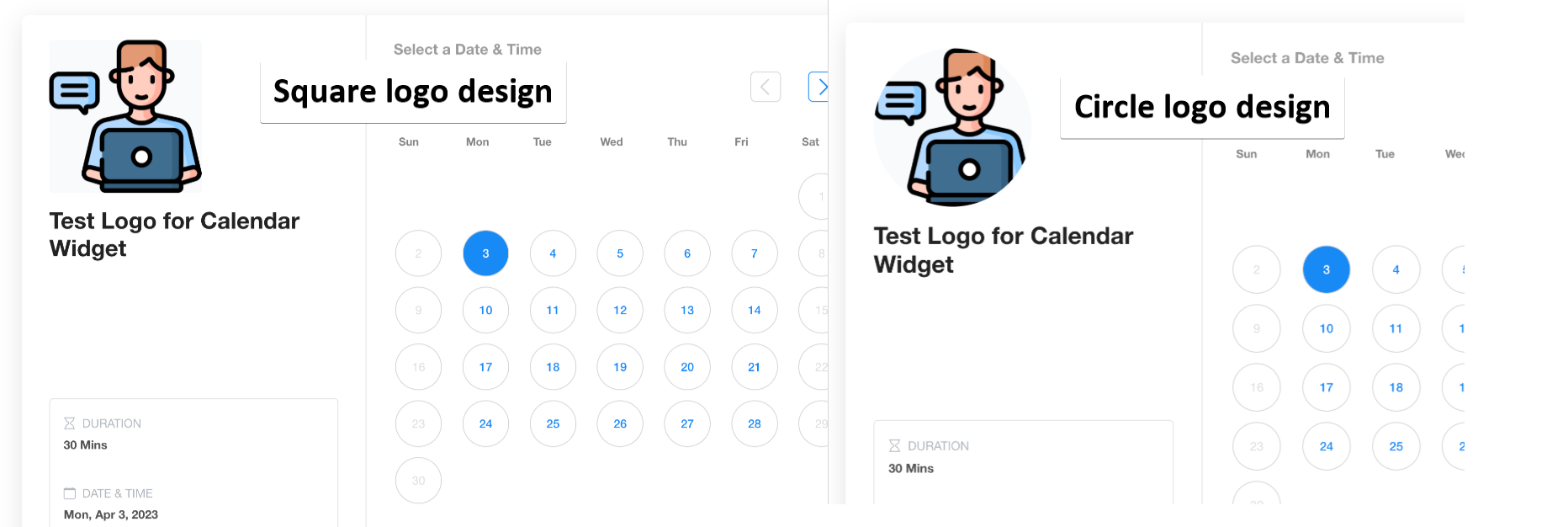
You can choose the logo's shape in the widget, like a Square or Circle. You can also select which type of widget to use this logo with. Classic or Neo.
Please Note:
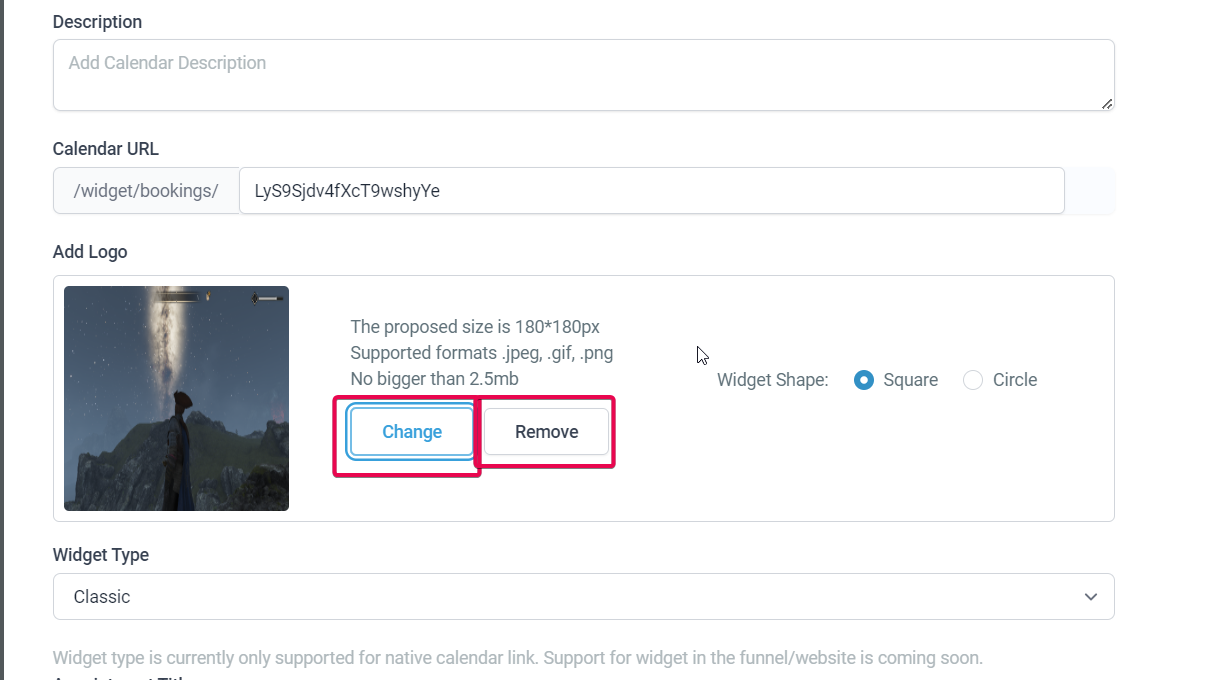
The Supported dimensions of the logo are 180x180px and it should be no bigger than 2.5MB. It can only be a jpeg, gif or png file.Once a logo has been added, you can remove or Change it.
Was this article helpful?
Related articles
- How to Connect Your Google Calendar?Connecting your Google Calendar helps you sync your bookings from Google Calendar to the system and vice versa. This ensures correct availability, prevents double bookings, and facilitates seamless scheduling and booking management. TABLE OF CONTENTS - Prerequisites - How to Connect a Google CalendCalendars
- How to Connect Your Outlook Calendar?Overview Connecting your Outlook Calendar helps you sync your bookings from Outlook Calendar to the system and vice versa. This ensures correct availability, prevents double bookings, and facilitates seamless scheduling and booking management. Prerequisites You need access to your Outlook accountCalendars
- How to Connect Your iCloud Calendar?TABLE OF CONTENTS - Overview - Prerequisites - Getting Started - Step 1: Obtain your unique app-specific password from Apple - Step 2: How to Connect iCloud Calendar? - Step 3: Calendar Configuration - What is Calendar Configuration? - Limitations with iCloud Integration Overview Connecting your iCCalendars
- How to Connect Your Calendly Account?Connecting Calendly allows your scheduled events to automatically appear as appointments in your calendar system. Once connected, new bookings sync in real time, helping you keep schedules accurate, reduce manual work, and ensure guest information is captured consistently. This integration is desigCalendars