Workflow Action for Generating One Time Link
In This Article
- Understanding One-Time Links
- Key Benefits of Integrating One-Time Links into Your Workflow
- How to Generate Dynamic One-Time Links
Related Article
One Time Link
Understanding One-Time Links
A one-time link is a unique scheduling link that automatically expires upon booking. With the 'Generate One-Time Booking Link' action, users can now effortlessly create these links directly within their workflow.
Key Benefits of Integrating One-Time Links into Your Workflow
- Streamlined Scheduling: Eliminates the manual effort involved in link creation, ensuring a seamless and error-free scheduling process.
- Versatility in Workflow Integration: Adapts to diverse use cases by seamlessly fitting into tailored workflows, making it a versatile tool for various scheduling scenarios.
- Enhanced Booking Management: Offers a dynamic, effective, and flexible approach to managing bookings, providing users with greater control and adaptability.
How to Generate Dynamic One-Time Links
To generate dynamic One-Time Links within your workflow, follow these simple steps:
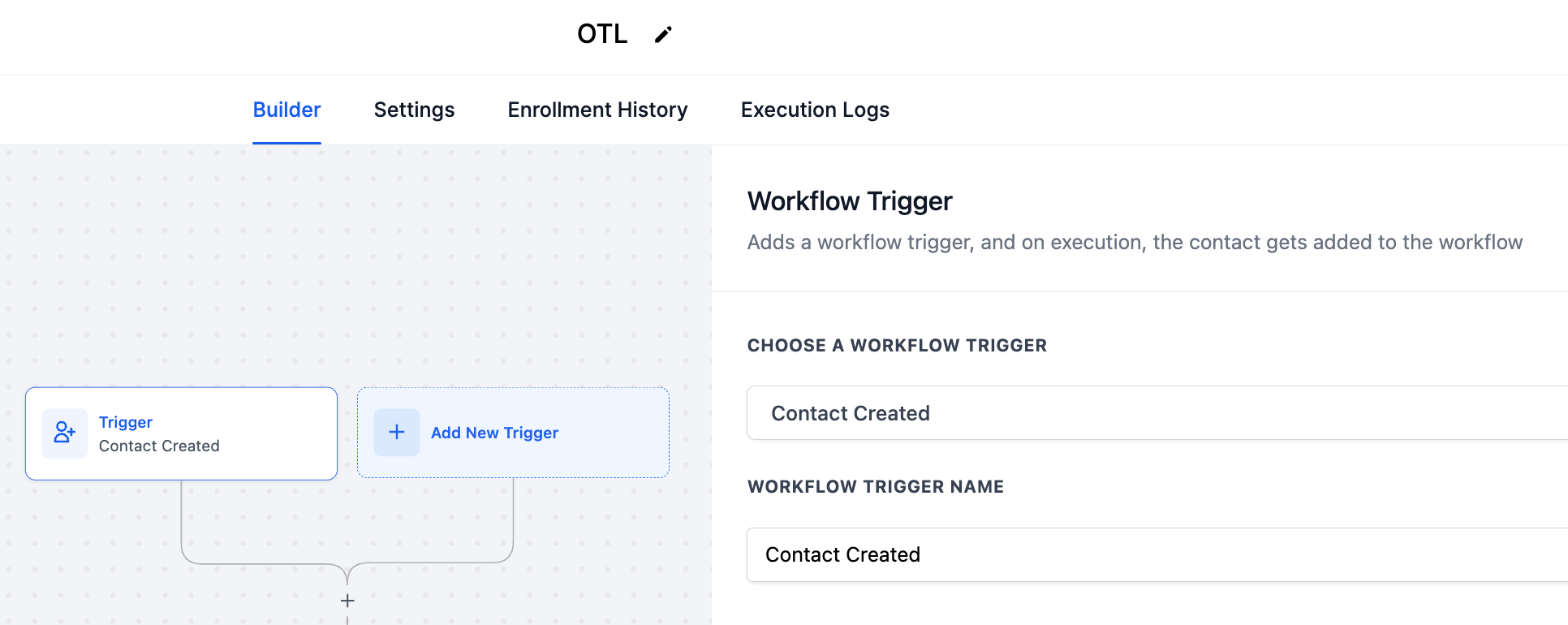
1. Create a Workflow: Start by creating a workflow in your account. Define the trigger that initiates the workflow based on your specific needs.
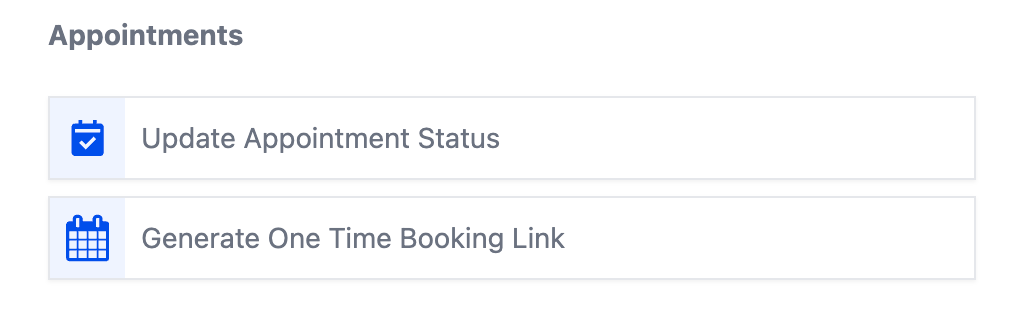
2. Add the 'Generate One-Time Booking Link' Action: Within your workflow, add an action. Navigate to the 'Appointments' category and select 'Generate One Time Booking Link.'
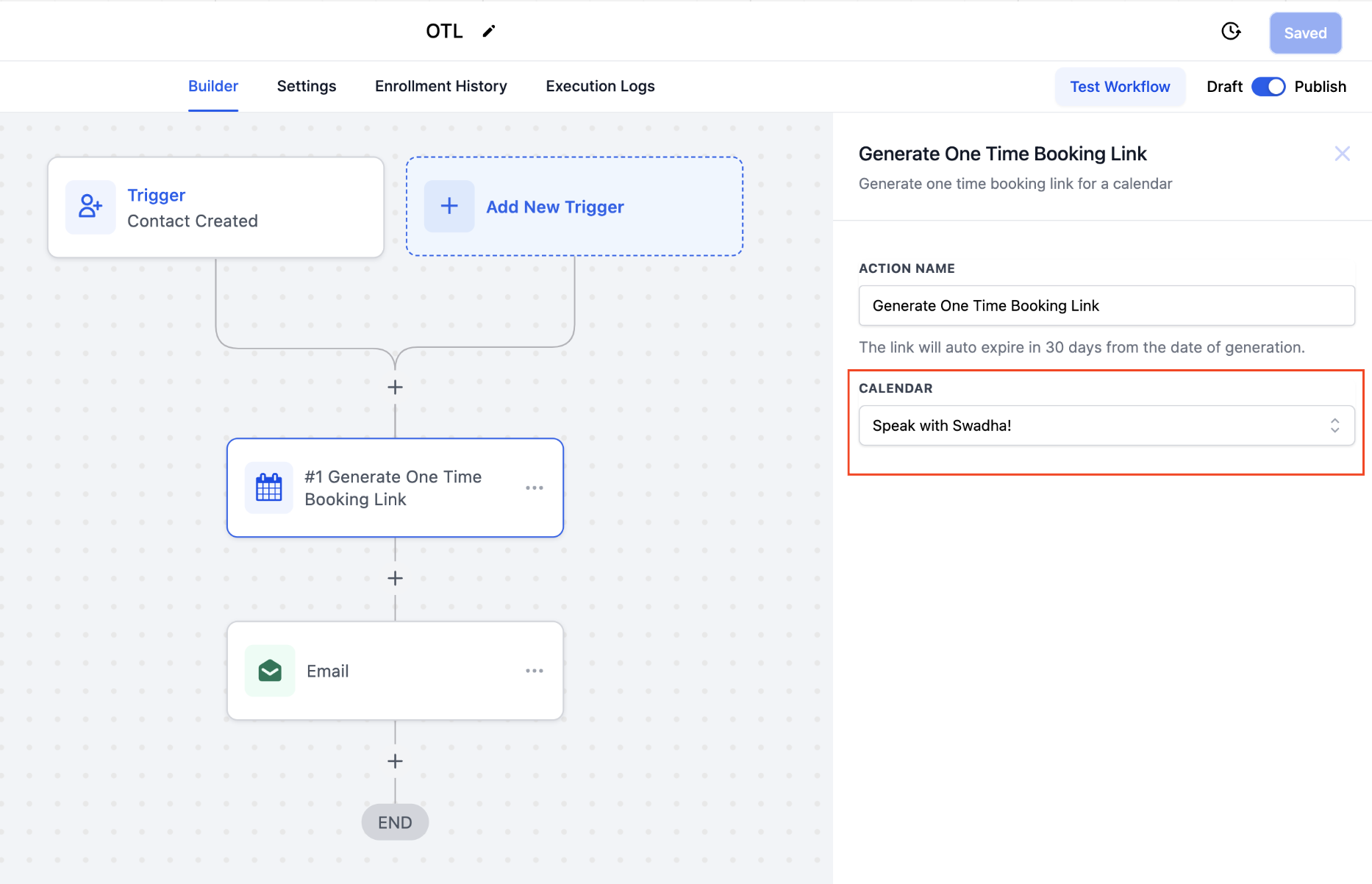
3. Choose the calendar for which you want to generate the one-time link.
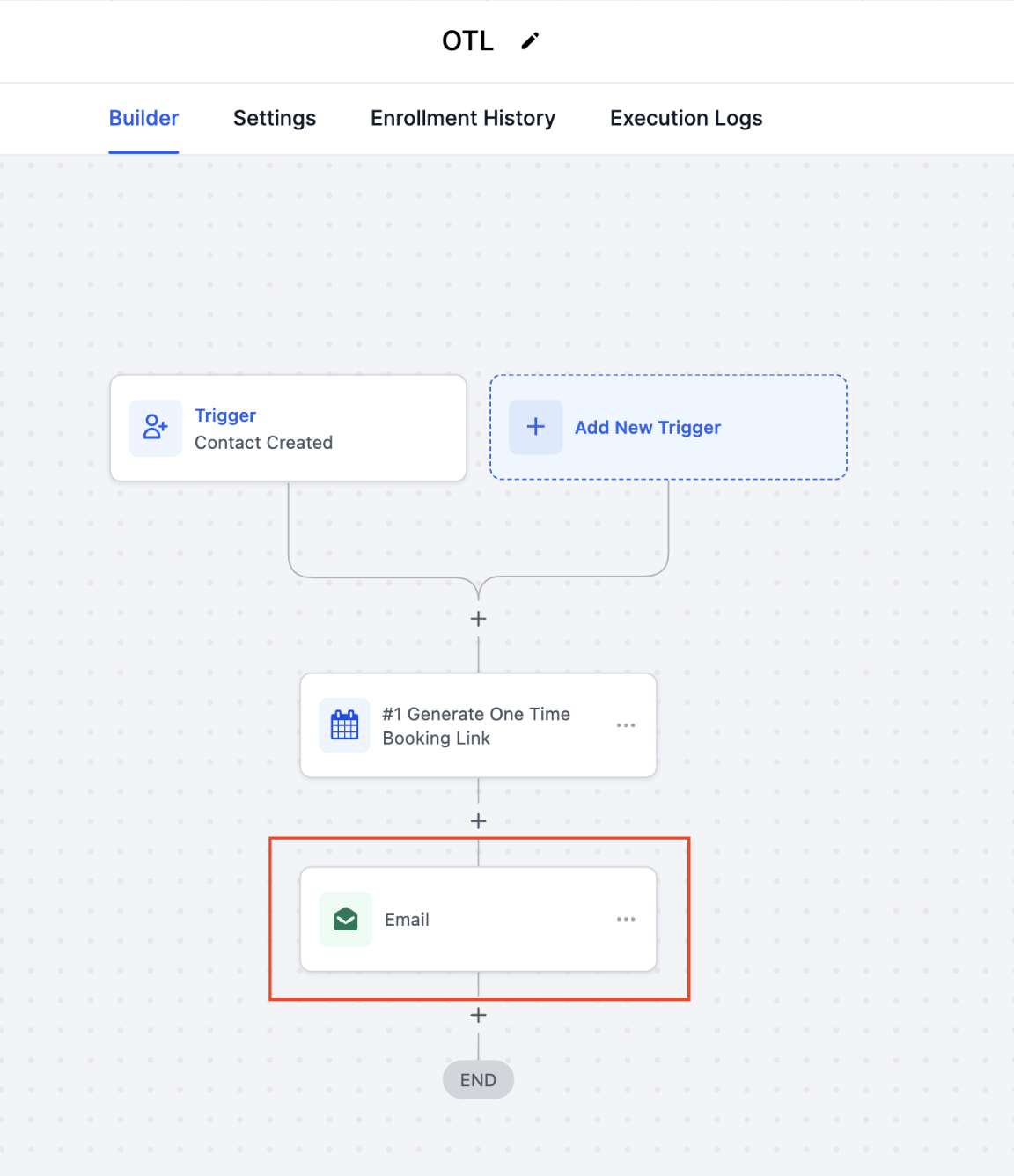
4. Share the Generated Link: To share the link with your contact, add a communication action (e.g., email) to your workflow.
5. Add the Custom Value: Insert the unique one-time link that will get generated each time a trigger is activated, into the email body using a custom value. Select 'Generate One Time Booking Link' and choose 'One Time Link.'
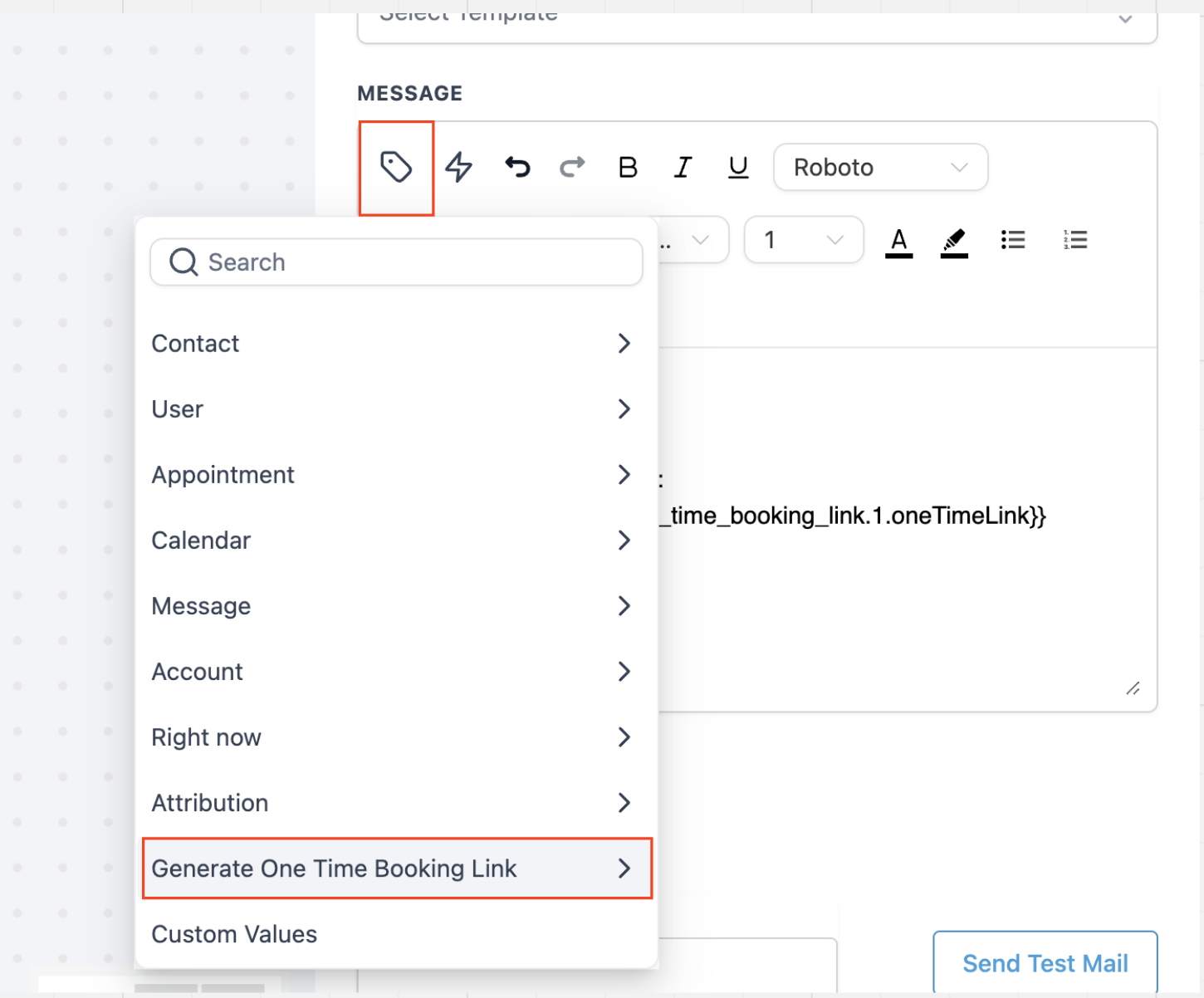
6. Customize Email Body: Customize the email body as needed and click 'Save.'
7. Publish Workflow: Once your workflow is set up, publish it. Now, each time a contact enters the workflow triggered by your defined condition, a unique one-time link will be generated and sent to them via email.
Was this article helpful?
Related articles
- How to Connect Your Google Calendar?Connecting your Google Calendar helps you sync your bookings from Google Calendar to the system and vice versa. This ensures correct availability, prevents double bookings, and facilitates seamless scheduling and booking management. TABLE OF CONTENTS - Prerequisites - How to Connect a Google CalendCalendars
- How to Connect Your Outlook Calendar?Overview Connecting your Outlook Calendar helps you sync your bookings from Outlook Calendar to the system and vice versa. This ensures correct availability, prevents double bookings, and facilitates seamless scheduling and booking management. Prerequisites You need access to your Outlook accountCalendars
- How to Connect Your iCloud Calendar?TABLE OF CONTENTS - Overview - Prerequisites - Getting Started - Step 1: Obtain your unique app-specific password from Apple - Step 2: How to Connect iCloud Calendar? - Step 3: Calendar Configuration - What is Calendar Configuration? - Limitations with iCloud Integration Overview Connecting your iCCalendars
- How to Connect Your Calendly Account?Connecting Calendly allows your scheduled events to automatically appear as appointments in your calendar system. Once connected, new bookings sync in real time, helping you keep schedules accurate, reduce manual work, and ensure guest information is captured consistently. This integration is desigCalendars