Google Organic Booking
In This Article
- What is Booking Redirect?
- Who is this applicable for?
- What do you need?
- Uploading Feeds
- Tips for Success
- How to Disable Integration?
What is Booking Redirect?
Google Booking Redirect a.k.a Google Organic Booking refers to the process of customers finding and booking services directly from a business's Google My Business (GMB) listing, without any involvement of third-party booking platforms or paid advertisements. When users search for a specific service or business on Google, and the business has enabled booking functionality through their GMB profile, customers can book appointments or services directly from the search results page or the business's Google Maps listing.
This feature allows businesses to streamline the booking process for potential customers, providing a convenient way for users to schedule appointments without visiting the business's website or using external booking platforms. Google Organic Booking helps businesses attract and convert local customers by making the booking experience seamless and accessible directly from Google search.
Who is this applicable for?
This feature can be used by users who have businesses in the following countries:
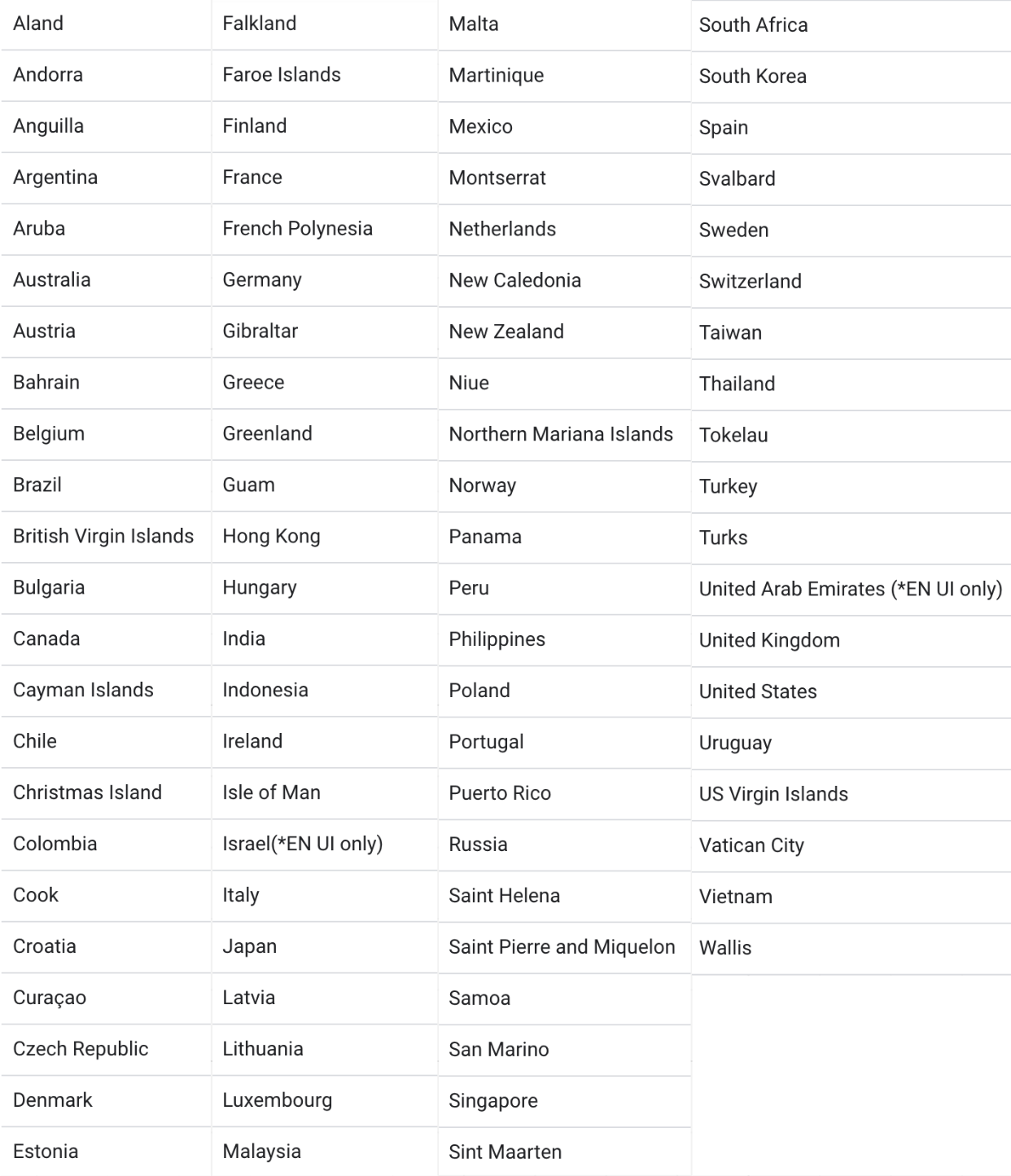
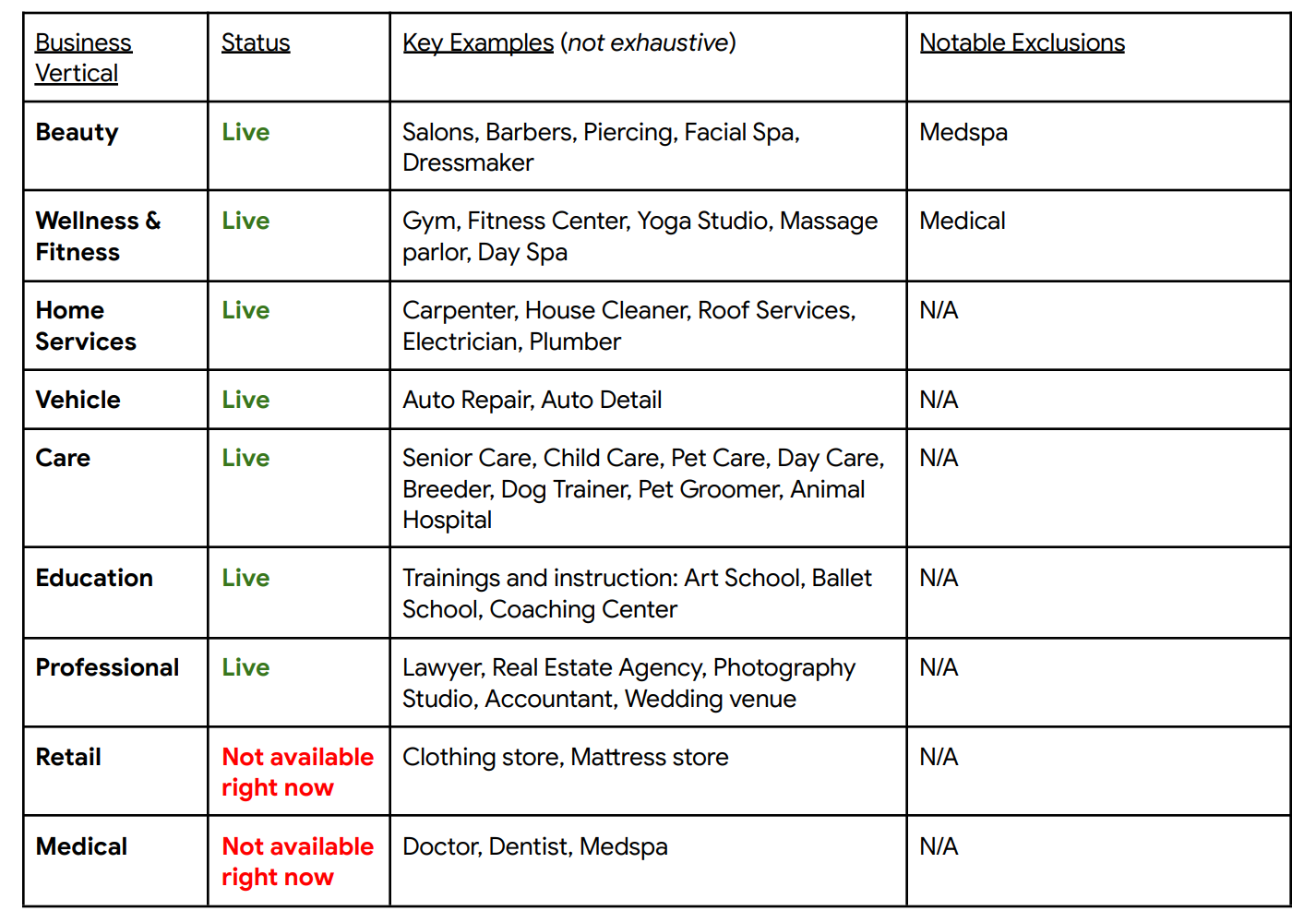
Following are the Business verticals this is applicable for with some exclusions:
What do you need?
- You must have a Google Business Profile for this feature
- Business should be in United States
Uploading Feeds
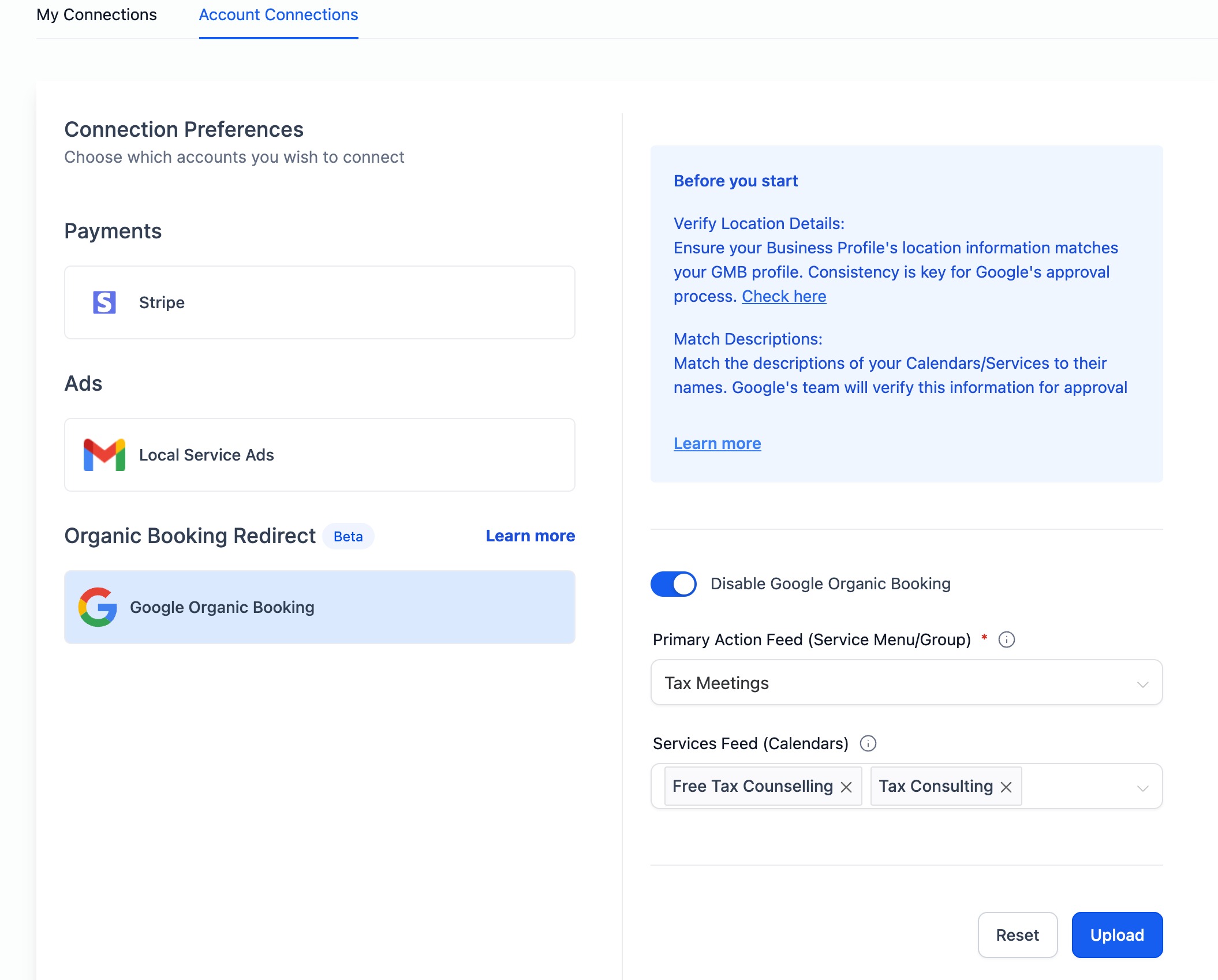
Go to Calendars Settings > Connections > Organic Booking Redirect
Step 1: Primary Action Feed (Book Online Button)
- Create a Booking Page:
- Set up a Service Menu or a Group of services. This detailed view helps customers choose services easily.
- Upload the Primary Action Feed:
- This link enables customers to directly book services. Ensure it’s active and user-friendly.
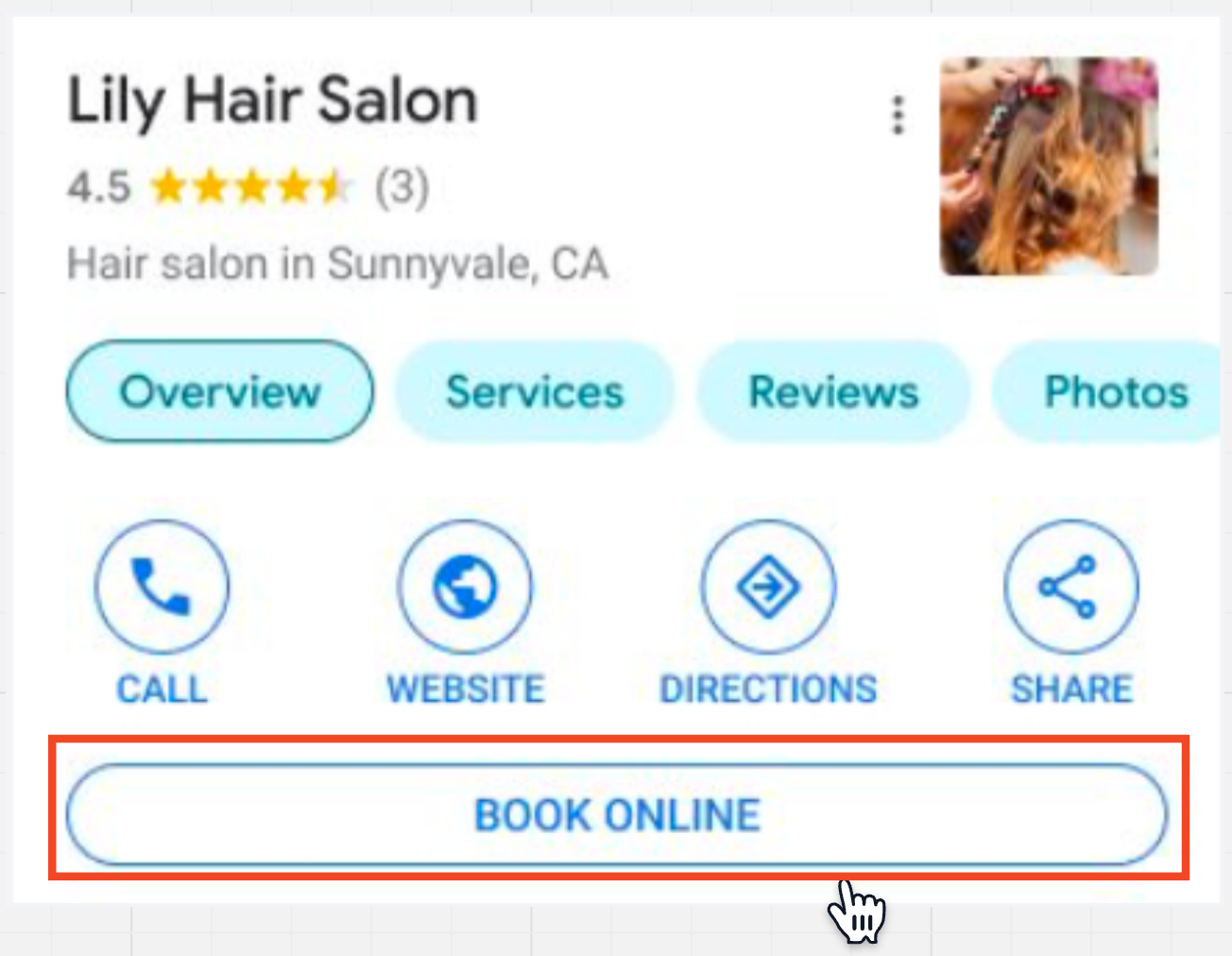
The Primary Feed action link would be added to the Book Online button as shown in the below example
Step 2: Individual Service Booking
- List Your Services:
- Any calendar which you have created can be used here which would show up under the services tab on Google
- Upload Individual Service Feeds:
- If you want certain calendars (services) to be shown you can select those Calendars in the Individual Service Booking dropdown.
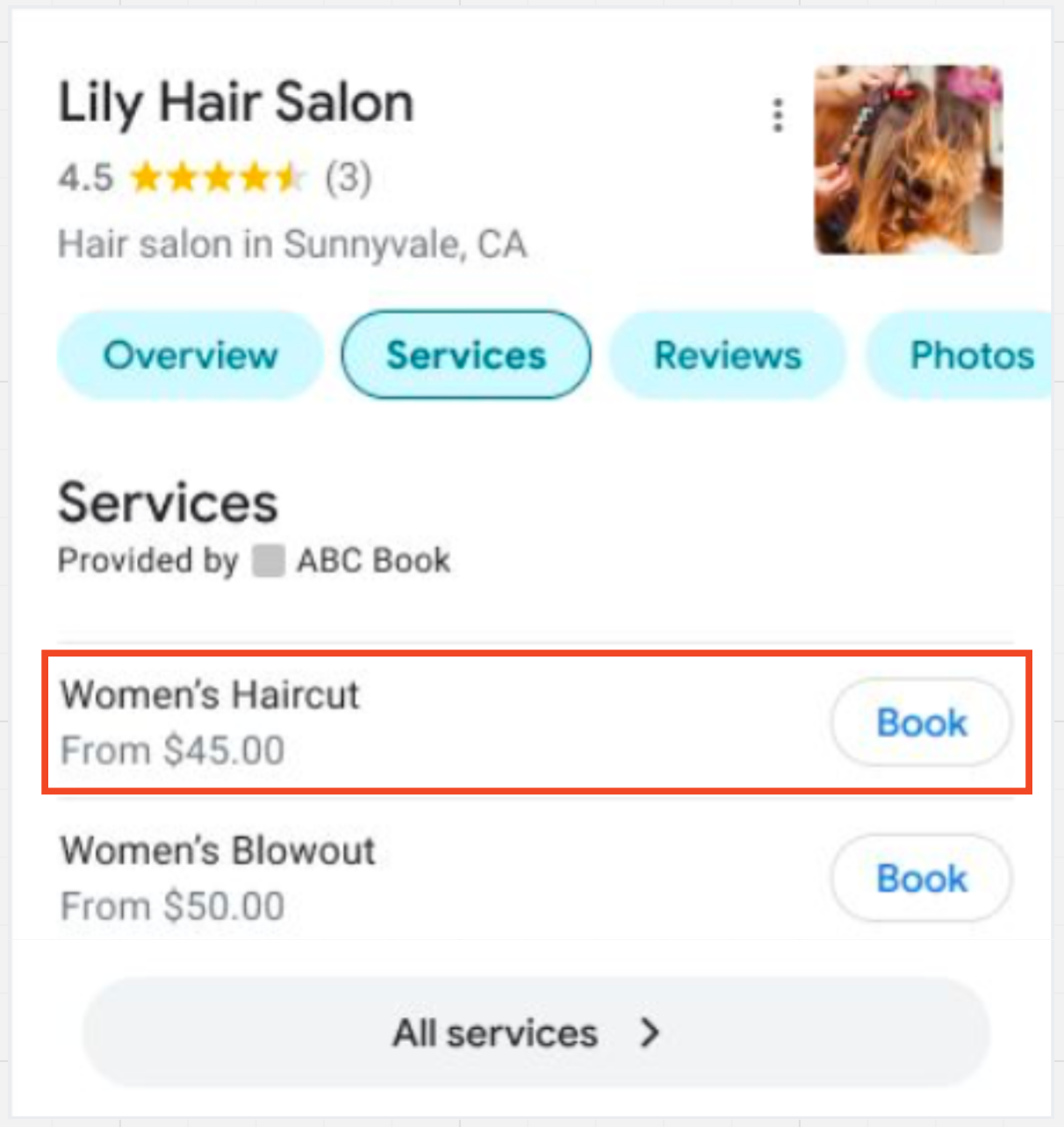
The Calendars which you upload in the Service Feed would appear on Google similar to the example shown below.
Tips for Success:
- Clear Descriptions: Make sure your services and calendars have clear, concise descriptions that match their names.
- Link Accuracy: Please ensure that you are selecting only service menu or group in the Primary Action Feed and Individual calendars Service Links
- Regular Updates: Keep your information current. Update your offerings and descriptions as needed for accuracy.
How to Disable Integration?
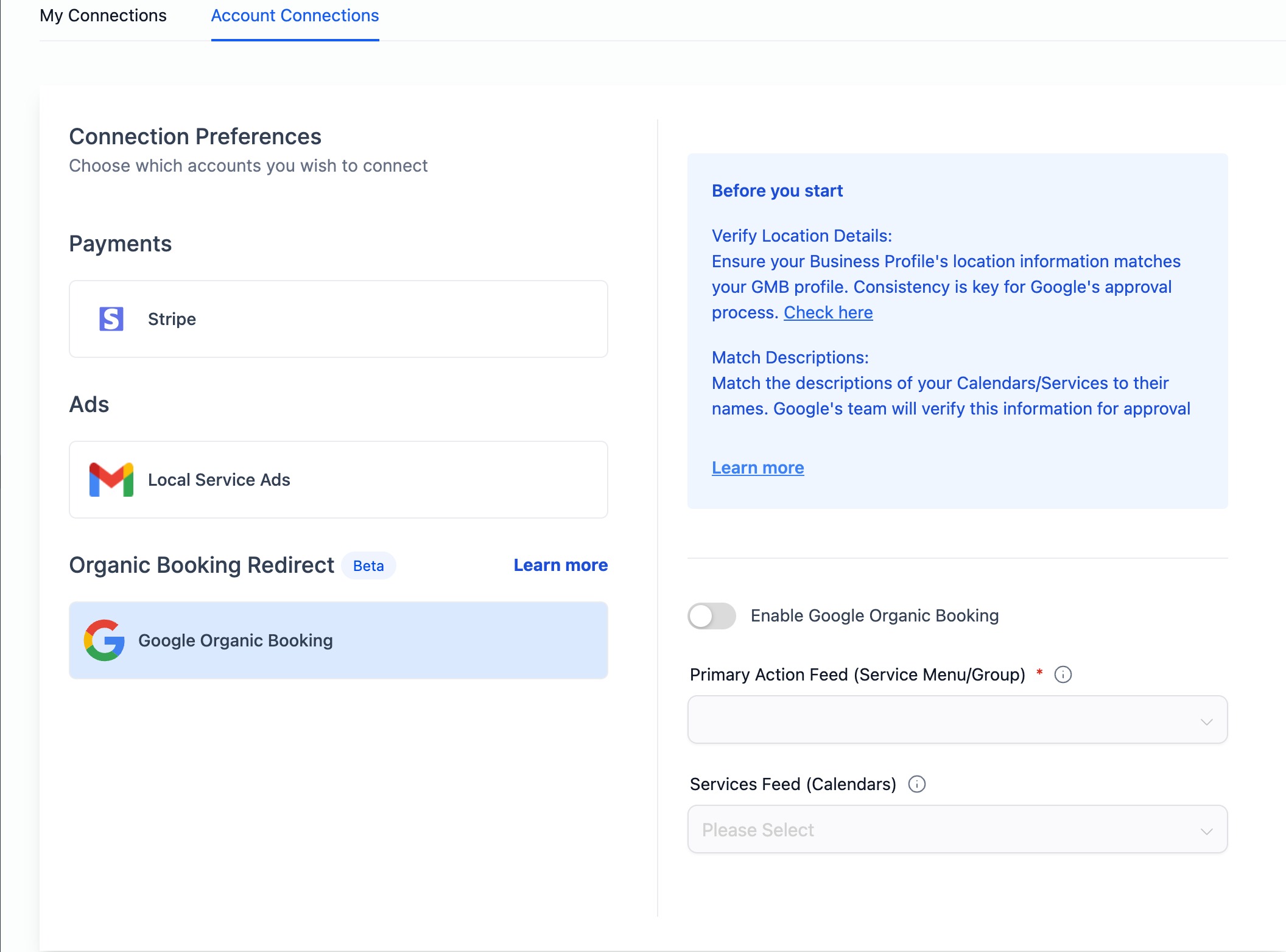
Users have the option to disable Google Organic Booking with a simple toggle in Calendar Settings. By disabling the integration, the system refrains from uploading any feed to Google. Consequently, the end customers won't find the option to discover and book services directly from a business's Google My Business (GMB) listing.
To disable the integration:
- Navigate to Calendar Settings > Connections Tab
- In the Account Connections tab, locate the Google Organic Booking section.
- Toggle the switch to disable Google Organic Booking.
Was this article helpful?
Related articles
- How to Connect Your Google Calendar?Connecting your Google Calendar helps you sync your bookings from Google Calendar to the system and vice versa. This ensures correct availability, prevents double bookings, and facilitates seamless scheduling and booking management. TABLE OF CONTENTS - Prerequisites - How to Connect a Google CalendCalendars
- How to Connect Your Outlook Calendar?Overview Connecting your Outlook Calendar helps you sync your bookings from Outlook Calendar to the system and vice versa. This ensures correct availability, prevents double bookings, and facilitates seamless scheduling and booking management. Prerequisites You need access to your Outlook accountCalendars
- How to Connect Your iCloud Calendar?TABLE OF CONTENTS - Overview - Prerequisites - Getting Started - Step 1: Obtain your unique app-specific password from Apple - Step 2: How to Connect iCloud Calendar? - Step 3: Calendar Configuration - What is Calendar Configuration? - Limitations with iCloud Integration Overview Connecting your iCCalendars
- How to Connect Your Calendly Account?Connecting Calendly allows your scheduled events to automatically appear as appointments in your calendar system. Once connected, new bookings sync in real time, helping you keep schedules accurate, reduce manual work, and ensure guest information is captured consistently. This integration is desigCalendars