One Time Link
- What is a One Time Link?
- Why are One Time Links important?
- How to Share a One Time Link?
- What Happens After Booking?
Related Article
Workflow Action for Generating One Time Link
What is a One Time Link?
A One Time Link is a unique scheduling link to your calendar, designed to automatically expire once an appointment has been scheduled.Unlike the permanent link or the scheduling link, a One Time Link offers a one time access to your calendar.
Why are One Time Links important?
- One Time Links are valuable across businesses, particularly for individuals who prefer not to share their entire calendar.
- These links automatically expire after each booking, giving you more control over your availability and preventing unwanted bookings.
- Once someone uses the link to book time with you, they can't do it again unless you give them a new link.
- This also prevents attendees from sharing your availability with people you don't know.
How to Share a One Time Link?
To share a one time link to your calendar:
- Navigate to Calendar Settings > Calendars.
- Click on the three dots next to your calendar and select "Share."
Note: You can now access the Scheduling Link, Permanent Link, One Time Link and Embed Code from the "Share" option in Calendar Settings
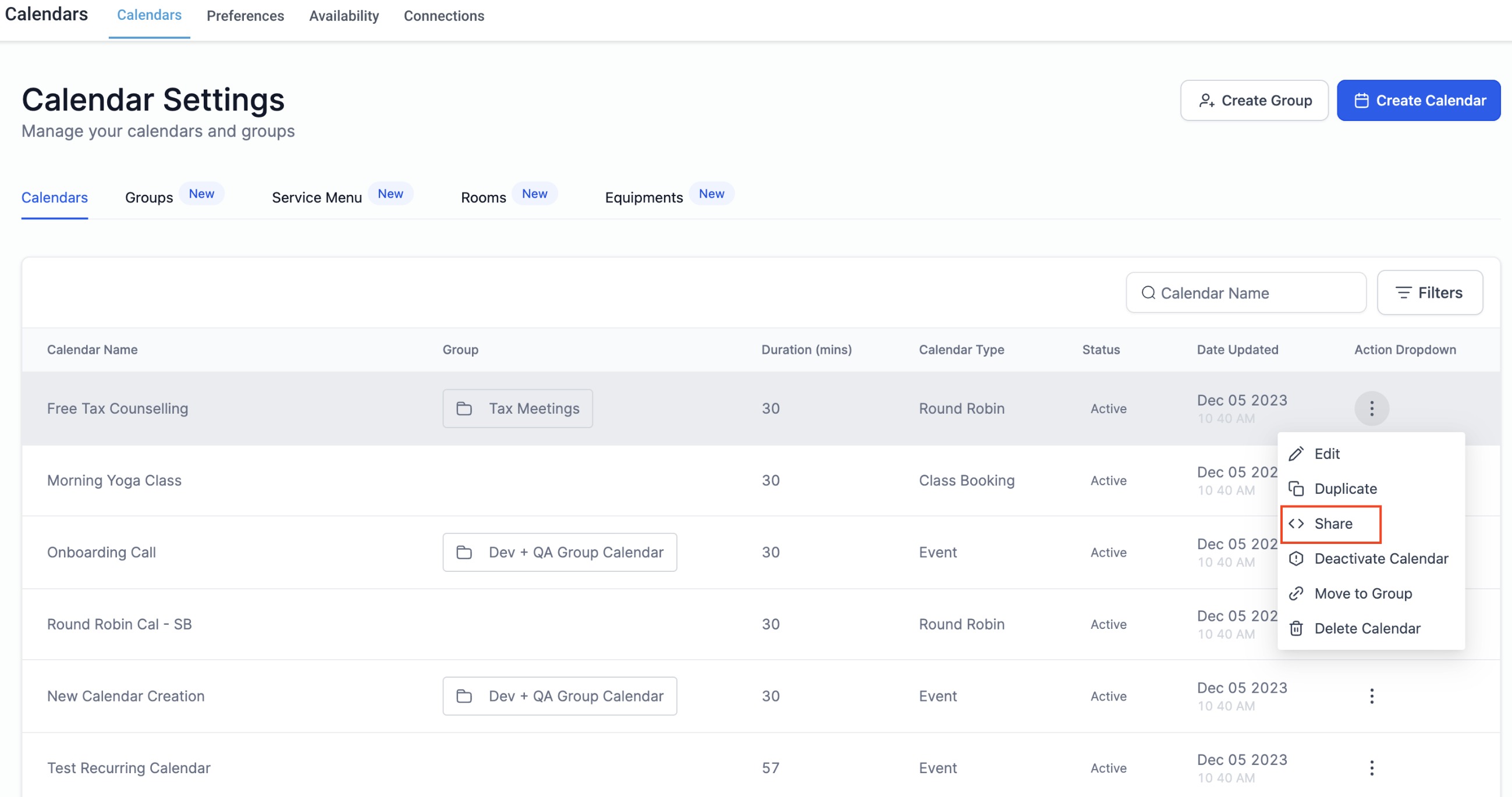
- In the sharing options, locate the "One Time Link" tab.
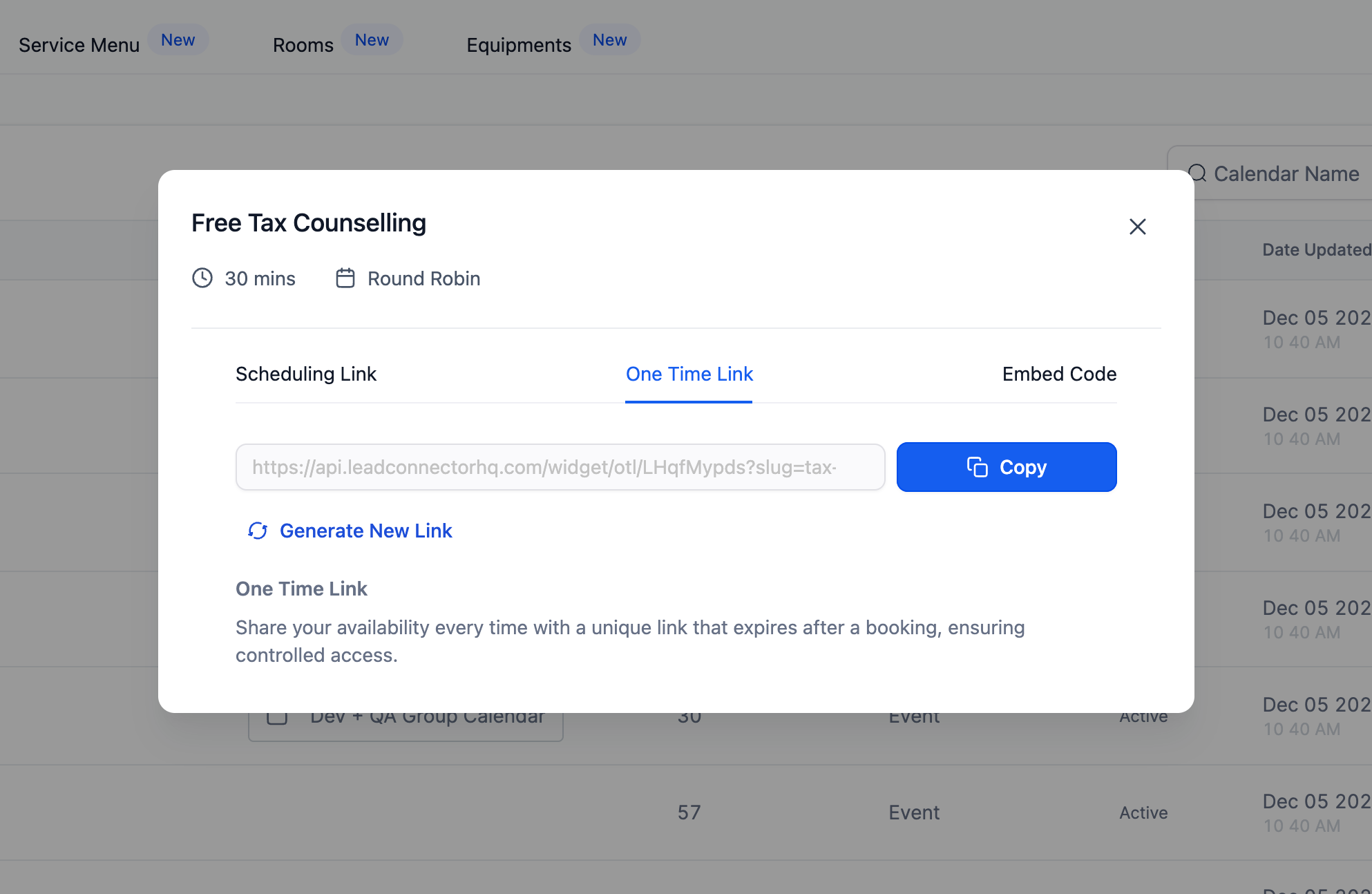
- Click on "Copy" to easily copy & paste the One Time Link wherever needed.
- To create a new link, click on the "Generate New Link" option to obtain a fresh URL.
What Happens After Booking?
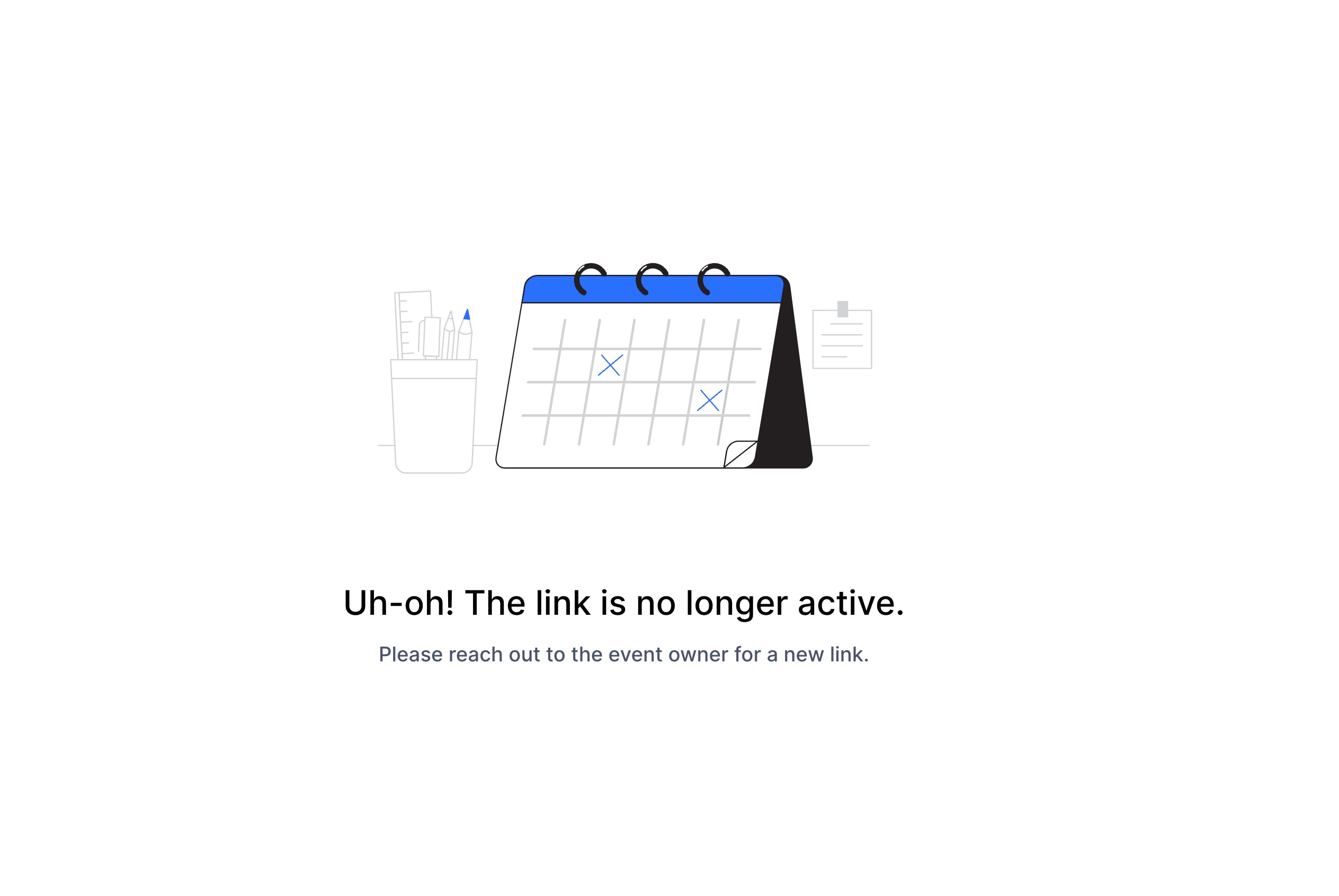
When a booking is made and the link expires, if someone attempts to schedule another appointment using the same link, they will be prompted to contact the owner as the link has already expired. This ensures that only valid and current links are used for scheduling purposes.
Was this article helpful?
Related articles
- How to Connect Your Google Calendar?Connecting your Google Calendar helps you sync your bookings from Google Calendar to the system and vice versa. This ensures correct availability, prevents double bookings, and facilitates seamless scheduling and booking management. TABLE OF CONTENTS - Prerequisites - How to Connect a Google CalendCalendars
- How to Connect Your Outlook Calendar?Overview Connecting your Outlook Calendar helps you sync your bookings from Outlook Calendar to the system and vice versa. This ensures correct availability, prevents double bookings, and facilitates seamless scheduling and booking management. Prerequisites You need access to your Outlook accountCalendars
- How to Connect Your iCloud Calendar?TABLE OF CONTENTS - Overview - Prerequisites - Getting Started - Step 1: Obtain your unique app-specific password from Apple - Step 2: How to Connect iCloud Calendar? - Step 3: Calendar Configuration - What is Calendar Configuration? - Limitations with iCloud Integration Overview Connecting your iCCalendars
- How to Connect Your Calendly Account?Connecting Calendly allows your scheduled events to automatically appear as appointments in your calendar system. Once connected, new bookings sync in real time, helping you keep schedules accurate, reduce manual work, and ensure guest information is captured consistently. This integration is desigCalendars