Troubleshooting Tool for Calendar
TABLE OF CONTENTS
Overview
The Troubleshooting Tool is designed to help users identify why specific calendar slots are unavailable in the booking widget. By providing detailed insights into slot availability, users can easily understand the reasons behind unavailable slots and take corrective action if needed.
Whether it's an issue with user availability, system settings, or a conflicting event, the tool offers a transparent view, ensuring that users can optimize their calendar settings for seamless booking experiences.
How to Use the Troubleshooting Tool?
1. Access the Tool:
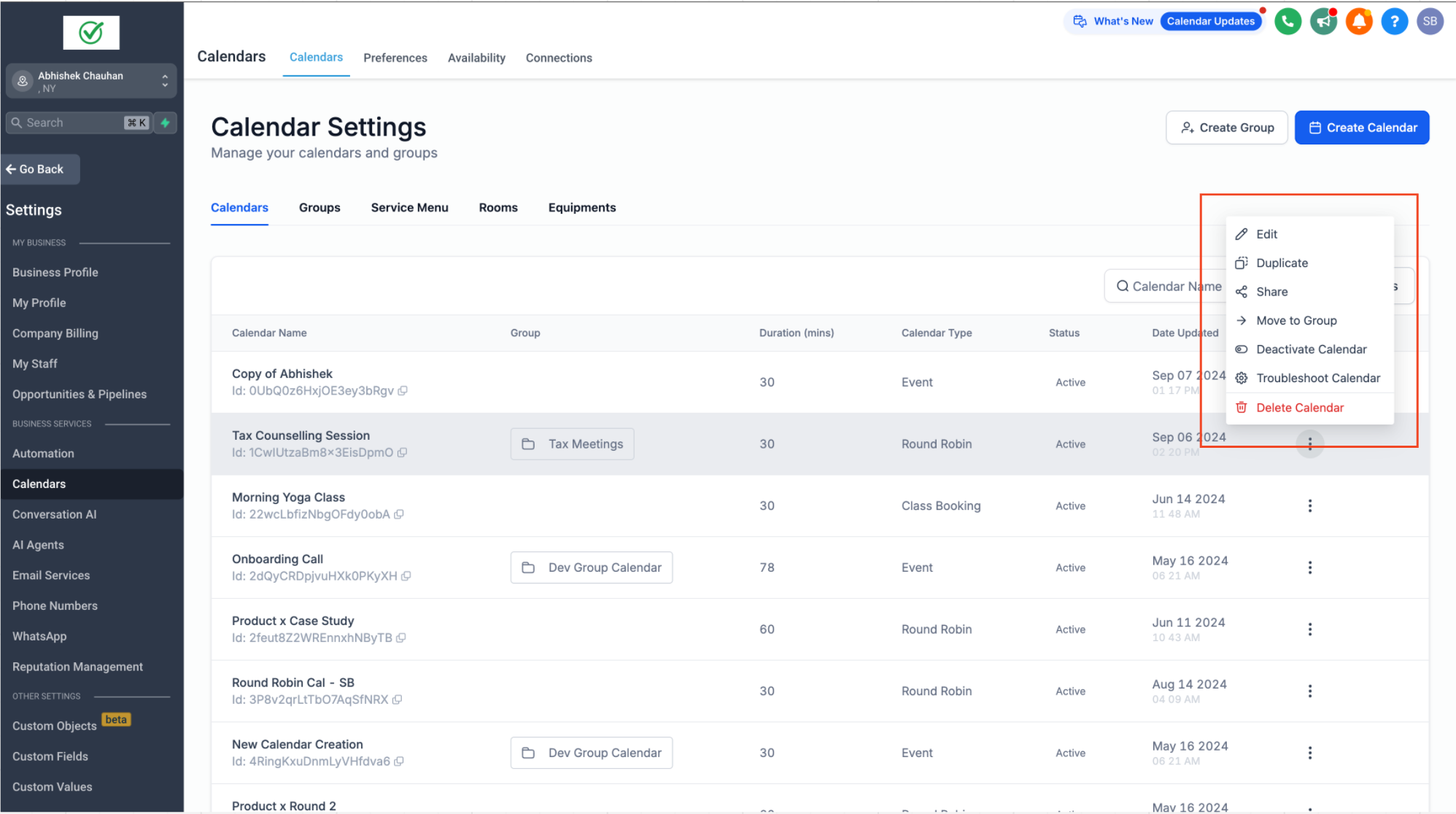
- Navigate to Calendar Settings.
- Select the calendar you want to troubleshoot.
- Click the three dots menu (⋮) and select Troubleshoot Calendar.
2. View Slots:
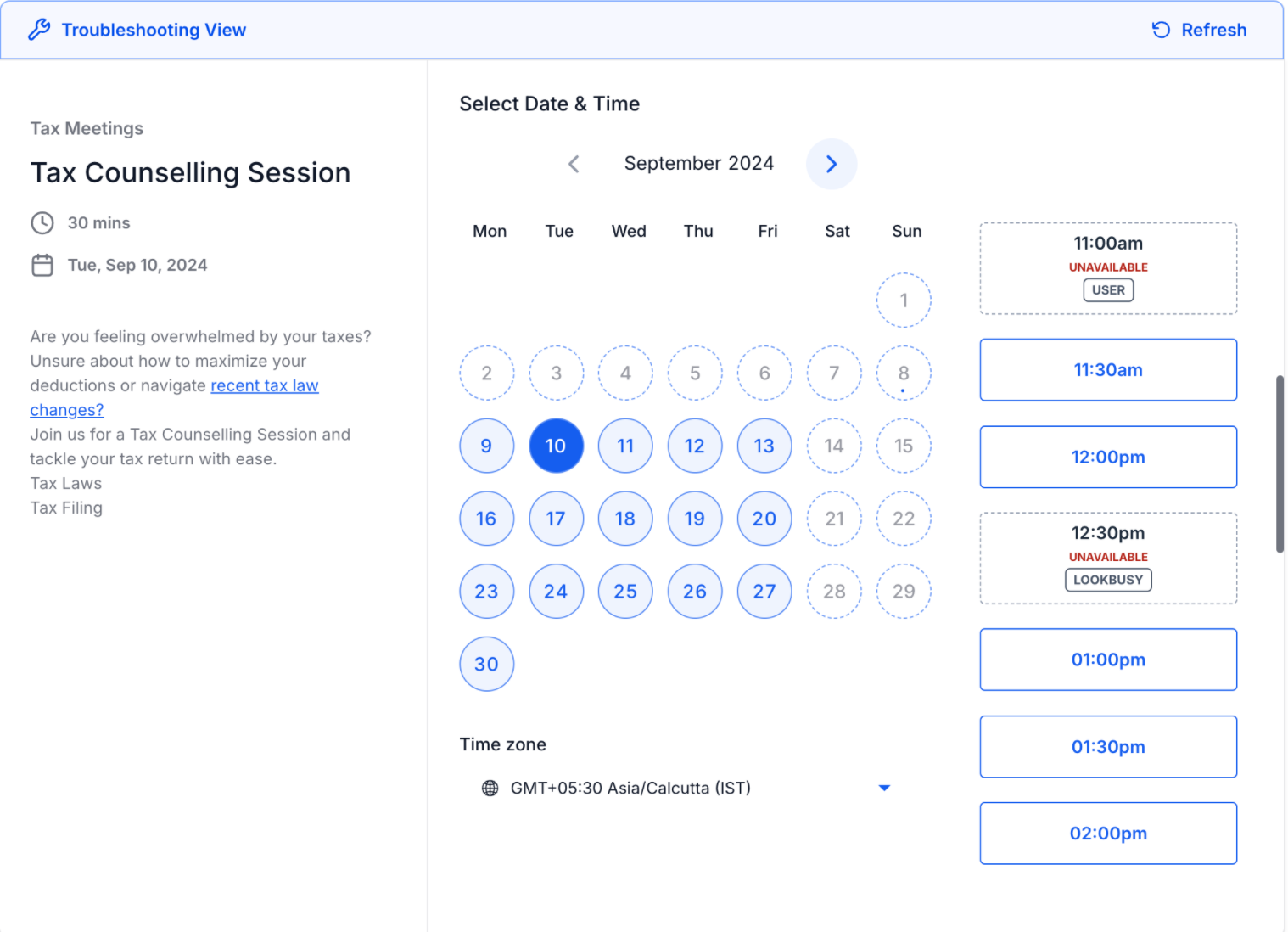
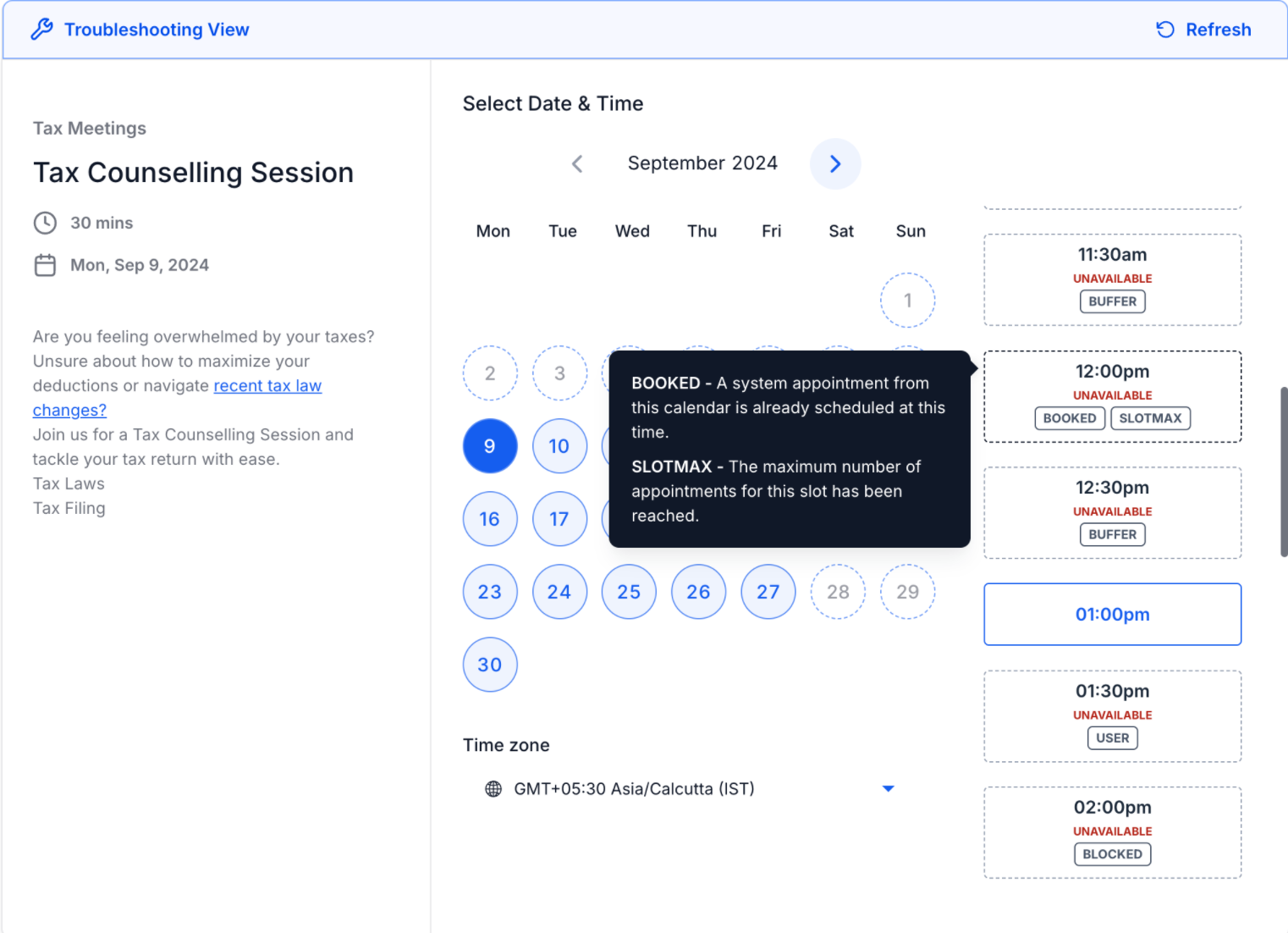
- The troubleshooting view will display all potential slots.
- For each unavailable slot, a code (with a description) will indicate the reason for its unavailability.
List of Codes & Descriptions
Below are the possible codes explaining why a slot is not available for booking:
- USER: No user is available because they are either blocked by another event or fall outside their set availability.
- COLLECTIVE: 1 or more users are unavailable for the collective appointment.
- CONFLICT: A third-party event is blocking this slot.
- BOOKED: A system appointment is already scheduled at this time.
- BLOCKED: A blocked-off time has been added for this duration.
- NOTICE: The slot cannot be shown due to the minimum scheduling notice requirement.
- TOOFAR: The slot is outside the allowed date range.
- DAYLIMIT: The maximum number of appointments for the day has been reached.
- SLOTMAX: The maximum number of appointments for this slot has been reached.
- BUFFER: A pre/post buffer is applied, blocking this slot.
- DURATION: The appointment duration is longer than the available time.
- PAST: This slot is in the past.
- LOOKBUSY: This slot is hidden due to the 'Look Busy' setting.
- NO SEATS: The maximum number of available seats has been reached.
- RESOURCE: A required resource (e.g., room or equipment) is not available.
Important Notes:
- The tool first checks your calendar’s availability and meeting intervals to generate all potential slots. It then shows which of these slots are available and which are not.
- For example, if your calendar availability is set from 10 AM to 12 PM and 6 PM to 8 PM with 60-minute meeting intervals, only the 10 AM, 11 AM, 6 PM, and 7 PM slots will be displayed, and their availability or unavailability will be shown accordingly for these four slots. If the calendar is unavailable on Saturdays, no slots will appear for that day.
Was this article helpful?
Related articles
- How to Connect Your Google Calendar?Connecting your Google Calendar helps you sync your bookings from Google Calendar to the system and vice versa. This ensures correct availability, prevents double bookings, and facilitates seamless scheduling and booking management. TABLE OF CONTENTS - Prerequisites - How to Connect a Google CalendCalendars
- How to Connect Your Outlook Calendar?Overview Connecting your Outlook Calendar helps you sync your bookings from Outlook Calendar to the system and vice versa. This ensures correct availability, prevents double bookings, and facilitates seamless scheduling and booking management. Prerequisites You need access to your Outlook accountCalendars
- How to Connect Your iCloud Calendar?TABLE OF CONTENTS - Overview - Prerequisites - Getting Started - Step 1: Obtain your unique app-specific password from Apple - Step 2: How to Connect iCloud Calendar? - Step 3: Calendar Configuration - What is Calendar Configuration? - Limitations with iCloud Integration Overview Connecting your iCCalendars
- How to Connect Your Calendly Account?Connecting Calendly allows your scheduled events to automatically appear as appointments in your calendar system. Once connected, new bookings sync in real time, helping you keep schedules accurate, reduce manual work, and ensure guest information is captured consistently. This integration is desigCalendars