Collect Payments with Recurring Appointments (Booking Widget)
TABLE OF CONTENTS
Recurring appointments are appointments that repeat according to a set schedule, such as daily, weekly, or monthly.
Payment Options for Recurring Appointment
You can accept payments for recurring appointments on the booking widget with two options:
- Collect Payment for First Appointment Only
- The payment is collected for the initial appointment only. For example, if you have 3 recurring appointments and the price is $50 per appointment, you will collect $50 at the time of booking. Subsequent payments for the remaining appointments will need to be collected manually.
- Collect Payment for All Appointments
- The total amount is collected at the time of booking, covering all appointments in the series. For example, for 3 recurring appointments at $50 each, a total of $150 is collected upfront. However, the final amount charged may vary depending on how many appointments are actually booked. This could change based on your availability and the settings you’ve configured for handling unavailability.
Note: Recurring Calendars do not support partial payments.
How to Set This Up
1. Go to Calendar Settings:
- Navigate to Calendar Settings and select the calendar you wish to configure.
2. Ensure Recurring Meetings and Payment Provider Are Set Up:
- Make sure Recurring Meetings are enabled (go to Calendar > Availability Tab) and your payment provider is integrated (check Payments Module > Integration).
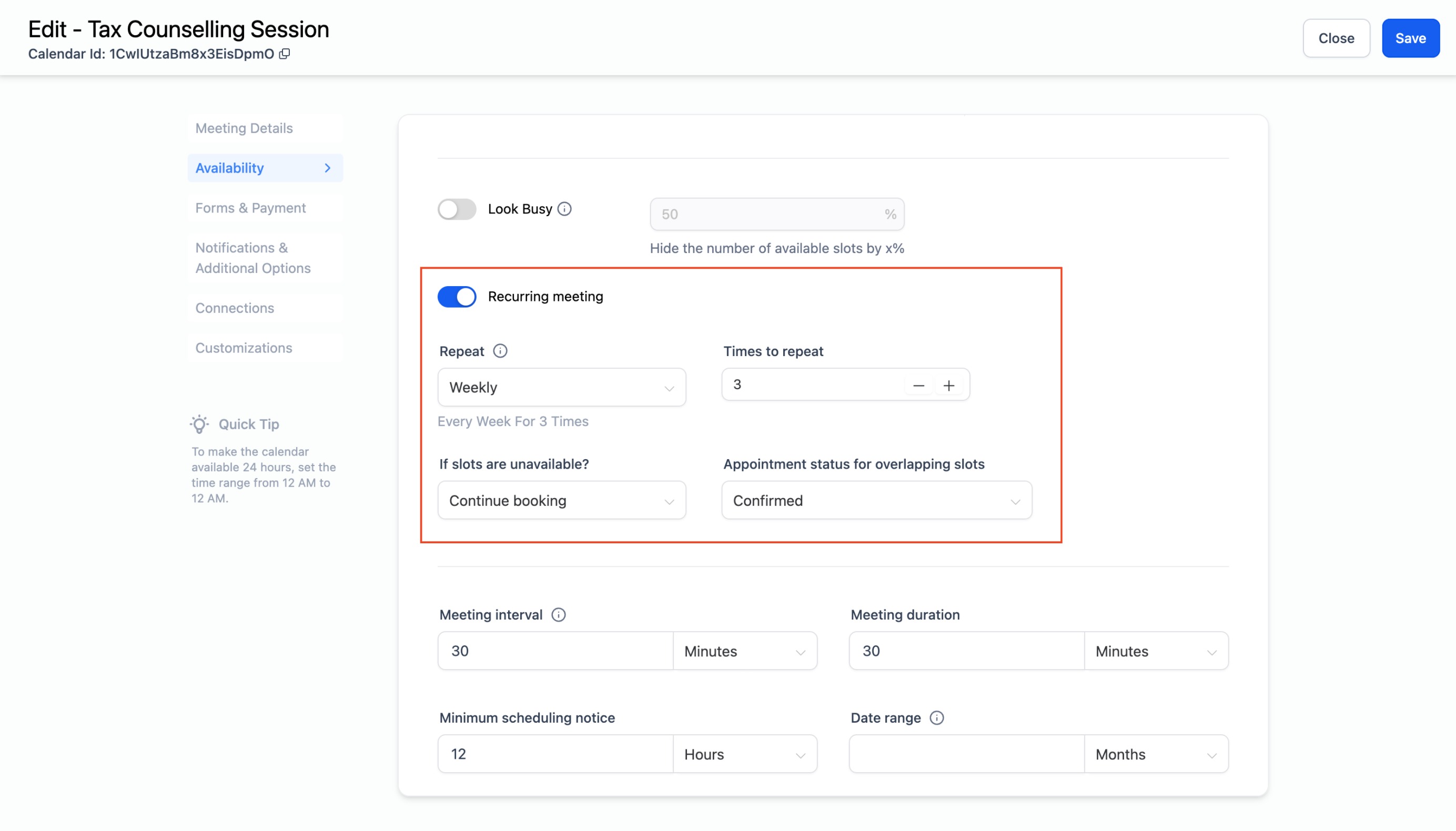
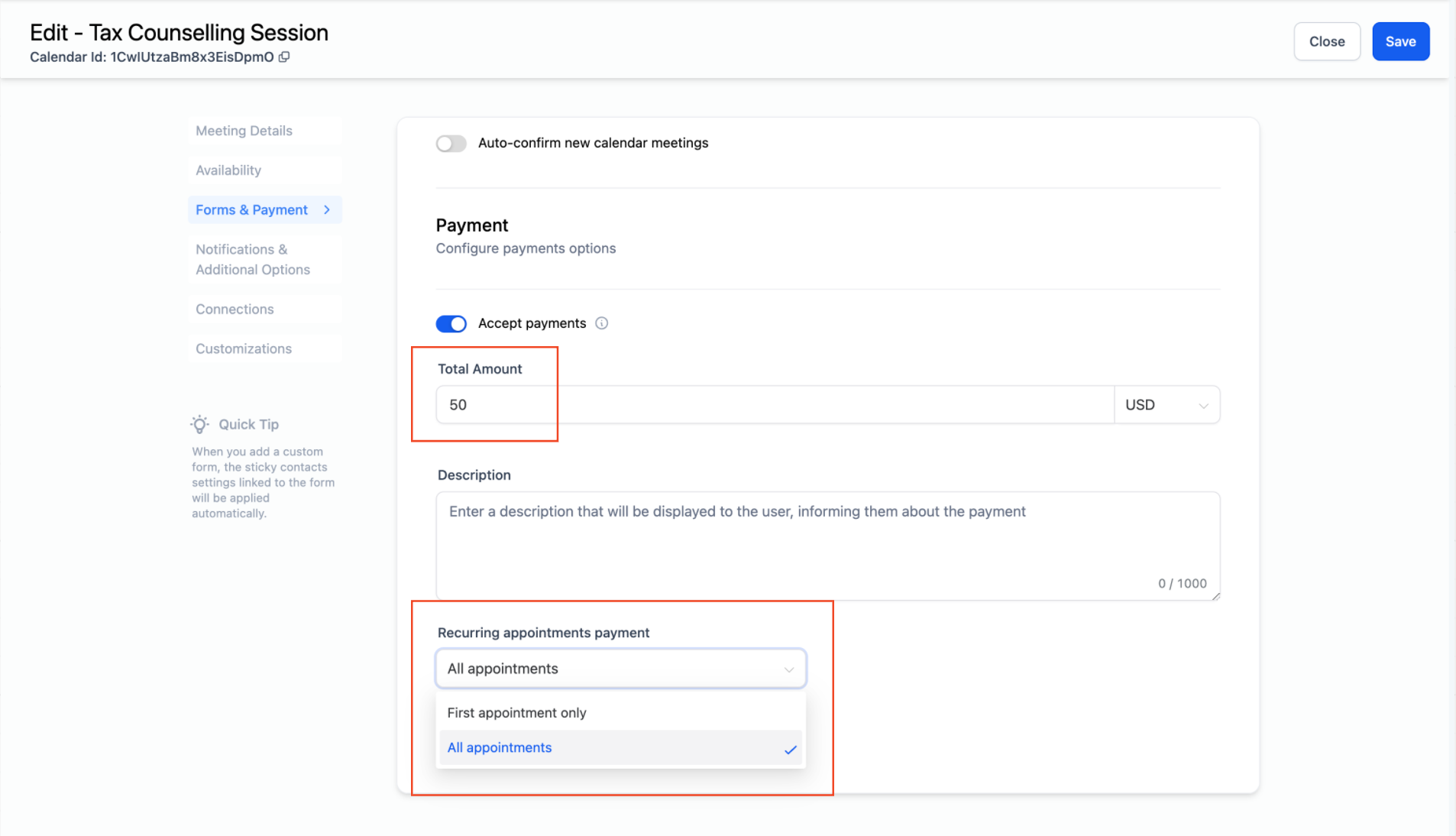
3. Configure Payment Options:
- In the selected calendar, go to the Forms and Payments tab.
- Under Accept Payments, if recurring appointments are enabled, you will see options to Collect Payment for First Appointment Only or Collect Payment for All Appointments.
- Choose your preferred option and click Save.
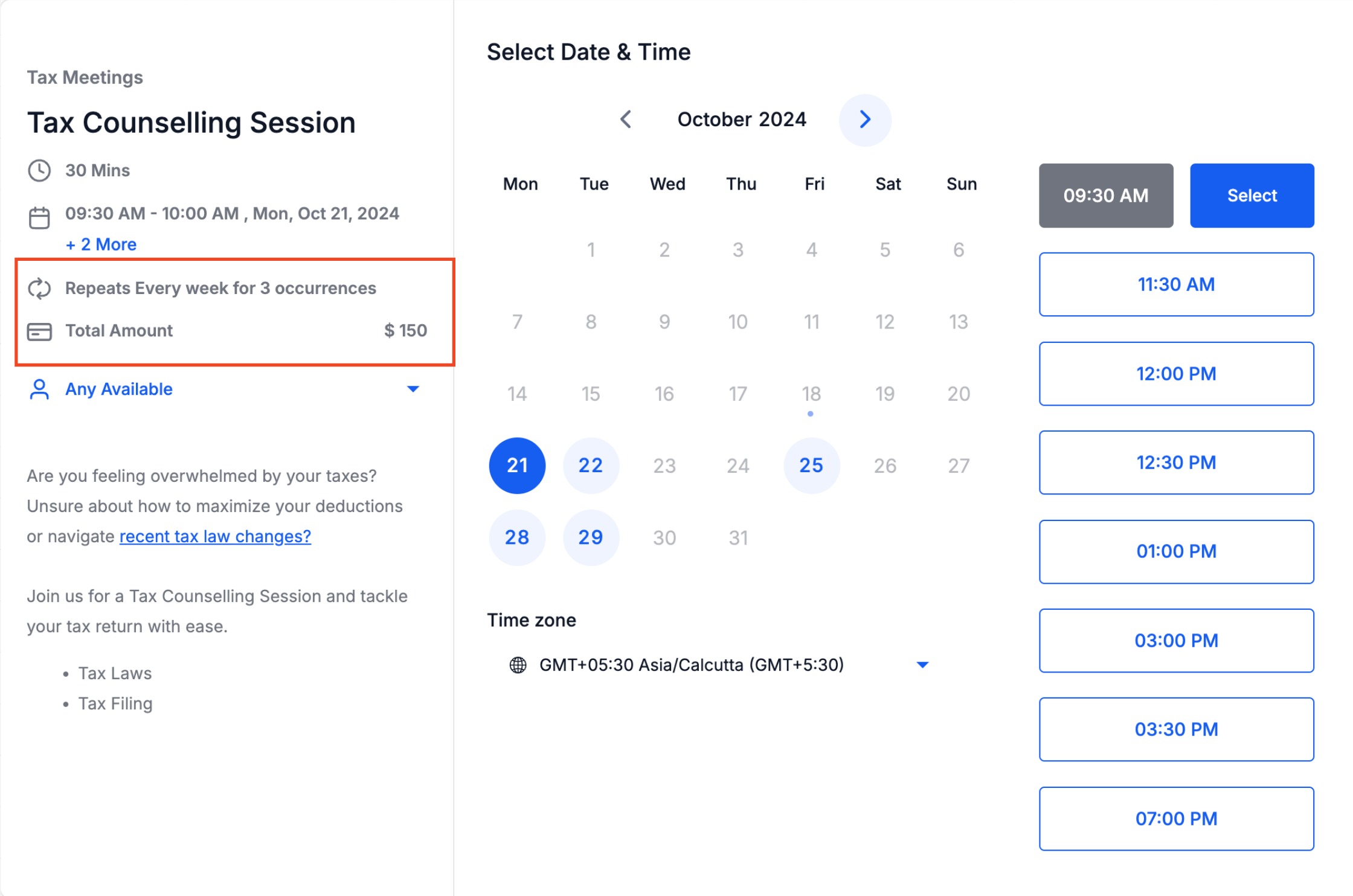
With these settings, payments for recurring appointments will be handled according to your selected option.
Was this article helpful?
Related articles
- How to Connect Your Google Calendar?Connecting your Google Calendar helps you sync your bookings from Google Calendar to the system and vice versa. This ensures correct availability, prevents double bookings, and facilitates seamless scheduling and booking management. TABLE OF CONTENTS - Prerequisites - How to Connect a Google CalendCalendars
- How to Connect Your Outlook Calendar?Overview Connecting your Outlook Calendar helps you sync your bookings from Outlook Calendar to the system and vice versa. This ensures correct availability, prevents double bookings, and facilitates seamless scheduling and booking management. Prerequisites You need access to your Outlook accountCalendars
- How to Connect Your iCloud Calendar?TABLE OF CONTENTS - Overview - Prerequisites - Getting Started - Step 1: Obtain your unique app-specific password from Apple - Step 2: How to Connect iCloud Calendar? - Step 3: Calendar Configuration - What is Calendar Configuration? - Limitations with iCloud Integration Overview Connecting your iCCalendars
- How to Connect Your Calendly Account?Connecting Calendly allows your scheduled events to automatically appear as appointments in your calendar system. Once connected, new bookings sync in real time, helping you keep schedules accurate, reduce manual work, and ensure guest information is captured consistently. This integration is desigCalendars