'Look Busy' in Calendar Settings
TABLE OF CONTENTS
Overview
The "Look Busy" feature is designed to help you appear more in demand on your booking widget by hiding a percentage of your available slots. This creates a sense of urgency for your bookers, as the number of visible slots is reduced. It's important to note that this feature only affects the booking widget; your entire schedule remains available and bookable through the in-app appointment modal.
How It Works?
When you enable the "Look Busy" feature, you can specify a percentage of slots to hide from your total availability. Once set, this percentage of slots is randomly hidden from the widget. As bookers schedule new appointments, the number of visible slots remains constant until the actual number of slots available matches the number being shown. At that point, the widget displays the actual available slots.
For example: If you have four time slots available in a day and you choose to hide 50% of them, your clients might see only two available slots.
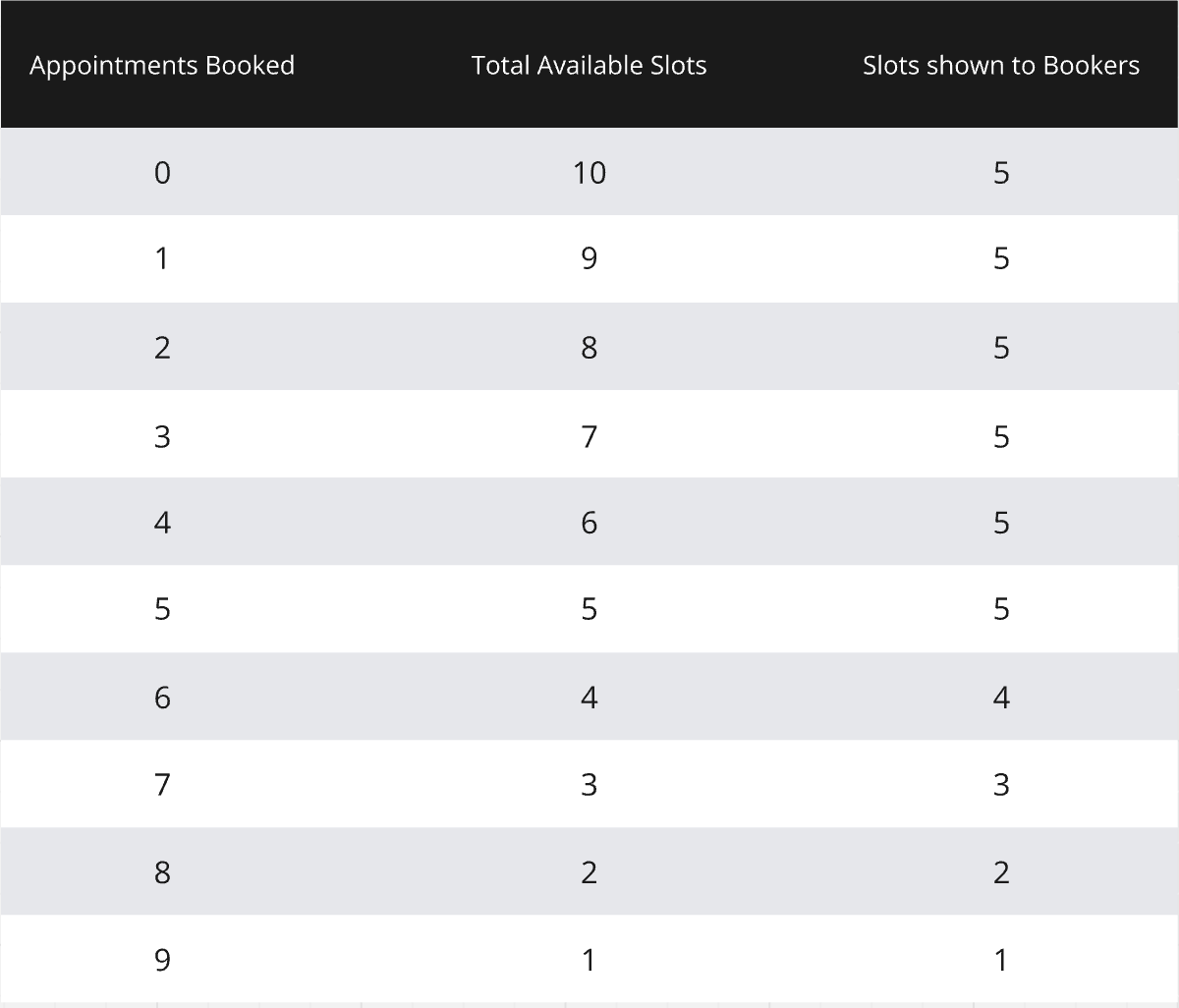
If you have ten time slots available in a day and you choose to hide 50% of them, this is how the slots would appear on the booking widget.
How to Enable "Look Busy"?
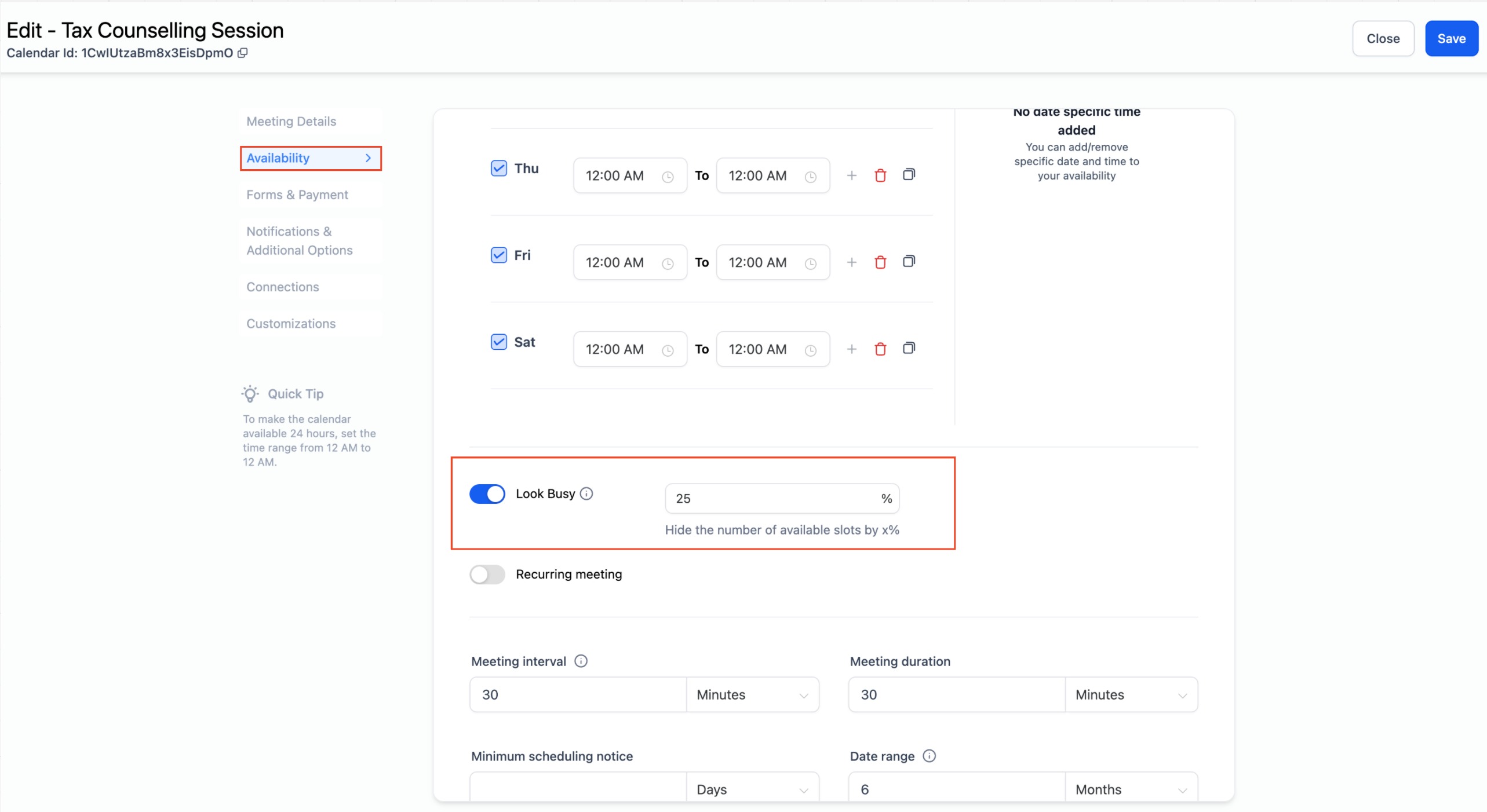
- Go to Calendar Settings and select the desired calendar.
- Navigate to the Availability tab.
- Locate the Look Busy option.
- Turn it on and enter the percentage of slots you want to hide.
- Click Save.
Supported Calendar Types
- Event Calendar
- Round Robin Calendar
- Collective Calendar
- Service Calendar
Important Notes
- Class Booking and Service Menu: The "Look Busy" feature is currently not applicable for class bookings and service menus.
- Appointment Modal: All slots are shown in the in-app appointment modal, regardless of the "Look Busy" setting.
- Recurring Appointments: For recurring appointments, a slot may appear hidden due to the "Look Busy" setting on future dates, but it will still be booked based on the first slot's date and time and the recurrence settings.
Was this article helpful?
Related articles
- How to Connect Your Google Calendar?Connecting your Google Calendar helps you sync your bookings from Google Calendar to the system and vice versa. This ensures correct availability, prevents double bookings, and facilitates seamless scheduling and booking management. TABLE OF CONTENTS - Prerequisites - How to Connect a Google CalendCalendars
- How to Connect Your Outlook Calendar?Overview Connecting your Outlook Calendar helps you sync your bookings from Outlook Calendar to the system and vice versa. This ensures correct availability, prevents double bookings, and facilitates seamless scheduling and booking management. Prerequisites You need access to your Outlook accountCalendars
- How to Connect Your iCloud Calendar?TABLE OF CONTENTS - Overview - Prerequisites - Getting Started - Step 1: Obtain your unique app-specific password from Apple - Step 2: How to Connect iCloud Calendar? - Step 3: Calendar Configuration - What is Calendar Configuration? - Limitations with iCloud Integration Overview Connecting your iCCalendars
- How to Connect Your Calendly Account?Connecting Calendly allows your scheduled events to automatically appear as appointments in your calendar system. Once connected, new bookings sync in real time, helping you keep schedules accurate, reduce manual work, and ensure guest information is captured consistently. This integration is desigCalendars